
Introduction
This manual provides detailed instructions for the Somic G932 Virtual 7.1 Surround Sound Gaming Headset. Please read this manual thoroughly before using the product to ensure proper operation and to maximize your gaming experience.

Image: Front view of the Somic G932 Gaming Headset, showcasing its design and orange LED lighting on the earcups.
Package Contents
Ensure all items are present in the package:
- Somic G932 Virtual 7.1 Surround Sound Gaming Headset
- Product Instruction Manual (this document)
- Warranty Card
Setup Instructions
Connecting the Headset
The Somic G932 headset connects via a USB plug. It is compatible with PCs, PS4, and laptops.
- Connect to PC/Laptop: Insert the USB plug of the headset into an available USB port on your computer. The operating system should automatically detect and install the necessary drivers.
- Connect to PS4: Insert the USB plug into an available USB port on your PlayStation 4 console. Navigate to the PS4 settings to configure audio output if necessary.
Virtual 7.1 Surround Sound Setup
For optimal Virtual 7.1 Surround Sound experience, ensure the headset's dedicated software (if available from Somic's official website) is installed on your PC. This software allows for customization of audio profiles and surround sound settings.
Operating the Headset
Microphone Usage
The headset features an adjustable, omnidirectional microphone. It can be positioned for optimal voice capture.

Image: Somic G932 headset showing the adjustable and retractable omnidirectional microphone in an extended position.
- Adjusting the Microphone: Gently bend the microphone arm to position it closer to your mouth for clear communication.
- Retracting the Microphone: When not in use, the microphone can be retracted for convenience.
In-Line Control Functions
The headset features an in-line control unit for easy access to audio adjustments.

Image: Detailed view of the in-line control unit, highlighting buttons for volume adjustment, microphone control, and LED light control.
- Volume + (1): Press to increase the headset volume.
- Volume - (2): Press to decrease the headset volume.
- Mic Control (3): Toggle this switch to mute or unmute the microphone. A light indicator on the microphone tip will show its status (e.g., lit when active, off when muted).
- Light Control (4): Toggle this switch to turn the LED lights on the earcups on or off.
Wearing the Headset
The headset features a lightweight and self-adjusting headband design for comfort during extended use. The large-sized earmuffs are designed for passive noise reduction and comfort.
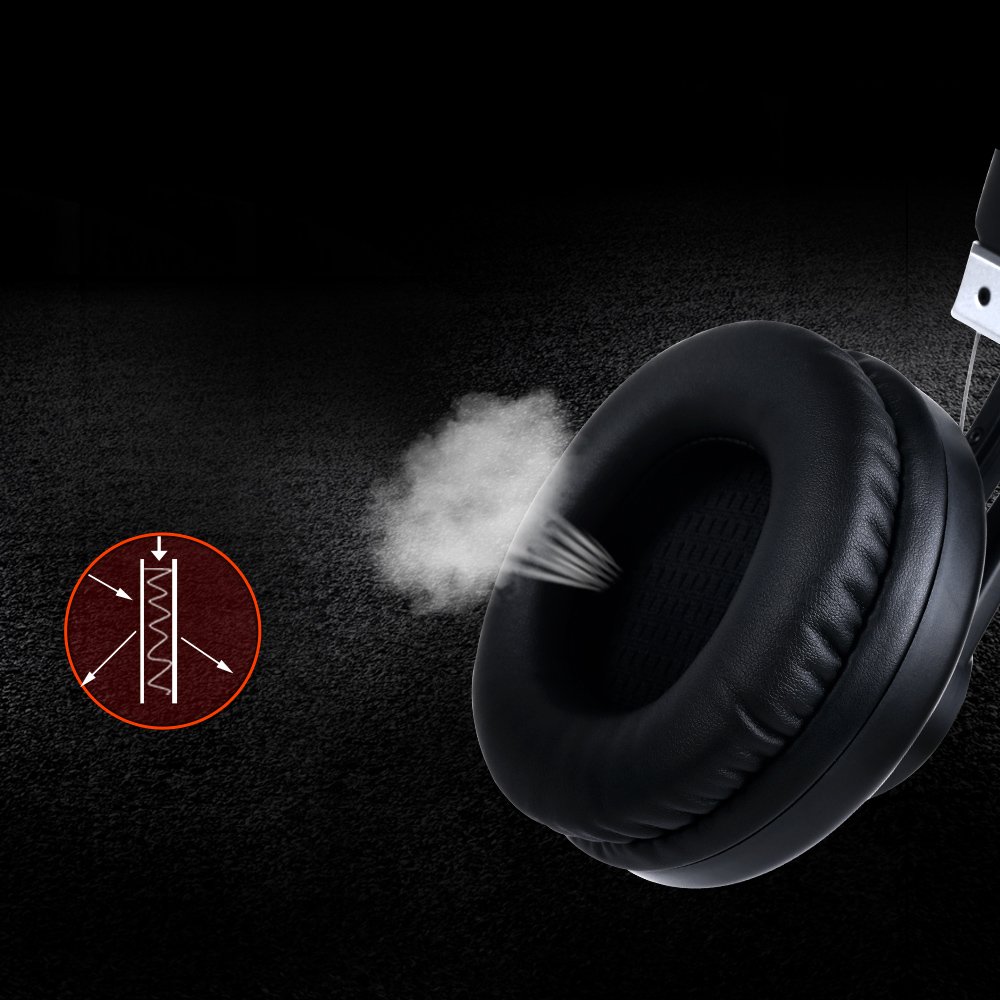
Image: Close-up of an earcup, illustrating the breathable material and design for comfort and passive noise reduction.
Maintenance and Care
Proper maintenance ensures the longevity and performance of your Somic G932 headset.
- Cleaning: Use a soft, dry cloth to clean the headset. Do not use abrasive cleaners or solvents.
- Storage: Store the headset in a cool, dry place away from direct sunlight and extreme temperatures.
- Cable Care: Avoid sharp bends or excessive pulling on the cable to prevent damage.
- Earmuffs: Periodically check earmuffs for wear and tear.
Troubleshooting
If you encounter issues with your Somic G932 headset, refer to the following common solutions:
- No Sound:
- Ensure the USB plug is fully inserted into the port.
- Check the in-line volume control to ensure it is not set to minimum.
- Verify audio settings on your computer or console (e.g., default playback device).
- Test the headset on another device to rule out a device-specific issue.
- Microphone Not Working:
- Ensure the microphone mute switch on the in-line control is in the "unmuted" position.
- Check microphone settings in your computer's or console's sound control panel.
- Confirm the microphone is positioned correctly and not obstructed.
- Virtual 7.1 Surround Sound Not Functioning:
- Ensure the dedicated Somic audio software is installed and configured correctly on your PC.
- Verify that the 7.1 surround sound option is enabled within the software or your system's audio settings.
Technical Specifications
Below are the technical specifications for the Somic G932 Gaming Headset.

Image: Chart displaying key technical specifications for the Somic G932 headset, including microphone dimensions, impedance, and driver diameter.
| Feature | Specification |
|---|---|
| Model Number | G932 |
| Connectivity Technology | Wired (USB) |
| Microphone Dimensions | Ø4.0 X 1.5mm |
| Microphone Directivity | Omnidirectional |
| Microphone Impedance | <=2.2kΩ |
| Microphone Sensitivity | -47±3dB (at 1KHz) |
| Driver Diameter | Ø50mm |
| Sensitivity (S.P.L) | 105±3dB (at 1KHz) |
| Impedance | 32Ω |
| Frequency Response | 20Hz-20kHz |
| Cord Length | >=2.2m |
| Net Weight | 378g |
| Product Dimensions (LxWxH) | 20.32 x 17.78 x 8.89 cm |
| Material | Plastic |
| Color | Black |
| Noise Control | Passive Noise Reduction |
Warranty Information
The Somic G932 Gaming Headset comes with a 1-year warranty from the date of purchase. Please retain your purchase receipt and the included Warranty Card for any warranty claims. The warranty covers manufacturing defects and malfunctions under normal use conditions.
For detailed terms and conditions, refer to the Warranty Card provided in your package.
Customer Support
If you require further assistance or have questions not covered in this manual, please contact Somic customer support. Refer to the contact information provided on the Warranty Card or visit the official Somic website for support resources.


