
1. Introduction
The JBL Boost TV is an ultra-compact TV speaker designed to significantly enhance your television's audio experience with JBL signature sound. Measuring only 15 inches (380mm) in length, it delivers high-quality sound suitable for various room sizes. This soundbar features deep bass, virtual surround sound, and Dolby Digital support for HD movies. It also supports Bluetooth audio streaming from wireless mobile devices and includes JBL SoundShift™ technology, allowing seamless switching between TV audio and a connected mobile device.
2. What's in the Box
- JBL Boost TV Soundbar
- Remote Control
- 3.5mm Analog Audio Cable
- Optical Audio Cable
- Power Cable
- Quick Start Guide
- Warranty Card
- Safety Sheet
3. Product Overview
3.1 Front View
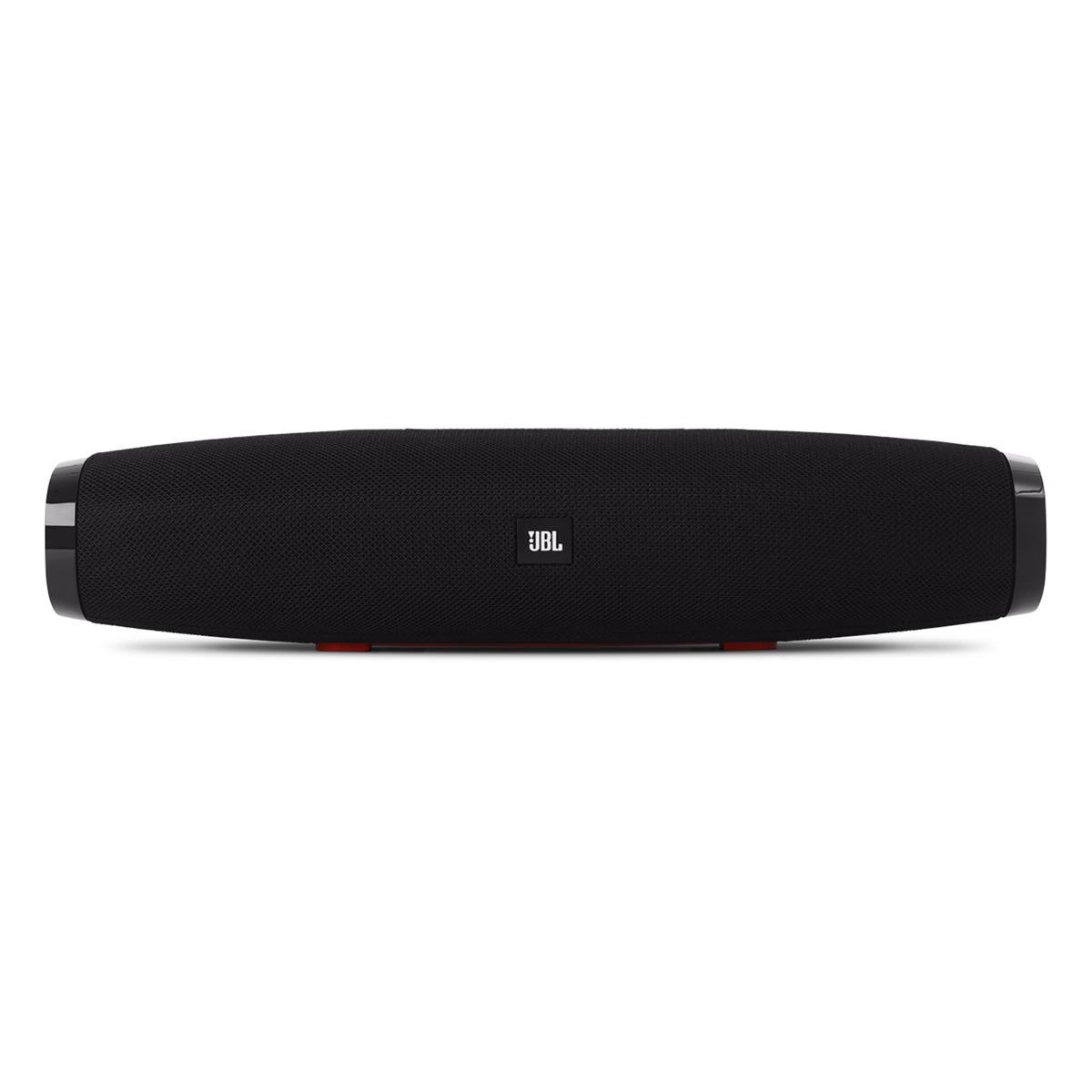
Image 1: Front view of the JBL Boost TV soundbar, showcasing its compact design and JBL logo.
The JBL Boost TV features a sleek, compact design, approximately 15 inches (380mm) long and 4 inches wide, making it ideal for placement beneath most televisions without obstructing the screen. The front grille covers the main speaker drivers, and the JBL logo is prominently displayed.
3.2 Rear Panel Connections

Image 2: Rear panel of the JBL Boost TV, showing the various input ports.
The rear panel, highlighted in orange, provides the following connectivity options:
- Optical Input: For connecting to your TV using the included optical cable, providing high-quality digital audio.
- AUX In (3.5mm): For connecting external audio devices via a 3.5mm analog cable.
- Power Input: For connecting the power cable to supply electricity to the soundbar.
- Software Update Port: A micro-USB port for potential future software updates (typically for manufacturer use).
3.3 Top Panel Controls

Image 3: Top panel controls of the JBL Boost TV soundbar.
The top panel features intuitive controls for easy operation:
- Bluetooth Button: Initiates Bluetooth pairing mode for connecting wireless devices.
- SoundShift Button: Allows switching between connected devices (e.g., TV and Bluetooth).
- Volume Down (-): Decreases the audio volume.
- Power Button: Turns the soundbar on or off.
- Volume Up (+): Increases the audio volume.
- Harman Display Surround Button: Activates or deactivates the virtual surround sound mode for an expanded audio experience.
- TV Sound Mode Button: Optimizes audio for TV viewing, enhancing dialogue clarity and overall TV viewing experience.
4. Setup
4.1 Placement
Place the JBL Boost TV soundbar on a stable, flat surface directly in front of your television. Ensure there are no obstructions blocking the sound from the front or the side-firing ports.
4.2 Connecting to Your TV
- Optical Connection (Recommended):
- Connect one end of the optical cable to the OPTICAL OUT port on your TV.
- Connect the other end to the OPTICAL IN port on the rear of the JBL Boost TV.
- Ensure your TV's audio output settings are configured to "Optical" or "External Speaker."
- Analog Connection:
- Connect one end of the 3.5mm analog cable to the AUDIO OUT (headphone jack) or RCA L/R audio output on your TV (using an adapter if necessary).
- Connect the other end to the AUX IN port on the rear of the JBL Boost TV.
4.3 Power Connection
Connect the power cable to the Power Input port on the soundbar, then plug the other end into a wall outlet.
4.4 Bluetooth Pairing
- Press the Bluetooth button on the top panel of the soundbar or on the remote control. The Bluetooth indicator light will begin to flash.
- On your mobile device (smartphone, tablet, etc.), enable Bluetooth and search for available devices.
- Select "JBL Boost TV" from the list of devices. Once connected, the Bluetooth indicator light will turn solid.
4.5 Programming Your TV Remote (SoundShift™)
The JBL Boost TV can learn volume and power commands from your existing TV remote control. This allows you to control the soundbar's basic functions with a single remote.
- Enter Learning Mode: Press and hold the SoundShift button (the one with the headphone icon) on the soundbar for 5 seconds until the indicator light flashes orange.
- Program Power: Press the Power button on the soundbar once. Then, point your TV remote at the soundbar and press its Power button. The indicator light will flash white once to confirm.
- Program Volume Up: Press the Volume Up (+) button on the soundbar once. Then, point your TV remote at the soundbar and press its Volume Up button. The indicator light will flash white once to confirm.
- Program Volume Down: Press the Volume Down (-) button on the soundbar once. Then, point your TV remote at the soundbar and press its Volume Down button. The indicator light will flash white once to confirm.
- Exit Learning Mode: The soundbar will automatically exit learning mode after a short period of inactivity, or you can press the SoundShift button again.
5. Operating Instructions
5.1 Power On/Off
Press the Power button (①) on the top panel or the remote control to turn the soundbar on or off.
5.2 Volume Control
Use the Volume Up (+) and Volume Down (-) buttons on the top panel or the remote control to adjust the audio level.
5.3 Source Selection (SoundShift™)
The SoundShift™ feature allows you to seamlessly switch between your TV audio and a connected Bluetooth device. When a Bluetooth device starts playing, the soundbar will automatically switch to that source. When the Bluetooth audio stops, it will switch back to the TV audio. You can also manually switch sources using the SoundShift button (⑁) on the top panel or remote.
5.4 Harman Display Surround
Press the Harman Display Surround button (⏴) on the top panel or remote to activate or deactivate the virtual surround sound mode. This feature expands the soundstage, providing a more immersive audio experience without additional speakers.
5.5 TV Sound Mode
Press the TV Sound Mode button (📺) on the top panel or remote to optimize the soundbar's audio for television content, enhancing dialogue clarity and overall TV viewing experience.
6. Maintenance
- Cleaning: Use a soft, dry cloth to clean the surface of the soundbar. Do not use liquid cleaners or abrasive materials.
- Storage: If storing the soundbar for an extended period, disconnect it from power and store it in a cool, dry place.
- Avoid Obstructions: Ensure the speaker grilles and ports are free from dust and debris to maintain optimal sound performance.
7. Troubleshooting
| Problem | Possible Cause | Solution |
|---|---|---|
| No power | Power cable not connected or outlet not active. | Ensure the power cable is securely connected to the soundbar and a working power outlet. |
| No sound | Incorrect input source selected, TV audio settings incorrect, or volume too low. | Verify the correct input source is selected (Optical, AUX, or Bluetooth). Check your TV's audio output settings. Increase the volume on both the soundbar and your TV. |
| Bluetooth pairing fails | Soundbar not in pairing mode, device too far, or interference. | Ensure the soundbar's Bluetooth indicator is flashing. Move your device closer to the soundbar. Try restarting both the soundbar and your Bluetooth device. |
| Remote control not working | Batteries depleted or line of sight blocked. | Replace the remote control batteries. Ensure there are no obstructions between the remote and the soundbar. |
8. Specifications
| Feature | Detail |
|---|---|
| Brand | JBL |
| Model Number | Boost TV |
| Speaker Maximum Output Power | 60 Watts |
| Frequency Response | 20 KHz (Upper limit, lower limit not specified) |
| Connectivity Technology | 1 Analog, 1 Optical, Bluetooth |
| Audio Output Mode | Stereo |
| Mounting Type | Tabletop Mount |
| Speaker Type | Soundbar |
| Additional Features | Display, Dolby Enabled |
| Controller Type | Corded Electric |
| Color | Black |
| Control Method | Remote |
| Item Weight | 4.25 Pounds |
| Wireless Technology | Bluetooth |
| Number of Audio Channels | 2.0 |
| Signal-to-Noise Ratio | 60 dB |
| Compatible Devices | Laptop, Smartphone, Television |
| Power Source | Corded Electric |
9. Warranty & Support
The JBL Boost TV comes with a limited warranty. Please refer to the included Warranty Card in your product packaging for detailed terms and conditions, including warranty period and coverage. For technical support, product registration, or further assistance, please visit the official JBL website or contact their customer service department.
Online Support: www.jbl.com/support


