
FORTINET FG-600D
FORTINET FortiGate FG-600D Firewall User Manual
Model: FG-600D
1. Introduction
The FortiGate FG-600D is a high-performance network security appliance designed for mid-sized to large enterprises. It provides advanced threat protection, deep visibility into network traffic, and flexible deployment options for campus, data center edge, and internal segments. This manual provides essential information for the proper installation, configuration, operation, and maintenance of your FortiGate FG-600D device.
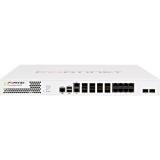
Image 1.1: Front view of the FortiGate FG-600D Firewall, showcasing its ports and indicators.
2. Safety Information
Please read all safety instructions carefully before installing or operating the FortiGate FG-600D. Failure to comply with these instructions may result in injury, damage to the device, or voiding the warranty.
- Power: Use only the power supply provided with the device. Ensure the power source matches the voltage requirements.
- Ventilation: Do not block ventilation openings. Ensure adequate airflow around the device to prevent overheating.
- Environment: Operate the device in a clean, dry environment within the specified temperature and humidity ranges. Avoid direct sunlight, heat sources, and excessive dust.
- Servicing: Do not attempt to service the device yourself. Refer all servicing to qualified personnel.
- Mounting: If rack-mounting, ensure the rack is stable and can support the device's weight (approximately 32 pounds).
3. Package Contents
Verify that all items are present and in good condition upon unpacking your FortiGate FG-600D. If any items are missing or damaged, contact your vendor immediately.
- FortiGate FG-600D Appliance
- Power Cable(s)
- Rack Mount Kit (if applicable)
- Console Cable (RJ45 to DB9)
- User Guide (this document)
- Quick Start Guide
4. Setup and Installation
4.1 Physical Installation
- Rack Mounting: Securely mount the FortiGate FG-600D into a standard 19-inch equipment rack using the provided rack mount kit. Ensure proper weight distribution and ventilation.
- Power Connection: Connect the power cable(s) to the appliance and a grounded electrical outlet.
- Initial Power-On: Press the power button. Observe the system status LEDs for initial boot sequence.
4.2 Network Connections
The FortiGate FG-600D features multiple RJ45 interfaces for network connectivity. Connect your network cables to the appropriate ports based on your network design.
- WAN Ports: Connect to your Internet Service Provider (ISP) or upstream network.
- LAN Ports: Connect to your internal network segments.
- Management Port: Use for initial configuration and management access.
4.3 Initial Configuration Access
Access the FortiGate FG-600D for initial configuration via a console cable or a web browser.
- Console Access: Connect a console cable from your computer to the FortiGate's console port. Use a terminal emulator (e.g., PuTTY) with settings: 9600 baud, 8 data bits, no parity, 1 stop bit, no flow control.
- Web-based Manager: Once the device has an IP address configured (either manually via console or via DHCP), you can access the web-based manager by entering the device's IP address into a web browser.
5. Operation
The FortiGate FG-600D operates as a next-generation firewall, providing comprehensive security features. Its primary function is to inspect and control network traffic based on defined security policies.
5.1 Key Operational Aspects
- Policy Configuration: Define firewall policies to control traffic flow between different network interfaces and zones.
- Application Control: The FortiGate FG-600D can identify thousands of applications, including cloud applications, for deep inspection and granular control over network traffic.
- Threat Protection: Utilize features like Intrusion Prevention System (IPS), antivirus, web filtering, and anti-spam to protect against cyber threats.
- VPN: Configure Virtual Private Networks (VPNs) for secure remote access and site-to-site connectivity.
- Monitoring and Logging: Regularly monitor system logs, traffic logs, and security events to ensure optimal performance and detect potential issues.
For detailed configuration and advanced operational procedures, refer to the FortiGate Administration Guide available on the Fortinet support website.
6. Maintenance
Regular maintenance ensures the longevity and optimal performance of your FortiGate FG-600D.
- Firmware Updates: Periodically check for and apply the latest firmware updates from Fortinet to ensure you have the most current security features and bug fixes.
- Configuration Backup: Regularly back up your device configuration. This is crucial for disaster recovery.
- Environmental Checks: Ensure the operating environment remains within specified temperature and humidity ranges. Keep ventilation clear.
- Physical Inspection: Periodically inspect cables and connections for wear or damage.
7. Troubleshooting
This section provides solutions to common issues you might encounter with your FortiGate FG-600D.
| Problem | Possible Cause | Solution |
|---|---|---|
| Device does not power on. | No power, faulty power cable, or power supply issue. | Check power cable connections. Ensure the power outlet is functional. Try a different power cable if available. |
| Cannot access web-based manager. | Incorrect IP address, network connectivity issue, or browser problem. | Verify the device's IP address. Check network cable connections. Try clearing browser cache or using a different browser. Ensure your computer is on the same network segment or has a route to the FortiGate. |
| Network traffic not flowing as expected. | Incorrect firewall policies, routing issues, or interface configuration errors. | Review your firewall policies and routing tables. Check interface status and configuration. Use diagnostic tools available in the FortiGate CLI. |
If you continue to experience issues, consult the Fortinet support documentation or contact technical support.
8. Specifications
| Feature | Detail |
|---|---|
| Model Number | FG-600D |
| Brand | FORTINET |
| Interface Type | RJ45 |
| Number of Ports | 8 |
| Item Weight | 32 pounds |
| Package Dimensions | 23 x 17 x 6.5 inches |
| First Available Date | November 17, 2015 |
| UPC | 619587321387, 712155581920, 040232305542 |
9. Warranty and Support
FORTINET products are backed by a limited warranty. For detailed warranty information, please refer to the warranty statement included with your product or visit the official Fortinet website.
For technical support, documentation, and software downloads, please visit the Fortinet support portal. You can also find more information about FORTINET products by visiting the FORTINET Store on Amazon.
Related documentsFG-600D


Ask a question about this manual
Ask about setup, troubleshooting, compatibility, parts, safety, or missing instructions. Manuals+ will review the question and use this page’s manual context to help answer it.