Introduction
This manual provides comprehensive instructions for the setup, operation, and maintenance of your Sharon 4 in 1 Bluetooth Multitouch Keyboard. Designed for versatility, this keyboard integrates a touchpad, making it an ideal accessory for various devices including Android, iOS/Mac OS X, Windows 8 & 10, and Smart TVs.
The keyboard features a durable aluminum housing, a long-lasting battery, and special function keys to enhance your productivity and entertainment experience. Please read this manual carefully to ensure proper use and to maximize the functionality of your device.
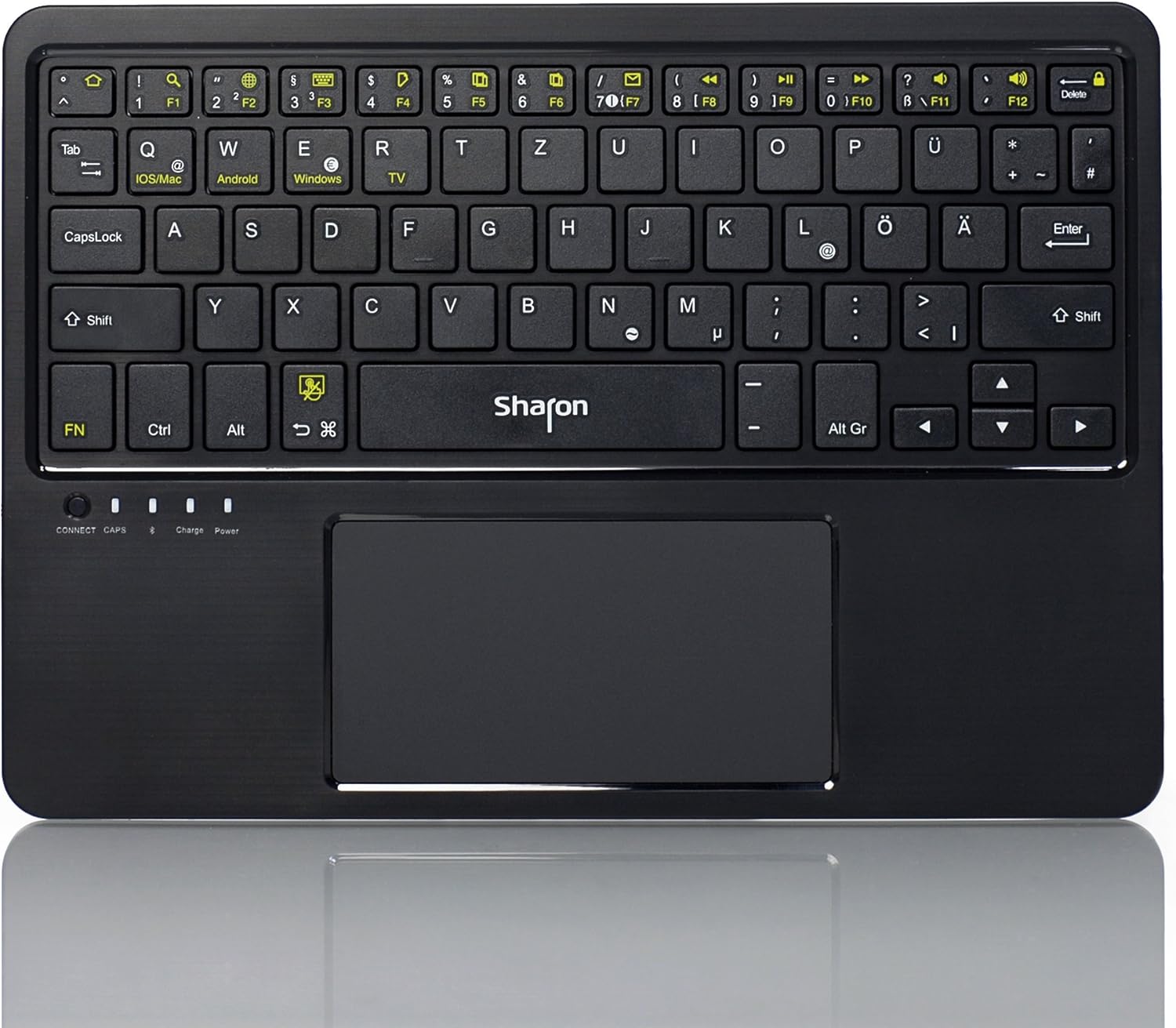
Image: Top view of the Sharon 4 in 1 Bluetooth Multitouch Keyboard, highlighting its QWERTZ layout and integrated multitouch touchpad.
Package Contents
Before you begin, please verify that all items are present in your package:
- Sharon 4 in 1 Bluetooth Multitouch Keyboard (QWERTZ layout)
- USB Charging Cable
- Plastic Stand
- High-quality Protective Bag
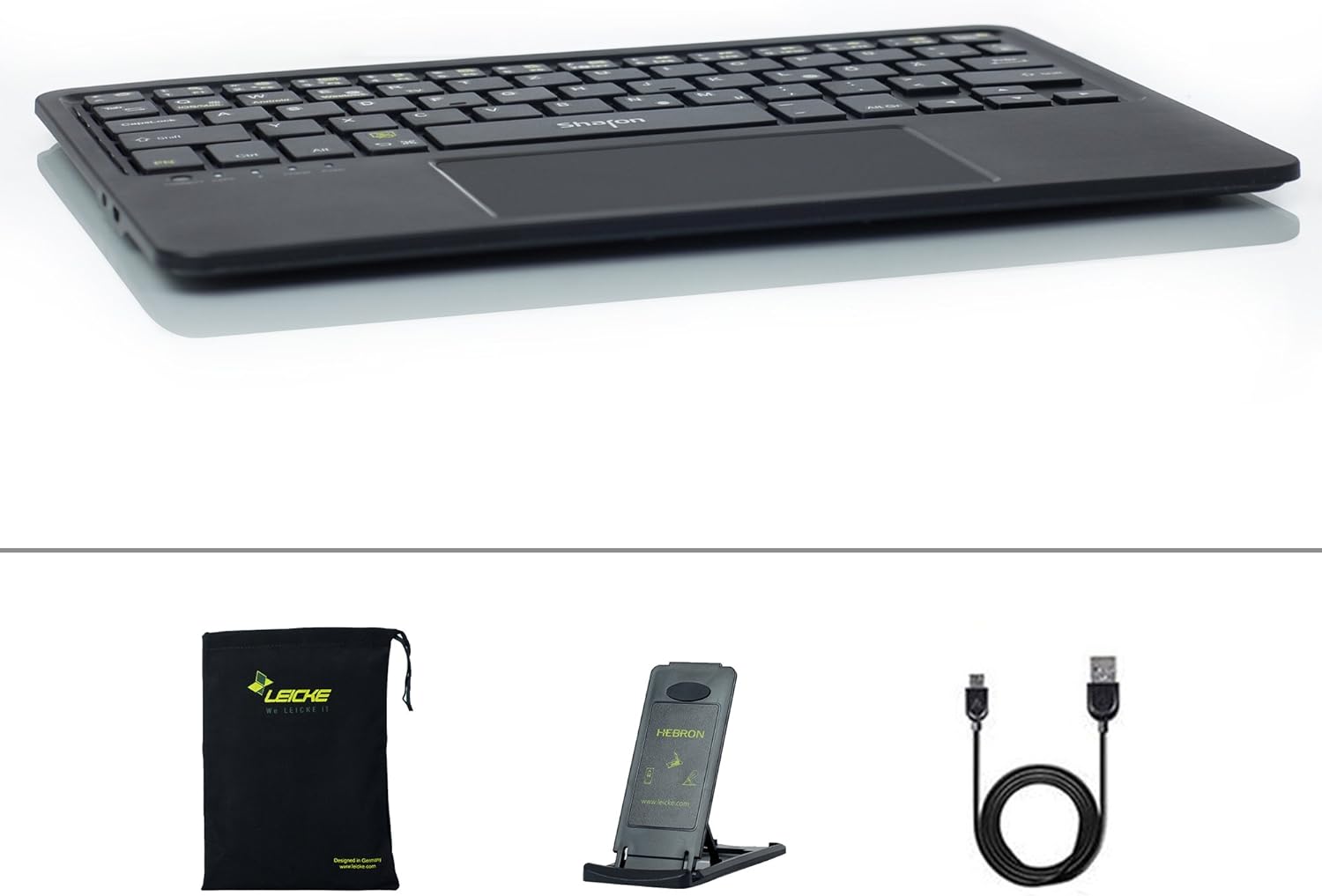
Image: The Sharon keyboard package contents, including the keyboard, USB charging cable, foldable stand, and protective carrying bag.
Setup
1. Charging the Keyboard
The keyboard comes with a built-in rechargeable Lithium Polymer battery. For optimal performance, fully charge the keyboard before first use.
- Connect the supplied USB charging cable to the charging port on the keyboard.
- Plug the other end of the USB cable into any standard USB port on a computer, laptop, or a USB wall charger.
- The charging indicator light on the keyboard will illuminate during charging and turn off when fully charged. A full charge provides up to 45 hours of continuous use or 60 days of standby time.
2. Bluetooth Pairing
The Sharon keyboard uses Bluetooth 3.0 for wireless connectivity, offering a range of up to 10 meters.
- Ensure the keyboard is charged and powered on. The power switch is typically located on the side or back of the keyboard.
- Press the "CONNECT" button on the keyboard. The Bluetooth indicator light will start blinking, indicating that the keyboard is in pairing mode.
- On your device (smartphone, tablet, computer, or Smart TV), navigate to the Bluetooth settings.
- Enable Bluetooth and search for available devices.
- Select "Sharon Keyboard" or a similar name from the list of found devices.
- If prompted, enter the pairing code displayed on your device's screen using the Sharon keyboard, then press Enter.
- Once paired, the Bluetooth indicator light on the keyboard will stop blinking and remain solid, or turn off, depending on the model. Your keyboard is now ready for use.
3. Using the Stand
The included plastic stand allows you to position your tablet or smartphone at various angles for comfortable viewing and typing.
- Unfold the stand to its desired position. It supports 5 different angles.
- Place your device securely in the stand's groove.
- For transport, the keyboard and stand can be stored together in the provided protective bag.
Operating Instructions
1. Compatibility
The Sharon keyboard is designed for broad compatibility across multiple operating systems:
- iOS: Apple iPad, iPhone 4, 5, 6, 6 Plus
- OS X: Mac Pro, iMac, MacBook, MacBook Pro series with OS X
- Android: Devices such as Samsung, Sony Xperia, Huawei, ASUS, Nexus
- Windows: Tablets and smartphones with Windows 7, 8, 8.1, 10 (Bluetooth required)
- Smart TVs: Compatible with Smart TVs that support Bluetooth keyboards

Image: The Sharon keyboard shown in use with a large monitor, a tablet, and a smartphone, illustrating its versatile compatibility across different device types.
2. Switching Layouts / Operating Systems
To optimize keyboard functionality for different operating systems, you can switch between layouts using the dedicated function keys:
- Press Fn + Q for iOS/Mac OS X layout.
- Press Fn + W for Android layout.
- Press Fn + E for Windows layout.
- Press Fn + R for Smart TV layout.

Image: Detailed view of the keyboard's top row, highlighting the function keys (F1-F12) and the dedicated keys for switching between iOS/Mac, Android, Windows, and TV operating system layouts.
3. Touchpad Usage and Gestures
The integrated multitouch touchpad allows for intuitive navigation and control, similar to a laptop's trackpad. It supports various gestures:
- Single Finger Tap: Left click / Select.
- Two Finger Tap: Right click.
- Two Finger Scroll: Drag two fingers up or down to scroll vertically.
- Pinch to Zoom: Pinch in or out with two fingers to zoom in or out.
- Swipe Left/Right with Two Fingers: Page forward/backward.
- Three Finger Swipe Up/Down: Page Up/Page Down.
- Three Finger Swipe Left/Right: Move selection.
To activate/deactivate the touchpad, press Fn + Spacebar.

Image: Visual guide demonstrating common multitouch gestures for the integrated touchpad, such as single-finger tap for left click, two-finger tap for right click, and pinch gestures for zooming.
4. Special Function Keys
The top row of the keyboard features special function keys (F1-F12) that provide quick access to common commands. These keys often require pressing the Fn key simultaneously.
| Key Combination | Function |
|---|---|
| Fn + F1 | Home Button |
| Fn + F2 | Search |
| Fn + F3 | Select Language / Change Input Method |
| Fn + F4 | Show/Hide On-screen Keyboard |
| Fn + F5 | Copy |
| Fn + F6 | Cut |
| Fn + F7 | Paste |
| Fn + F8 | Open Standard E-Mail Program |
| Fn + F9 | Music Playback Control |
| Fn + F10 | Volume Down |
| Fn + F11 | Volume Up |
| Fn + F12 | Screen Lock/Unlock |
5. Power Management
The keyboard features an intelligent standby mode to conserve battery life. After 15 minutes of inactivity, the keyboard will automatically enter sleep mode. To wake it up, simply press any key. The keyboard is designed for long battery life, offering up to 60 days in standby mode and 45 hours of continuous working time on a single charge.
Maintenance
To ensure the longevity and optimal performance of your Sharon keyboard, follow these simple maintenance guidelines:
- Cleaning: Use a soft, dry, lint-free cloth to wipe the keyboard surface. For stubborn dirt, slightly dampen the cloth with water or a mild, non-abrasive cleaner. Avoid excessive moisture.
- Storage: When not in use, store the keyboard in the provided protective bag to prevent dust accumulation and scratches.
- Battery Care: Avoid fully discharging the battery frequently. Recharge the keyboard when the low battery indicator appears. If storing for an extended period, charge the battery to about 50% to prevent deep discharge.
- Avoid Extremes: Do not expose the keyboard to extreme temperatures, direct sunlight, or high humidity.
- Handle with Care: The keyboard has a bending-resistant aluminum housing, but avoid dropping it or applying excessive force.
Troubleshooting
If you encounter issues with your Sharon keyboard, please refer to the following common solutions:
| Problem | Possible Cause | Solution |
|---|---|---|
| Keyboard does not turn on. | Battery is depleted. | Charge the keyboard using the supplied USB cable. |
| Cannot pair the keyboard via Bluetooth. | Keyboard not in pairing mode; Bluetooth off on device; device too far. | Ensure keyboard is charged and powered on. Press the "CONNECT" button. Verify Bluetooth is enabled on your device and that the keyboard is within 10m range. Try restarting both devices. |
| Keyboard disconnects frequently. | Low battery; interference; device too far. | Recharge the keyboard. Move closer to your device. Avoid strong electromagnetic interference. |
| Keys are not responding correctly. | Incorrect OS layout selected; software glitch. | Ensure the correct OS layout is selected (Fn + Q/W/E/R). Restart the keyboard and your device. |
| Touchpad is not working. | Touchpad deactivated; software glitch. | Press Fn + Spacebar to ensure the touchpad is activated. Restart the keyboard and your device. |
Specifications
| Feature | Detail |
|---|---|
| Brand | LEICKE |
| Model Number | SI54235 |
| Product Dimensions | 24.4 x 17.1 x 0.6 cm |
| Item Weight | 267 g |
| Connectivity Type | Bluetooth 3.0 |
| Wireless Range | Up to 10 meters |
| Battery Type | 1 Lithium Polymer battery (included) |
| Battery Life (Continuous Use) | Up to 45 hours |
| Battery Life (Standby) | Up to 60 days |
| Material | Aluminium |
| Keyboard Layout | German QWERTZ |
| Operating System Compatibility | iOS, OS X, Android, Windows (7, 8, 8.1, 10), Smart TVs (with Bluetooth) |
| Included Components | Keyboard, USB Cable, Stand, Protective Bag |
Warranty and Support
Information regarding product warranty and customer support was not available in the provided product data. Please refer to the product packaging or the manufacturer's official website for details on warranty coverage and how to contact customer support for your LEICKE Sharon 4 in 1 Bluetooth Multitouch Keyboard.


