1. Introduction
This manual provides essential information for the safe and efficient use of your HP EliteDisplay E242 Monitor. Please read these instructions thoroughly before operating the device and retain them for future reference. This document covers setup, operation, maintenance, and troubleshooting for the HP EliteDisplay E242 Monitor, model number M1P02AA#ABA.
2. Safety Information
Observe the following safety precautions to prevent damage to the monitor or injury to yourself:
- Do not expose the monitor to rain or moisture.
- Do not block ventilation openings.
- Use only the power cord and adapter supplied with the monitor.
- Ensure the monitor is placed on a stable, level surface.
- Disconnect the power cable from the outlet before cleaning.
3. Package Contents
Verify that all components are present in the package:
- HP EliteDisplay E242 Monitor
- Monitor Stand (Base and Riser)
- Power Cable
- Video Cable (e.g., DisplayPort, HDMI, or VGA)
- USB Cable (for USB hub functionality)
- Documentation (this manual)
4. Setup
4.1. Physical Setup
- Attach the Stand: Carefully place the monitor face down on a soft, clean surface. Align the stand riser with the slots on the back of the monitor and secure it. Attach the stand base to the riser and tighten any screws.
- Position the Monitor: Place the monitor on a stable desk or table. Adjust the height, tilt, swivel, and pivot for optimal viewing comfort.
4.2. Connecting to a Computer
The HP EliteDisplay E242 Monitor offers multiple connectivity options:
- DisplayPort: For high-resolution digital video and audio.
- HDMI: For digital video and audio, commonly used with various devices.
- VGA: For analog video connections.
- USB 2.0 Ports (x3): For connecting peripherals like keyboards, mice, or USB drives. Connect the upstream USB cable from the monitor to your computer to enable these ports.
Connection Steps:
- Ensure both the monitor and computer are powered off.
- Connect one end of the desired video cable (DisplayPort, HDMI, or VGA) to the corresponding port on the monitor and the other end to your computer's video output port.
- Connect the power cable to the monitor and then to a grounded electrical outlet.
- If using the USB hub, connect the USB upstream cable from the monitor to an available USB port on your computer.
- Power on your computer, then power on the monitor.
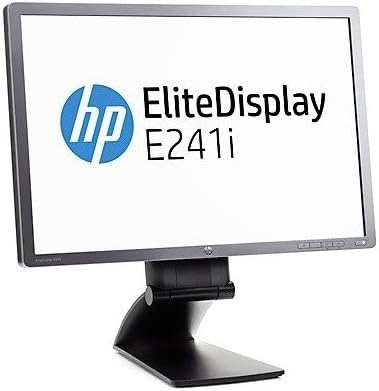
Image: Front view of an HP EliteDisplay monitor, similar in design to the E242 model, shown with its adjustable stand. The screen displays the 'HP EliteDisplay E241i' logo.
5. Operating the Monitor
5.1. Power On/Off
Press the power button located on the front or bottom bezel of the monitor to turn it on or off. The power indicator light will illuminate when the monitor is on.
5.2. On-Screen Display (OSD) Menu
The OSD menu allows you to adjust various monitor settings. Access it using the buttons on the monitor's bezel.
- Press the Menu button to open the OSD.
- Use the navigation buttons (usually arrows) to scroll through menu options.
- Press the Select or OK button to enter a submenu or confirm a selection.
- Use the Exit or Back button to return to the previous menu or close the OSD.
5.3. Adjusting Settings
Commonly adjusted settings include:
- Brightness/Contrast: Adjust the overall luminance and difference between light and dark areas.
- Input Selection: Manually switch between DisplayPort, HDMI, or VGA inputs.
- Color Control: Modify color temperature, RGB levels, or select preset color modes.
- Image Control: Adjust sharpness, aspect ratio, and other display characteristics.
6. Maintenance
To maintain your monitor's performance and appearance:
- Cleaning the Screen: Gently wipe the screen with a soft, lint-free cloth. For stubborn marks, lightly dampen the cloth with water or a non-abrasive screen cleaner. Do not spray cleaner directly onto the screen.
- Cleaning the Casing: Use a soft, dry cloth to wipe the monitor casing. Avoid harsh chemicals or abrasive materials.
- Ventilation: Ensure the ventilation openings are clear of dust and obstructions to prevent overheating.
7. Troubleshooting
If you encounter issues with your monitor, refer to the following common problems and solutions:
| Problem | Possible Solution |
|---|---|
| No image on screen | Ensure power cable is securely connected. Verify video cable is connected to both monitor and computer. Select correct input source via OSD. |
| Image is blurry or distorted | Check video cable connection. Adjust resolution settings on your computer to match the monitor's native resolution (1920x1200). Run OSD auto-adjustment. |
| Monitor not powering on | Confirm power cable is plugged into a working outlet. Check power button status. |
| USB ports not working | Ensure the USB upstream cable is connected from the monitor to your computer. Check computer's USB drivers. |
8. Specifications
Key technical specifications for the HP EliteDisplay E242 Monitor:
- Brand: HP
- Model: EliteDisplay E242 (M1P02AA#ABA)
- Screen Size: 24 Inches
- Max Screen Resolution: 1920 x 1200 Pixels
- Aspect Ratio: 16:9
- Connectivity: DisplayPort, HDMI, VGA, 3x USB 2.0 ports
- Product Dimensions (LxWxH): 1.97 x 22.13 x 14.86 inches
- Item Weight: 13.7 pounds
- Color: Black
- Manufacturer: Hewlett Packard Office
- Date First Available: October 7, 2015
9. Warranty and Support
For warranty information and technical support, please refer to the warranty card included with your product or visit the official HP support website. You may also contact HP customer service for assistance with product registration, troubleshooting, or service requests.
HP Support Website: www.hp.com/support