
Thermaltake CA-1E7-00M1WN-00
Thermaltake Core P5 Open Frame Chassis User Manual
Model: CA-1E7-00M1WN-00
1. Introduction
This manual provides comprehensive instructions for the assembly, operation, and maintenance of your Thermaltake Core P5 Black Edition ATX Open Frame Panoramic Viewing Gaming Computer Case. Please read this manual thoroughly before beginning assembly to ensure proper installation and safe operation.
The Core P5 chassis features a fully modular design, offering flexibility for various placement layouts including wall mount, horizontal, and vertical configurations. It supports dual GPU layout locations and is designed to accommodate advanced liquid cooling components, providing a 180-degree viewing angle for showcasing your PC hardware.
2. Key Features
- Panoramic Open Frame Design: Offers an unrivaled chassis presentation with full panoramic viewing.
- 3-Way Placement Layouts: Designed for Wall-mount, Horizontal, or Vertical configurations, providing flexibility for various desktop setups.
- VESA Compatibility: Supports 200x200, 100x100, and 75x75 VESA mounts (weight determined once full system is installed).
- Front Panel I/O: Includes 2x USB 3.0, 2x USB 2.0 ports, 1x Headphone jack, and 1x Mic Port for convenient access.
- Thermaltake Liquid Cooling Certified: Certified to meet Thermaltake's design and enthusiast standards for liquid cooling.
- Fully Modular Design: Provides multiple configurations for custom PC enthusiasts.
- Internal Bay: 3x 3.5"/2.5" (Hidden) with 1x 3.5”/2.5” (Front) SSD/HDD Locations.
- Expansion Slots: 8 slots, supporting both Vertical/Horizontal layouts.
3. Setup and Assembly
The Thermaltake Core P5 features a fully modular design, allowing for complete disassembly and reassembly. This section guides you through the initial setup and component installation.
3.1 Unpacking and Component Identification
Carefully remove all components from the packaging. Verify that all parts listed in the packing list are present. The main chassis, acrylic panel, and various mounting brackets will be included.
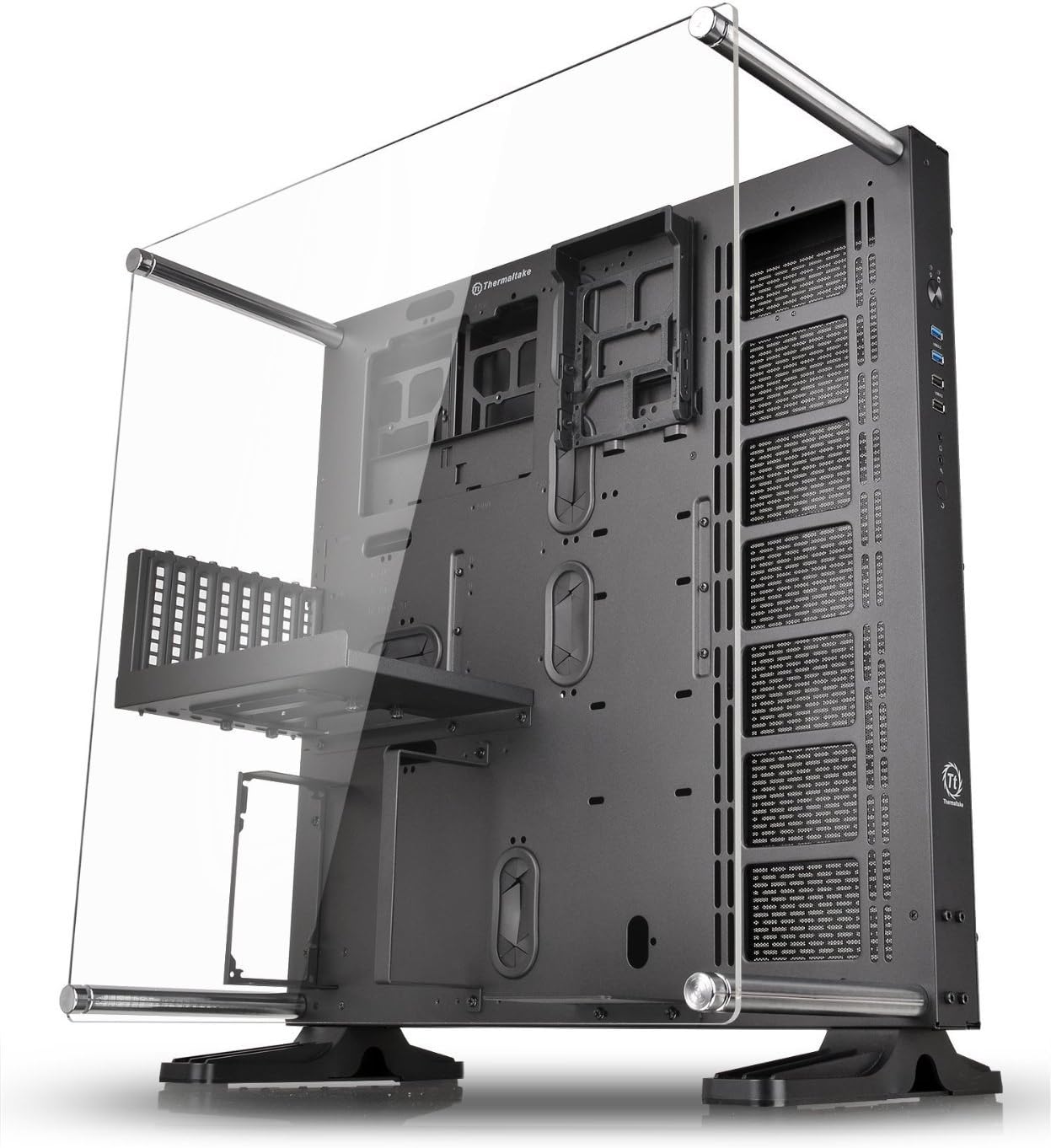
Figure 1: Fully assembled Thermaltake Core P5 chassis, showcasing its open frame design with the clear acrylic panel and sturdy base feet.
3.2 Modular Design Overview
The Core P5's modular design allows for easy customization and component installation. The rear panel can be removed to access drive racks and cable management areas.
Video: An overview of the Thermaltake Core P5's modular design, demonstrating how various components can be disassembled and reassembled for flexible configurations. This video highlights the ease of access for component installation and cable management.
3.3 Drive Rack Installation
The chassis provides multiple locations for 2.5" and 3.5" HDD/SSD drives. The modular drive racks are located behind the motherboard tray for a clean aesthetic.

Figure 2: Rear view of the Core P5 chassis, illustrating the hidden drive bays for 2.5" and 3.5" storage devices, accessible by removing the back panel. This design ensures a clean front presentation.
3.4 Cable Management
The Core P5 offers up to 45mm of space behind the motherboard tray for efficient cable management, ensuring a tidy build and improved airflow.

Figure 3: Side view of the Core P5, highlighting the ample space behind the motherboard tray for effective cable routing and management, contributing to a clean and organized build.
3.5 Placement Layouts
The Core P5 supports three distinct placement styles: Vertical, Horizontal, and Wall-Mount. Choose the layout that best suits your space and aesthetic preferences.
- Vertical: Standard tower orientation.
- Horizontal: Lay the chassis flat, ideal for desk display.
- Wall-Mount: Utilize the VESA compatibility for mounting on a wall (ensure wall can support the total system weight).

Figure 4: The Thermaltake Core P5 displayed in its three versatile configurations: vertical, horizontal, and wall-mounted, demonstrating its adaptability to various setups.
4. Operating Your System
Once assembled, connect your peripherals and power cable. The front I/O panel provides convenient access to USB ports and audio jacks.
4.1 Power On/Off
Press the power button located on the front I/O panel to turn your system on or off. A reset button is also available.
4.2 Fan and Radiator Configurations
The Core P5 supports extensive cooling configurations. The right side of the chassis can accommodate various fan and radiator sizes.
- Fan Support: Up to 4x 120mm fans or 3x 140mm fans.
- Radiator Support: Single radiators up to 480mm (1x 120mm, 1x 140mm, 1x 240mm, 1x 280mm, 1x 360mm, 1x 420mm, 1x 480mm).
5. Maintenance
Regular maintenance ensures optimal performance and longevity of your Core P5 chassis and its components.
5.1 Cleaning
Due to its open frame design, the Core P5 may accumulate dust more readily than enclosed cases. Regularly clean the acrylic panel and internal components using a soft, lint-free cloth. For internal components, use compressed air to remove dust buildup from fans, radiators, and heatsinks. Always power off and unplug your system before cleaning.
5.2 Component Inspection
Periodically inspect all installed components, including cables, fans, and liquid cooling loops, for any signs of wear, damage, or loose connections. Ensure all screws are securely fastened.
6. Troubleshooting
This section addresses common issues you might encounter with your Core P5 chassis.
6.1 System Not Powering On
- Ensure the power supply unit (PSU) is properly connected to the wall outlet and the PSU switch is in the 'ON' position.
- Verify all internal power cables (24-pin ATX, CPU, GPU, etc.) are securely connected to the motherboard and components.
- Check the front panel power switch connection to the motherboard.
6.2 Overheating Concerns
- Ensure all fans are spinning correctly and are free from obstructions.
- Verify radiators are clean and not clogged with dust.
- Confirm proper installation of CPU and GPU coolers, including thermal paste application.
- Consider optimizing fan curves in your motherboard's BIOS/UEFI settings.
6.3 Graphics Card Display Issues (if using riser cable)
Some users have reported issues with the PCIe riser cable. If you experience display problems or performance degradation:
- Ensure the riser cable is fully seated in both the motherboard and the graphics card.
- Test the graphics card directly in the motherboard's PCIe slot without the riser cable to rule out cable issues.
- Check for updated BIOS/UEFI settings related to PCIe slot configuration (e.g., PCIe Gen 3/4 compatibility).
7. Specifications
| Feature | Specification |
|---|---|
| Case Type | Open Frame Mid Tower Chassis |
| Case Dimension (H x W x D) | 22.4” x 13.1” x 23.9” (569 x 333 x 608 mm) |
| Motherboard Compatibility | ATX (12.0" x 9.6"), MicroATX (9.6" x 9.6"), Mini-ITX (6.7" x 6.7") |
| Internal Drive Bays | 3x 3.5"/2.5" (Hidden), 1x 3.5"/2.5" (Front) |
| Expansion Slots | 8 (Vertical/Horizontal layouts) |
| Front I/O Panel | 2x USB 3.0, 2x USB 2.0, 1x Headphone, 1x Mic Port |
| Fan Configurations (Right Side) | 4x 120mm or 3x 140mm |
| Radiator Configurations (Right Side) | 1x 120/140/240/280/360/420/480mm |
| CPU Cooler Height Clearance | 180mm |
| VGA Length Clearance | 280mm (With Reservoir), 570mm (Without Reservoir) |
| PSU Length Clearance | 200mm |
| VESA Compatibility | 200x200, 100x100, 75x75 |
| Item Weight | 26.9 pounds (12.2 kg) |
8. Warranty and Support
Your Thermaltake Core P5 chassis comes with a 3-year warranty from the date of purchase, covering manufacturing defects and material flaws under normal use. Please retain your proof of purchase for warranty claims.
For technical support, troubleshooting assistance, or warranty inquiries, please visit the official Thermaltake website or search for "Thermaltake Support" online. You may also refer to the official User Manual (PDF) for additional details.
Related documentsCA-1E7-00M1WN-00

Ask a question about this manual
Ask about setup, troubleshooting, compatibility, parts, safety, or missing instructions. Manuals+ will review the question and use this page’s manual context to help answer it.