
Introduction
The Maxview Omnisat VuQube Auto II is an advanced portable satellite system designed for automatic satellite acquisition, providing TV and radio reception. This system is ideal for use with recreational vehicles such as caravans and motorhomes, offering ease of use and reliable performance.
Key features include:
- Automatic satellite search with a single button press.
- Reception of major European satellites: Astra1, Astra2, Astra3, and Hotbird.
- Versatile design for both portable use and fixed mounting.
- Operates independently of your existing receiver.
Setup
Proper setup ensures optimal performance of your VuQube Auto II system. Follow these steps for initial installation and connection.
Unpacking and Component Identification
Carefully unpack all components and verify that all parts are present. The main components include the VuQube Auto II unit, the control unit, and necessary cables.
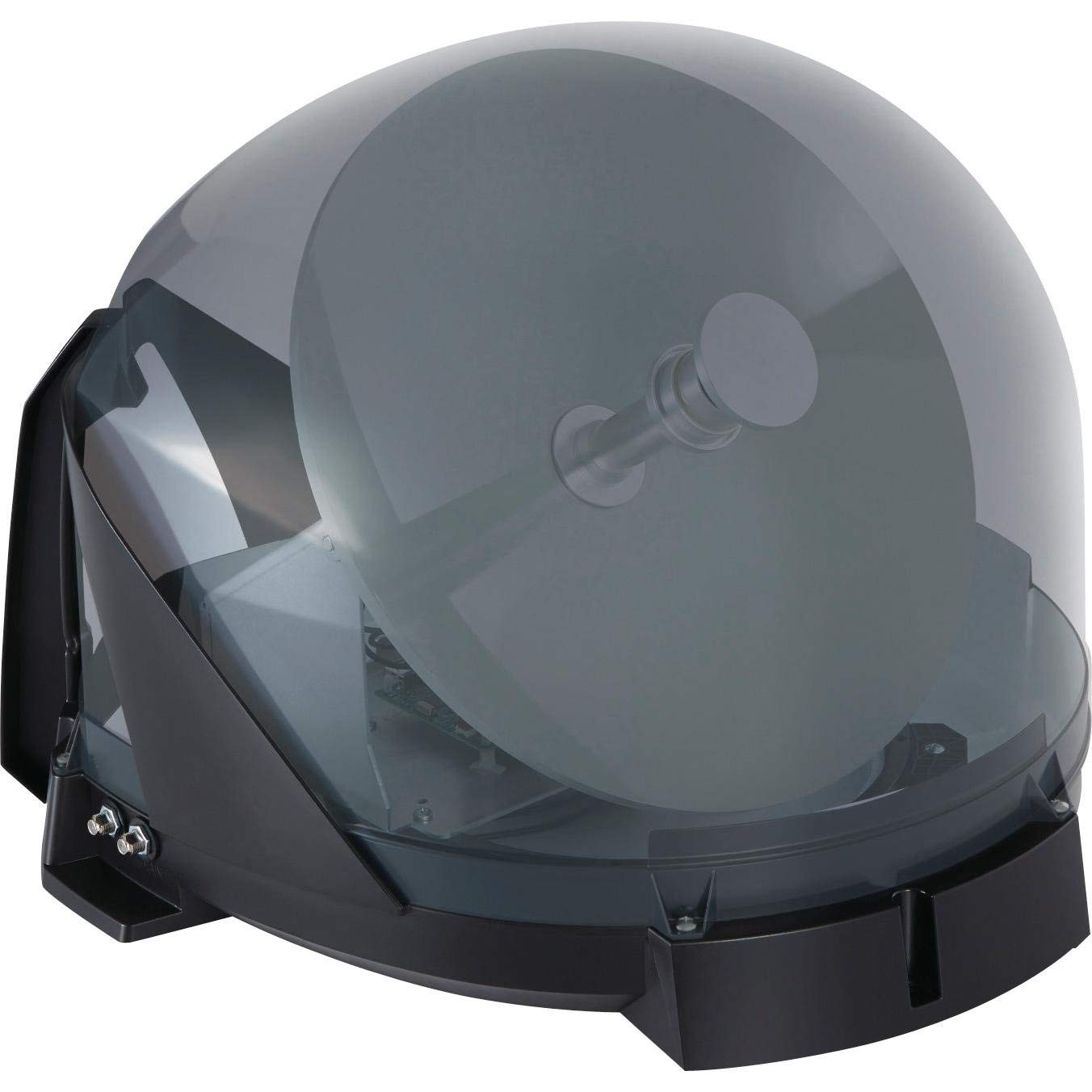
Image 1: The main Maxview Omnisat VuQube Auto II satellite dome unit.

Image 2: The compact control unit for the Maxview Omnisat VuQube Auto II.
Placement and Mounting
Choose a location for the VuQube unit that has a clear line of sight to the southern sky, free from obstructions like trees or buildings. The unit can be placed on the ground or permanently mounted on a vehicle.
- Portable Use: Place the unit on a stable, level surface. Ensure cables are not a tripping hazard.
- Fixed Mounting: For permanent installation, use the provided mounting brackets and hardware. Securely attach the unit to the roof or rear of your vehicle, ensuring all connections are weatherproof.

Image 3: The VuQube Auto II unit securely mounted on the back of a motorhome.

Image 4: The VuQube Auto II unit positioned on the ground for portable use near a motorhome.
Connecting the System
Connect the VuQube Auto II unit to the control unit, and then connect the control unit to your television or satellite receiver.
- Connect the coaxial cable from the VuQube Auto II unit to the "IN" port on the control unit.
- Connect a coaxial cable from the "OUT1" or "OUT2" port on the control unit to your satellite receiver or TV (if it has an integrated satellite tuner).
- Connect the power cable from the control unit to a 12V DC power source (e.g., a cigarette lighter socket in your vehicle).
Operating Instructions
The Maxview Omnisat VuQube Auto II is designed for simple, one-button operation.
Automatic Satellite Search
- Ensure all cables are securely connected and the control unit is powered on.
- Press the designated search button on the control unit. The VuQube Auto II will automatically begin scanning for available satellites.
- The system will typically lock onto the strongest signal for the pre-programmed satellites (Astra1, Astra2, Astra3, Hotbird).
- Once a satellite is found and locked, the indicator light on the control unit will confirm reception.
- Tune your TV or satellite receiver to the desired channel.

Image 5: Enjoying satellite TV outdoors with the Maxview Omnisat VuQube Auto II system.
Satellite Selection (if applicable)
Some control units may offer options to manually select a specific satellite if multiple are available or if you wish to prioritize a particular one. Refer to your control unit's specific interface for detailed instructions on manual satellite selection.
Maintenance
To ensure the longevity and optimal performance of your Maxview Omnisat VuQube Auto II, follow these maintenance guidelines:
- Cleaning: Wipe the exterior of the VuQube unit with a soft, damp cloth. Avoid abrasive cleaners or solvents that could damage the casing.
- Cable Inspection: Regularly check all cables for signs of wear, fraying, or damage. Replace any damaged cables immediately to prevent signal loss or electrical issues.
- Storage: When not in use, especially during off-season, store the portable unit in a dry, protected environment. If permanently mounted, ensure it is clean and free from debris.
- Firmware Updates: Periodically check the Maxview website for any available firmware updates for your control unit. Updates can improve performance and add new features.
Troubleshooting
If you encounter issues with your VuQube Auto II, refer to the following common problems and solutions:
| Problem | Possible Cause | Solution |
|---|---|---|
| No signal or weak signal. |
|
|
| Unit not powering on. |
|
|
| Satellite search fails to complete. |
|
|
Specifications
Detailed technical specifications for the Maxview Omnisat VuQube Auto II system:
| Feature | Detail |
|---|---|
| Model Number | MXL023 |
| Product Dimensions (L x W x H) | 43 cm x 49 cm x 34 cm |
| Weight | 4 kg |
| Antenna Type | Satellite |
| Color | Grey |
| Number of Channels | 2 (Output ports) |
| Impedance | 50 Ohm |
| Supported Satellites | Astra1, Astra2, Astra3, Hotbird |

Image 6: Dimensional diagram of the VuQube Auto II unit.
Warranty and Support
For warranty information and technical support, please refer to the official Maxview website or contact their customer service directly. Keep your proof of purchase for any warranty claims.
Manufacturer: Maxview
Website: www.maxview.co.uk


