
Introduction
Welcome to the user manual for your GoPro HERO+ (Wi-Fi Enabled) camera. This guide provides essential information to help you get started, operate, and maintain your device. The HERO+ is designed to capture high-quality video and photos, featuring built-in Wi-Fi and Bluetooth for seamless connectivity with the GoPro App and Smart Remote. Its durable, waterproof design makes it suitable for various environments and activities.
Package Contents
Upon unboxing your GoPro HERO+ camera, please verify that all standard components are present. The typical package includes:
- GoPro HERO+ Camera (integrated into waterproof housing)
- USB Cable (for charging and data transfer)
- Basic Mounting Hardware (e.g., adhesive mounts, quick release buckle)
- Note: A microSD card is not typically included and must be purchased separately.
Camera Overview
Familiarize yourself with the key components of your GoPro HERO+ camera:
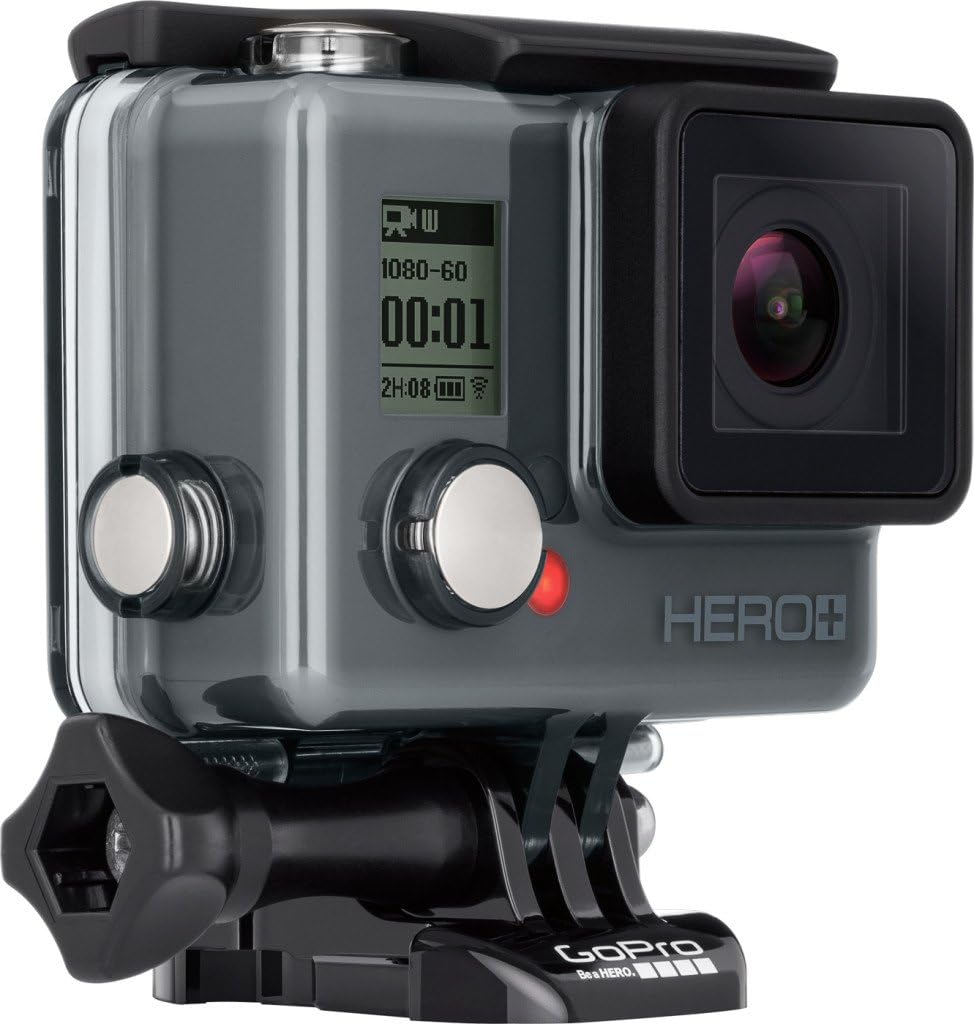
Figure 1: Front view of the GoPro HERO+ camera, highlighting the lens, front status screen, and mode button.

Figure 2: Angled view of the GoPro HERO+ camera, showing the shutter button on top and the mode button on the front.
- Lens: Captures video and photos.
- Shutter/Select Button: Located on top, used to start/stop recording or take photos, and to select menu options.
- Mode/Power Button: Located on the front, used to power the camera on/off and cycle through modes.
- Status Screen: Displays camera status, battery life, recording mode, and other information.
- Micro-USB Port: For charging and connecting to a computer.
- MicroSD Card Slot: For inserting your memory card.
Setup
1. Charging the Battery
Before first use, fully charge the camera's integrated Lithium Ion battery. Connect the camera to a USB power source (e.g., computer, USB wall charger) using the provided USB cable. The front status light will indicate charging status.
2. Inserting a microSD Card
The GoPro HERO+ requires a microSD card (sold separately) to store videos and photos. Use a Class 10 or UHS-I rated microSDHC or microSDXC card up to 64GB for optimal performance. Open the side door, insert the card into the slot with the label facing up, and close the door securely.
3. Powering On and Off
- To Power On: Press and hold the front Mode/Power button for a few seconds until the camera beeps and the status screen illuminates.
- To Power Off: Press and hold the front Mode/Power button for a few seconds until the camera beeps and the status screen turns off.
4. Connecting to the GoPro App (Wi-Fi & Bluetooth)
The HERO+ features built-in Wi-Fi and Bluetooth for remote control and content management via the GoPro App. Download the official GoPro App to your smartphone or tablet. Follow the in-app instructions to pair your camera. This allows you to:
- Control camera settings and modes remotely.
- Preview shots and play back content.
- Create short video clips for easy sharing.
Operating
1. Changing Camera Modes
Press the front Mode/Power button repeatedly to cycle through the available camera modes: Video, Photo, Burst, and Time Lapse. The current mode will be displayed on the status screen.
2. Video Recording
The HERO+ records stunning, immersive video at resolutions up to 1080p60 and 720p60 frames per second.
- To Start Recording: In Video mode, press the top Shutter/Select button. The red recording indicator light will flash.
- To Stop Recording: Press the top Shutter/Select button again. The red recording indicator light will stop flashing.
3. Photo Capture
Capture high-quality 8MP photos in various modes.
- Single Photo: In Photo mode, press the top Shutter/Select button to take a single 8MP photo.
- Burst Photos: In Burst mode, press the top Shutter/Select button to capture a series of photos at up to 5 frames per second.
- Time Lapse: In Time Lapse mode, press the top Shutter/Select button to automatically capture a series of photos at set intervals.
4. Waterproofing
The HERO+ is designed to be durable and waterproof to 131 feet (40 meters) when properly sealed in its integrated housing. Ensure the side door covering the ports is securely closed before exposing the camera to water.
Maintenance
Cleaning Your Camera
- Lens: Use a soft, lint-free cloth to clean the camera lens. For stubborn smudges, a lens cleaning solution designed for optics can be used.
- Housing: After use in saltwater, rinse the camera (still in its housing) with fresh water and allow it to air dry.
- Ports: Ensure the micro-USB port and microSD card slot are free of debris.
Storage
Store your camera in a cool, dry place away from direct sunlight. Remove the microSD card if storing for extended periods. Ensure the battery is partially charged (around 50%) for long-term storage to preserve battery health.
Troubleshooting
If you encounter issues with your GoPro HERO+, try the following common troubleshooting steps:
- Camera Not Powering On: Ensure the battery is charged. Connect to a power source and check if the charging indicator light appears.
- Recording Issues: Verify that a compatible microSD card is inserted correctly and has sufficient free space. Format the microSD card if issues persist (this will erase all data).
- Wi-Fi/Bluetooth Connectivity Problems: Ensure Wi-Fi and Bluetooth are enabled on both the camera and your mobile device. Try restarting both devices.
- Camera Freezing: If the camera becomes unresponsive, press and hold the Mode/Power button for 8-10 seconds to force a shutdown.
For more detailed troubleshooting or persistent issues, please refer to the official GoPro support website.
Specifications
| Product Dimensions | 2 x 9.63 x 3.98 inches |
| Item Weight | 12.6 ounces |
| Item Model Number | CHDHC-101 |
| Batteries | 1 Lithium Ion battery required (included) |
| Brand | GoPro |
| Photo Sensor Technology | CMOS |
| Video Capture Resolution | 1080p60 / 720p60 fps |
| Maximum Aperture | 2.8 Millimeters |
| Video Capture Format | MP4 |
| Supported Audio Format | AAC, MP3, PCM |
| Screen Size | 1.7 Inches |
| Connectivity Technology | Bluetooth, Wi-Fi |
| Color | Gray |
| Waterproof Depth | Up to 131 feet (40 meters) |
Warranty and Support
For information regarding warranty coverage and customer support, please refer to the official GoPro website or contact their customer service directly. Please note the legal disclaimer: Sold As Is.
You can find additional resources and contact information on the GoPro Store on Amazon.


