
Introduction
This manual provides detailed instructions for the setup, operation, and maintenance of your AW BM-700 Studio Recording Condenser Microphone Kit. This kit is designed to provide clear, optimized audio for various applications, including voice recording, podcasting, and studio use. Please read this manual thoroughly before using the product to ensure proper functionality and longevity.
What's in the Box
Your AW BM-700 Studio Recording Condenser Microphone Kit includes the following components:
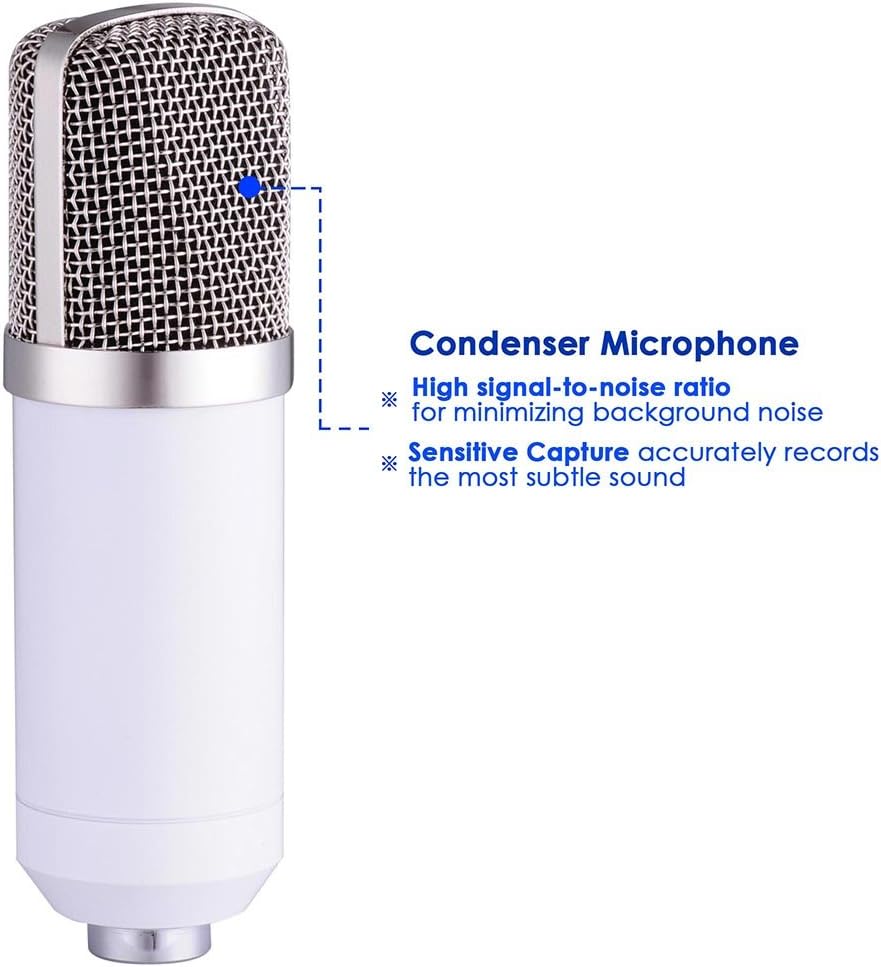
- 1x Condenser Microphone
- 1x Microphone Cap (Foam Windscreen)
- 1x Shock Mount
- 1x Boom Suspension Scissor Arm Stand
- 1x Pop Filter Mask Shield
- 1x Power Cord (3.5mm audio cable)
- 1x User Manual (this document)

Setup Instructions
Follow these steps to assemble and set up your microphone kit:
- Attach the Arm Stand: Secure the clamp of the boom suspension scissor arm stand to a sturdy table or desk. Ensure the table thickness is less than 1 1/2" (3.7 cm). Adjust the arm to your desired position.
- Mount the Shock Mount: Attach the solid metal anti-vibration shock mount to the end of the arm stand. Tighten securely to prevent movement.
- Insert the Microphone: Carefully place the condenser microphone into the shock mount. The shock mount holds the microphone in place and isolates it from vibrations.
- Attach the Pop Filter: Mount the pop filter with its 360-degree adjustable gooseneck to the arm stand or desk. Position it approximately 2-3 inches in front of the microphone to effectively eliminate popping sounds and protect the microphone from saliva.
- Connect the Power Cord: Plug the 3.5mm audio interface end of the power cord into the microphone's output interface. Connect the other end to your desktop PC or laptop's 3.5mm microphone input.
- Power Requirements: The microphone requires 5V to 9V of power, or 48V phantom power supply. It is highly recommended to use this microphone with an external audio card for optimal performance.



Operating Instructions
Once assembled, your microphone kit is ready for use. Follow these guidelines for optimal performance:
- Placement: Position the microphone directly in front of the sound source (e.g., your mouth for vocals) to utilize its cardioid polar pick-up pattern, which focuses on sound from the front and minimizes side and rear noise.
- Pop Filter Use: Always use the pop filter to prevent plosive sounds (like 'p' and 'b') from causing harsh audio spikes.
- Gain Adjustment: If using an external audio interface, adjust the gain settings to achieve a strong signal without clipping or distortion.
- Software Setup: Ensure your computer's audio settings recognize the microphone as the input device. Most recording software will allow you to select the microphone from a list of available inputs.


Maintenance
Proper maintenance ensures the longevity and performance of your microphone kit:
- Cleaning: Use a soft, dry cloth to wipe down the microphone body and stand. Avoid using liquid cleaners directly on the microphone.
- Pop Filter: The pop filter can be gently cleaned with a damp cloth if necessary. Ensure it is completely dry before reattaching.
- Storage: When not in use, store the microphone in a clean, dry place away from dust and extreme temperatures.
- Cable Care: Avoid sharp bends or kinks in the audio cable to prevent internal damage.
Troubleshooting
If you encounter issues with your microphone kit, refer to the following common solutions:
- No Sound/Low Volume:
- Ensure all cables are securely connected.
- Verify the microphone is selected as the input device in your computer's sound settings and recording software.
- Check the gain levels on your audio interface or computer.
- Confirm that the microphone is receiving adequate power (5V-9V or 48V phantom power).
- Humming/Hissing Noise:
- Ensure all connections are tight.
- Try using a different USB port or power outlet for your computer/audio interface.
- Minimize other electronic devices near the microphone that might cause interference.
- Using an external audio card is highly recommended for best performance and noise reduction.
- Microphone Not Fitting Stand:
- Ensure you are using the correct adapter if the microphone's thread size does not match the stand's. Some microphones may require a thread adapter (not included in this kit) for universal compatibility.
- Incompatibility with Mobile Phones: This microphone cannot be used with mobile phones as a power supply. Do not attempt to connect it directly to a phone for power.
- Incompatibility with Apple Computers: This microphone is not directly compatible with Apple computers. An external sound card must be equipped for use with Apple computers.
Specifications
| Feature | Specification |
|---|---|
| Microphone Type | Condenser |
| Polar Pattern | Cardioid (Unidirectional) |
| Frequency Response | 20 Hz to 20 kHz |
| Sensitivity | -32 dB ± 3 dB (0 dB = 1 V/Pa at 1 kHz) |
| Output Impedance | ≤100 Ω |
| Load Impedance | ≥1000 Ω |
| Equivalent Noise Level | ≤20 dBA (IEC 581-5) |
| Signal-to-Noise Ratio | 78 dB |
| Max. SPL | 130 dB (at 1 kHz ≤ 1% T.H.D) |
| Usage Voltage | 5V to 9V (or 48V phantom power supply) |
| Electrical Current | 3 mA |
| Microphone Output Interface | 3.5 mm (1/8") |
| Cable Length | 8.2 ft (2.5 m) |
| Microphone Material | Metal |
| Scissor Arm Stand Size (LxW) | 13 3/4" x 13 3/4" (35 x 35 cm) |
| Suitable Table Thickness (Stand) | Less than 1 1/2" (3.7 cm) |
| Total Net Weight | 3.2 Lbs (1.4 kg) |
| Item Dimensions (Product) | 19.29 x 8.23 x 3.54 inches |

Warranty and Support
This product does not come with a specified warranty. For any product-related inquiries or support, please refer to the retailer or manufacturer's customer service channels.