
1 BY ONE O0000-0713
1 BY ONE DIAFIELD AZERTY Bluetooth Keyboard with Touchpad User Manual
Model: O0000-0713
Introduction
This manual provides comprehensive instructions for the setup, operation, maintenance, and troubleshooting of your 1 BY ONE DIAFIELD AZERTY Bluetooth Keyboard with Touchpad. Please read this manual carefully before using the product to ensure optimal performance and longevity.
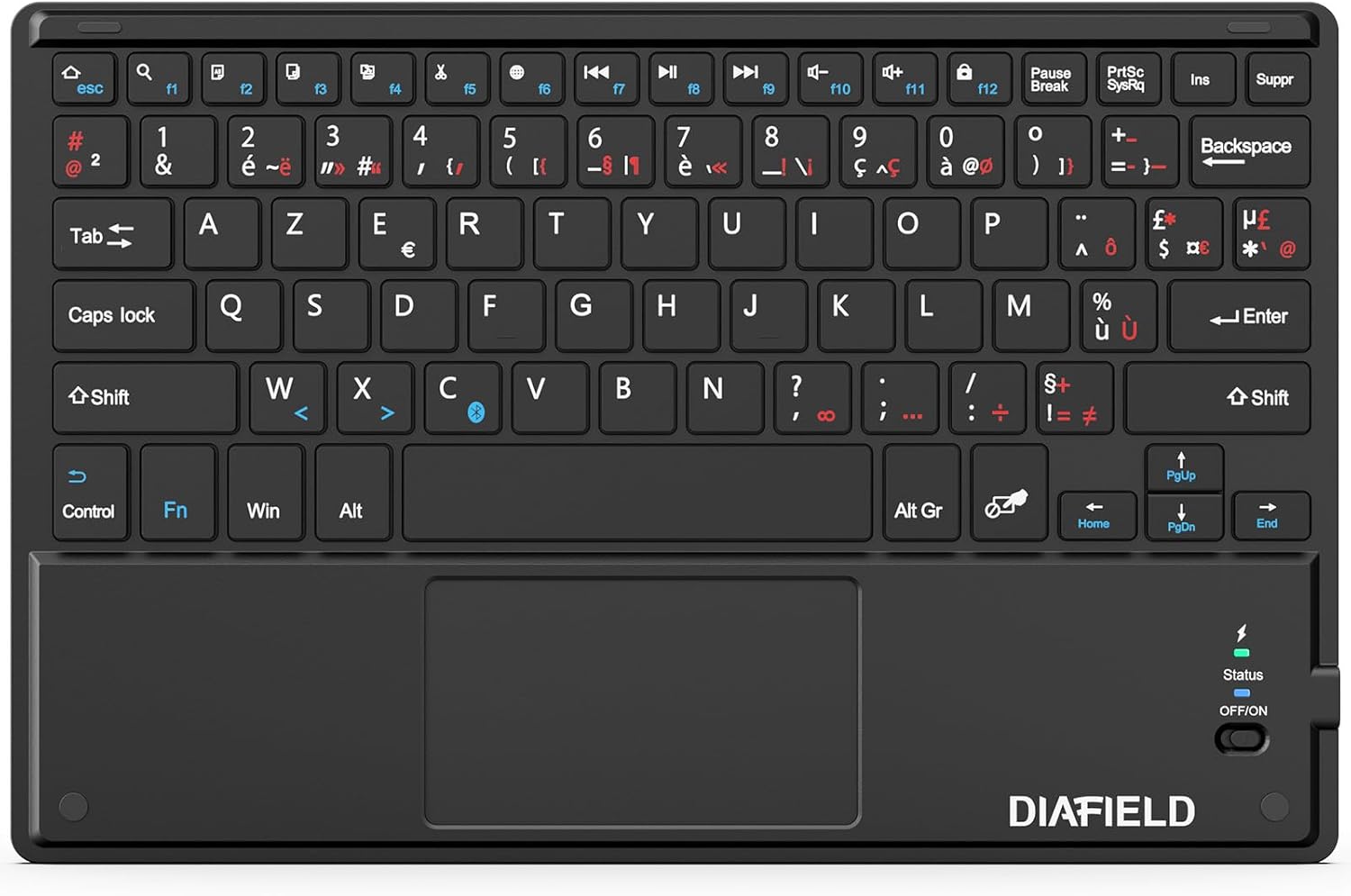
Image: The 1 BY ONE DIAFIELD AZERTY Bluetooth Keyboard, showcasing its full layout and integrated touchpad.
Setup
1. What's in the Box
- 1x 1 BY ONE DIAFIELD AZERTY Bluetooth Keyboard with Touchpad
- 1x USB Charging Cable
2. Charging the Keyboard
Before first use, fully charge the keyboard. Connect the provided USB charging cable to the keyboard's Type-C port and the other end to a USB power source (e.g., computer USB port, USB wall adapter).
- Battery Capacity: 280mAh (Li-ion)
- Charging Time: Approximately 4 hours
- Continuous Use: Up to 40 hours
- Standby Time: Up to 3 months

Image: Close-up of the keyboard's Type-C charging port with a charging cable connected, illustrating the charging process and battery specifications.
3. Bluetooth Pairing
- Ensure the keyboard is charged.
- Slide the power switch on the keyboard to the "ON" position. The status indicator light will illuminate.
- On your device (tablet, smartphone, computer), enable Bluetooth.
- Search for available Bluetooth devices. The keyboard will appear as "DIAFIELD Keyboard" or similar.
- Select the keyboard from the list to initiate pairing. Your device may prompt you to enter a code displayed on the screen using the keyboard, then press Enter.
- Once paired, the status indicator light will turn off or change color, indicating a successful connection.
Compatibility: The keyboard is compatible with Android, Windows, and iOS devices. For iOS devices, the touchpad function requires iOS 13 or later.
Bluetooth Range: The keyboard utilizes Bluetooth 5.0 technology, providing a stable connection up to 10 meters (33 feet).

Image: A smartphone screen displaying Bluetooth settings, showing the "DIAFIELD Keyboard" ready for pairing, illustrating the connection process.
Operating Instructions
1. Keyboard Layout and Shortcut Keys
The keyboard features an AZERTY layout with dedicated function keys and multimedia shortcuts for enhanced productivity across various operating systems.
- Function Keys (F1-F12): These keys often have dual functions. Press the Fn key simultaneously with the desired F-key to activate its secondary function (e.g., media control, volume adjustment, screen lock).
- Common Shortcuts: Supports standard shortcuts like Ctrl+C (Copy), Ctrl+X (Cut), Ctrl+V (Paste), etc., depending on the operating system.

Image: The keyboard with a blue overlay highlighting the function keys and the touchpad area, indicating their multifunctionality.
2. Touchpad Functionality
The integrated touchpad supports multi-gesture controls, allowing for intuitive navigation and interaction with your device.
| Gesture | Description |
|---|---|
| Single Finger Tap | Left Click |
| Two Finger Tap | Right Click |
| Two Finger Pinch In/Out | Zoom In/Out |
| Two Finger Scroll | Scroll vertically or horizontally |
| Three Finger Swipe Up/Down | Switch between applications (Windows/Android) or Mission Control (iOS) |
| Three Finger Swipe Left/Right | Navigate between open applications or desktops |
Note: Specific gesture functionality may vary slightly depending on the operating system and application.

Image: A visual guide demonstrating various multi-gesture commands on the touchpad, including left click, right click, zoom, scrolling, and app switching.
Maintenance
- Cleaning: Use a soft, dry, lint-free cloth to clean the keyboard and touchpad. For stubborn dirt, slightly dampen the cloth with water or a mild, non-abrasive cleaner. Avoid excessive moisture.
- Storage: When not in use for extended periods, store the keyboard in a cool, dry place.
- Battery Care: To preserve battery life, avoid fully discharging the keyboard frequently. If storing for a long time, charge it to about 50% every few months.
- Avoid Damage: Do not expose the keyboard to extreme temperatures, direct sunlight, or liquids. Avoid dropping or applying excessive force to the keys or touchpad.
Troubleshooting
| Problem | Possible Cause | Solution |
|---|---|---|
| Keyboard does not connect/pair. | Low battery, Bluetooth off on device, out of range, interference, previous pairing issue. | Charge the keyboard. Ensure Bluetooth is enabled on your device. Move closer to the device. Turn off/on keyboard and device Bluetooth. Forget previous pairing and re-pair. |
| Touchpad not responding (iOS). | iOS version is older than 13. | Ensure your iOS device is running iOS 13 or a newer version. The touchpad function is not supported on older iOS versions. |
| Incorrect characters typed (e.g., QWERTY instead of AZERTY on Android). | Device's external keyboard language setting is incorrect. | Go to your Android device's settings (e.g., Language & Input > Physical keyboard) and ensure the correct AZERTY (French) layout is selected for the connected keyboard. |
| Keys are sticky or unresponsive. | Dirt or debris under keys, physical damage. | Clean the keyboard as per maintenance instructions. If problem persists, contact support. |
| Short battery life. | Frequent heavy use, aging battery, not fully charged. | Ensure full charge before use. Reduce continuous usage if possible. Battery degradation is normal over time. |
Specifications
| Feature | Detail |
|---|---|
| Model Number | O0000-0713 |
| Connectivity Technology | Bluetooth 5.0 |
| Keyboard Layout | AZERTY (French) |
| Operating System Compatibility | Android, Windows, iOS (Touchpad requires iOS 13+) |
| Battery Type | Built-in 280mAh Li-ion |
| Dimensions (L x W x H) | 25.81 x 16.99 x 0.61 cm (10.16 x 6.69 x 0.24 inches) |
| Weight | 263 g (0.58 lbs) |
| Special Features | Ultra-thin, Lightweight, Silent keys, Integrated Multi-gesture Touchpad |
| Included Components | USB Cable |

Image: A diagram illustrating the keyboard's slim profile (0.6 cm) and light weight (260g).
Warranty and Support
For warranty information and technical support, please refer to the product packaging or visit the official 1 BY ONE website. Keep your purchase receipt for warranty claims.
If you encounter any issues not covered in this manual, please contact 1 BY ONE customer service for assistance.
Related documentsO0000-0713


Ask a question about this manual
Ask about setup, troubleshooting, compatibility, parts, safety, or missing instructions. Manuals+ will review the question and use this page’s manual context to help answer it.