
Introduction
This manual provides essential instructions for setting up, operating, and maintaining your Coolpad Note 3 smartphone. Please read this guide thoroughly to ensure proper use and to maximize the features of your device.
Safety Information
Warning: Keep away from children.
Always handle your device with care. Avoid exposure to extreme temperatures, direct sunlight, and liquids. Do not attempt to disassemble or repair the device yourself, as this will void the warranty and may cause damage or injury.
Package Contents
Verify that your package contains the following items:
- Coolpad Note 3 Handset
- Headset
- Charger
- USB Cable
- Protective Film
- User Manual (this document)
- Warranty Card
Setup
1. Inserting SIM Cards and MicroSD Card
The Coolpad Note 3 supports dual SIM cards (4G+2G) and a MicroSD card for expandable storage up to 64GB. Ensure the device is powered off before inserting or removing cards.
- Locate the SIM/MicroSD card tray on the side of the device.
- Use the provided SIM ejector tool to open the tray.
- Place your SIM cards into the designated slots. Ensure the gold contacts face downwards.
- Insert your MicroSD card into its slot. For 64GB cards, ensure it is formatted to FAT32 for compatibility.
- Carefully push the tray back into the device until it clicks into place.
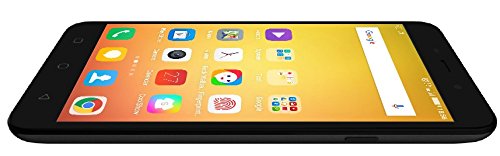
Image: Side view of the Coolpad Note 3, illustrating the location of the SIM/MicroSD card tray and physical buttons.
2. Initial Power On and Setup Wizard
- Press and hold the Power button until the Coolpad logo appears.
- Follow the on-screen instructions to select your language, connect to Wi-Fi, and set up your Google account.
3. Fingerprint Sensor Setup
The Coolpad Note 3 features a fingerprint sensor for enhanced security and quick access.
- Navigate to Settings > Security > Fingerprint.
- Follow the prompts to register your fingerprints. You can register multiple fingers.
- Optionally, customize fingerprints to launch specific applications directly.
Operating Instructions
1. Basic Navigation
Your Coolpad Note 3 runs on Android v5.1 Lollipop with the COOLUI 6.0 interface. Use the touchscreen for navigation, tapping icons to open apps, swiping to scroll, and pinching to zoom.

Image: Front view of the Coolpad Note 3, showing the vibrant home screen with various application icons.
2. Camera Usage
The device features a 13MP rear camera and a 5MP front camera.
- Open the Camera application.
- Tap the screen to focus.
- Press the shutter button to take a photo or start/stop video recording.
- Switch between front and rear cameras using the camera toggle icon.
- Explore various shooting modes available in the camera app.
3. Fingerprint Sensor for Unlocking
To unlock your phone, simply place your registered finger on the fingerprint sensor. The device unlocks in approximately 0.5 seconds. The sensor is designed to detect both dry and wet fingers accurately.
4. Connectivity
- Wi-Fi: Go to Settings > Wi-Fi to connect to available networks.
- Mobile Data: Ensure your SIM card is active and mobile data is enabled in Settings > Data usage.
- Bluetooth: Pair with other devices via Settings > Bluetooth.
- USB OTG: The Micro USB port supports On-The-Go (OTG) functionality for connecting external USB devices (e.g., flash drives) with an adapter.
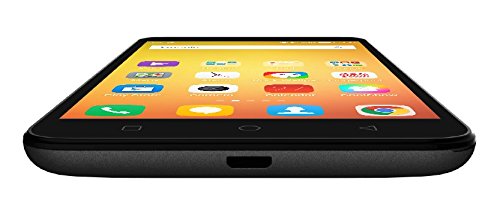
Image: Bottom view of the Coolpad Note 3, highlighting the Micro USB port for charging and data transfer.
Maintenance
1. Charging the Battery
Use the provided charger and USB cable to charge your Coolpad Note 3. Connect the USB cable to the phone's Micro USB port and the charger to a power outlet. A full charge typically takes approximately 2 hours.
2. Software Updates
Regularly check for software updates to ensure optimal performance and access to the latest features and security patches. Go to Settings > About phone > System updates.
3. Cleaning Your Device
Use a soft, lint-free cloth to clean the screen and body of your phone. Avoid using harsh chemicals or abrasive materials.
4. Screen Protection
While the device features a durable display, it is recommended to use a tempered glass screen protector and a protective case to prevent scratches and damage from accidental drops.
Troubleshooting
- Device is heating: It is normal for smartphones to generate some heat during intensive use (e.g., gaming, prolonged video playback). If excessive heating occurs, close background applications and allow the device to cool. Software updates often address heating optimizations.
- Poor camera quality: Ensure good lighting conditions. For potentially improved results, consider using third-party camera applications available on the Google Play Store.
- Network connectivity issues (international travel): The Coolpad Note 3's 3G/4G bands may not be compatible with all international carriers. Verify network compatibility with your service provider before traveling.
- Slow performance/lag: Close unused applications, clear cache, and restart the device. Ensure sufficient free storage space.
Specifications
| Brand | Coolpad |
| Model | Note 3 |
| Operating System | Android v5.1 Lollipop |
| Processor | 1.3GHz Cortex-A53 MT6753 Mediatek Octacore |
| RAM | 3GB |
| Internal Storage | 16GB (expandable up to 64GB via MicroSD) |
| Display Size | 5.5-inch (13.97 cm) |
| Display Resolution | 1280 x 720 pixels (HD) |
| Rear Camera | 13MP |
| Front Camera | 5MP |
| Battery Capacity | 3000mAh Lithium-Ion |
| Talk Time | Up to 15 hours |
| Standby Time | Up to 400 hours |
| SIM Support | Dual SIM (4G+2G) |
| Biometric Security | Fingerprint Recognition |
| Sensors | G sensor, Proximity sensor, Light sensor, Gyro sensor, eCompass, Fingerprint sensor |
| Dimensions (L x W x H) | 15.2 x 7.7 x 0.9 cm |
| Weight | 150 Grams |
Warranty Information
Your Coolpad Note 3 comes with a manufacturer's warranty:
- Device: 1 year manufacturer warranty from the date of purchase.
- In-box Accessories: 6 months manufacturer warranty for accessories including batteries, from the date of purchase.
Please retain your purchase receipt and warranty card for future reference.
Support
For further assistance, technical support, or service inquiries, please refer to the official Coolpad support channels. Coolpad has partnered with HCL for service in some regions.
Visit the official Coolpad website for the latest support information and contact details.


