
Alcatel-Lucent 3MG27103US
Alcatel-Lucent 8029 Premium IP DeskPhone User Manual
Model: 3MG27103US
Introduction
This manual provides comprehensive instructions for the setup, operation, and maintenance of your Alcatel-Lucent 8029 Premium IP DeskPhone. Please read this manual thoroughly before using the device to ensure proper functionality and to maximize its features.
The Alcatel-Lucent 8029 Premium DeskPhone is designed for rich digital communications, offering outstanding wideband audio quality. It features a 3.5 mm headset jack, an alphabetical keyboard, and an LED flash light for call and alarm indications. The monochrome screen, 6 dedicated function keys, and 4 programmable keys with LED and paper labels enhance user interaction. The phone's capabilities can be extended with Premium Add-on modules.
Product Overview
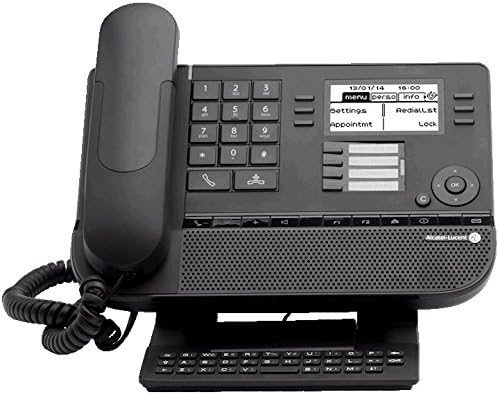
Figure 1: Front view of the Alcatel-Lucent 8029 Premium IP DeskPhone. This image displays the phone's main body, including the handset, numeric keypad, function keys, monochrome display, and an attached alphanumeric keyboard module at the base. The screen shows menu options like "menu," "Perso info," "settings," "Redial list," "Appointmt," and "Lock."

Figure 2: Another front view of the Alcatel-Lucent 8029 Premium IP DeskPhone. This image is similar to Figure 1 but shows the display with the date "10/01/14" and time "11:14," indicating the phone's operational status. The attached alphanumeric keyboard is also clearly visible.
Key Features:
- 6 dedicated function keys and 4 programmable keys for customized access.
- Bi-directional navigation key for simplified feature access and scrolling.
- Permanent feature keys for quick access to the phone’s main features.
- Full duplex speakerphone with acoustic echo cancellation for clear conversations.
- Adjustable and stable foot at the bottom for ergonomic positioning.
- Integrated Alphabetic Keyboard for easy text input.
- Support for multiple languages.
- LED flash light for incoming call and alarm indications (blue for calls, orange for alarms).
- Connectivity options including RJ11 for external ringer, SATA type for add-on modules, and RJ9 for alphanumeric keyboard and corded handset.
Setup
Package Contents:
Before proceeding with the setup, ensure all components are present:
- Alcatel-Lucent 8029 Premium IP DeskPhone unit
- Handset and coiled cord
- Ethernet cable (not explicitly listed but implied for IP phone)
- Adjustable foot stand
- (Optional) Alphanumeric keyboard module
Physical Connection:
- Attach the Foot Stand: Locate the adjustable foot at the bottom of the phone. Insert the tabs of the foot stand into the corresponding slots on the phone's base and push until it clicks into place. Adjust the angle for optimal viewing.
- Connect the Handset: Plug one end of the coiled handset cord into the handset and the other end into the designated RJ9 port on the phone base.
- Connect to Network: Connect an Ethernet cable from your network switch or router to the "LAN" port on the back of the phone. The phone supports two 10/100/1000 layer 2 ports.
- Power Connection: The phone typically receives power over Ethernet (PoE). If PoE is not available, connect a compatible power adapter (sold separately) to the power input port.
- (Optional) Connect Add-on Modules: If using Premium Add-on 10 keys modules or Premium Smart display 14 keys modules, connect them to the SATA type add-on module connector on the phone.
- (Optional) Connect External Ringer: If an external ringer is desired, connect it to the RJ11 connector.
Initial Boot-up:
Once connected, the phone will power on automatically. The monochrome display will show the boot-up sequence. It may take a few moments for the phone to acquire an IP address and register with your communication system. Follow any on-screen prompts for initial configuration, such as language selection or network settings if not automatically provisioned.
Operating Instructions
Making and Receiving Calls:
- To Make a Call: Lift the handset, press the speakerphone button, or press a line key. Dial the desired number using the numeric keypad.
- To Answer a Call: When the phone rings and the LED flashes blue, lift the handset or press the speakerphone button.
- To End a Call: Replace the handset or press the speakerphone button again.
Using Function Keys:
The 8029 DeskPhone features 6 dedicated function keys and 4 programmable keys. These keys provide quick access to common features.
- Dedicated Keys: These keys have fixed functions (e.g., Hold, Transfer, Conference, Redial, Mute, Speaker). Refer to the icons on the keys for their specific purpose.
- Programmable Keys: The 4 programmable keys (with LED and paper label) can be configured for speed dial, line appearance, or other custom functions by your system administrator. The LED indicates the status of the assigned function.
Display and Navigation:
The 64x128 pixel monochrome display shows call information, menu options, and status indicators. Use the bi-directional navigation key (up/down/left/right arrows) to scroll through menus and options. The "OK" or "Select" button (usually in the center of the navigation cluster) confirms selections.
Audio Services:
- Hands-Free Speakerphone: Press the speakerphone button to activate hands-free mode. The full duplex speakerphone with acoustic echo cancellation ensures clear audio.
- Headset: Connect a compatible headset to the 3.5 mm headset jack for private conversations.
- Handset: Use the traditional handset for standard calls.
Alphabetical Keyboard:
The integrated alphabetical keyboard allows for easy input of names, numbers, or other text, useful for directory searches or messaging features.
Maintenance
Cleaning:
- Use a soft, dry, lint-free cloth to clean the phone's surface and display.
- For stubborn marks, slightly dampen the cloth with water or a mild, non-abrasive cleaner. Do not spray cleaner directly onto the phone.
- Avoid using harsh chemicals, solvents, or abrasive materials, as these can damage the phone's finish.
- Ensure the phone is unplugged from power before cleaning.
Storage:
If storing the phone for an extended period, disconnect all cables and store it in a cool, dry place away from direct sunlight and extreme temperatures.
Troubleshooting
| Problem | Possible Cause | Solution |
|---|---|---|
| Phone does not power on. | No power (PoE or power adapter). | Ensure Ethernet cable is securely connected to a PoE-enabled port, or that the power adapter is correctly plugged in and functional. |
| No dial tone / Cannot make calls. | Network connectivity issue; Phone not registered with system. | Check Ethernet cable connection. Verify network status on the phone's display. Contact your IT administrator if the phone is not registering. |
| Poor audio quality (echo, static). | Network congestion; Faulty cable; Environmental interference. | Ensure proper network bandwidth. Check and replace Ethernet cable if necessary. Move phone away from other electronic devices if interference is suspected. |
| Display is blank or frozen. | Software glitch; Power issue. | Perform a power cycle: Disconnect and reconnect the Ethernet cable (or power adapter). If the issue persists, contact support. |
| LED flash light not working. | Feature disabled; Hardware malfunction. | Check phone settings (if accessible) to ensure LED indicators are enabled. If not, it may indicate a hardware issue requiring service. |
Specifications
| Feature | Detail |
|---|---|
| Brand | Alcatel-Lucent |
| Model Number | 3MG27103US |
| Display | 64×128 pixel black and white display with backlight, Monochrome screen |
| Network Ports | Two 10/100/1000 layer 2 ports |
| Dedicated Keys | 6 |
| Programmable Keys | 4 (with LED and paper label) |
| Headset Jack | 3.5 mm |
| Keyboard | Alphabetical keyboard |
| LED Indicator | Flashing blue (incoming call), Flashing orange (alarm) |
| Audio Services | Hands-free, Handset, Headset (full duplex speakerphone with acoustic echo cancellation) |
| Connectivity | RJ11 (external ringer), SATA type (Add-on module), RJ9 (alphanumeric keyboard, corded handset) |
| Product Dimensions (L x W x H) | 7.87 x 9.92 x 8.03 inches |
| Item Weight | 3.17 pounds |
| Color | Black |
| Telephone Type | Corded |
| Conference Call Capability | 3 way |
| Caller Identification | Yes |
| UPC | 731882533989 |
Warranty and Support
For warranty information and technical support, please contact your point of purchase or the Alcatel-Lucent Enterprise support team. Details regarding warranty coverage and service options are typically provided with your purchase documentation or can be found on the official Alcatel-Lucent Enterprise website.
When contacting support, please have your product model number (3MG27103US) and ASIN (B01579GOR6) readily available.
Ask a question about this manual
Ask about setup, troubleshooting, compatibility, parts, safety, or missing instructions. Manuals+ will review the question and use this page’s manual context to help answer it.