
1. Introduction
The Aeotec Micro Switch G2 DSC26103-ZWUS is a Z-Wave enabled device designed to integrate existing electrical switches into a smart home system. This module allows for remote control and automation of connected lighting or appliances, while retaining the functionality of the physical wall switch. It supports various Z-Wave command classes for comprehensive control and scene activation.
2. Safety Information
WARNING: Installation should only be performed by a qualified electrician or trained service personnel. Incorrect installation can be dangerous or cause damage to the device and connected equipment.
- Always disconnect power at the circuit breaker before installation or maintenance.
- Ensure all wiring complies with local electrical codes and regulations.
- Do not exceed the maximum load rating of 275 watts.
- This device is for indoor use only.
- Keep out of reach of children.
3. Package Contents
- 1x Aeotec Micro Switch G2 (DSC26103-ZWUS)
- 1x Instruction Manual (this document)
4. Setup and Installation
The Micro Switch G2 is designed to be installed behind an existing wall switch or within a light fixture box. Its compact size (3.15 x 2.76 x 1.18 inches) allows it to fit into standard electrical boxes.
4.1 Wiring Considerations
The Micro Switch G2 features screw terminals for electrical connections. It is recommended to use stranded wire for optimal connection security. Some units may come with pre-installed pigtails to facilitate wiring.
If a neutral wire is not available in the switch box, the unit can be installed in the light fixture box, provided a neutral wire is present there. The existing wires running to the wall switch can then be used to connect to the switch input terminals of the Micro Switch G2.
The device supports both 2-way and 3-way light switch configurations.

Figure 1: Aeotec Micro Switch G2 module showing AC Power, Load, and Wall Switch terminals.
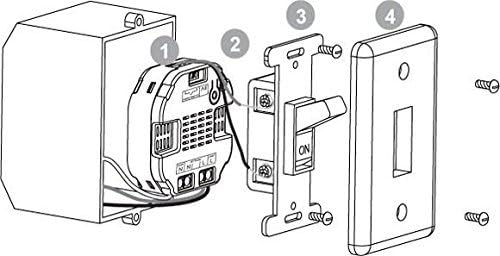
Figure 2: Typical installation diagram of the Micro Switch G2 within a wall box, connected to a standard toggle switch and a light fixture.
4.2 Z-Wave Network Inclusion
To include the Micro Switch G2 into your Z-Wave network:
- Ensure the Micro Switch G2 is powered on.
- Put your Z-Wave controller into inclusion/pairing mode. Refer to your controller's manual for specific instructions.
- Press the S2 button on the Micro Switch G2 once. The device will attempt to pair with the controller.
- Confirm successful inclusion on your Z-Wave controller.
5. Operating Instructions
5.1 Basic Operation
Once successfully included in a Z-Wave network, the connected light or appliance can be controlled via your Z-Wave controller or the physical wall switch. The physical switch will toggle the state of the connected load.
5.2 Configuration Parameters
The Micro Switch G2 can be configured for different switch types (e.g., momentary or standard toggle switch) using Z-Wave configuration parameters. A common parameter to adjust is:
- Parameter 120: Controls the switch type.
- Size: 1 byte dec
- Value 0: Configures the Micro Switch for a standard toggle switch (press once for ON, press again for OFF). This is often the desired setting for typical wall switches.
- Value 1: Configures the Micro Switch for a momentary push button.
Refer to your Z-Wave controller's interface for instructions on how to change device configuration parameters. Alternatively, some configurations can be changed by pressing and holding the S2 button for approximately 6 seconds, though this is less precise and may vary by firmware version.
6. Maintenance
The Aeotec Micro Switch G2 requires minimal maintenance. Ensure the device is kept dry and free from dust. Periodically check electrical connections for tightness, especially if any issues arise. Always disconnect power before performing any physical checks or cleaning.
7. Troubleshooting
- Light Flickers or Does Not Stay On: This often indicates an incorrect configuration for the type of physical switch connected. Ensure Parameter 120 is set to '0' for a standard toggle switch. If using a momentary switch, ensure it is set to '1'.
- Device Not Responding: Verify that the Micro Switch G2 is powered and properly included in your Z-Wave network. Check the circuit breaker and all wiring connections. Try re-including the device if necessary.
- Difficulty Fitting in Wall Box: Older or smaller metal workboxes may not provide sufficient space. Consider replacing the workbox with a larger, standard size if space is an issue. Ensure wires are neatly organized and properly secured.
- Fragile Connections / Shorting: Exercise caution when wiring. Use stranded wire and ensure all connections are secure but not overtightened. Insulate all exposed wire ends and connections properly with wire nuts and electrical tape to prevent accidental shorts. A short circuit can damage the unit.
- Z-Wave Exclusion Issues: If the device fails to exclude from the network, try performing a factory reset (refer to the manufacturer's specific instructions for factory reset, usually involving a sequence of button presses).
8. Specifications
| Manufacturer | Aeotec |
| Part Number | DSC26103-ZWUS |
| Item Model Number | DSC26103-ZWUS |
| Item Weight | 4 ounces |
| Product Dimensions | 3.15 x 2.76 x 1.18 inches |
| Wattage | 275 watts |
| Z-Wave Certification ID | ZC08-12090007 |
| Frequency Region | U.S./Canada/Mexico |
| Z-Wave Library Version | 4.54 |
| Device Categories | All Lighting Devices, On/Off Switches/Devices |
| Supported Command Classes | Hail, All Switch, Association, Binary Switch, Configuration, Scene Activation |
| Controlled Command Classes | Hail |
9. Warranty Information
This product is typically covered by a limited manufacturer's warranty. Please refer to the official Aeotec website or your point of purchase for specific warranty terms and conditions. Keep your proof of purchase for warranty claims.
10. Support
For technical support, troubleshooting assistance, or further information regarding the Aeotec Micro Switch G2, please visit the official Aeotec support website or contact their customer service department. Online resources often include FAQs, firmware updates, and detailed guides.


