
Introduction
This manual provides essential instructions for the safe and efficient use of your Sony Stereo Bluetooth Headset SBH70. Please read this manual thoroughly before using the device and retain it for future reference.
Product Overview
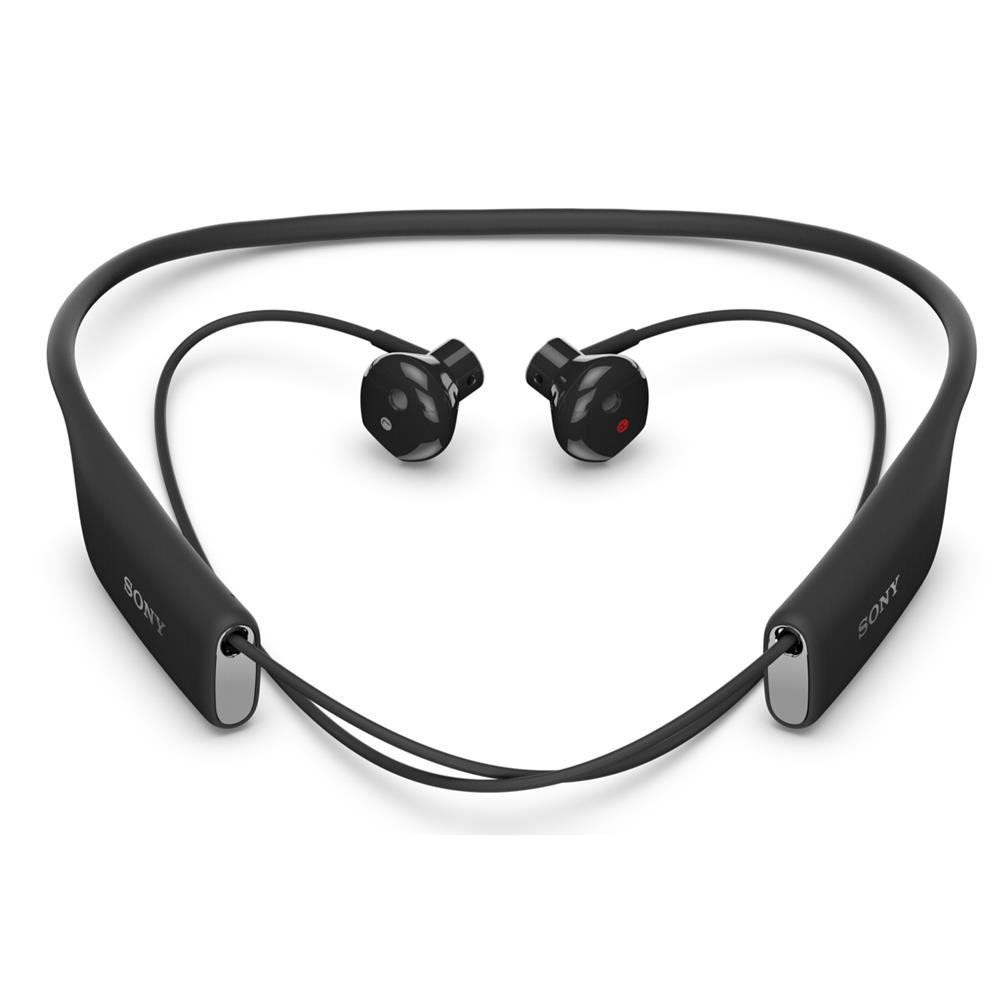
The image displays the Sony SBH70 headset, featuring a flexible neckband design with integrated earbuds. The headset is black.
Setup
1. Initial Charging
Before first use, fully charge the headset. Connect the provided USB cable to the headset's charging port and a compatible USB power source. The indicator light will show charging status and turn off when fully charged.
2. Pairing via Bluetooth
- Ensure the headset is off.
- Press and hold the power button for approximately 5 seconds until the indicator light flashes rapidly, indicating pairing mode.
- On your Bluetooth-enabled device (smartphone, tablet, computer), enable Bluetooth and search for available devices.
- Select 'SBH70' from the list of found devices to connect. If prompted, enter '0000' as the passcode.
3. Pairing via NFC (Near Field Communication)
- Ensure NFC is enabled on your device and the headset is powered on.
- Touch your NFC-enabled device to the NFC detection area on the headset.
- Follow any on-screen prompts on your device to complete the pairing process.
4. Multi-point Connectivity
The SBH70 supports multi-point connectivity, allowing it to be connected to two Bluetooth devices simultaneously. For detailed instructions on setting up and managing multi-point connections, please refer to the comprehensive user guide available on the official Sony support website.
Operating Instructions
1. Power On/Off
- To Power On: Press and hold the power button for approximately 3 seconds until the indicator light illuminates.
- To Power Off: Press and hold the power button for approximately 3 seconds until the indicator light turns off.
2. Call Management
- Answer/End Call: Press the call button once.
- Reject Call: Double-press the call button.
- Voice-activated Dialing: The headset supports Bluetooth voice-activated dialing. Refer to your connected device's manual for specific voice command setup.
3. Music Playback
- Volume Adjustment: Use the volume up (+) and volume down (-) buttons on the headset.
- Playback Control: Music playback controls (play, pause, skip track) are typically managed directly from your connected device.
4. Voice Commands
Activate your device's voice assistant (e.g., Google Assistant, Siri) by pressing the dedicated voice command button on the headset, if available and configured with your device.
5. Water Resistance (IP57)
The SBH70 is rated IP57, meaning it is protected against dust and can withstand immersion in water up to 1 meter for 30 minutes. It is suitable for use in rain or during workouts where sweat may occur. However, it is not designed for prolonged underwater use or exposure to pressurized water.
Maintenance
1. Cleaning
Wipe the headset with a soft, dry cloth. For water-resistant parts, a slightly damp cloth can be used. Avoid using harsh chemicals, cleaning solvents, or strong detergents, as these may damage the finish or internal components.
2. Storage
Store the headset in a cool, dry place away from direct sunlight, extreme temperatures, and excessive humidity. Avoid storing it with sharp objects that could damage the cables or earbuds.
3. Battery Care
To prolong the lifespan of the battery, avoid fully discharging it frequently. Charge the headset regularly, even if not in constant use. Do not expose the battery to extreme heat.
Troubleshooting
1. No Power
- Ensure the headset is fully charged. Connect it to a power source and check if the charging indicator light is active.
- Try pressing and holding the power button for a longer duration (up to 10 seconds) to ensure it's not in a deep sleep mode.
2. Cannot Pair or Connect
- Ensure the headset is in pairing mode (rapidly flashing indicator light).
- Verify that Bluetooth is enabled on your device and it is discoverable.
- Move the headset closer to your device to ensure it is within range.
- Try restarting both the headset and your connected device.
- If previously paired, try unpairing and re-pairing the headset from your device's Bluetooth settings.
3. Poor Sound Quality or Low Volume
- Check the Bluetooth connection to your device for stability.
- Ensure the earbuds are properly seated in your ears. An improper fit can significantly affect bass response and overall sound.
- Adjust the volume on both the headset and the connected device.
- Environmental noise can impact perceived sound quality, especially with open-ear designs.
- If one earbud sounds damaged (e.g., rattling at bass frequencies), contact customer support for assistance.
4. Uncomfortable Fit
The SBH70 earbuds are designed for all-day comfort. If discomfort occurs, adjust their position in your ears. The flexible neckband is lightweight and should rest comfortably around your neck without causing irritation.
Specifications
| Brand | Sony |
| Model Number | SBH70 |
| Connectivity Technology | Bluetooth, NFC |
| Water Resistance Level | IP57 (Water Resistant) |
| Battery Life (Talk Time) | Up to 8.5 hours |
| Battery Life (Streaming Time) | Up to 6 hours |
| Speaker Type | 14 mm dynamic |
| Frequency Response | 35 Hz - 18000 Hz |
| Microphone | ECM (HD voice compliant) |
| Weight | 22.68 g |
| Compatibility | Smartphones, tablets, and computers that support at least one of the Bluetooth profiles listed. |
Warranty Information
This Sony Stereo Bluetooth Headset SBH70 is covered by a 1-year manufacturer's warranty from the date of purchase. Please retain your original proof of purchase (receipt or invoice) as it will be required for any warranty claims. The warranty covers defects in materials and workmanship under normal use. It does not cover damage caused by misuse, accidents, unauthorized modifications, or normal wear and tear.
Support
For further assistance, detailed user guides, software updates, or technical support, please visit the official Sony support website. You can typically find support resources by searching for 'Sony SBH70 support' online.