
1. Introduction
Thank you for choosing the BlueTech AV-1000 Rechargeable Battery Charger. This manual provides essential information for the safe and efficient operation of your new charger. Please read these instructions thoroughly before use and retain them for future reference.
The BlueTech AV-1000 is designed to charge and discharge NiCad or NiMH AA and AAA rechargeable batteries. It features individual charging slots, multiple operating modes, and a built-in USB charging port.
2. Safety Information
- Power Adapter: Only use the power adapter supplied with this unit. Using unauthorized adapters may cause damage to the charger or batteries, and poses a fire hazard.
- Battery Compatibility: This charger is designed exclusively for NiCad and NiMH AA and AAA rechargeable batteries. Do not attempt to charge alkaline, lithium, or any other battery types, as this may lead to explosion, leakage, or personal injury.
- Overheating: While the charger includes overheat protection, always monitor batteries during charging. If a battery becomes excessively hot to the touch, immediately remove it from the charger and discontinue use.
- Ventilation: Ensure the charger is placed in a well-ventilated area during operation to prevent heat buildup.
- Moisture: Do not expose the charger to water or moisture.
- Children: Keep the charger out of reach of children.
- Damage: Do not operate the charger if it appears damaged.
3. Product Overview
The BlueTech AV-1000 charger features four independent charging slots, each with its own display screen and control buttons. It supports various modes for optimal battery care.

Figure 3.1: Top view of the BlueTech AV-1000 charger with four batteries in slots 1-4. The display shows charging information for each slot.
Key Features:
- Four independent charging slots for AA or AAA NiCad/NiMH batteries.
- Individual display screens for each slot showing charging current, battery voltage, charged capacity, and charging time.
- Four selectable charging current levels: 200mA, 500mA, 700mA, and 1000mA.
- Multiple operating modes: Charge, Discharge, Refresh, and Test.
- Built-in USB charging port (5V output) for external devices.
- Automatic trickle charging upon full charge.
- Integrated overheat protection.
4. Setup
- Unpack: Carefully remove the BlueTech AV-1000 charger and its power adapter from the packaging.
- Placement: Place the charger on a stable, flat surface in a well-ventilated area, away from direct sunlight, heat sources, and moisture.
- Connect Power: Insert the DC plug of the provided power adapter into the "IN: 12V" port on the side of the charger. Plug the other end of the power adapter into a standard wall outlet. The charger display will illuminate.

Figure 4.1: Side view of the charger, highlighting the 12V power input and 5V USB output ports.
5. Operating Instructions
5.1 Inserting Batteries
Insert one to four AA or AAA NiCad/NiMH rechargeable batteries into the charging slots. Ensure the positive (+) and negative (-) terminals of the batteries align correctly with the markings in the slots. Each slot operates independently.

Figure 5.1: Empty battery slots of the charger, showing the positive and negative contacts.
5.2 Selecting Modes and Current
After inserting batteries, the charger will automatically detect them. Each slot has three buttons below its display: CURRENT, DISPLAY, and MODE. These buttons control the settings for that specific battery slot.

Figure 5.2: Close-up view of the charger's control panel, showing the CURRENT, DISPLAY, and MODE buttons for each slot.
- MODE Button: Press the MODE button for the desired slot to cycle through the available operating modes:
- CHARGE: Standard charging mode.
- DISCHARGE: Discharges the battery before charging. Useful for reducing memory effect in NiCad batteries.
- REFRESH: Repeatedly discharges and charges the battery to restore its maximum capacity. This process can take over 24 hours.
- TEST: Charges the battery fully, then discharges it to measure its actual capacity, and then recharges it.
- CURRENT Button: After selecting a mode, press the CURRENT button for that slot to choose the charging current: 200mA, 500mA, 700mA, or 1000mA. A higher current charges faster but may generate more heat.
- DISPLAY Button: During operation, press the DISPLAY button to cycle through the information shown on the screen: charging current (mA), battery voltage (V), charged capacity (mAh), and elapsed charging time (h:mm).
5.3 USB Charging Port
The charger includes a 5V USB output port on its side. This port can be used to charge external devices such as smartphones. Simply connect your device's USB charging cable to this port. Note that using the USB port may affect the charging performance of batteries in the main slots.
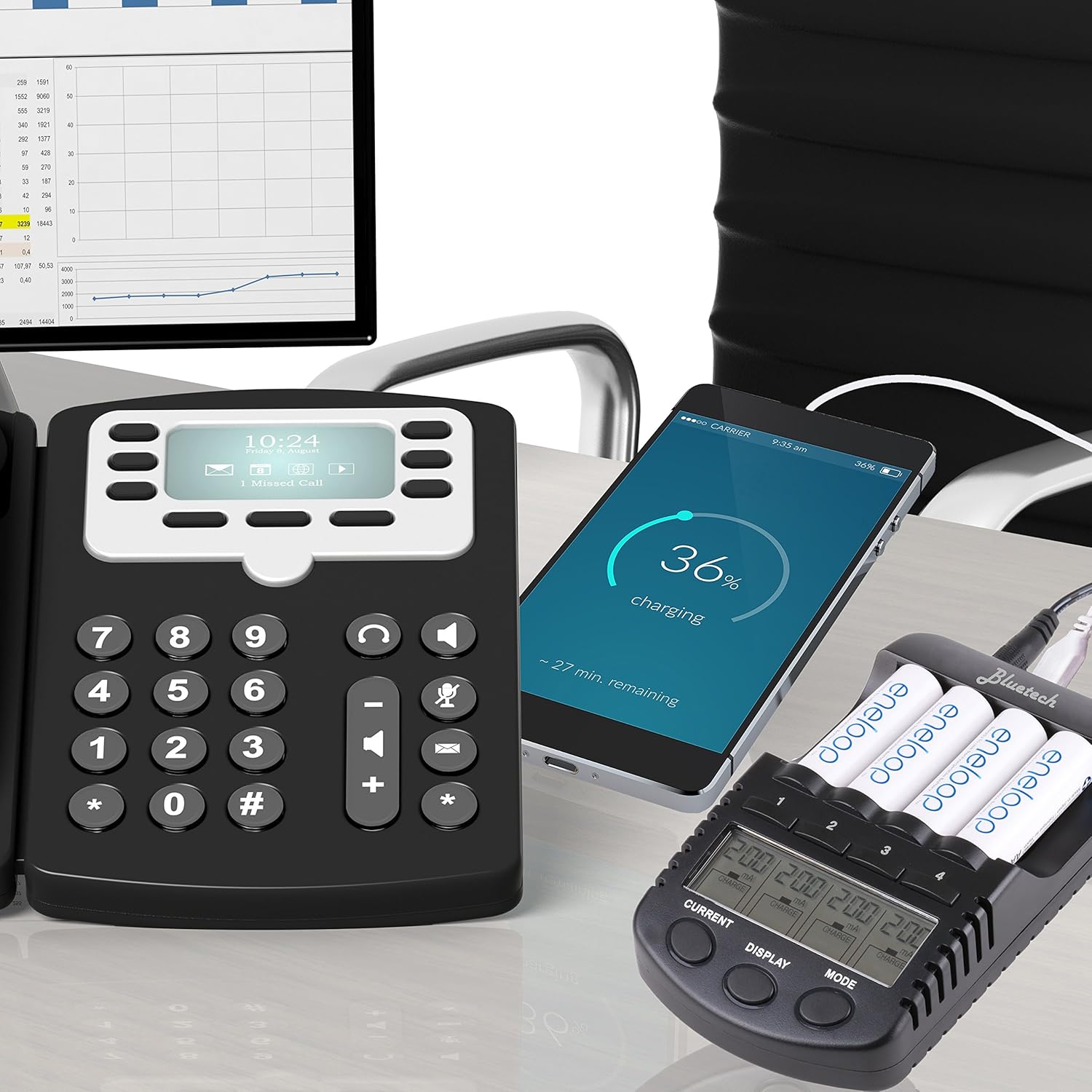
Figure 5.3: The BlueTech AV-1000 charger simultaneously charging batteries and a smartphone via its USB output port.
5.4 Automatic Trickle Charging
Once a battery is fully charged in any mode, the charger will automatically switch to a low-current trickle charge. This maintains the battery at its optimum capacity without overcharging.
6. Maintenance
- Cleaning: Disconnect the charger from power before cleaning. Use a soft, dry cloth to wipe the exterior. Do not use liquid cleaners or solvents.
- Contacts: Periodically inspect the battery contacts in the slots for dirt or corrosion. Clean gently with a cotton swab if necessary.
- Storage: When not in use, store the charger in a cool, dry place, away from direct sunlight and extreme temperatures.
7. Troubleshooting
| Problem | Possible Cause | Solution |
|---|---|---|
| Charger display does not light up. | No power connection or faulty power adapter/cable. | Ensure the power adapter is securely connected to both the charger and the wall outlet. Try a different outlet. If the issue persists, the adapter or charger may be faulty. |
| Battery not charging / Error on display. | Incorrect battery type, improperly inserted battery, or faulty battery. | Verify the battery is a NiCad/NiMH AA or AAA type. Reinsert the battery, ensuring correct polarity. Try charging a different battery to isolate if the issue is with the battery or the slot. |
| Battery becomes excessively hot during charging. | Faulty battery, high charging current, or poor ventilation. | Immediately remove the battery. Ensure the charger is in a well-ventilated area. Try a lower charging current. Do not use batteries that consistently overheat. |
| USB charging port not working. | Device not compatible, cable issue, or charger overload. | Ensure your device is compatible with 5V USB charging. Try a different USB cable. Disconnect any batteries from the main slots to see if it resolves the issue. |
8. Specifications
- Model: AV-1000
- Compatible Battery Types: AA, AAA NiCad, NiMH rechargeable batteries
- Number of Slots: 4 independent slots
- Input Power: 12V DC (via included power adapter)
- Selectable Charging Currents: 200mA, 500mA, 700mA, 1000mA
- Operating Modes: Charge, Discharge, Refresh, Test
- Display Information: Current (mA), Voltage (V), Capacity (mAh), Time (h:mm)
- USB Output: 5V (for charging external devices)
- Product Dimensions: 2 x 7 x 5.8 inches (approximately)
- Item Weight: 10.4 ounces (approximately)
9. Warranty and Support
For warranty information and technical support, please refer to the documentation provided at the time of purchase or contact your retailer. BlueTech is committed to providing quality products and customer service.


