
1. Introduction
This manual provides essential instructions for the safe and efficient use of your Epson LQ-310 24-Pin Narrow Carriage Impact Printer. Please read this manual thoroughly before operating the printer and keep it for future reference.
The Epson LQ-310 is a compact and reliable dot matrix printer designed for fast and efficient printing of various documents, including multi-part forms, invoices, and reports. It features versatile connectivity options including USB, Serial, and Parallel ports.
2. Safety Information
Observe the following safety precautions to ensure safe operation and to prevent damage to the printer or injury to yourself.
- Always place the printer on a stable, flat surface.
- Do not block or cover the ventilation slots on the printer.
- Use only the power cord supplied with the printer.
- Do not expose the printer to water, moisture, or excessive heat.
- Unplug the printer from the power outlet before cleaning or performing maintenance.
- Keep out of reach of children.
3. Package Contents
Verify that all items are present in the package:
- Epson LQ-310 Printer Unit
- Power Cable
- Ribbon Cartridge
- User Manual (this document)
- Driver CD (may vary by region)
4. Setup
4.1 Unpacking and Placement
- Remove the printer from its packaging.
- Remove all protective tapes and packing materials.
- Place the printer on a flat, stable surface with adequate ventilation.
4.2 Connecting the Power Cable
Connect the power cable to the printer and then to a grounded electrical outlet.
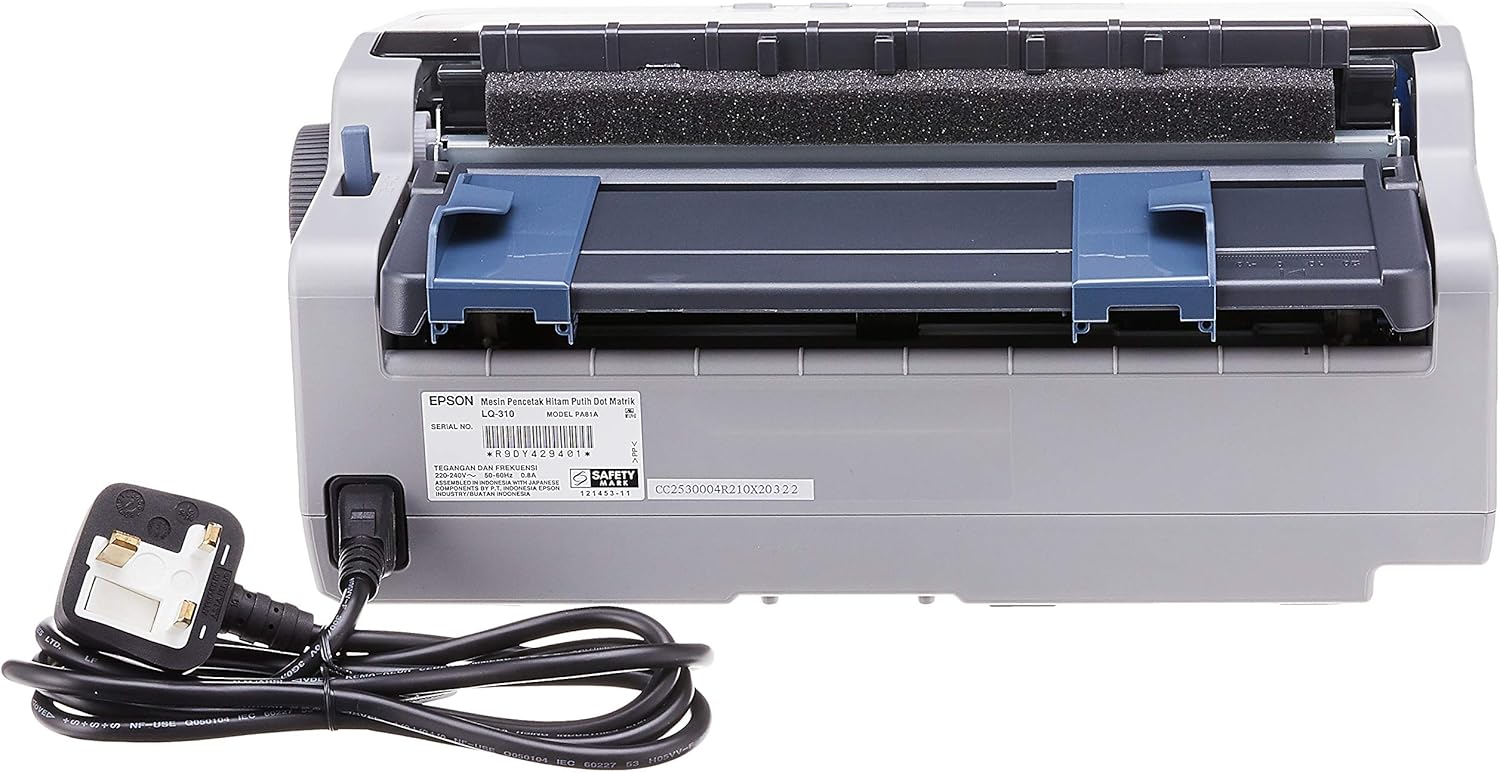
Figure 4.2.1: Rear view of the Epson LQ-310 printer, highlighting the power input and various data ports (USB, Serial, Parallel) for connection to a computer.
4.3 Connecting to a Computer
The LQ-310 supports USB, Serial, and Parallel connections. Choose the appropriate cable for your computer and connect it to the corresponding port on the printer.
- USB Connection: Use a standard USB A-B cable.
- Serial Connection: Use a serial cable (RS-232C).
- Parallel Connection: Use a parallel cable (Centronics).
4.4 Installing the Ribbon Cartridge
- Ensure the printer is turned off.
- Open the printer cover.
- Unpack the new ribbon cartridge.
- Align the ribbon cartridge with the guides inside the printer and press down firmly until it clicks into place.
- Turn the ribbon feed knob on the cartridge to ensure the ribbon is taut and not twisted.
- Close the printer cover.

Figure 4.4.1: The ribbon cartridge for the Epson LQ-310 printer, which needs to be installed correctly for printing.
4.5 Loading Paper
The LQ-310 can handle various paper types, including continuous forms and single sheets.
- For Continuous Forms: Place the forms on the tractor feed mechanism at the rear of the printer. Adjust the tractor guides to match the paper width and engage the pins.
- For Single Sheets: Insert a single sheet into the front paper slot, ensuring it is straight.
4.6 Driver Installation
After connecting the printer, install the necessary drivers on your computer. You can typically find these on the included CD or download them from the official Epson support website.
5. Operating Instructions
5.1 Control Panel Overview
The control panel on the front of the printer allows you to manage basic functions.

Figure 5.1.1: Front view of the Epson LQ-310 printer, showing the control panel with buttons for Tear Off, LF/FF, Load/Eject, Paper Out, Pause, Lock, Font, Item, Micro Adjust, and Set.
- Power Button: Turns the printer on or off.
- Paper Out Indicator: Lights up when the printer is out of paper.
- Pause Button: Temporarily stops printing. Press again to resume.
- LF/FF (Line Feed/Form Feed) Button: Advances paper by one line or one page.
- Load/Eject Button: Loads a single sheet of paper or ejects the current sheet.
- Tear Off Button: Advances continuous paper to the tear-off position.
- Font Button: Selects different fonts.
- Item/Set Buttons: Used for menu navigation and setting options.
5.2 Basic Printing
- Ensure the printer is powered on and connected to your computer.
- Load paper according to the instructions in Section 4.5.
- Open the document you wish to print on your computer.
- Select the Epson LQ-310 as your printer in the print dialog.
- Adjust print settings (e.g., paper size, print quality) as needed.
- Click 'Print'.
6. Maintenance
6.1 Ribbon Cartridge Replacement
Replace the ribbon cartridge when print quality deteriorates or the ribbon is visibly worn.
- Turn off the printer and unplug the power cord.
- Open the printer cover.
- Carefully remove the old ribbon cartridge by lifting it out.
- Install a new ribbon cartridge as described in Section 4.4.
- Close the printer cover and reconnect the power.
6.2 Cleaning the Printer
Regular cleaning helps maintain printer performance.
- Turn off the printer and unplug the power cord.
- Wipe the exterior of the printer with a soft, damp cloth. Do not use abrasive cleaners or solvents.
- Gently clean the print head area with a soft, lint-free cloth if necessary, being careful not to touch the pins.
- Remove any paper dust or debris from the paper path.
7. Troubleshooting
This section addresses common issues you might encounter with your LQ-310 printer.
7.1 Printer Does Not Turn On
- Ensure the power cable is securely connected to both the printer and a working electrical outlet.
- Check if the power outlet is functional by plugging in another device.
7.2 "Paper Out" Indicator is On
- Load paper correctly as described in Section 4.5.
- Ensure the paper sensor is not obstructed.
7.3 No Print Output
- Verify the printer is powered on and connected to the computer.
- Check if the correct printer driver is installed and selected in your application.
- Ensure the ribbon cartridge is installed correctly and has ink.
- Check the printer's status on your computer; clear any pending print jobs.
7.4 Poor Print Quality
- The ribbon cartridge may be old or running out of ink. Replace it if necessary.
- Ensure the paper type is suitable for impact printing.
- Clean the print head area if there is visible debris.
8. Specifications
| Feature | Specification |
|---|---|
| Printing Technology | 24-Pin Narrow Carriage Impact Dot Matrix |
| Print Speed | Up to 347 / 416 cps (10 / 12 cpi) |
| Connectivity | 1 Full-Speed USB 2.0, Serial Port, Parallel Port |
| Printer Output | Colour (Ink Color: Black) |
| Resolution | 240 x 170 dpi (Max Print Resolution Black and White: 240 dpi) |
| Item Weight | 4.1 Kilograms |
| Product Dimensions (D x W x H) | 27.5D x 36.2W x 15.4H centimetres |
| Maximum Media Size | Letter/A4 |
| Print Media | Paper (plain) |
| Model Name | LQ 310 |
| Model Number | LQ-310 |
9. Warranty and Support
The Epson LQ-310 printer comes with a limited warranty. For detailed warranty information, please refer to the warranty card included with your product or visit the official Epson website.
For technical support, driver downloads, or further assistance, please visit the Epson support website or contact your local Epson customer service center. Have your printer model number (LQ-310) and serial number ready when contacting support.


