
1. Introduction
This manual provides comprehensive instructions for the setup, operation, maintenance, and troubleshooting of your Avaya 9508 Digital Deskphone. Designed for small and medium-sized businesses, this deskphone offers reliable and high-quality communication solutions.
The Avaya 9508 Digital Deskphone features an intuitive design and functionality, making it an ideal choice for various user types in mixed digital/IP telephony environments.
2. Setup
Follow these steps to set up your Avaya 9508 Digital Deskphone:
- Connect the Handset: Plug one end of the coiled cord into the handset and the other end into the handset jack on the side of the phone base.
- Connect the Network Cable: Connect a digital line cable from your wall jack to the port labeled "Digital Line" on the back of the phone.
- Connect Power (if applicable): If your system requires external power, connect the power adapter to the phone and a power outlet.
- Position the Phone: Place the phone on a stable surface. The integrated stand allows for an angled viewing position.
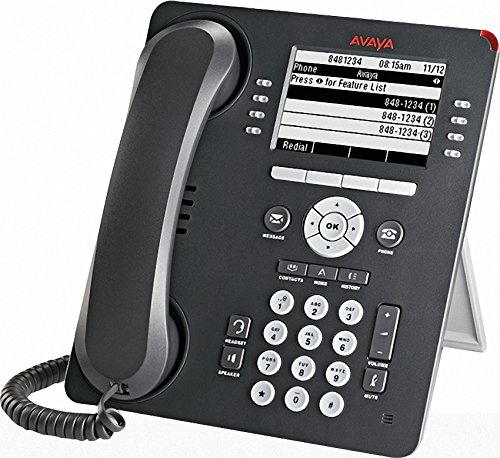
Figure 1: Avaya 9508 Digital Deskphone. This image shows the complete phone unit, including the handset, display screen, and the full keypad with various function buttons.
3. Operating Instructions
3.1 Basic Call Functions
- Making a Call: Lift the handset or press the Speaker button. Dial the desired number.
- Answering a Call: Lift the handset or press the Speaker button when the phone rings.
- Ending a Call: Replace the handset or press the Phone/Exit button.
3.2 Keypad and Display
The phone features a clear display and a standard 12-button dial pad. Soft keys below the display provide context-sensitive options.
- Navigation Cluster: Use the OK button and surrounding arrow keys to navigate menus and select options on the display.
- Soft Keys: The buttons adjacent to the display (as seen in Figure 1) change function based on the current menu or call state. The OCR shows "Press for Feature List" as a display option, indicating dynamic soft key functionality.
3.3 Function Buttons
- Message: Access your voicemail messages. A red indicator light next to this button signals new messages.
- Contacts: Access your stored contact directory.
- Menu: Access the phone's main menu for settings and features.
- Call Log: View a list of recent incoming, outgoing, and missed calls. A red indicator light next to this button signals new missed calls.
- Redial: Redial the last number called.
- Speaker: Toggle speakerphone mode on or off.
- Mute: Mute your microphone during a call.
- Volume: Adjust the volume for the handset, speaker, or ringer.
- Headset: Activate or deactivate the headset port.
- Hold: Place an active call on hold.
- Conference: Initiate a conference call.
- Transfer: Transfer an active call to another extension or external number.
- Drop: Disconnect an active call.
4. Maintenance
To ensure the longevity and proper functioning of your Avaya 9508 Digital Deskphone, follow these simple maintenance guidelines:
- Cleaning: Use a soft, damp cloth to clean the phone's surface. Avoid abrasive cleaners or solvents. Do not spray liquids directly onto the phone.
- Environment: Keep the phone away from excessive heat, direct sunlight, and moisture. Ensure proper ventilation.
- Cord Management: Avoid tangling or excessive pulling on the handset and network cords to prevent damage.
5. Troubleshooting
If you encounter issues with your Avaya 9508 Digital Deskphone, refer to the following common problems and solutions:
- No Dial Tone:
- Check that the network cable is securely connected to both the phone and the wall jack.
- Ensure the phone has power (if using an external adapter).
- Display is Blank or Unresponsive:
- Verify power connection.
- Try restarting the phone by disconnecting and reconnecting the power/network cable.
- Cannot Hear or Be Heard:
- Adjust the volume using the Volume buttons.
- Ensure the Mute button is not active.
- Check handset and headset connections.
- Buttons Not Responding:
- Restart the phone.
- Ensure no debris is obstructing the buttons.
For persistent issues, contact your system administrator or Avaya support.
6. Specifications
| Brand | Avaya |
| Model Number | 9508 |
| Manufacturer | Avaya |
| Color | Black |
| Answering System Type | Digital |
| Caller Identification | No |
| UPC | 712155447561, 033587515940 |
| ASIN | B014FHW9WA |
| Date First Available | February 6, 2016 |
7. Warranty and Support
For detailed warranty information, please refer to the documentation provided with your purchase or contact your Avaya reseller. Warranty terms and conditions may vary.
For technical support, contact your IT department or the official Avaya support channels. You can typically find support contact information on the Avaya website or through your service provider.


