
Introduction
The ASTRO Gaming A40 TR Headset and MixAmp Pro TR are designed to provide a high-fidelity audio experience for gaming on PlayStation 4 and PC. The A40 TR headset offers user customization, allowing transformation from an open-back to a closed-back noise-canceling headset with optional Mod Kits. The MixAmp Pro TR features all-digital components for clear, interference-free audio and voice communication, with customizable settings via the ASTRO Command Center software.

Image: The ASTRO Gaming A40 TR Headset and MixAmp Pro TR, showcasing both components together. The headset is black with gold accents, and the MixAmp is a compact black unit with control dials.
Package Contents
Verify that all items listed below are included in your product packaging:
- ASTRO A40 TR Headset
- ASTRO MixAmp Pro TR
- A40 TR Inline Mute Cable (2.0m)
- TOSlink Optical Cable (3.0m)
- Micro-USB Cable (3.0m)
- Digital Daisy Chain Cable (0.5m)
- Swappable Microphone
Setup
Connecting to PlayStation 4 (PS4)
- Connect the TOSlink Optical Cable from the MixAmp Pro TR's OPTICAL port to the PS4's Optical Out port.
- Connect the Micro-USB Cable from the MixAmp Pro TR's USB port to an available USB port on the PS4.
- Connect the A40 TR Inline Mute Cable from your A40 TR Headset to the headset port on the front of the MixAmp Pro TR.
- On your PS4, navigate to Settings > Sound and Screen > Audio Output Settings.
- Set Primary Output Port to Digital Out (Optical).
- Select Dolby Digital (Bitstream) for the audio format.
- Go to Settings > Devices > Audio Devices.
- Set Input Device to USB Headset (ASTRO MixAmp Pro TR).
- Set Output Device to USB Headset (ASTRO MixAmp Pro TR).
- Adjust Volume Control (Headphones) to maximum.
- Set Output to Headphones to Chat Audio or All Audio as preferred.
Connecting to PC
- Connect the Micro-USB Cable from the MixAmp Pro TR's USB port to an available USB port on your PC.
- Connect the A40 TR Inline Mute Cable from your A40 TR Headset to the headset port on the front of the MixAmp Pro TR.
- On your PC, ensure the MixAmp Pro TR is selected as the default playback and recording device in your sound settings.
- Download and install the ASTRO Command Center software from the official ASTRO Gaming website to customize settings, update firmware, and manage EQ presets.
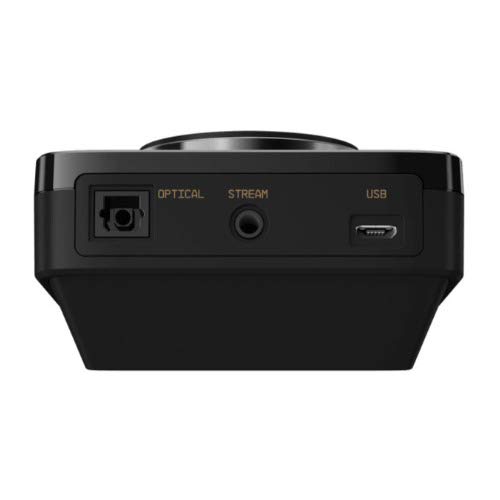
Image: Rear view of the ASTRO MixAmp Pro TR, highlighting the Optical, USB, AUX, and Stream ports for various connections.
Operating the MixAmp Pro TR
The MixAmp Pro TR provides intuitive controls for managing your audio experience:
- Master Volume Dial: The large dial on the left controls the overall volume of your headset. Rotate clockwise to increase volume, counter-clockwise to decrease.
- Game/Voice Balance Dial: The smaller dial on the right allows you to adjust the balance between game audio and voice chat.
- Rotate towards "GAME" to prioritize game audio.
- Rotate towards "VOICE" to prioritize voice chat.
- EQ Presets Button: Located in the center, this button cycles through four customizable equalizer presets. The active preset is indicated by the illuminated icon (star, headphone, etc.). These presets can be configured using the ASTRO Command Center software.
- Dolby Button: Activates or deactivates Dolby Surround Sound. When active, the Dolby logo will illuminate.
- Microphone Mute Button: Located on the A40 TR Inline Mute Cable, this switch mutes or unmutes your microphone. When muted, the MixAmp's volume dials will typically glow red.
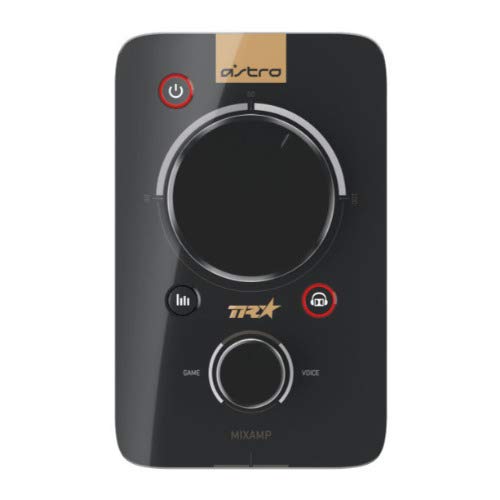
Image: Top view of the ASTRO MixAmp Pro TR, showing the large master volume dial, the smaller game/voice balance dial, and the EQ preset buttons.
Maintenance
- Cleaning: Use a soft, dry cloth to clean the headset and MixAmp. Avoid abrasive cleaners or solvents.
- Storage: Store the headset and MixAmp in a cool, dry place away from direct sunlight and extreme temperatures.
- Cable Care: Handle cables gently to prevent damage. Avoid sharp bends or excessive pulling.
- Ear Cushions: Periodically check ear cushions for wear and tear. Replacement cushions are available from ASTRO Gaming.
Troubleshooting
If you encounter issues with your ASTRO Gaming A40 TR Headset or MixAmp Pro TR, try the following solutions:
| Problem | Solution |
|---|---|
| No audio from headset. |
|
| Microphone not working. |
|
| Distorted or poor audio quality. |
|
For more detailed troubleshooting, please refer to the official ASTRO Gaming support resources.
Specifications
- Model Number: 939-001511
- Frequency Response: 20 - 20,000 Hz
- Nominal Impedance: 48 ohms
- Headband Pressure: 2.6N
- Product Dimensions: 9.06 x 13.87 x 4.33 inches
- Item Weight: 1.06 pounds
- Connectivity: Optical, USB
- Compatibility: PlayStation 4, PC
Warranty and Support
For detailed warranty information and product support, please visit the official ASTRO Gaming website or refer to the provided documentation:
Ensure you register your product on the ASTRO Gaming website for the latest updates and support.


