Introduction
The OKTO by surula WiFi Audio Receiver is designed to upgrade your existing audio systems, enabling wireless music streaming from your smartphone, tablet, or computer. This device supports AirPlay for Apple devices and DLNA for broader compatibility, delivering high-fidelity audio. Its compact and elegant design integrates seamlessly into any home environment. This manual provides essential information for setup, operation, and maintenance to ensure optimal performance.
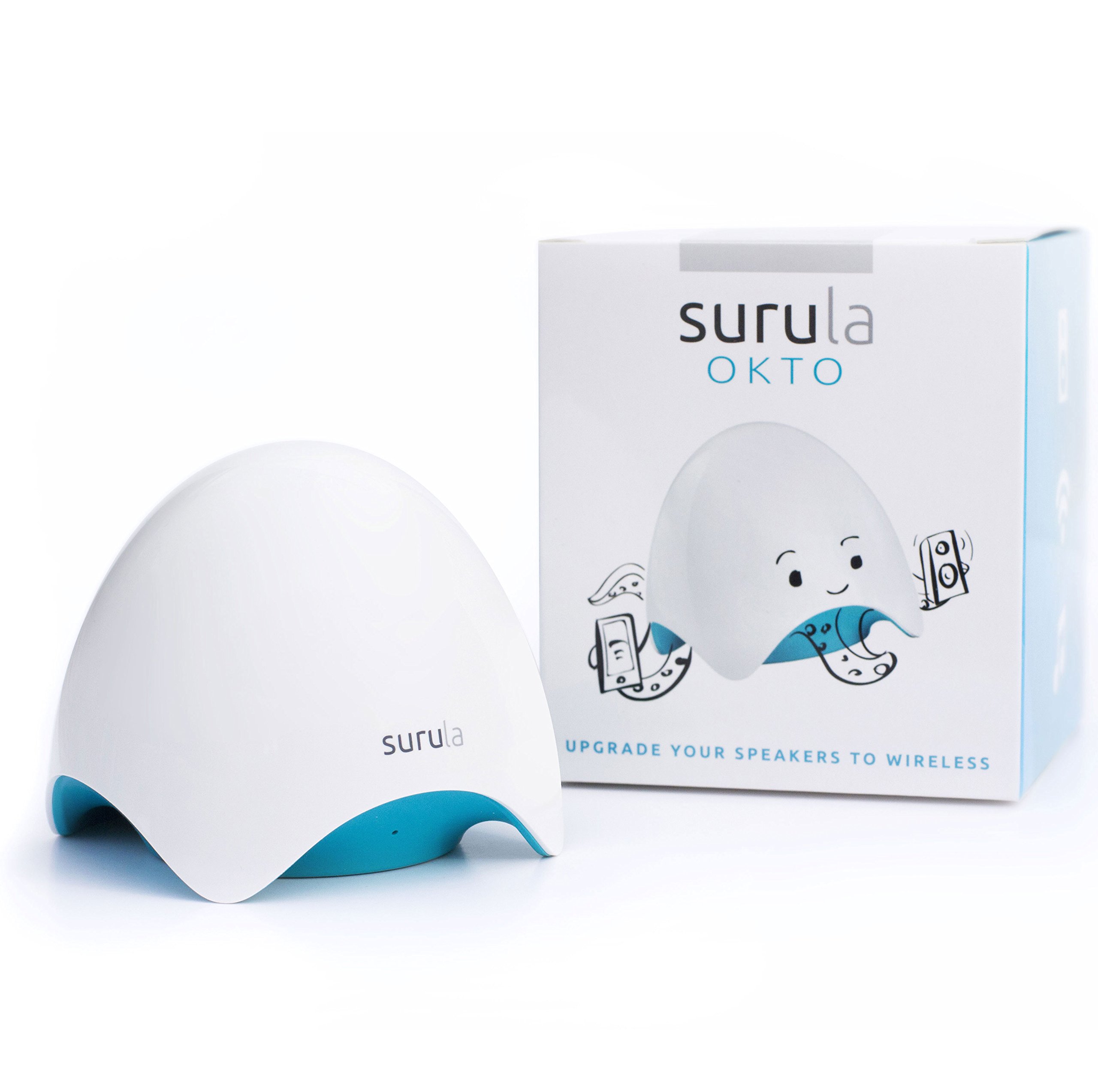
Image: Front view of the OKTO by surula WiFi Audio Receiver, showcasing its sleek, white, and blue design.
What's in the Box
Please check the package contents to ensure all items are present:
- OKTO by surula WiFi Audio Receiver
- 3.5mm Male to Male Jack Cable
- USB to Micro USB Cable
- European USB Power Adapter
- Quick Start Guide (English)
Setup
Follow these steps to set up your OKTO by surula receiver:
- Connect to Power: Connect the provided USB to Micro USB cable to the 'DC' port on the OKTO receiver and the other end to the European USB Power Adapter. Plug the adapter into a power outlet.
- Connect to Audio System: Use the 3.5mm Male to Male Jack Cable to connect the 'OUT' port of the OKTO receiver to the AUX-in or Line-in port of your audio system (e.g., HiFi chain, amplified speaker, car audio system). If your audio system requires RCA inputs, you will need a separate 3.5mm to RCA cable (not included).
- Initial Wi-Fi Connection:
- On your smartphone, tablet, or computer, go to your Wi-Fi settings.
- Look for a Wi-Fi network named "surula_xxxx" (where xxxx are unique characters). Connect to this network.
- Open a web browser and navigate to the IP address provided in the Quick Start Guide (usually 192.168.203.1). This will open the OKTO configuration interface.
- In the interface, select your home Wi-Fi network (SSID) and enter its password. Confirm the settings.
- The OKTO receiver will then connect to your home Wi-Fi network. Your device will automatically disconnect from "surula_xxxx" and reconnect to your home network.
- Security Recommendation: For enhanced security, it is highly recommended to change the default SSID and password of the "surula_xxxx" network if it remains visible after setup. Access the advanced settings in the web interface to update the Wi-Fi SSID and password for the OKTO's direct access point. Ensure your home network uses WPA2 or WPA3 encryption for optimal security.

Image: Rear view of the OKTO receiver, showing the 'OUT' (audio output), 'DC' (power input), and 'IN' (audio input) ports.
Operating Instructions
Once the OKTO receiver is connected to your home Wi-Fi network, you can start streaming music:
- For Apple Devices (AirPlay):
- Ensure your iPhone, iPad, iPod Touch, or MacBook is connected to the same Wi-Fi network as the OKTO receiver.
- Open any music application (e.g., Apple Music, Spotify, Deezer, YouTube).
- Look for the AirPlay icon (a rectangle with an upward-pointing triangle).
- Tap or click the AirPlay icon and select the OKTO receiver from the list of available devices.
- Your music will now play through your connected audio system.
- For Android/Windows Devices (DLNA/Third-Party Software):
- For Android and Windows devices, you will need to use a third-party DLNA-compatible application to stream music to the OKTO receiver.
- Install a DLNA client app on your device (e.g., BubbleUPnP for Android, Foobar2000 with UPnP plugin for Windows).
- Open the application and select the OKTO receiver as the playback device.
- Start playing your music.
- Multi-Room Functionality: The OKTO receiver supports multi-room audio when used with compatible third-party software. Refer to the documentation of your chosen multi-room application for specific setup instructions.
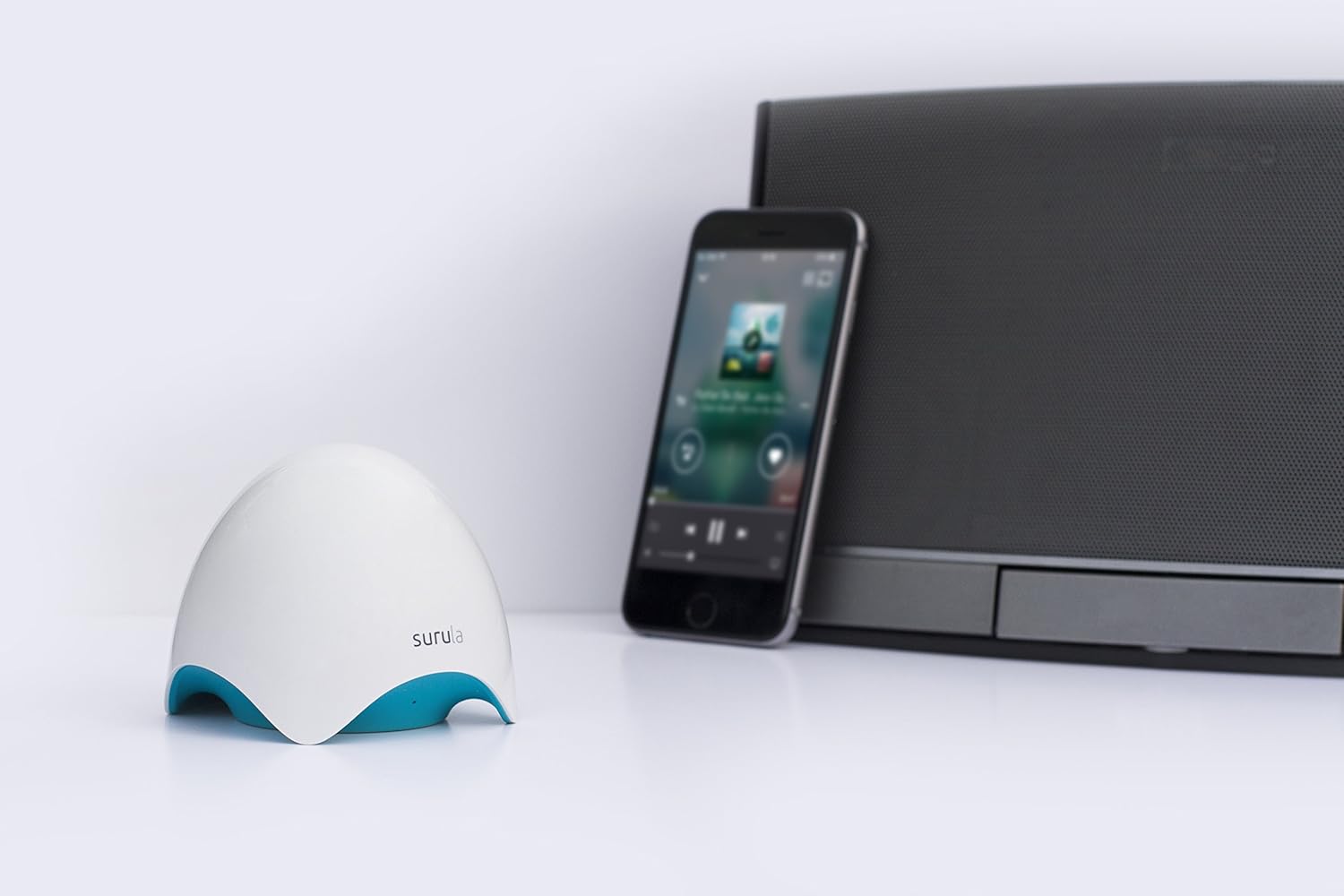
Image: The OKTO receiver positioned next to a smartphone and a speaker, illustrating a typical usage scenario for wireless music streaming.
Maintenance
To ensure the longevity and optimal performance of your OKTO by surula WiFi Audio Receiver, follow these simple maintenance guidelines:
- Cleaning: Use a soft, dry cloth to clean the exterior of the device. Do not use liquid cleaners or aerosols, as they may damage the finish or internal components.
- Placement: Place the receiver on a stable, flat surface away from direct sunlight, heat sources, and excessive moisture. Ensure adequate ventilation around the device.
- Power: Always use the provided power adapter. Disconnect the power adapter during electrical storms or when the device is not in use for extended periods.
- Handling: Handle the device with care. Avoid dropping or subjecting it to strong impacts.
Troubleshooting
If you encounter issues with your OKTO by surula receiver, refer to the following common problems and solutions:
| Problem | Solution |
|---|---|
| Device does not power on. | Ensure the power adapter is securely connected to the 'DC' port and the power outlet. Verify the power outlet is functional. |
| Cannot find "surula_xxxx" Wi-Fi network during initial setup. | Ensure the OKTO receiver is powered on. Try restarting the device by unplugging and re-plugging the power cable. Move closer to the device. |
| OKTO receiver is not visible as an AirPlay/DLNA device. | Verify that both your streaming device (smartphone, computer) and the OKTO receiver are connected to the same Wi-Fi network. Restart both devices and your Wi-Fi router. |
| Frequent audio dropouts or disconnections. | Check your Wi-Fi signal strength. Move the OKTO receiver closer to your Wi-Fi router or streaming device. Ensure there are no strong interference sources (e.g., microwaves, cordless phones). Some users reported issues with WPA2 Personal (AES) security on certain routers (e.g., Airport Extreme); try adjusting router settings if possible, or ensure the OKTO's firmware is up to date. |
| No sound from the audio system. | Ensure the 3.5mm jack cable is securely connected to both the OKTO's 'OUT' port and your audio system's input. Check the volume levels on both your streaming device and your audio system. Select the correct input source on your audio system (e.g., AUX, Line-in). |
Specifications
| Feature | Detail |
|---|---|
| Brand | surula |
| Model Number | OKTO v 1.0 |
| Connectivity Technology | Wi-Fi |
| Controller Type | Android (via third-party apps) |
| Compatible Devices | Android, MacBook OSX, Windows, iOS (iPhone, iPad, iPod Touch, iPad Pro) |
| Audio Output Mode | 1 x 3.5mm Stereo Analog Jack Output |
| Surround Sound Channel Configuration | 2.0 |
| Item Weight | 70 Grams |
| Supported Internet Services | Deezer, Spotify, YouTube, iTunes |
| Special Features | AirPlay compatible, DLNA compatible, High-Fidelity Audio, Easy Installation, Multi-Room Function (with third-party software), Elegant Design |
Warranty and Support
Specific warranty information and detailed support contact details are not available in the provided product data. Please refer to the manufacturer's official website or the documentation included with your purchase for warranty terms and customer support contacts.


