
Introduction
Thank you for purchasing the DIAFIELD 1byone Ultra-Thin Wireless Keyboard. This manual provides detailed instructions on how to set up, operate, and maintain your new keyboard. Please read this manual thoroughly before use to ensure optimal performance and longevity of your device.
Product Overview
The DIAFIELD 1byone Ultra-Thin Wireless Keyboard is designed for versatility and convenience, featuring a compact design, a multi-function touchpad, and broad compatibility.

Figure 1: DIAFIELD 1byone Wireless Keyboard
Key Features:
- Ultra Portability: Designed for use anywhere, anytime, with your smartphone, tablet, or Smart TV. Its compact design ensures easy transport and quick setup.
- Integrated Touchpad: Features an ultra-thin touchpad that functions as a mouse, supporting various pre-set gestures for convenient navigation. The touchpad can also be disabled if not needed.
- Durable Battery Life: Equipped with a 500 mAh built-in battery, providing up to 4 months of standby time or 90 hours of continuous use on a single charge.
- Spanish QWERTY Layout: Specifically designed for Spanish speakers, including common Spanish symbols and the 'Ñ' key. Ensure your system's keyboard language is set to Spanish for proper functionality.
- Bluetooth 3.0 Connectivity: Ensures fast and stable connections with tablets and other devices, providing synchronous input without delay. Setup is quick and easy.

Figure 2: Touchpad and Function Keys

Figure 3: Type-C Charging and Battery Life
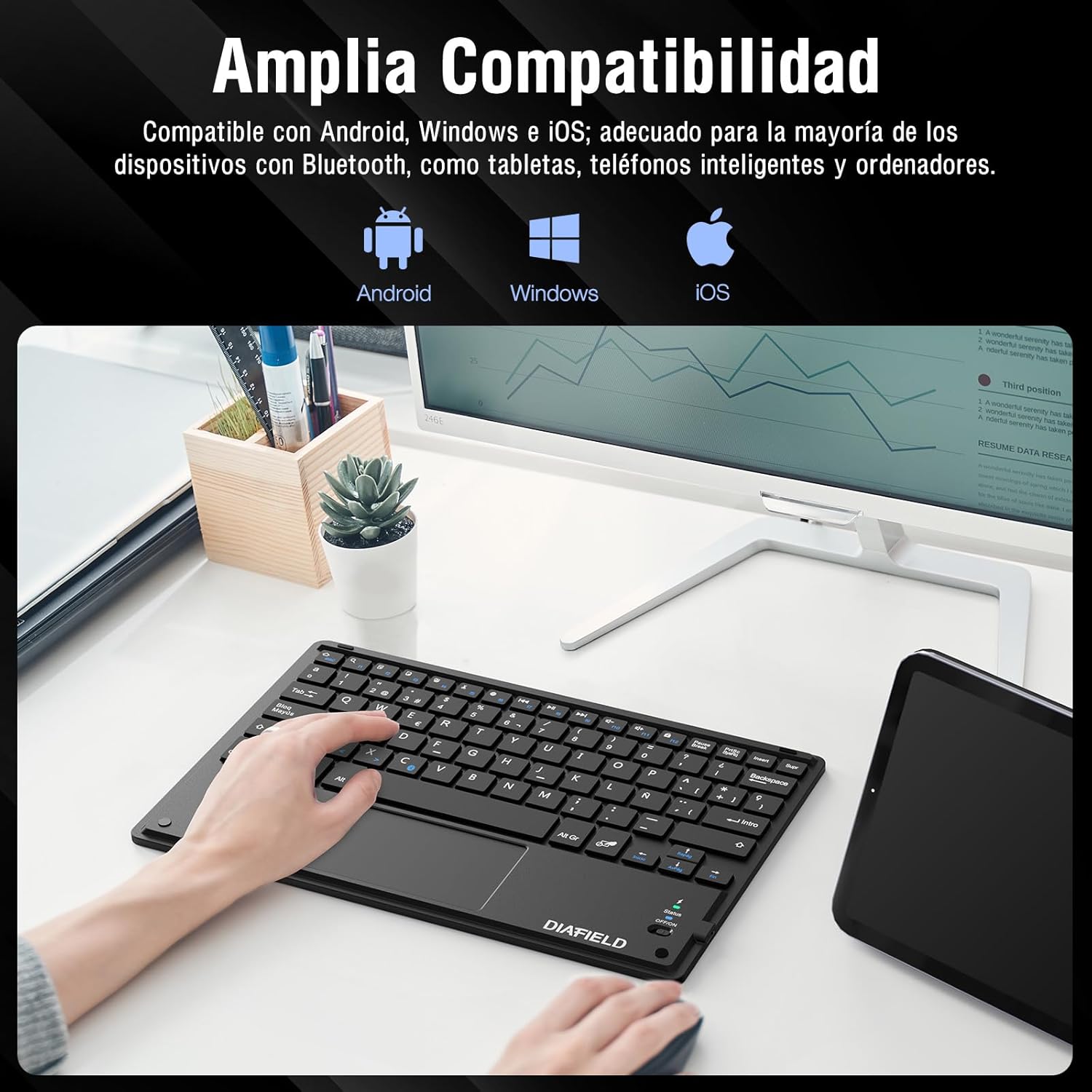
Figure 4: Broad Device Compatibility

Figure 5: Scissor-Type Key Mechanism

Figure 6: Compact and Lightweight Design

Figure 7: Multi-touch Gestures

Figure 8: Keyboard in Use with Tablet
Setup Guide
1. Charging the Keyboard
Before first use, ensure the keyboard is fully charged. Connect the provided USB-C cable to the keyboard's charging port and the other end to a USB power source (e.g., computer, wall adapter). The charging indicator light will show the charging status.
- Charging time: Less than 4 hours.
- Battery capacity: 500 mAh.

Figure 9: Charging the Keyboard
2. Bluetooth Pairing
Follow these simple steps to pair your keyboard with your device:
- Turn on the keyboard by sliding the power switch to the "ON" position. The status indicator light will illuminate.
- Activate Bluetooth on your device (tablet, smartphone, computer, Smart TV).
- On your device, search for available Bluetooth devices. The keyboard will appear as "DIAFIELD KEYBOARD" or similar.
- Select the keyboard from the list to initiate pairing. Your device may prompt you to enter a pairing code displayed on the screen. Type this code on the keyboard and press Enter.
- Once paired, the status indicator light on the keyboard will turn off or change color, indicating a successful connection.
The keyboard supports quick connection and pairing with iOS, Android, and Windows systems.

Figure 10: Bluetooth Pairing on a Smartphone
Operating Instructions
1. Using the Touchpad
The integrated touchpad supports various multi-touch gestures to enhance your productivity:
- Left Click: Single tap with one finger.
- Right Click: Tap with two fingers.
- Zoom In/Out: Pinch in or out with two fingers.
- Scroll/Explore: Drag two fingers up or down, or left or right.
- Switch Windows: Swipe three fingers horizontally.
- Open Task Manager (Windows): Swipe three fingers upwards.
Figure 11: Touchpad Multi-touch Gestures
2. Function Keys
The top row of keys (F1-F12) includes multimedia and shortcut functions. To use these functions, press the Fn key simultaneously with the desired function key.
| Key Combination | Function |
|---|---|
| Fn + Esc | Home |
| Fn + F1 | Search |
| Fn + F2 | Copy |
| Fn + F3 | Cut |
| Fn + F4 | Paste |
| Fn + F5 | Volume Down |
| Fn + F6 | Volume Up |
| Fn + F7 | Previous Track |
| Fn + F8 | Play/Pause |
| Fn + F9 | Next Track |
| Fn + F10 | Mute |
| Fn + F11 | Select All |
| Fn + F12 | Screen Lock |

Figure 12: Keyboard Function Keys
Maintenance
Proper maintenance will extend the life of your keyboard:
- Cleaning: Use a soft, dry, lint-free cloth to clean the keyboard surface. For stubborn dirt, slightly dampen the cloth with water or a mild cleaning solution. Avoid excessive moisture.
- Storage: Store the keyboard in a cool, dry place away from direct sunlight and extreme temperatures.
- Battery Care: To preserve battery life, avoid fully discharging the keyboard frequently. If storing for a long period, charge it to about 50% and recharge every few months.
- Avoid Liquids: Keep the keyboard away from liquids to prevent damage to internal components.
Troubleshooting
Common Issues and Solutions:
- Keyboard not connecting via Bluetooth:
- Ensure the keyboard is charged and turned on.
- Make sure Bluetooth is enabled on your device.
- Try unpairing and re-pairing the keyboard from your device's Bluetooth settings.
- Restart both the keyboard (turn off/on) and your device.
- Characters typed do not match the keys (e.g., @ instead of "):
This often happens when the keyboard layout setting on your device does not match the physical layout of the keyboard (Spanish QWERTY). You need to change your device's keyboard input language to Spanish.
For Android devices, follow these general steps (may vary slightly by device model):
- Go to Settings.
- Navigate to General Management (or System).
- Select Language and input.
- Under "Physical keyboard" or "Keyboards," find your connected keyboard (e.g., "DIAFIELD KEYBOARD").
- Tap on the keyboard name and then select Set up keyboard layouts or Configure keyboard layouts.
- Ensure "Spanish (ES)" is selected or enabled. You might need to disable other languages.
- Alternatively, you can often switch layouts by pressing Ctrl + Spacebar on the keyboard.

Figure 13: Resolving Keyboard Layout Mismatch
- Touchpad not responding:
- Ensure the touchpad is not accidentally disabled (check for a function key combination that toggles the touchpad).
- Clean the touchpad surface.
- Reconnect the keyboard via Bluetooth.
Specifications
| Feature | Detail |
|---|---|
| Brand | 1 BY ONE |
| Manufacturer | DIAFIELD |
| Model Number | O0000-0713 |
| Product Dimensions | 25.8 x 17.2 x 0.4 cm |
| Weight | 259 g |
| Color | Black |
| Power Source | Battery |
| Battery Type | Integrated Lithium Battery |
| Battery Voltage | 4.2 Volts |
| Number of Batteries | 1 |
| Hardware Platform | Computer, Laptop, Smartphone, Tablet, Television |
| Operating System Compatibility | iOS, Android, Windows |
| Connectivity Technology | Bluetooth 3.0 |
| Keyboard Description | Multimedia |
| Recommended Uses | Daily Use |
| Special Feature | Trackpad |
| Number of Keys | 81 |
| Keyboard Backlight Color | Single Color |
| First Available Date | August 24, 2015 |
Warranty and Support
For warranty information and technical support, please refer to the contact details provided with your product packaging or visit the official 1 BY ONE website. Keep your purchase receipt as proof of purchase for any warranty claims.
If you encounter any issues not covered in this manual, please contact customer support for assistance.


