
Amcrest IP2M-841B
Amcrest ProHD 1080P WiFi 2MP Indoor Pan/Tilt Security Wireless IP Camera
Model: IP2M-841B
1. Introduction
1.1 Product Overview
The Amcrest ProHD 1080P WiFi IP Camera is a high-performance indoor security camera designed for comprehensive surveillance. It offers full-HD 1080P video at 30 frames per second, enhanced low-light capabilities, and a wide 90-degree viewing angle. With remote pan and tilt functionality, two-way audio, and intelligent motion detection, this camera provides robust monitoring for your home or business.
- High Definition Video: Captures 1080P (1920TVL) video at 30fps.
- Pan/Tilt Functionality: Remote control for 360-degree pan and 90-degree tilt.
- Two-Way Audio: Built-in microphone and speaker for communication.
- Night Vision: Infrared LEDs provide clear night vision up to 32 feet.
- Motion Detection: Configurable motion alerts sent to your smartphone.
- Flexible Storage: Supports MicroSD card, Amcrest NVRs, QNAP NAS, FTP, and Amcrest Cloud.
- Secure Connection: Features SSL/HTTPS, AES/WPA2 encryption, and regular firmware updates.
1.2 Package Contents
- Amcrest ProHD 1080P WiFi IP Camera (Black)
- Power Adapter
- Ethernet Cable
- Mounting Bracket and Screws
- Quick Start Guide
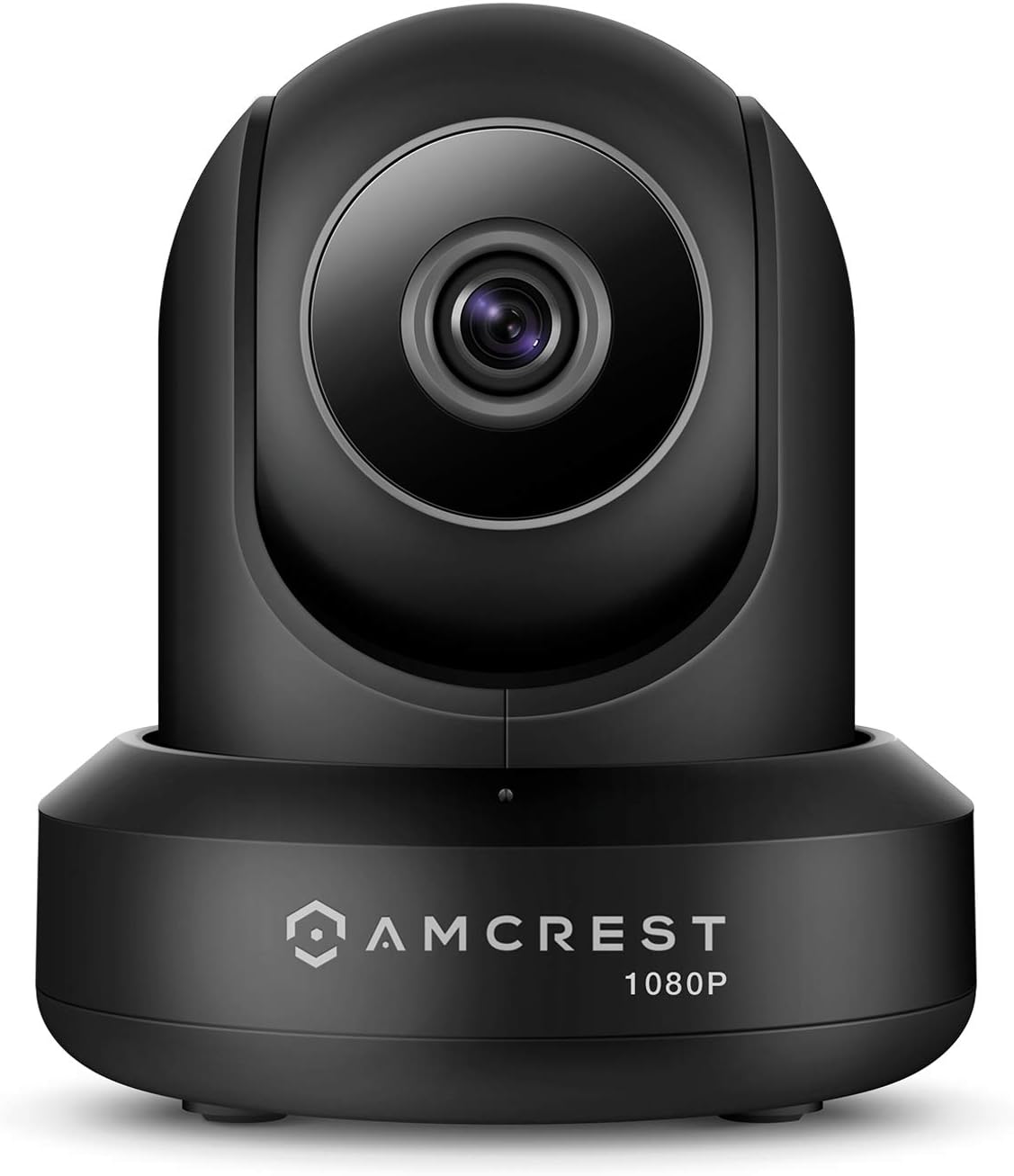
Image: Amcrest ProHD 1080P WiFi IP Camera, front view.
2. Safety Information
Please read this manual carefully before operating the device and retain it for future reference. Improper use may result in damage to the product, property, or personal injury.
- Ensure the camera is installed in a stable location to prevent falling.
- Use only the power adapter provided with the camera.
- Do not expose the camera to water or moisture. This product is designed for indoor use only.
- Avoid placing the camera near heat sources or in direct sunlight.
- Do not attempt to disassemble or modify the camera. This will void the warranty.
- Keep out of reach of children.
3. Setup
3.1 Initial Setup
- Power On: Connect the power adapter to the camera and plug it into a power outlet. The camera will begin its startup sequence.
- Network Connection:
- Wi-Fi Setup: Ensure your smartphone is connected to a 2.4GHz Wi-Fi network. The camera only supports 2.4GHz Wi-Fi.
- Ethernet Setup (Optional): For a wired connection, connect one end of the Ethernet cable to the camera's Ethernet port and the other end to your router or network switch.
3.2 Amcrest View Pro App Installation
The Amcrest View Pro app is required for remote viewing and control of your camera.
- Download the App: Search for "Amcrest View Pro" in the Apple App Store (iOS) or Google Play Store (Android) and download it.
- Create Account: Open the app and follow the on-screen instructions to create a new Amcrest account or log in if you already have one.
- Add Camera: Tap the "Add Device" or "+" icon in the app. Select "Wi-Fi Camera" or "Wired Camera" based on your connection method.
- Scan QR Code: Use your phone's camera to scan the QR code located on the bottom of your Amcrest camera.
- Follow Prompts: The app will guide you through connecting the camera to your Wi-Fi network (if applicable) and completing the setup.

Image: Screenshot of the Amcrest View Pro app interface on a smartphone.
4. Operation
4.1 Pan and Tilt Control
The camera features motorized pan and tilt capabilities, allowing you to remotely adjust its viewing angle.
- Open the Amcrest View Pro app and select your camera from the device list.
- On the live view screen, use the directional controls (usually an on-screen joystick or arrows) to pan the camera horizontally (360 degrees) and tilt it vertically (90 degrees).
- The camera also supports auto-tracking, which can be enabled in the app settings to automatically follow moving objects.

Image: Diagram illustrating the 360-degree pan, 90-degree tilt, and auto-tracking features of the camera.
4.2 Two-Way Audio
The camera is equipped with a built-in microphone and speaker for two-way communication.
- From the live view in the Amcrest View Pro app, tap the microphone icon to speak through the camera's speaker.
- Tap the speaker icon to listen to audio from the camera's microphone.

Image: Diagram showing the location of the microphone and speaker on the camera and illustrating sound waves for two-way audio.
4.3 Motion Detection and Alerts
Configure motion detection zones and receive instant alerts on your smartphone.
- In the Amcrest View Pro app, navigate to the camera settings.
- Find the "Motion Detection" or "Alarm" settings.
- You can draw specific motion detection zones within the camera's view to minimize false alerts.
- Enable push notifications to receive alerts on your phone when motion is detected.
4.4 Privacy Mode
The privacy mode allows you to temporarily disable video and audio recording for privacy.
- Access the privacy mode setting within the Amcrest View Pro app.
- When activated, the camera lens may physically retract or turn away, and all recording and audio functions will be paused.

Image: Split image showing a motion detection alert on a phone and the privacy mode icon in the app.
4.5 Recording and Storage
The camera offers multiple options for storing recorded footage.
- MicroSD Card: Insert a MicroSD card (up to 256GB, not included) into the camera's slot for local storage.
- Amcrest Cloud: Subscribe to the Amcrest Cloud service for secure off-site video storage.
- Amcrest NVRs: Integrate the camera with compatible Amcrest Network Video Recorders.
- FTP/NAS: Configure the camera to upload footage to an FTP server or Network Attached Storage (NAS).

Image: Diagram showing the camera's components including the MicroSD card slot and illustrating various storage options: Amcrest Cloud, MicroSD, FTP, and Amcrest NVRs.
5. Maintenance
5.1 Cleaning
To maintain optimal performance, periodically clean your camera.
- Use a soft, dry cloth to wipe the camera body.
- For the lens, use a lens cleaning cloth and specialized lens cleaning solution to avoid scratches.
- Do not use harsh chemicals or abrasive cleaners.
5.2 Firmware Updates
Amcrest regularly releases firmware updates to improve performance, add features, and enhance security.
- Check for available firmware updates through the Amcrest View Pro app or by visiting the official Amcrest support website.
- Follow the instructions provided by Amcrest for updating the firmware to ensure proper installation and avoid damaging the device.
6. Troubleshooting
This section addresses common issues you might encounter with your Amcrest camera.
| Problem | Possible Cause | Solution |
|---|---|---|
| Camera offline/cannot connect | Incorrect Wi-Fi password; Camera too far from router; Router issues; Camera not powered on. | Verify Wi-Fi password; Move camera closer to router; Restart router; Check power connection; Reset camera. |
| Poor video quality | Insufficient network bandwidth; Dirty lens; Low light conditions. | Ensure stable internet connection; Clean camera lens; Adjust camera position for better lighting or rely on night vision. |
| Motion alerts not received | Motion detection disabled; App notifications turned off; Incorrect motion detection zone settings. | Enable motion detection in app; Allow notifications for Amcrest View Pro; Adjust motion detection zones and sensitivity. |
| Two-way audio issues | Microphone/speaker muted in app; Network latency; Physical obstruction. | Unmute microphone/speaker in app; Check network stability; Ensure no obstructions around mic/speaker. |
If you continue to experience issues, please refer to the Amcrest support website or contact customer support.
7. Technical Specifications
| Feature | Specification |
|---|---|
| Image Sensor | 1/2.9" 2.07MP CMOS Sensor |
| HD Resolution | 1080P Full-HD (1920 x 1080) @ 30FPS |
| Night Vision | Up to 32 ft |
| Lens Focal Length | 4.0mm (Fixed) |
| Field of View | 90° |
| Pan/Tilt Range | Pan 360°, Tilt 90° |
| Audio | Two-Way Audio (Built-in Mic & Speaker) |
| Video Compression | H.265 / H.264 |
| Wi-Fi Standard | 802.11b/g/n (2.4GHz only) |
| Ethernet | RJ-45 (10/100Base-T) |
| Operating Temperature | 14°F - 113°F (-10°C - 45°C) |
| Dimensions | 4.1" x 4.0" x 4.7" |
| Item Weight | 8 ounces |

Image: Diagram illustrating the camera's dimensions and key technical specifications.
8. Warranty and Support
Amcrest is committed to ensuring the safety and satisfaction of its customers.
- US Warranty: This product comes with a full 1-year US Warranty.
- Lifetime Support: Amcrest provides Lifetime Support directly for this product.
- For technical assistance, troubleshooting, or warranty claims, please visit the official Amcrest support website or contact their customer service team.
Related documentsIP2M-841B


Ask a question about this manual
Ask about setup, troubleshooting, compatibility, parts, safety, or missing instructions. Manuals+ will review the question and use this page’s manual context to help answer it.