
Introduction
This manual provides essential instructions for the safe and efficient operation of your PowerWalker AVR 3000 SIV FR Automatic Voltage Regulator. This device is designed to protect your electronic equipment from voltage fluctuations, ensuring a stable power supply. Please read this manual thoroughly before installation and use.
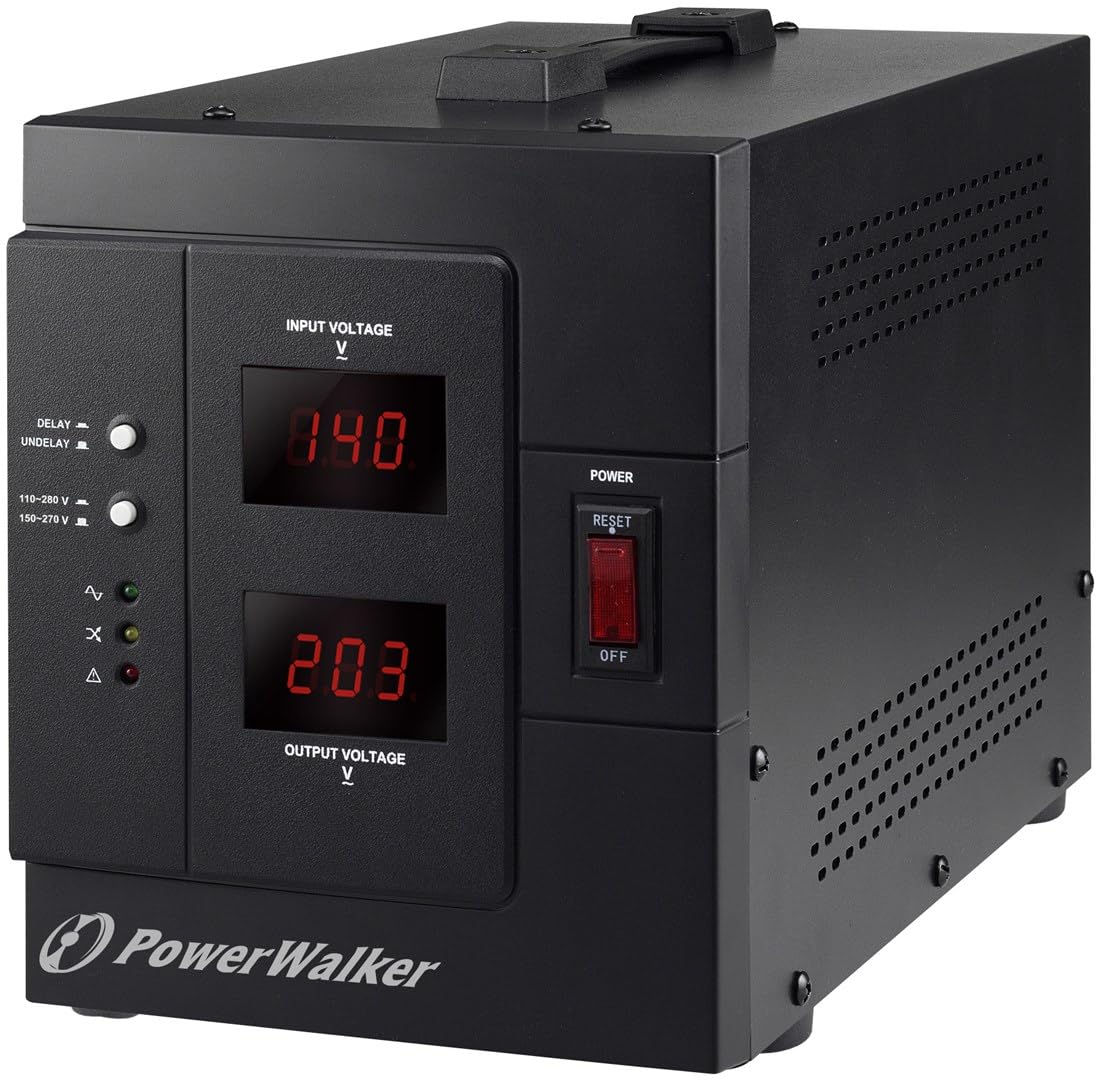
Image: Front view of the PowerWalker AVR 3000 SIV FR Automatic Voltage Regulator, showing the display and control panel.
Safety Instructions
Observe the following safety precautions to prevent injury or damage to the device and connected equipment:
- Indoor Use Only: This device is intended for indoor use in a controlled environment. Do not expose it to rain, moisture, or direct sunlight.
- Proper Grounding: Ensure the power outlet used is properly grounded. Do not remove the grounding prong from the power cord.
- Ventilation: Do not block ventilation openings. Allow adequate space around the device for proper airflow to prevent overheating.
- Avoid Overload: Do not connect equipment that exceeds the device's maximum output capacity (2400 Watts / 3000 VA).
- No User Serviceable Parts: Do not attempt to open or repair the device. Refer all servicing to qualified service personnel.
- Liquid and Foreign Objects: Keep liquids and foreign objects away from the device.
- Emergency Disconnect: In an emergency, disconnect the device from the main power supply immediately.
Product Features and Components
Front Panel

Image: Detailed view of the front panel, highlighting the display, switches, and indicator LEDs.
- Input Voltage Display: Shows the current incoming AC voltage.
- Output Voltage Display: Shows the regulated AC voltage supplied to connected devices.
- Delay/Undelay Switch: Controls the output delay function. "DELAY" provides a time delay before output power is supplied, protecting equipment during power fluctuations. "UNDELAY" bypasses this delay.
- Voltage Range Switch: Selects the operating input voltage range (e.g., 110-280 V or 150-270 V). Ensure this matches your local power supply.
- Status LEDs:
- Normal (Green): Indicates stable output voltage.
- Overload (Yellow): Indicates connected load exceeds capacity.
- Fault (Red): Indicates an internal error or severe voltage issue.
- Power Switch: Turns the device ON or OFF.
- Reset Button: Used to reset the device after an overload or fault condition.
Rear Panel

Image: Rear view of the device, showing the power input and output sockets.
- Input Socket: Connects the device to the main AC power supply using the provided power cord.
- Output Sockets: Connect your electronic equipment to these sockets for regulated power.
Setup
- Unpack and Inspect: Carefully remove the AVR from its packaging. Inspect for any shipping damage. If damage is found, do not use the device and contact your supplier.
- Placement: Place the AVR on a flat, stable surface in a well-ventilated area, away from direct sunlight, heat sources, and moisture. Ensure at least 10 cm (4 inches) of clear space around all ventilation openings.
- Connect Input Power: Connect the supplied power cord to the AVR's Input Socket on the rear panel, then plug the other end into a properly grounded wall outlet.
- Select Voltage Range: On the front panel, set the Voltage Range Switch to match your local input voltage (e.g., 110-280 V or 150-270 V). Refer to your local power utility for exact specifications.
- Connect Equipment: Plug your electronic devices into the Output Sockets on the rear panel of the AVR. Ensure the total power consumption of all connected devices does not exceed 2400 Watts.
- Initial Power On: Ensure all connected devices are turned off. Flip the Power Switch on the front panel to the "ON" position. The Input and Output Voltage displays will illuminate.
Operating Instructions
- Powering On: After connecting the AVR and your devices, turn on the AVR using the Power Switch. The Input Voltage and Output Voltage displays will show the current readings. The "Normal" LED should illuminate.
- Understanding Displays:
- The Input Voltage Display shows the raw voltage coming from your wall outlet.
- The Output Voltage Display shows the voltage being supplied to your connected devices after regulation by the AVR. This value should remain stable around 230V.
- Delay/Undelay Function:
- Set the switch to DELAY for a time delay (typically 6 seconds) before the output power is supplied. This protects sensitive equipment from rapid power cycling or unstable voltage immediately after a power restoration.
- Set the switch to UNDELAY if you require immediate power output without a delay.
- Monitoring Status LEDs:
- Green (Normal): The AVR is operating correctly and providing stable output.
- Yellow (Overload): The total power consumption of connected devices exceeds the AVR's capacity. Disconnect some devices and press the Reset button.
- Red (Fault): An internal error or severe voltage condition has occurred. Turn off the AVR, disconnect it from the wall, and contact support if the issue persists after restarting.
- Powering Off: To turn off the AVR, first turn off all connected devices, then flip the Power Switch to the "OFF" position.
Maintenance
- Cleaning: Regularly clean the exterior of the AVR with a soft, dry cloth. Do not use liquid or aerosol cleaners. Ensure ventilation openings are free from dust and debris.
- Ventilation: Periodically check that the ventilation openings are not obstructed to ensure proper heat dissipation.
- Storage: If storing the device for an extended period, ensure it is powered off, disconnected from all power sources and devices, and stored in a cool, dry place.
Troubleshooting
| Problem | Possible Cause | Solution |
|---|---|---|
| No power to AVR or connected devices. |
|
|
| Output voltage is unstable or incorrect. |
|
|
| "Overload" LED is illuminated. |
|
|
| "Fault" LED is illuminated. |
|
|
Specifications
| Brand | PowerWalker |
| Model Number | 10120315 |
| Type | Automatic AC Voltage Regulator and Stabilizer |
| Capacity | 3000 VA |
| Input Voltage Range | 110-280 V (selectable) |
| Output Voltage | 230 V |
| Output Power | 2400 Watts |
| Weight | 8.6 Kilograms |
| Color | Black |
Warranty and Support
For warranty information, please refer to the documentation included with your purchase or visit the official PowerWalker website. For technical support or service inquiries, please contact your retailer or the PowerWalker customer service department.


