
1. Introduction
This manual provides essential information for the safe and efficient operation of your Philips 40PFL4609/F8 40-inch Full HD LED Smart TV. Please read these instructions carefully before using your television and retain them for future reference.
2. Safety Information
Always follow basic safety precautions when using this television to reduce the risk of fire, electric shock, and injury.
- Do not expose the television to rain or moisture.
- Do not open the cabinet; refer all servicing to qualified personnel.
- Ensure proper ventilation around the television.
- Protect the power cord from being walked on or pinched.
- Unplug the television during lightning storms or when unused for long periods.
3. Package Contents
Verify that all items are present in the box:
- Philips 40PFL4609/F8 40-inch Full HD LED Smart TV
- Remote Control (requires 2 AAA batteries, included)
- Power Cord
- Tabletop Stand and Screws
- Quick Start Guide (not included in this digital manual)
- User Manual (this document)
4. Setup
4.1 Unpacking and Placement
Carefully remove the television from its packaging. Inspect the TV for any physical damage. Place the television on a stable, flat surface or mount it on a wall using a compatible VESA 200x200mm wall mount (sold separately).
4.2 Stand Assembly
If using the tabletop stand:
- Place the TV face down on a soft, clean surface to prevent screen damage.
- Align the stand with the mounting holes on the bottom of the TV.
- Secure the stand using the provided screws.
4.3 Connecting Power
Connect the power cord to the TV's power input, then plug the other end into a 110 VAC, 60 Hz electrical outlet.
4.4 Connecting External Devices
Your Philips TV offers various connection options for external devices.
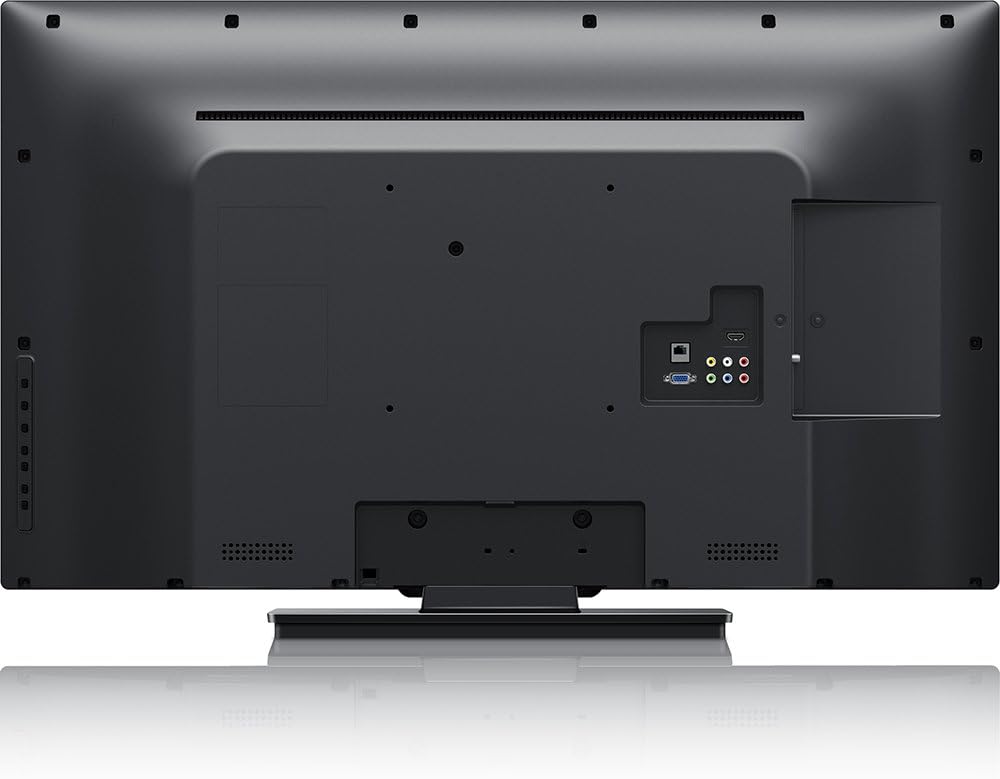
Image: Rear view of the Philips 40PFL4609/F8 television, highlighting the input ports including HDMI, DVI, and other audio/video connections.
- HDMI: Connect Blu-Ray players, game consoles, or other HDMI-enabled devices. This model has 1 HDMI port.
- DVI: Connect computers or other DVI-enabled devices.
- USB: Connect USB storage devices for media playback. This model has 1 USB 2.0 port.
- Antenna/Cable: Connect an antenna or cable TV signal for broadcast channels.
4.5 Initial Setup Wizard
Upon first power-on, the TV will guide you through an initial setup process:
- Language Selection: Choose your preferred language.
- Network Connection: Connect to your home Wi-Fi network. The TV supports Wi-Fi connectivity.
- Channel Scan: Scan for available broadcast channels (if an antenna or cable is connected).
5. Operating the TV
5.1 Remote Control Overview
The included remote control allows you to navigate menus, adjust settings, and control playback. Insert two AAA batteries into the remote control, ensuring correct polarity.
5.2 Basic Functions
- Power: Press the power button to turn the TV on or off.
- Volume: Use the volume buttons to adjust the sound level.
- Channel: Use the channel buttons to change TV channels.
- Input: Press the input button to select connected devices (HDMI, DVI, etc.).
5.3 Smart TV Features (Net TV)
Your Philips TV features Net TV, providing access to online content and applications.
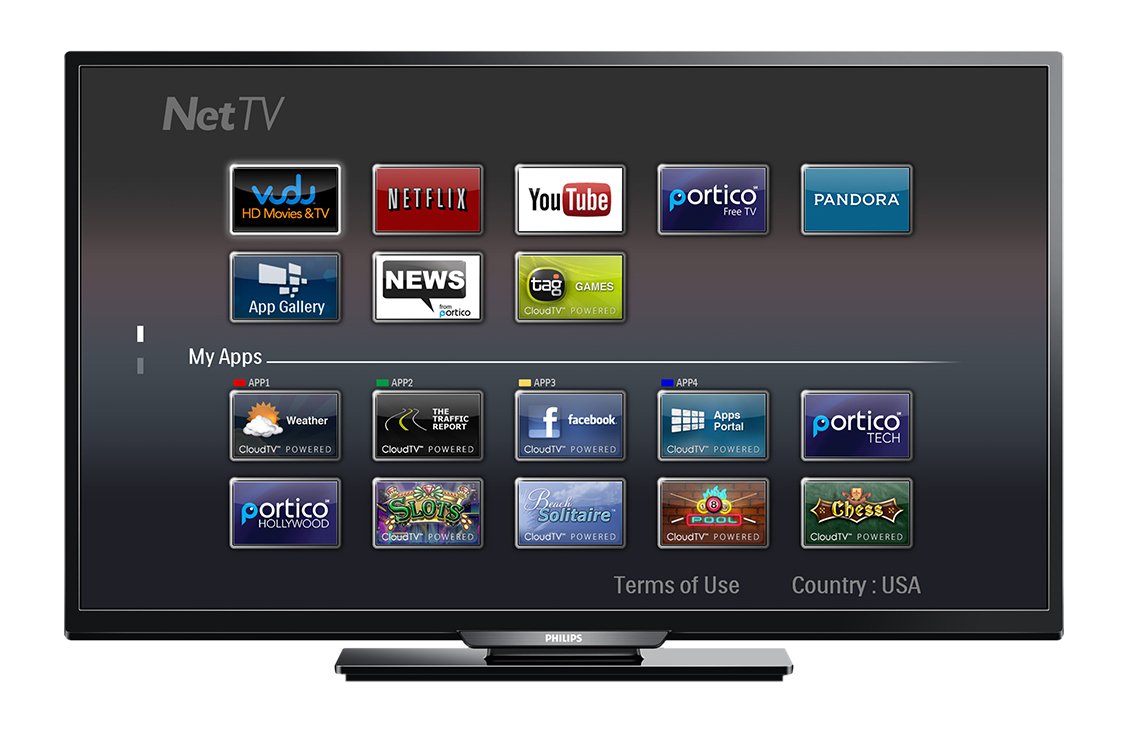
Image: Front view of the Philips 40PFL4609/F8 television, showing the Net TV interface with various application icons such as Netflix, YouTube, and other streaming services.
- Accessing Apps: Use the remote control to navigate to the Net TV menu and select applications like Netflix and YouTube.
- Wi-Fi Connectivity: Ensure your TV is connected to a stable Wi-Fi network for optimal Smart TV performance.
5.4 Picture Settings
Adjust picture settings to enhance your viewing experience:
- Pixel Plus HD: This video engine enhances detail, depth, and clarity.
- 120Hz PMR (Perfect Motion Rate): Provides sharp images in fast-moving scenes.
- Access the picture menu to adjust brightness, contrast, color, and sharpness.
5.5 Sound Settings
Optimize audio output:
- SRS TruSurround: Enjoy immersive sound with this integrated surround sound format.
- Access the audio menu to adjust bass, treble, and sound modes.
5.6 Media Playback via USB
Connect a USB storage device to the TV's USB 2.0 port to view photos, play music, or watch videos.
6. Maintenance
6.1 Cleaning the Screen
Gently wipe the screen with a soft, lint-free cloth. For stubborn marks, dampen the cloth with a small amount of water or a specialized screen cleaner. Do not spray liquid directly onto the screen.
6.2 Cleaning the Casing
Wipe the TV casing with a soft, dry cloth. Avoid using abrasive cleaners or solvents.
6.3 Software Updates
This model may not support automatic software updates via the internet. Check the Philips support website for information on manual firmware updates, if available, to ensure optimal performance and access to the latest features.
7. Troubleshooting
If you encounter issues with your television, refer to the following common solutions:
- No Power: Ensure the power cord is securely plugged into both the TV and the electrical outlet. Check the power outlet with another device.
- No Picture/Sound: Verify the correct input source is selected. Check all cable connections (HDMI, DVI, antenna).
- No Network Connection: Ensure your Wi-Fi router is working correctly. Re-enter your Wi-Fi password if necessary.
- Net TV Limitations: Some users have reported that the Net TV functionality on this model can be basic or limited in terms of additional app installation or software updates. If you find the built-in Smart TV features insufficient, consider connecting an external streaming device.
- Physical Damage: Upon unboxing, carefully inspect the screen and casing for any damage, especially along the edges, which could affect display quality. Contact your retailer immediately if damage is found.
- Remote Control Not Working: Replace the AAA batteries. Ensure there are no obstructions between the remote and the TV's IR sensor.
8. Specifications

Image: Side view of the Philips 40PFL4609/F8 television, illustrating its slim profile and side-mounted connectivity options.
| Feature | Description |
|---|---|
| Model Name | PHILIPS 40PFL4609/F8 |
| Screen Size | 40 Inches (100.3 Centimeters) |
| Display Technology | LED, LCD |
| Resolution | 1080p Full HD |
| Refresh Rate | 120 Hz (120Hz PMR) |
| Aspect Ratio | 16:9 |
| Connectivity Technology | Wi-Fi |
| Compatible Internet Services | Netflix, YouTube |
| Special Features | Blu-Ray compatible, DVI Input, HDMI Input, Full HD, HD Compatible, Internet, Surround Sound |
| HDMI Ports | 1 |
| USB 2.0 Ports | 1 |
| Audio Output Mode | Stereo, Surround Sound |
| Integrated Surround Sound Format | SRS TruSurround |
| Speaker Description | SRS TruSurround |
| Power Consumption | 89 Watts |
| Voltage | 110 VAC 60 Hz |
| Item Weight | 8200 Grams |
| VESA Mounting Standard | 200 x 200 mm |
| Color | Black |
| Compatible Devices | Laptop, Tablet, Game Console, Headphones |
| Model Year | 2016 |
9. Warranty Information
This Philips television comes with a 12-month limited warranty provided by the manufacturer. Please retain your proof of purchase for warranty claims. The warranty covers manufacturing defects under normal use conditions.
10. Customer Support
For further assistance, technical support, or warranty inquiries, please contact Philips customer service. Refer to the official Philips website or your product packaging for contact details specific to your region.


