
1. Introduction
The PerfectPrime TH0165 is a compact and portable data logger designed to accurately measure and record both temperature and humidity. This device is suitable for various applications requiring environmental monitoring, such as storage, logistics, and general climate observation. It allows for easy data import to a PC for analysis.
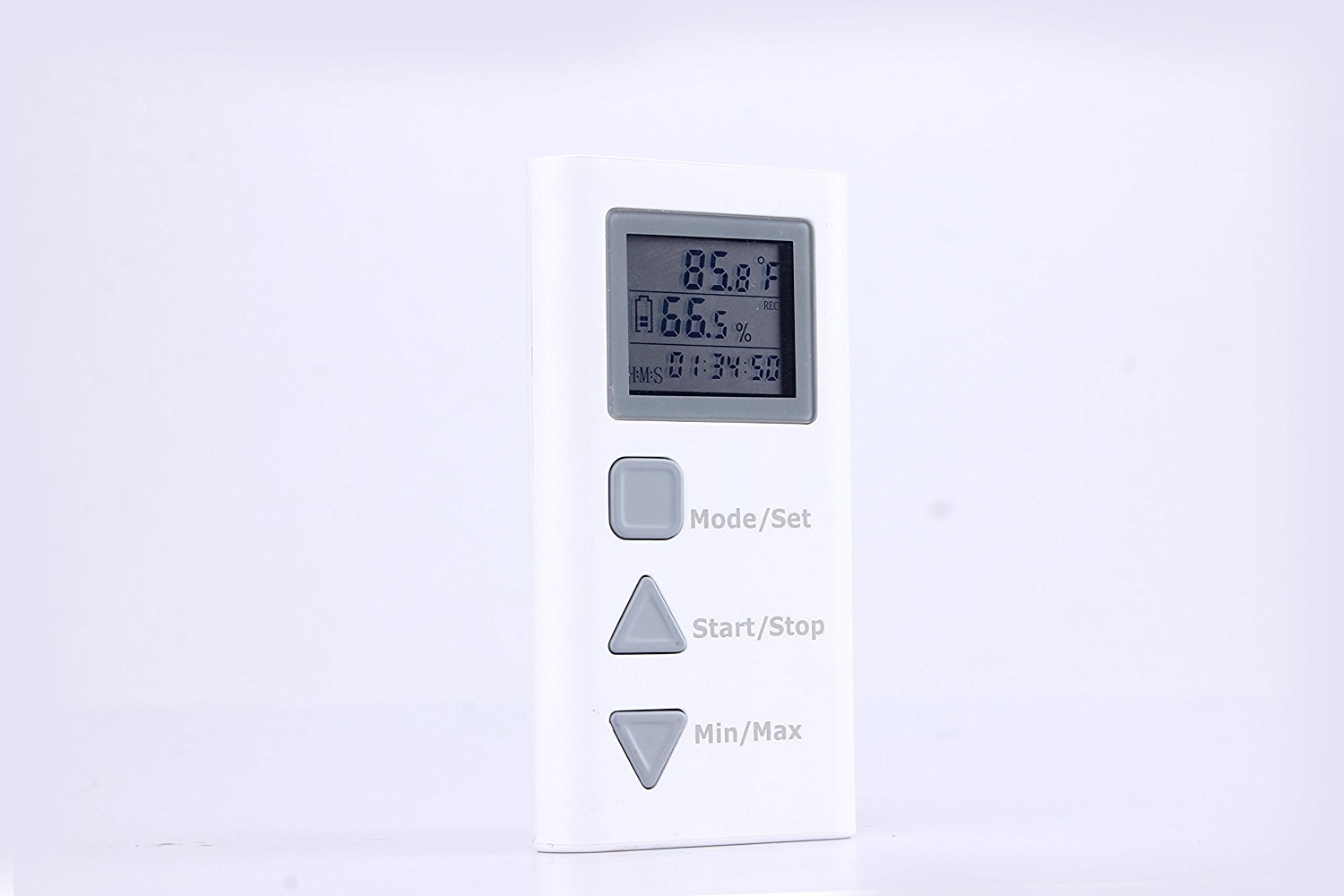
Figure 1: Front view of the TH0165 Data Logger, displaying current temperature and humidity.
Key Features:
- Simultaneous temperature and humidity measurement.
- Records up to 21,000 data points for both temperature and humidity.
- Supports both Celsius (°C) and Fahrenheit (°F) units.
- Configurable measurement interval from 1 second to 24 hours.
- LCD display for real-time readings and status.
- Alarm function for user-defined maximum/minimum value exceedance.
- USB interface for data download and PC analysis.
2. Setup
2.1 Battery Installation
The TH0165 requires two (2) AAA batteries (3V) for operation. Batteries are not included with the device.
- Locate the battery compartment on the back of the device.
- Carefully open the battery compartment cover. A small flathead screwdriver may be needed to gently pry it open.
- Insert two AAA batteries, ensuring correct polarity (+/-) as indicated inside the compartment.
- Close the battery compartment cover securely.
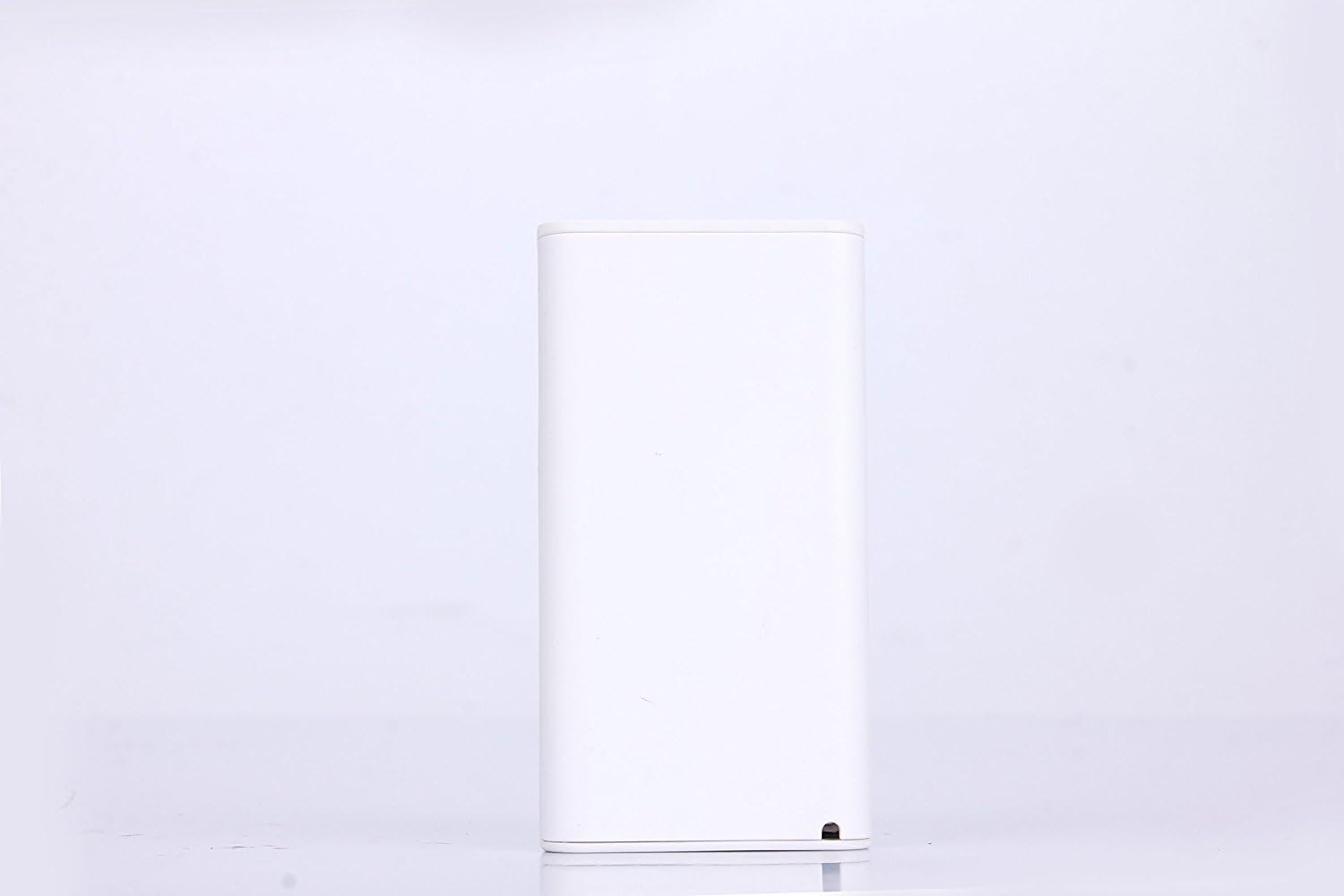
Figure 2: Rear view of the TH0165, highlighting the battery compartment and USB interface.
2.2 Software Installation
To download and analyze recorded data, dedicated software is required. This software is compatible with Windows operating systems (98/2000/XP/7/8/Vista/Win10).
- Download the latest software version for TH0165 from the PerfectPrime official website or the provided installation media.
- Follow the on-screen instructions to complete the software installation on your PC.
3. Operating Instructions
3.1 Device Overview and Buttons
The TH0165 features an LCD display and three control buttons:

Figure 3: Horizontal view of the TH0165, detailing the control buttons and LCD display.
- Mode/Set Button: Used to cycle through display modes and enter/confirm settings.
- Start/Stop Button: Initiates or terminates data logging.
- Min/Max Button: Displays minimum and maximum recorded values.
3.2 Power On/Off
Press and hold the Start/Stop button for approximately 3 seconds to power the device on or off.
3.3 Display Modes
Press the Mode/Set button to cycle through different display modes, which may include current temperature, current humidity, dew point, and logging status.
3.4 Starting and Stopping Data Logging
- To start logging: Press and hold the Start/Stop button until the logging indicator appears on the LCD.
- To stop logging: Press and hold the Start/Stop button again until the logging indicator disappears.
Note: Ensure the device is powered on before attempting to start logging.
3.5 Setting Measurement Interval and Alarm Values
Detailed instructions for setting the measurement interval and alarm thresholds are typically managed through the PC software. Refer to the software's user interface for these advanced configurations.
3.6 Switching Temperature Units (°C/°F)
The device supports both Celsius and Fahrenheit. The unit can usually be switched by pressing and holding a combination of buttons or through the PC software. Consult the software manual for precise instructions.
4. Data Management
4.1 Connecting to PC
To download recorded data, connect the TH0165 to your computer using a Micro USB cable. The device will be recognized by the installed software.
4.2 Using the Analysis Software
Launch the PerfectPrime analysis software on your PC. The software allows you to:
- Download recorded temperature and humidity data.
- View data in graphical format for trend analysis.
- Export data for further processing.
- Configure device settings, including logging interval and alarm limits.
- Display dew point indication based on recorded data.
Refer to the software's built-in help or separate software manual for detailed instructions on its features and functions.
5. Maintenance
5.1 Battery Replacement
Replace batteries when the low battery indicator appears on the LCD or if the device fails to power on. Follow the steps in Section 2.1 for battery installation.
5.2 Cleaning
Wipe the device with a soft, dry cloth. Do not use abrasive cleaners or solvents, as these may damage the casing or display.
5.3 Storage
When not in use for extended periods, store the device in a cool, dry place within the operating/storage temperature range of -40°C to 105°C. Remove batteries if storing for very long durations to prevent leakage.
6. Troubleshooting
| Problem | Possible Cause | Solution |
|---|---|---|
| Device does not power on. | No batteries, incorrect battery installation, or depleted batteries. | Ensure two fresh AAA batteries are correctly installed with proper polarity. |
| Cannot connect to PC or download data. | Incorrect software installation, faulty USB cable, or driver issues. | Verify software installation. Try a different USB port or cable. Restart PC. Ensure device is powered on. |
| Inaccurate readings. | Sensor obstruction, extreme environmental conditions, or device malfunction. | Ensure sensors are clear. Operate within specified temperature/humidity ranges. If problem persists, contact support. |
| Data logging not starting. | Logging not initiated correctly, or device memory full. | Press and hold the Start/Stop button until the logging indicator appears. Download data to clear memory if full. |
7. Specifications
| Parameter | Value |
|---|---|
| Temperature Measurement Range | -40°C to 125°C (-40°F to 257°F) |
| Humidity Measurement Range | 0 to 100% RH |
| Temperature Measurement Accuracy | ±0.3°C @ 25°C |
| Humidity Measurement Accuracy | ±2% RH @ 25°C |
| Temperature Display Resolution | 0.1°C |
| Humidity Display Resolution | 0.1% RH |
| Data Record Capacity | 21,000 temperature and humidity counts |
| Selectable Measure Interval | 1 second to 24 hours |
| Operating/Storage Temperature | -40°C to 105°C (-40°F to 221°F) |
| Battery | 2 x AAA 3V (not included) |
| PC Interface | Micro USB |
| Software Compatibility | Windows 98/2000/XP/7/8/Vista/Win10 |
| Product Dimensions | 8.5 x 6.4 x 1.5 inches |
| Item Weight | 3.84 ounces |
8. Warranty and Support
PerfectPrime products are designed for reliability and performance. For warranty information, technical support, or to download the latest software and manuals, please visit the official PerfectPrime website or contact their customer service department. Keep your purchase receipt for warranty claims.
Official Website: PerfectPrime Store on Amazon (for product information and support links)