1. Introduction and Overview
This manual provides instructions for the Canon MG7720 Wireless All-In-One Printer. The MG7720 is designed for printing, scanning, and copying, offering wireless connectivity for various devices. It supports mobile and tablet printing via AirPrint, Google Cloud Print, NFC, Mopria, and the Canon PRINT app. Additionally, it features CD/DVD printing capabilities.

Figure 1.1: Front view of the Canon MG7720 Wireless All-In-One Printer. This image displays the printer's compact design and integrated control panel.
2. Setup
2.1 Unpacking and Initial Placement
- Carefully remove the printer from its packaging.
- Remove all protective tapes and packing materials from the exterior and interior of the printer.
- Place the printer on a stable, level surface near a power outlet.
2.2 Power Connection
- Connect the power cord to the printer and then to a wall outlet.
- Press the power button to turn on the printer.
2.3 Ink Cartridge Installation
- Open the printer's top cover to access the ink cartridge compartment.
- Install the provided ink cartridges into their corresponding slots, ensuring they click into place.
- Close the top cover. The printer will perform an initial setup process.
2.4 Paper Loading
- Open the paper tray(s). The MG7720 features two paper trays.
- Load paper into the tray, adjusting the paper guides to fit the paper size.
- Close the paper tray.
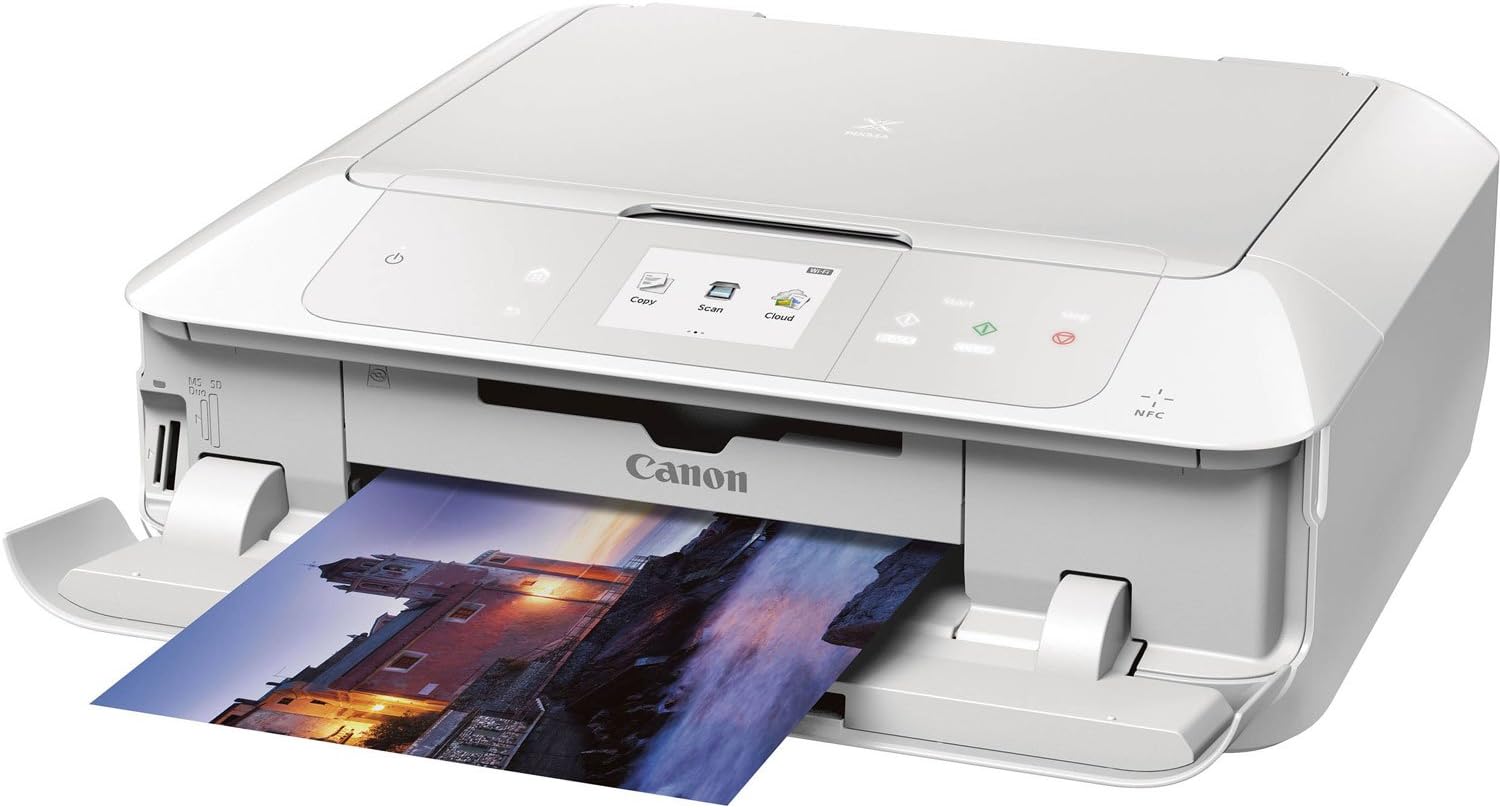
Figure 2.1: Angled view of the Canon MG7720 printer with paper loaded in the front tray. This illustrates the paper loading mechanism and the printer's readiness for operation.
2.5 Wireless Setup
- On the printer's touch screen, navigate to the Wireless Setup option.
- Select your Wi-Fi network from the list and enter the password.
- Alternatively, use the Canon PRINT app on your mobile device for guided setup.
2.6 Software Installation
For full functionality, install the printer drivers and software on your computer. This can typically be done from the included CD-ROM or by downloading the latest software from the official Canon support website.
3. Operating Instructions
3.1 Basic Printing from a Computer
- Open the document or image you wish to print on your computer.
- Select Print from the application's menu (e.g., File > Print).
- Choose the Canon MG7720 from the list of available printers.
- Adjust print settings such as paper size, orientation, and print quality as needed.
- Click Print.
3.2 Mobile Device Printing
The MG7720 supports various mobile printing options:
- AirPrint: For Apple iOS devices, print directly from compatible apps without installing drivers.
- Google Cloud Print: Print from web-connected devices and applications.
- Canon PRINT app: Download the official Canon PRINT app for advanced printing and scanning features from your smartphone or tablet.
- NFC: For NFC-enabled Android devices, touch the device to the NFC tag on the printer to initiate printing.
- Mopria: Print from Android devices that support Mopria Print Service.

Figure 3.1: The Canon MG7720 printer outputting a vibrant photo print. This demonstrates the printer's capability for high-quality photo printing.
3.3 Scanning Documents
- Place the document face-down on the scanner glass or use the Automatic Document Feeder (if available).
- On the printer's control panel, select Scan.
- Choose the destination for the scanned file (e.g., computer, cloud service).
- Adjust scan settings such as resolution and color mode.
- Press Start to begin scanning.
3.4 Copying Documents
- Place the document face-down on the scanner glass.
- On the printer's control panel, select Copy.
- Specify the number of copies and any other settings (e.g., color/black & white, paper size).
- Press Start to begin copying.
3.5 CD/DVD Printing
The MG7720 allows direct printing onto compatible CD/DVD media. Use the included CD/DVD tray and follow the on-screen instructions or software prompts for this function.
4. Maintenance
4.1 Replacing Ink Cartridges
- When an ink cartridge is low or empty, a message will appear on the printer's display.
- Open the top cover of the printer.
- Press the tab on the empty cartridge to release it and lift it out.
- Unpack a new Canon genuine ink cartridge and insert it firmly into the correct slot until it clicks.
- Close the top cover.
4.2 Cleaning the Print Heads
If print quality degrades (e.g., streaks, faded colors), perform a print head cleaning:
- From the printer's control panel, navigate to Setup > Maintenance.
- Select Cleaning or Deep Cleaning. Follow the on-screen prompts.
- Perform a nozzle check pattern print to verify improvement. Repeat if necessary.
4.3 Cleaning the Timing Strip
If printed text appears blurry or misaligned, the timing strip may require cleaning. This is a clear plastic strip located inside the printer.
- Turn off the printer and unplug the power cord.
- Open the top cover to access the interior.
- Gently wipe the clear plastic timing strip with a clean, lint-free cloth lightly dampened with water. Avoid touching the metal rail or applying excessive force.
- Allow the strip to dry completely before closing the cover and reconnecting power.
4.4 Cleaning the Exterior
Wipe the exterior of the printer with a soft, damp cloth. Avoid using abrasive cleaners or solvents.
5. Troubleshooting
5.1 Printer Not Responding
- Ensure the printer is powered on and connected to a power outlet.
- Check the USB cable connection to the computer or verify the wireless connection status.
- Restart both the printer and your computer/mobile device.
5.2 Print Quality Issues (Streaks, Fading, Missing Colors)
- Check ink levels and replace any empty cartridges.
- Perform a print head cleaning (refer to Section 4.2).
- Perform a print head alignment from the printer's maintenance menu.
- Clean the timing strip if text is blurry or misaligned (refer to Section 4.3).
5.3 Paper Jams
- Turn off the printer and unplug the power cord.
- Carefully open all covers and remove any jammed paper, pulling gently to avoid tearing.
- Ensure paper is loaded correctly in the tray and not overfilled.
- Close all covers, reconnect power, and turn on the printer.
5.4 Slow Start-Up or Processing Time
The printer may perform internal maintenance routines upon startup or after periods of inactivity, which can result in a delay before printing begins. This is normal operation. Ensure the printer's firmware is up to date.
6. Specifications
| Feature | Specification |
|---|---|
| Model Number | MG7720 |
| Connectivity Technology | Wi-Fi, USB |
| Printing Technology | Inkjet |
| Printer Output | Color |
| Max Print Speed (Monochrome) | 15 ppm |
| Max Print Speed (Color) | 10 ppm |
| Max Color Print Resolution | 4800 x 1200 dpi |
| Max B&W Print Resolution | 600 x 600 dpi |
| Scanner Type | Sheetfed |
| Max Copy Speed (B&W) | 15 ppm |
| Max Copy Resolution (Color) | 600 x 600 dpi |
| Duplex Printing | Simplex (No automatic dual-sided printing) |
| Control Method | App, Touch |
| Number of Trays | 2 |
| Product Dimensions | 14.6 x 17.2 x 5.9 inches |
| Item Weight | 17.4 pounds |
| Included Components | Pixma MG7720 Photo Printer (white) |
7. Warranty and Support
7.1 Warranty Information
The Canon MG7720 printer comes with a limited warranty. For specific terms, conditions, and duration of your warranty, please refer to the warranty documentation included with your product or visit the official Canon support website.
7.2 Customer Support
For further assistance, technical support, or to download the latest drivers and software, please visit the official Canon support website or contact Canon customer service. Contact information can typically be found on the Canon website or in the product packaging.


