1. Introduction
This manual provides essential instructions for the safe and effective use of your Integral 8GB Crypto-197 256-Bit Hardware Encrypted USB 3.0 Flash Drive. Please read this manual thoroughly before using the device to ensure proper setup and operation.

Image: The Integral Crypto-197 USB Flash Drive, showing its blue casing, USB connector, and attached key fob with "AES DUAL LOCK" branding.
2. Key Features
- Dual Password System: Allows for an Administrator password and a User password, providing enhanced control and recovery options.
- FIPS 197 Certified: Adheres to a high-level information security standard approved by the U.S. Government.
- Brute-Force Password Attack Protection: Data is automatically erased after 6 failed access attempts to prevent unauthorized access.
- Rugged Double-Layer Waterproof Design: Features a hardened inner case and a rubberized silicone outer casing for physical protection.
- Auto-lock Functionality: The drive automatically encrypts and locks when removed from a PC/Mac or when the screen saver/computer lock function is activated.
- Secure Entry: Requires a strong alphanumeric password (8-16 characters) for data access.
- SuperSpeed USB 3.0: Enables fast data transfer rates.
- Mandatory AES 256-bit Hardware Encryption: Provides superior data protection directly on the drive.
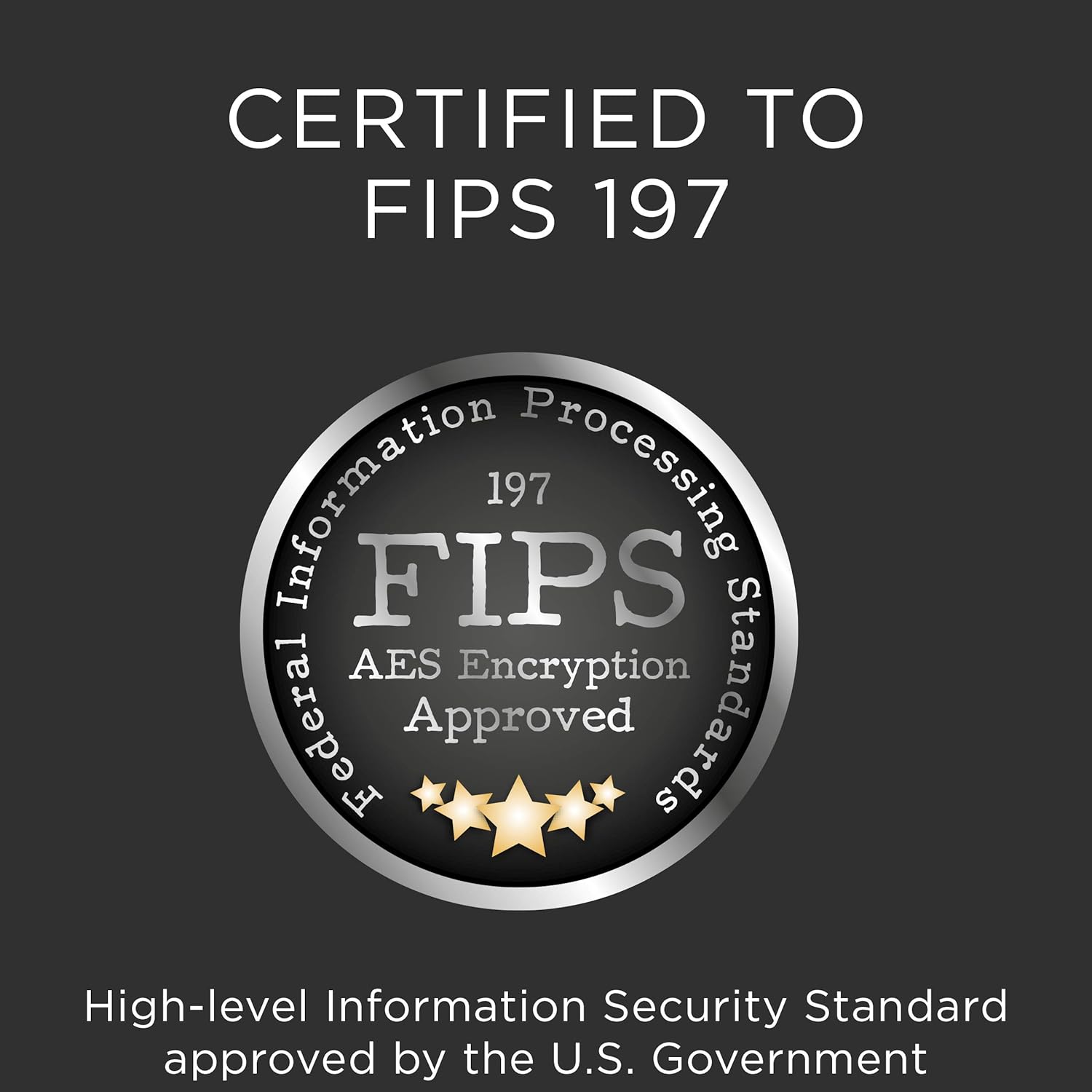
Image: A silver seal indicating "FIPS 197 AES Encryption Approved," signifying compliance with high-level information security standards.
3. Setup and Initial Configuration
3.1 First-Time Use
- Insert the Integral Crypto-197 USB drive into an available USB 3.0 port on your computer (compatible with USB 2.0 ports as well).
- The drive will present a read-only partition containing the encryption software.
- Locate and run the executable file for the encryption interface. On Windows, this may auto-run; otherwise, navigate to the drive and launch the application manually.
- Follow the on-screen prompts to set up your initial password.
3.2 Setting Up Dual Passwords (Administrator and User)
The Crypto-197 features a dual password system for enhanced management, particularly useful in organizational settings.
- During the initial setup or via the drive's management software, an Administrator can set a master password.
- A User then sets their own password as normal.
- If the User forgets their password, the Administrator's master password can be used to access the encrypted drive. This ensures data recovery and control.

Image: Illustrates the two password options: an Administrator password for full control and a User password for daily access, with the Administrator password serving as a recovery option.
3.3 Password Requirements
- Passwords must be alphanumeric and between 8 to 16 characters in length.
- A password hint option is available, but the hint cannot match the actual password.
4. Operating the Device
4.1 Accessing Encrypted Data
- Insert the drive into a USB port.
- Run the encryption interface application from the read-only partition.
- Enter your password (or the Administrator password if applicable) when prompted.
- Upon successful authentication, the hidden, encrypted partition will become visible and accessible as a standard storage device.
4.2 Saving and Transferring Files
Once unlocked, you can drag and drop files to and from the encrypted partition as you would with any other USB flash drive. All data stored on this partition is automatically encrypted by the hardware encryption chip.

Image: A diagram showing the internal hardware encryption chip within the USB drive, highlighting that encryption is performed directly on the device.
4.3 Auto-Lock Function
For security, the drive will automatically lock and encrypt all data under the following conditions:
- When the drive is physically removed from the computer.
- When the host PC/Mac activates its screen saver.
- When the host PC/Mac's "computer lock" function is engaged.
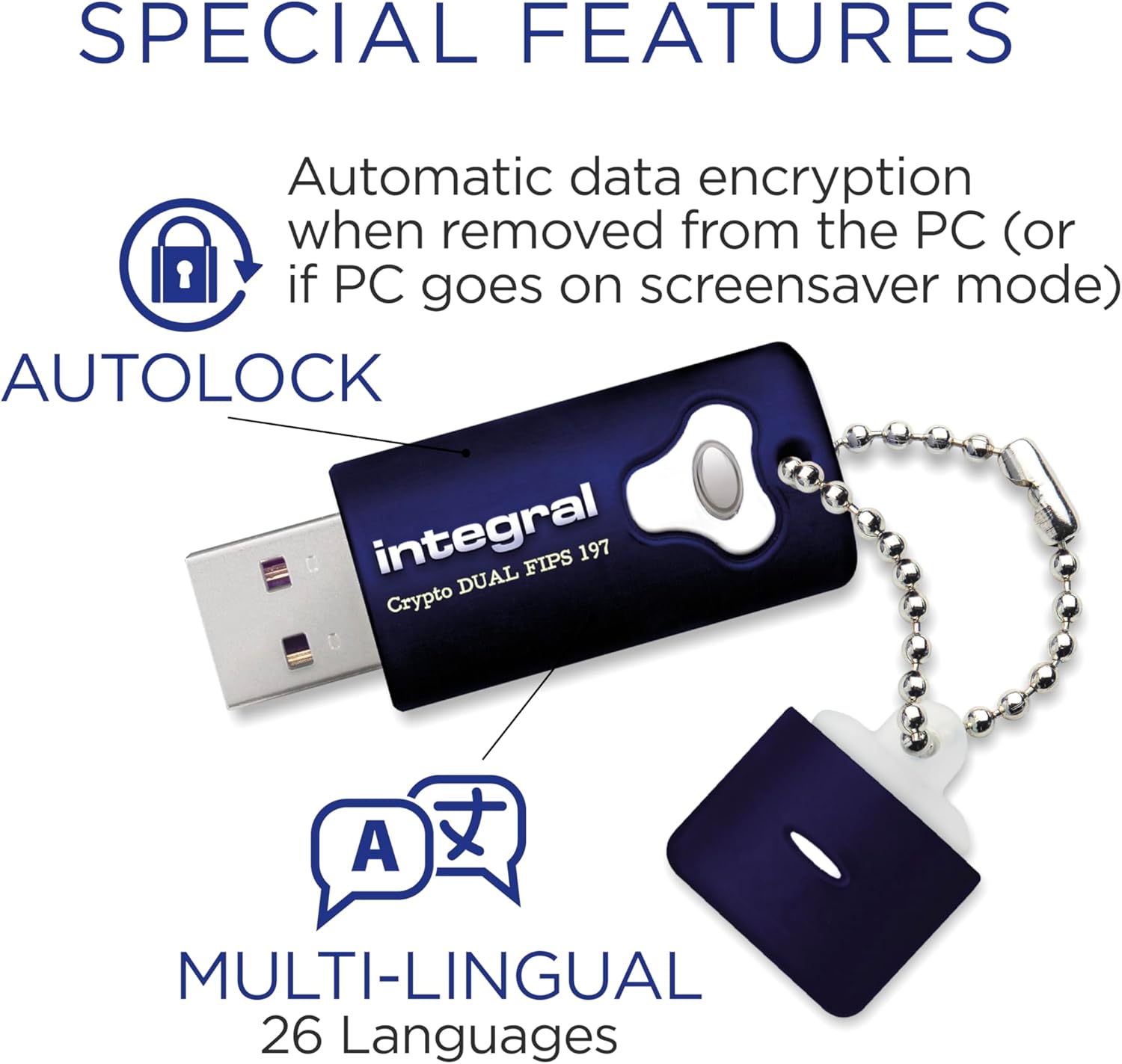
Image: Highlights the "Autolock" feature, showing a padlock icon, and mentions multi-lingual support for the drive's interface.
4.4 Ejecting the Drive
Always safely eject the drive from your operating system before physical removal to prevent data corruption. The auto-lock feature will engage upon ejection.
5. Maintenance and Care
5.1 Physical Protection
The Integral Crypto-197 features a rugged double-layer design for durability:
- A hardened inner case protects the electronics.
- A rubberized silicone outer casing provides resistance against knocks, drops, and water submersion.
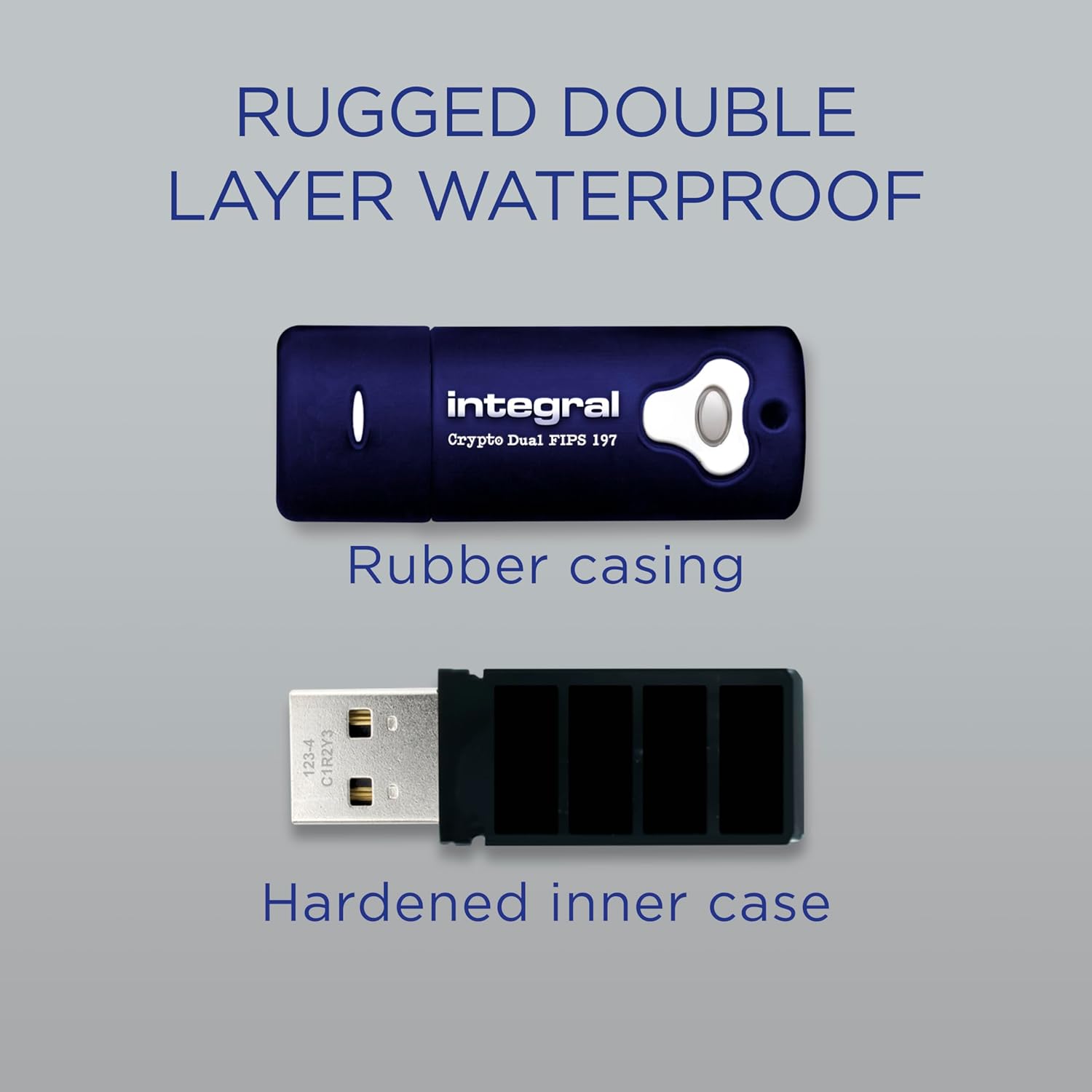
Image: An exploded view of the USB drive showing its "Rubber casing" and "Hardened inner case," illustrating its double-layer waterproof design.
5.2 Cleaning
Wipe the exterior with a soft, damp cloth. Do not use harsh chemicals or abrasive cleaners.
5.3 Software Updates
Periodically check the Integral website for any firmware or software updates for your Crypto-197 drive to ensure optimal performance and security.
6. Troubleshooting
6.1 Drive Not Recognized
- Ensure the drive is fully inserted into the USB port.
- Try a different USB port or a different computer.
- Verify that the necessary drivers are installed (usually automatic).
6.2 Forgotten Password
- If a password hint was set, use it to recall your password.
- If a Dual Password system is in use, the Administrator password can be used to access the drive.
- Important: After 6 failed password attempts, the drive will automatically erase all data and encryption keys. This action is irreversible.

Image: A visual representation of brute-force attack protection, stating that files are protected and data is securely destroyed after 6 failed login attempts.
6.3 Data Corruption or Access Issues
- Always safely eject the drive before removal.
- If issues persist, contact Integral customer support.
7. Specifications
| Feature | Detail |
|---|---|
| Model Name | INFD8GCRYDL3.0197 |
| Memory Storage Capacity | 8 GB |
| Hardware Interface | USB 3.0 (backward compatible with USB 2.0) |
| Read Speed | Up to 120 MB/s |
| Write Speed | Up to 45 MB/s |
| Encryption | Mandatory AES 256-bit Hardware Encryption (FIPS 197 Certified) |
| Operating Temperature | 0 - 70 °C |
| Dimensions (LxWxH) | 2.28 x 0.83 x 0.55 inches |
| Item Weight | 0.64 ounces |
| Compatibility | Windows XP/Vista/7/8.1/10, Mac OS X |
| Special Features | Water resistant, Brute-Force Attack Protection, Dual Password System, Auto-lock |
8. Warranty and Support
For warranty information and technical support, please refer to the official Integral Memory website or contact their customer service department. Keep your purchase receipt as proof of purchase.
Online Support: Visit www.integralmemory.com for product information, FAQs, and support resources.


