
Introduction and Overview
The Google Nest Learning Thermostat (3rd Gen) is a smart thermostat designed to learn your preferences and help you save energy. It automatically adjusts the temperature based on your schedule and can be controlled remotely from anywhere using the Nest app. This manual provides detailed instructions for installation, operation, and maintenance to ensure optimal performance and energy efficiency.
Key features include:
- Auto-Schedule: Learns your habits and programs itself.
- Home/Away Assist: Automatically adjusts temperature when you leave or return.
- Remote Control: Manage settings from your phone, tablet, or laptop.
- Energy History: Track your energy usage and identify savings opportunities.
- Voice Control: Compatible with Google Assistant and Amazon Alexa.
- HVAC Monitoring: Provides alerts for potential system issues.

Figure 1: Google Nest Learning Thermostat (3rd Gen) in Stainless Steel.
What's in the Box
Your Google Nest Learning Thermostat package includes all necessary components for installation and operation:
- Nest Thermostat Display
- Nest Thermostat Base
- Optional Trim Kit (for covering wall imperfections)
- Mounting Screws and Labels
- Nest Screwdriver
- Installation Guide
- Welcome Guide
- Nest Pro Installation Card
Video 1: Google Nest Thermostat Unboxing and Overview. This video provides a visual guide to the contents of the Nest Learning Thermostat package.
Setup and Installation
Installing your Nest Learning Thermostat is a straightforward process. Before you begin, ensure your HVAC system is compatible by visiting nest.com/works. Always turn off power to your heating and cooling system at the circuit breaker before handling any wiring.
1. Power Off Your System
Locate your home's circuit breaker box and turn off the switch that controls power to your heating and cooling system. This is crucial for your safety and to protect your equipment during installation.
2. Remove Old Thermostat
Carefully remove the front cover of your old thermostat. Take a picture of the wiring configuration with your phone for future reference. If there's a jumper wire connecting one wire to another, remove it as it won't be needed for the Nest thermostat. Label each wire with the provided labels from the installation guide before disconnecting them from the old thermostat's backplate.
3. Install Nest Base
Gently pull the labeled wires through the center of the Nest thermostat base. Use the included screws and Nest screwdriver to mount the base to the wall. If there are any holes or unpainted areas from your old thermostat, use the optional trim kit to cover them. Ensure the base is level using the built-in level.
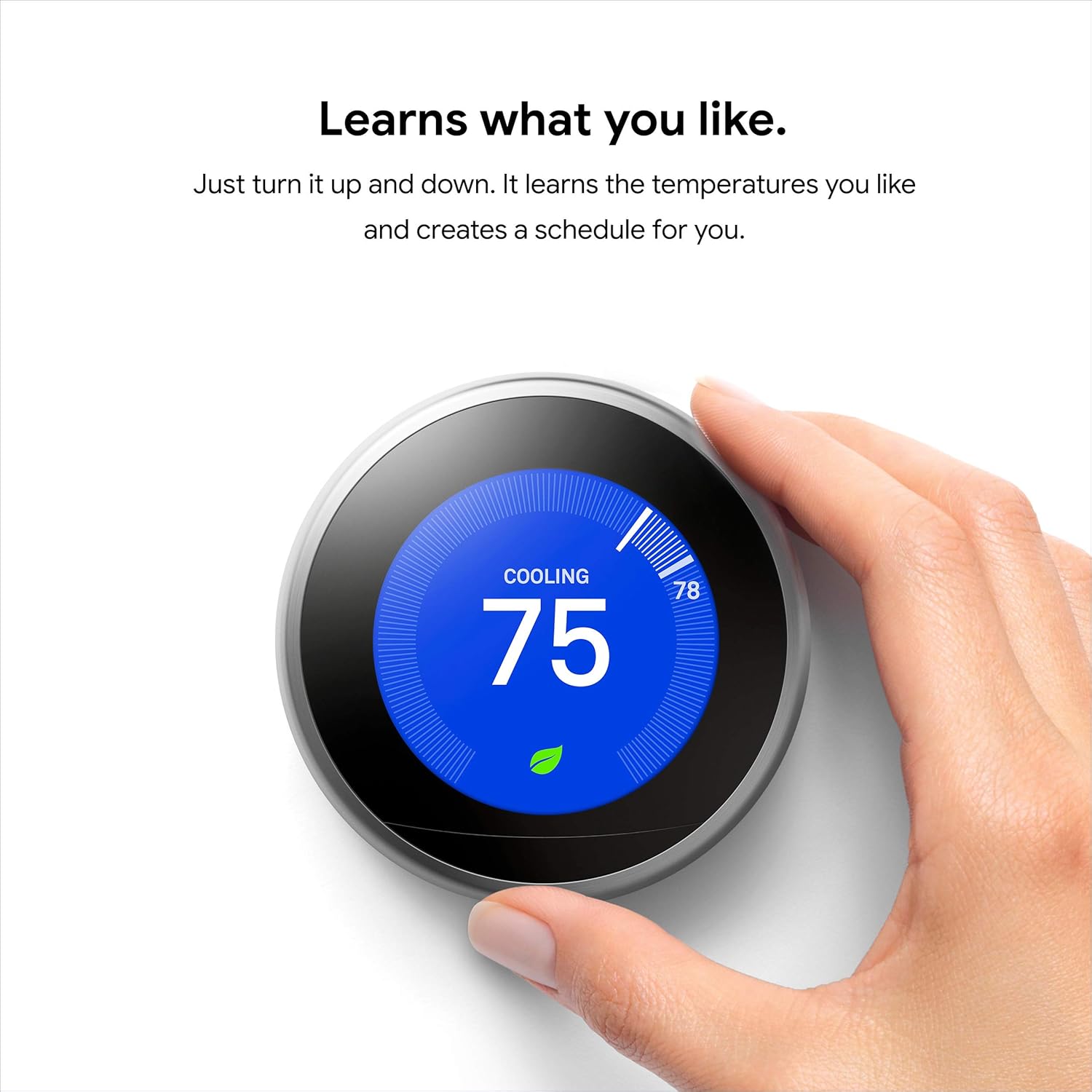
Figure 2: Easy installation of the Nest Thermostat base.
4. Connect the Wires
Insert each labeled wire into its corresponding connector on the Nest base. Simply hold down the connector button and push the wire all the way in until it's secure. Ensure the connector buttons stay down after insertion. Only connect wires that were connected to your old thermostat.
5. Attach Nest Display
Align the Nest display with the base, ensuring the "nest" logo is at the top. Push the display onto the base until you hear a click, indicating it's securely attached.
6. Restore Power and Setup
Return to your circuit breaker box and turn the power back on. Your Nest thermostat will start up and guide you through the initial setup process on its display. This includes selecting your language, connecting to Wi-Fi, confirming your location, and identifying your heating and cooling equipment. It will also run a quick system test to ensure everything is working correctly.
Video 2: Installing Nest Learning Thermostat (3rd Generation). This video demonstrates the step-by-step installation process for the thermostat.
Operating Instructions
The Nest Learning Thermostat is designed for intuitive control, both directly on the device and remotely.
Manual Control
To adjust the temperature directly on the thermostat, simply turn the outer ring clockwise to increase the temperature or counter-clockwise to decrease it. Press the display to access the main menu and select different modes (Heat, Cool, Heat+Cool, Off), fan settings, schedule, and history.
Remote Control via Nest App
Download the Nest app on your smartphone or tablet to control your thermostat from anywhere. Once connected to your Nest account, you can adjust temperatures, change modes, view energy history, and manage schedules remotely. This is particularly useful for adjusting your home's climate before you arrive or while on vacation.

Figure 3: Remote control of the Nest Thermostat via the Nest app.
Voice Control
The Nest Learning Thermostat works seamlessly with voice assistants like Google Assistant and Amazon Alexa. Simply link your Nest account to your preferred voice assistant and use voice commands to adjust your home's temperature.

Figure 4: Voice control compatibility with Google Assistant and Amazon Alexa.
Video 3: So convenient and easy to operate! Watch and see! This video highlights the ease of use and various control options for the Nest thermostat.
Energy Saving Features
The Nest Learning Thermostat is designed to help you conserve energy and reduce your utility bills through its intelligent features:
- Auto-Schedule: The thermostat learns your preferred temperatures and automatically creates a personalized schedule.
- Home/Away Assist: Using sensors and your phone's location, the thermostat knows when you're away and automatically adjusts the temperature to save energy, preventing heating or cooling an empty home.
- Nest Leaf: A green leaf icon appears on the display when you choose an energy-saving temperature, guiding you towards more efficient settings.
- Energy History: Review your daily and monthly energy usage in the Nest app to understand how and why you're using energy, helping you make informed adjustments.

Figure 5: The Nest Leaf indicates energy-saving temperatures.
Maintenance
To ensure your Nest Learning Thermostat and HVAC system operate efficiently, regular maintenance is recommended:
- Clean the Thermostat: Gently wipe the display and outer ring with a soft, damp cloth. Avoid abrasive cleaners or solvents.
- HVAC System Alerts: The Nest thermostat can monitor your HVAC system and send alerts if it detects potential issues, such as unusual heating/cooling patterns or filter reminders. Pay attention to these alerts and consult a qualified HVAC professional if necessary.
- Software Updates: Ensure your thermostat is connected to Wi-Fi to receive automatic software updates, which provide new features and performance improvements.

Figure 6: HVAC monitoring alerts from the Nest app.
Troubleshooting
If you encounter issues with your Nest Learning Thermostat, try the following common troubleshooting steps:
- No Power/Display Off: Check your circuit breaker to ensure power is on. Verify that all wires are securely connected to the Nest base.
- Incorrect Temperature Readings: Ensure the thermostat is not exposed to direct sunlight, drafts, or heat sources that could affect its internal sensor.
- Wi-Fi Connectivity Issues: Restart your Wi-Fi router. Check your Nest app for network diagnostics. Ensure your Wi-Fi password is correct.
- System Not Responding: Try restarting the Nest thermostat from the settings menu. If the issue persists, verify your wiring connections.
For more detailed troubleshooting guides and support, please visit the official Nest support website.
Specifications
| Feature | Detail |
|---|---|
| Brand | Google Nest |
| Model Name | Nest Learning Thermostat |
| Model Number | T3007ES |
| Product Dimensions | 3.3"D x 3.3"W x 1.1"H |
| Color | Stainless Steel |
| Item Weight | 1 Pounds |
| Connectivity Technology | Wi-Fi (802.11b/g/n @ 2.4GHz, 5GHz), Bluetooth Low Energy (BLE) |
| Controller Type | Google Assistant, Amazon Alexa, Nest App |
| Power Source | Battery Powered (1 Lithium Ion battery included) |
| Voltage | 24 Volts |
| UPC | 854448003877 |
Warranty and Support
For warranty information, technical support, or additional resources, please refer to the official Google Nest support channels:
- Online Support: Visit nest.com/support for comprehensive FAQs, troubleshooting guides, and user manuals.
- User Guide (PDF): A detailed PDF user guide is available for download here.
- Installation Manual (PDF): An installation-specific PDF manual can be found here.
Google Nest provides ongoing software updates to enhance product functionality and security. Ensure your device is connected to Wi-Fi to receive these updates automatically.


