
SEIKO SLP620
Contents
SKPSLP620 - Smart Label Printer 620 User Manual
Brand: SEIKO | Model: SLP620
Introduction
The SEIKO Smart Label Printer 620 (SLP620) is a direct thermal label printer designed for efficient and high-quality label printing. It connects via USB to your PC or Mac, supporting Windows, Mac OS, or Linux. This manual provides comprehensive instructions for setting up, operating, maintaining, and troubleshooting your SLP620 printer.
1. Setup
1.1 Unpacking the Printer
Carefully remove all components from the packaging. Ensure you have the Smart Label Printer 620, Quick Start Guide, Software and Drivers CD, USB Cable, AC Adapter, and a roll of Smart Labels.
1.2 Connecting the Printer
Connect the AC adapter to the printer's power input and plug it into a power outlet. Connect the USB cable from the printer's USB port to an available USB port on your computer.

Figure 1.2.1: Rear view of the SLP620 printer, highlighting the power (DC In), Serial, and USB connection ports.
1.3 Software Installation
Insert the Software and Drivers CD into your computer's CD/DVD drive. Follow the on-screen instructions to install the Smart Label Software and necessary drivers. Alternatively, visit the official SEIKO website to download the latest software and drivers for your operating system (Windows, Mac OS, or Linux).
2. Operating Instructions
2.1 Loading Smart Labels
Open the printer's top cover. Insert the roll of Smart Labels into the label compartment, ensuring the labels feed smoothly through the slot. Close the cover securely. The nimble user-friendly design makes it effortless to load or change labels.

Figure 2.1.1: The SLP620 printer with a label roll loaded, demonstrating the label path and output.

Figure 2.1.2: Front view of the SLP620, showing a label exiting the printer after being fed through the mechanism.
2.2 Printing Labels
Use the Smart Label Software to create, format, and print your labels. The software supports integration with Microsoft Excel, Outlook, Access, and Word, making it easy to generate various types of labels such as address labels, file folder labels, shipping labels, name tags, and multipurpose labels.

Figure 2.2.1: Examples of labels printed using the SLP620, showcasing address labels, visitor badges, and labels with QR codes.
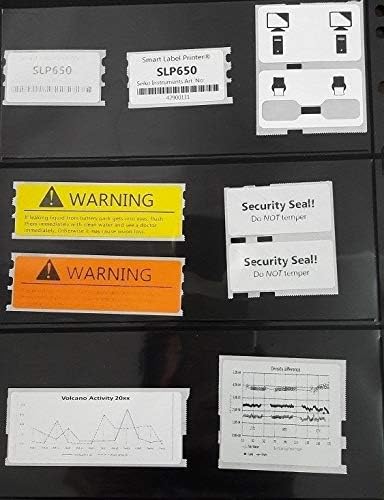
Figure 2.2.2: Additional examples of labels printed by the SLP620, such as warning labels, security seals, and various barcode formats.
3. Maintenance
3.1 Cleaning the Printer
Regularly clean the print head and label path with a soft, lint-free cloth. Do not use abrasive cleaners or solvents. Ensure the printer is unplugged before cleaning.
3.2 Storing Labels
Store Smart Labels in a cool, dry place away from direct sunlight and heat to preserve their quality and adhesive properties.
4. Troubleshooting
4.1 Common Issues and Solutions
- Printer not responding:
- Check power connection and USB cable connection.
- Ensure the printer is turned on.
- Restart your computer and the printer.
- Verify that the printer drivers are correctly installed.
- Labels not feeding correctly:
- Ensure the label roll is inserted correctly and not jammed.
- Check for any obstructions in the label path.
- Clean the label sensor if it appears dirty.
- Poor print quality:
- Clean the print head.
- Ensure you are using genuine SEIKO Smart Labels.
- Check software settings for print density.
5. Specifications
| Feature | Detail |
|---|---|
| Model | SLP620 |
| Printing Technology | Direct Thermal |
| Maximum Print Resolution | 203 dpi |
| Maximum Mono Print Speed | 2.76 in/s (30 ppm) |
| Maximum Print Width | 2.28 inches |
| Interfaces | USB |
| Compatible Operating Systems | Windows, Mac OS, Linux |
| Dimensions (H x W x D) | 5.8" x 4.5" x 6.8" |
| Weight | 1.08 pounds |
| Included Components | Smart Label Printer 620, Quick Start Guide, Software and Drivers CD, USB Cable, AC Adapter, Roll of Smart Labels |
6. Warranty and Support
6.1 Limited Warranty
The SEIKO Smart Label Printer 620 comes with a 3-Year Limited Warranty. Please refer to the warranty card included in your product packaging for full terms and conditions. This warranty covers defects in materials and workmanship under normal use.
6.2 Customer Support
For technical assistance, troubleshooting, or warranty claims, please visit the official SEIKO support website or contact their customer service. Keep your purchase receipt and product serial number ready when contacting support.
For more information, visit the SEIKO Store on Amazon.
Ask a question about this manual
Ask about setup, troubleshooting, compatibility, parts, safety, or missing instructions. Manuals+ will review the question and use this page’s manual context to help answer it.