
beFree Sound BFS-600
beFree Sound BFS-600 5.1 Channel Surround Sound Bluetooth Speaker System Instruction Manual
Brand: beFree Sound | Model: BFS-600
Introduction
The beFree Sound BFS-600 is a 5.1 channel surround sound Bluetooth speaker system designed to enhance your home entertainment experience. This system delivers high-performance audio for music and movies, blending easily with various room decors. It features innovative technologies to reproduce clear and natural sound, providing an immersive listening experience.
What's in the Box
- One Subwoofer
- Five Satellite Speakers
- Remote Control (requires 2 AAA batteries, not included)
- Audio Cables
Setup
Follow these steps to correctly set up your beFree Sound BFS-600 speaker system:
- Positioning Speakers: Place the subwoofer in a central location. Position the five satellite speakers around your listening area for optimal surround sound. The system includes one center speaker, two front speakers, and two rear speakers.
- Connecting Satellite Speakers: Connect each of the five satellite speakers to the corresponding audio output ports on the rear panel of the subwoofer. Ensure correct polarity (positive to positive, negative to negative) if applicable, or match the color-coded RCA connectors.
- Power Connection: Connect the main power cable to the subwoofer and then plug it into a standard AC 110V/60Hz power outlet.
- Power On: Flip the power switch on the rear panel of the subwoofer to the 'ON' position.
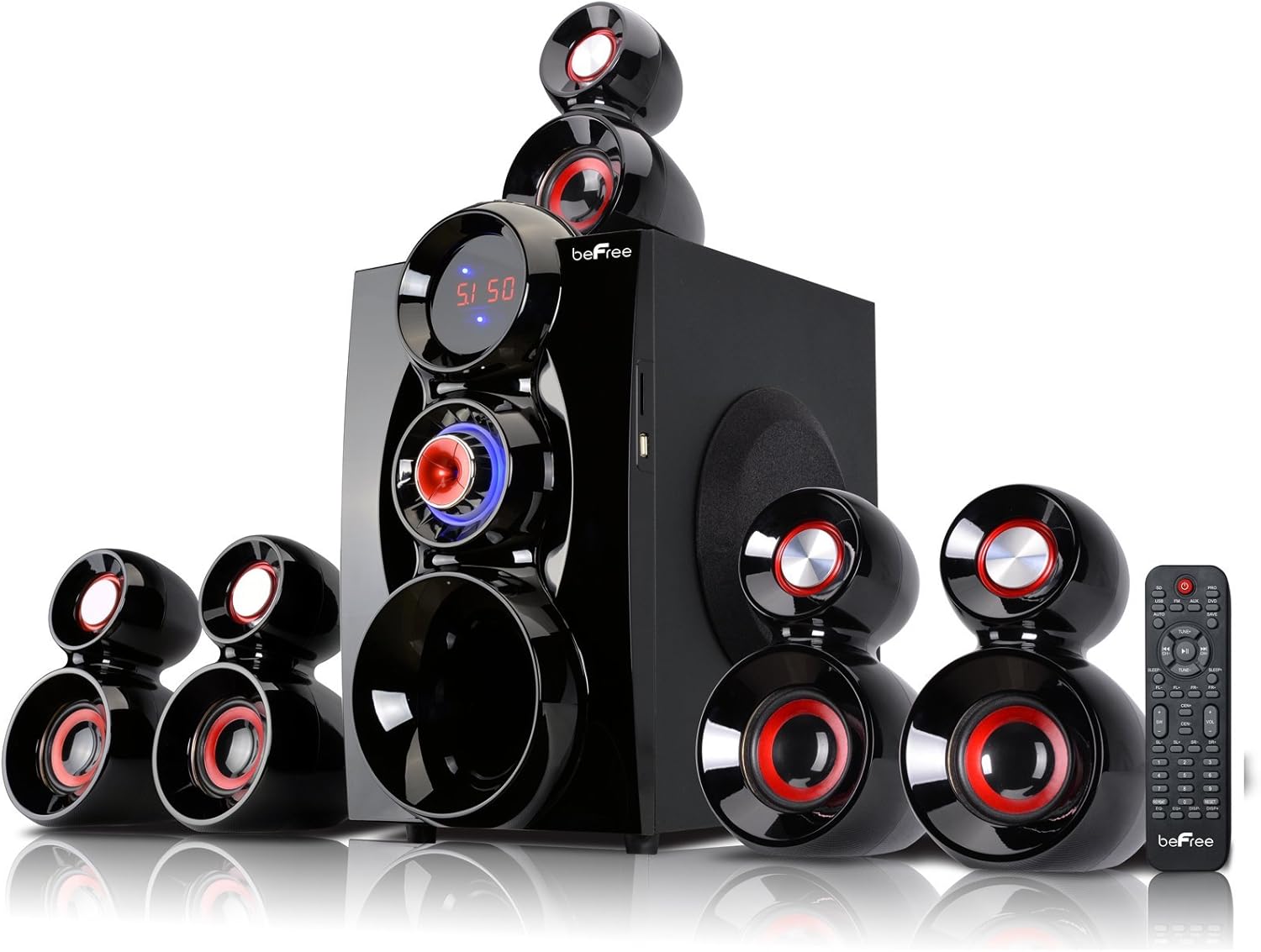
Figure 1: Complete beFree Sound BFS-600 5.1 Speaker System setup.

Figure 2: Rear panel showing various input and output connections for the subwoofer.
Operating Instructions
The BFS-600 system offers multiple input options for versatile use:
1. Bluetooth Connection
- Press the 'Input' button on the subwoofer's front panel or the remote control until 'BT' appears on the display.
- Enable Bluetooth on your audio device (e.g., smartphone, tablet, laptop).
- Search for 'beFree Sound BFS-600' or a similar device name in your device's Bluetooth settings.
- Select the device to pair. Once connected, you can stream audio wirelessly.
2. USB/SD Playback
- Insert a USB flash drive or SD card containing MP3/WAV audio files into the respective slot on the subwoofer.
- Press the 'Input' button until 'USB' or 'SD' appears on the display.
- The system will automatically begin playing audio files from the inserted media.
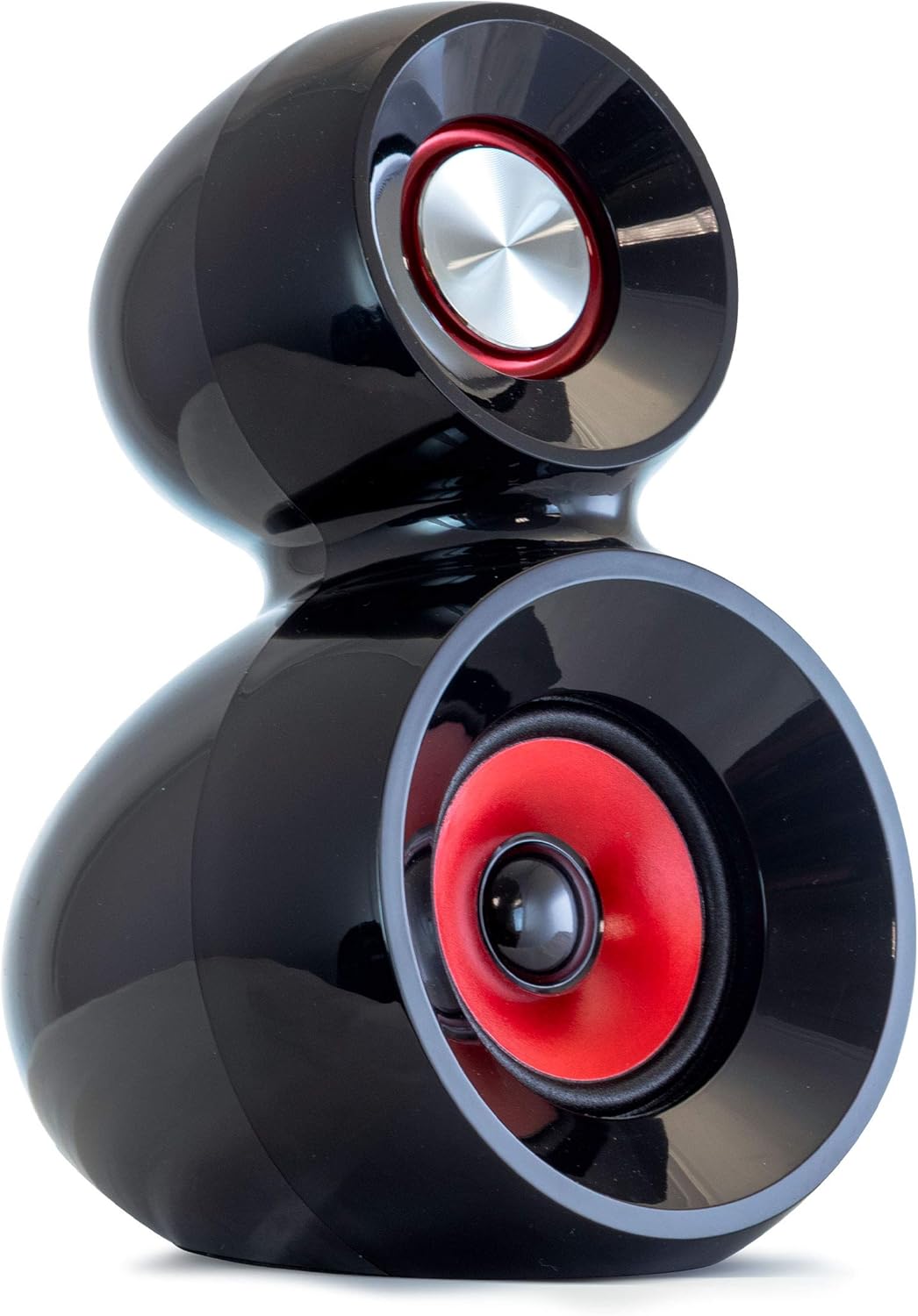
Figure 3: Side view of the subwoofer showing USB and SD card input slots.
3. AUX Audio Input (RCA L/R)
- Connect an audio source (e.g., CD player, older TV with RCA outputs) to the 'L' (white) and 'R' (red) AUX AUDIO INPUT ports on the subwoofer's rear panel using an RCA audio cable.
- Press the 'Input' button until 'AUX' appears on the display.
- Play audio from your connected device.
4. DVD Audio Input (5.1 Channel RCA)
- Connect a 5.1 channel audio source (e.g., DVD player with 5.1 RCA outputs) to the corresponding 'FL', 'FR', 'CEN', 'SW', 'SL', 'SR' DVD AUDIO INPUT ports on the subwoofer's rear panel.
- Press the 'Input' button until 'DVD' appears on the display.
- Ensure your DVD player's audio output settings are configured for 5.1 channel output.
5. HDMI/ARC Input
- Connect an HDMI cable from your TV's HDMI ARC port to the 'ARC INPUT' port on the subwoofer's rear panel.
- Press the 'Input' button until 'ARC' appears on the display.
- On your TV, ensure the audio output is set to 'HDMI ARC' or 'Receiver'. You may also need to set the digital audio output format to 'PCM' in your TV's expert sound settings for optimal compatibility.
6. Optical Input
- Connect an optical audio cable from your TV's optical output to the 'OPTICAL INPUT' port on the subwoofer's rear panel. Remember to remove the protective cap from the optical cable before insertion.
- Press the 'Input' button until 'OPT' appears on the display.
- On your TV, ensure the audio output is set to 'Optical' and the digital audio output format is set to 'PCM'.
7. Coaxial Input
- Connect a coaxial audio cable from your TV's coaxial output to the 'COAXIAL INPUT' port on the subwoofer's rear panel.
- Press the 'Input' button until 'COA' appears on the display.
- On your TV, ensure the audio output is set to 'Coaxial' and the digital audio output format is set to 'PCM'.
8. FM Radio
- Press the 'Input' button until 'FM' appears on the display.
- Use the 'Tune+' and 'Tune-' buttons on the remote control to manually tune to radio stations.
- Press the 'Auto' button to automatically scan and save available FM stations.
Remote Control Functions
The included remote control provides full functionality for your BFS-600 system:

Figure 4: Remote control for the beFree Sound BFS-600 system.
- Power: Turns the system on/off.
- Input: Cycles through available input modes (BT, USB, SD, AUX, DVD, ARC, OPT, COA, FM).
- Volume +/-: Adjusts the master volume.
- SW +/-: Adjusts the subwoofer volume/bass level.
- CEN +/-: Adjusts the center speaker volume.
- FL/FR +/-: Adjusts the front left/right speaker volume.
- SL/SR +/-: Adjusts the surround left/right speaker volume.
- Mute: Mutes/unmutes audio.
- EQ: Cycles through equalizer presets.
- Play/Pause, Next/Previous: Media playback controls for USB/SD mode.
- Tune +/-: Adjusts FM radio frequency.
- Auto: Auto-scans and saves FM radio stations.
Mounting Speakers
The satellite speakers are designed with keyhole slots on their rear panels, allowing for wall mounting to optimize sound dispersion and save space. Ensure to use appropriate screws and wall anchors suitable for your wall type to securely mount the speakers.

Figure 5: Rear view of a satellite speaker with a keyhole slot for wall mounting.
Specifications
| Feature | Detail |
|---|---|
| Model Name | BFS-600 |
| Brand | beFree Sound |
| Speaker Type | Subwoofer, Satellite |
| Surround Sound Channel Configuration | 5.1 |
| Connectivity Technology | Bluetooth, USB, SD Card, HDMI (ARC), Optical, Coaxial |
| Output Power | 80W (Subwoofer) + 18W x 5 (Speakers) = 170 Watts Total |
| Frequency Response | 40 Hz - 20 kHz |
| Subwoofer Diameter | 6.5 Inches |
| Control Method | Remote |
| Material | Plastic |
| Product Dimensions | 29"D x 23.5"W x 14.25"H |
| Item Weight | 26 Pounds |
| Special Feature | FM Radio |
Troubleshooting
- No Power: Ensure the power cable is securely plugged into both the subwoofer and a working electrical outlet. Check the power switch on the rear panel.
- No Sound:
- Verify the correct input mode is selected on the subwoofer (e.g., 'BT' for Bluetooth, 'ARC' for HDMI ARC).
- Check all audio cable connections between the subwoofer and your audio source, and between the subwoofer and satellite speakers.
- Ensure the volume is turned up on both the speaker system and your audio source.
- Confirm the system is not muted.
- Distorted Sound:
- Reduce the volume on both the speaker system and your audio source.
- Check for loose or damaged audio cables.
- Ensure the audio source is not sending an overdriven signal.
- Bluetooth Pairing Issues:
- Make sure the subwoofer is in Bluetooth pairing mode ('BT' displayed).
- Ensure your device's Bluetooth is enabled and discoverable.
- Move your device closer to the subwoofer.
- Forget the device from your phone's Bluetooth list and try pairing again.
- No 5.1 Surround Sound:
- Ensure your audio source is providing a 5.1 channel signal.
- Verify all 5.1 RCA cables are correctly connected to the 'DVD Audio Input' ports.
- If using HDMI ARC, Optical, or Coaxial, ensure your TV's digital audio output format is set to 'PCM' and not 'Bitstream' or 'Dolby Digital' if the system does not support those formats directly.
Warranty and Support
The beFree Sound BFS-600 speaker system comes with a Limited Warranty. For specific details regarding warranty coverage, duration, and terms, please refer to the warranty card included with your product or contact beFree Sound customer support.
For technical assistance, troubleshooting, or any other inquiries, please contact beFree Sound customer support through the contact information provided in your product documentation or on the official beFree Sound website.
Related documentsBFS-600


Ask a question about this manual
Ask about setup, troubleshooting, compatibility, parts, safety, or missing instructions. Manuals+ will review the question and use this page’s manual context to help answer it.