
Introduction
This manual provides essential information for setting up, operating, maintaining, and troubleshooting your Lenovo Z70 80FG00DBUS 17.3-inch laptop. The Lenovo Z70 is equipped with an Intel Core i7-5500U processor, 8 GB DDR3L SDRAM, a 1 TB 5400 rpm Hard Drive combined with an 8 GB Solid-State Drive, and runs on Windows 10. It features a 17.3-inch display and NVIDIA GeForce GT840M 2GB graphics.
What's in the Box
Upon opening the package, ensure all the following items are present:
- Lenovo Z70 Laptop
- AC Power Adapter
- Battery (integrated 4-cell)
- Documentation (Quick Start Guide, Safety Information)
Setup
Follow these steps to set up your Lenovo Z70 laptop for the first time:
- Connect the Power Adapter: Plug the AC power adapter into the power connector on the side of the laptop and then into a wall outlet.
- Initial Power On: Open the laptop lid and press the power button, typically located above the keyboard. The laptop will begin the initial boot process.
- Windows 10 Setup: Follow the on-screen instructions to complete the Windows 10 setup, including selecting your region, language, creating a user account, and connecting to a Wi-Fi network.
- Battery Charging: Allow the battery to fully charge before its first use. The battery indicator light will change when charging is complete.
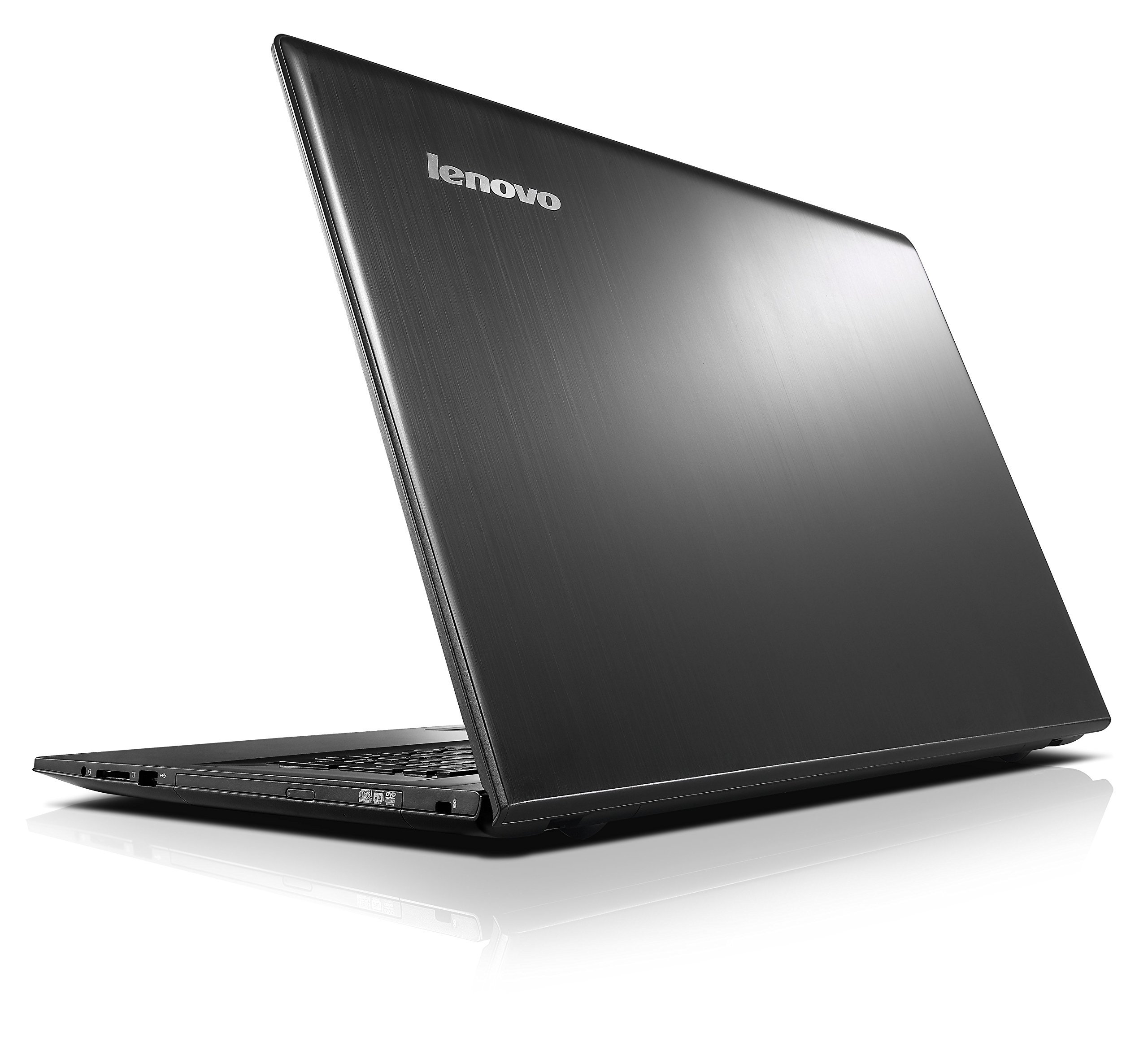
Figure 1: Lenovo Z70 laptop during initial setup.
Operating the Laptop
Keyboard and Touchpad
The Lenovo Z70 features a full-size QWERTY keyboard and a multi-touch touchpad. Use the touchpad for cursor control and gestures. For enhanced precision, an external USB mouse can be connected to any available USB port.
Connecting Peripherals
The laptop provides various ports for connecting external devices:
- USB Ports: One USB 3.0 port and two USB 2.0 ports for connecting external storage, mice, keyboards, and other USB devices.
- HDMI Port: Connect an external monitor or TV using an HDMI cable for extended display or mirroring.
- RJ45 (Ethernet) Port: For wired network connections.
- 4-in-1 Card Reader: Supports SD, MMC, SDXC, and SDHC memory cards.
- Audio Combo Jack: For connecting headphones or a headset with a microphone.
- Optical Drive (DVDRW): Located on the side, this drive supports reading and writing CDs and DVDs. Handle with care when opening and closing.
Wireless Connectivity
The Lenovo Z70 supports wireless connections:
- Wi-Fi: Connect to wireless networks using the integrated 802.11ac Wi-Fi. Manage connections through Windows 10 network settings.
- Bluetooth: Pair Bluetooth-enabled devices such as headphones, speakers, or input devices using Bluetooth version 4.2.
Maintenance
Proper maintenance ensures the longevity and optimal performance of your laptop:
- Cleaning: Use a soft, lint-free cloth slightly dampened with water or a screen cleaner to clean the display. For the chassis and keyboard, use a dry, soft cloth. Avoid harsh chemicals.
- Battery Care: To maximize battery life, avoid extreme temperatures. It is recommended to occasionally discharge the battery completely and then fully recharge it.
- Software Updates: Regularly install Windows updates and driver updates from the Lenovo support website to ensure system stability and security.
- Storage Management: Periodically clean up unnecessary files and uninstall unused programs to maintain optimal storage performance.
- Ventilation: Ensure the laptop's ventilation openings are not blocked to prevent overheating.
Troubleshooting
This section addresses common issues you might encounter:
- Laptop Does Not Power On:
- Ensure the AC adapter is securely connected to both the laptop and a working power outlet.
- Verify the power outlet is functional by plugging in another device.
- If the battery is completely drained, it may take a few minutes of charging before the laptop can power on.
- Display Issues (No Image or Flickering):
- Check if the laptop is connected to an external monitor. Disconnect it to see if the internal display works.
- Adjust screen brightness using the function keys (Fn + Fx keys, consult your laptop's specific key layout).
- Restart the laptop.
- Touchpad Unresponsive or Erratic:
- Ensure the touchpad is not disabled (check function keys, e.g., Fn + F6 or F7).
- Clean the touchpad surface.
- Consider connecting an external USB mouse as an alternative.
- Update touchpad drivers from the Lenovo support website.
- No Sound from Speakers:
- Check volume levels in Windows and ensure speakers are not muted.
- Verify that the correct audio output device is selected in Windows sound settings.
- Ensure no headphones are plugged into the audio jack.
- Note that the speakers are located on the underside of the laptop; ensure the laptop is on a flat, hard surface for optimal sound projection.
- Optical Drive (DVDRW) Issues:
- Handle the optical drive tray gently when opening and closing to prevent damage.
- Ensure the disc is clean and properly seated in the tray.
- If issues persist, consider using alternative media playback software like VLC Media Player.
For more complex issues, refer to the official Lenovo support website or contact Lenovo customer service.
Specifications
| Feature | Detail |
|---|---|
| Model Number | 80FG00DBUS |
| Processor | Intel Core i7-5500U (2.4 GHz, up to 3 GHz) |
| RAM | 8 GB DDR3L SDRAM (1600 MHz), Max 16 GB |
| Storage | 1 TB HDD (5400 RPM) + 8 GB SSD (Hybrid Drive) |
| Operating System | Windows 10 Home |
| Display | 17.3-inch LED, 1920x1080 (Full HD) |
| Graphics | NVIDIA GeForce GT840M 2GB Dedicated |
| Optical Drive | External DVD RW |
| Ports | 1x USB 3.0, 2x USB 2.0, 1x HDMI, 1x RJ45, 1x 4-in-1 Card Reader, 1x Audio Combo Jack |
| Wireless Connectivity | 802.11ac Wi-Fi, Bluetooth 4.2 |
| Battery Life | Up to 4 hours (4-cell Lithium-ion, 41 Wh) |
| Weight | 6.6 Pounds (approx. 3 kg) |
| Webcam | Yes |
| Audio | JBL-designed speakers |
Warranty and Support
Your Lenovo Z70 laptop comes with a standard warranty:
- Warranty Coverage: 1 year for labor, 1 year for parts.
For warranty claims, technical assistance, or further support, please visit the official Lenovo support website or contact their customer service. Keep your proof of purchase and model number (80FG00DBUS) readily available.
You can typically find support resources, driver downloads, and contact information on the Lenovo Support Website.


