
1. Introduction
This user manual provides detailed instructions for the setup, operation, and maintenance of your Samsung UN40J5300AF 40-inch Full HD Smart LED TV. Please read this manual thoroughly before using your TV to ensure correct and safe operation. Keep this manual for future reference.
2. Safety Information
Observe the following safety precautions to prevent damage to your TV and ensure personal safety.
- Power Source: Connect the TV to an AC 100-240V, 50/60Hz power supply. Do not overload wall outlets.
- Ventilation: Ensure proper ventilation. Do not block ventilation openings. Maintain a minimum distance of 10 cm (4 inches) from walls.
- Liquid Exposure: Do not expose the TV to rain or moisture. Do not place objects filled with liquids, such as vases, on the TV.
- Cleaning: Unplug the TV before cleaning. Use a soft, dry cloth. Do not use liquid cleaners or aerosol cleaners.
- Placement: Place the TV on a stable, level surface. Avoid placing it in direct sunlight or near heat sources.
- Servicing: Do not attempt to service the TV yourself. Refer all servicing to qualified service personnel.
3. Package Contents
Verify that all items are included in your TV package:
- Samsung UN40J5300AF 40-inch Full HD Smart LED TV
- Remote Control (BN59-01199S)
- Power Cable
- TV Stand Components (Base and Neck)
- Screws for Stand Assembly
- User Manual (this document)
- Batteries for Remote Control (2 x AAA)
4. Setup
4.1 Unpacking and Placement
Carefully remove the TV from its packaging. It is recommended to have two people for this process. Place the TV on a flat, stable surface or prepare for wall mounting.
4.2 Attaching the Stand
If you are not wall-mounting the TV, attach the stand as follows:
- Place the TV screen-down on a soft cloth or cushion to prevent scratches.
- Align the stand neck with the mounting holes on the back of the TV.
- Secure the neck to the TV using the provided screws.
- Attach the stand base to the neck, ensuring it clicks into place or is secured with screws.
- Carefully lift the TV and place it in your desired location.
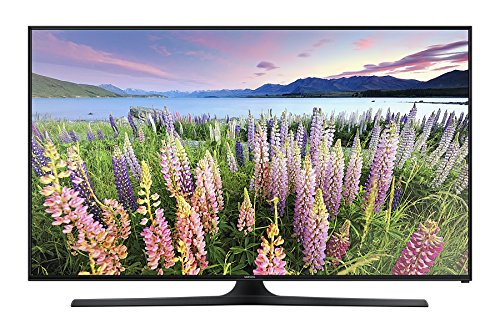
Image: Front view of the Samsung UN40J5300AF Smart LED TV with its stand attached.
4.3 Connecting Peripherals
Connect your external devices such as cable boxes, Blu-ray players, or gaming consoles to the appropriate ports on the back of the TV. Refer to the 'Connectivity' section for port details.

Image: Rear view of the Samsung UN40J5300AF TV, highlighting the HDMI, USB, LAN, and other audio/video input ports.
4.4 Power Connection
Plug the power cable into the TV's power input, then plug the other end into a wall outlet.
4.5 Initial Setup
Upon first power-on, the TV will guide you through an initial setup process. This includes selecting your language, connecting to a Wi-Fi network, and scanning for channels.
5. Operating Your TV
5.1 Basic Functions
- Power On/Off: Press the Power button on the remote control.
- Volume Control: Use the VOL +/- buttons to adjust the volume.
- Channel Change: Use the CH +/- buttons to change channels.
- Source Selection: Press the SOURCE button to switch between input sources (HDMI, USB, TV).
5.2 Using the Remote Control
The provided remote control allows you to access all TV functions. Insert the two AAA batteries into the remote control, observing polarity.

Image: The Samsung remote control (BN59-01199S) showing power, volume, channel, Smart Hub, and navigation buttons.
- SMART HUB Button: Access the Smart Hub for applications and internet services.
- MENU Button: Open the main TV menu for settings adjustments.
- Directional Pad (Up/Down/Left/Right) and ENTER: Navigate menus and select options.
- RETURN Button: Go back to the previous screen or menu.
- EXIT Button: Exit the current menu or application.
5.3 Smart Hub Features
The Smart Hub provides access to a variety of online content and applications. Press the SMART HUB button on your remote to launch it. From here, you can easily select preloaded movies and videos, browse the internet, and access streaming services.
5.4 Mobile Device Connectivity
The TV supports easy content sharing between your mobile device and the TV. Follow the on-screen instructions or refer to your mobile device's manual for specific casting or mirroring procedures.
5.5 Football Mode
Activate Football Mode with a single button press to enhance color and audio, simulating a stadium-like experience. This feature is designed to optimize viewing for sports content.
6. Connectivity
Your Samsung UN40J5300AF TV offers various connectivity options for external devices and network access:
- HDMI Ports: Connect high-definition devices such as Blu-ray players, game consoles, and set-top boxes. The TV features multiple HDMI inputs.
- USB Port: Connect USB storage devices to view photos, play music, or watch videos. The TV has 1 USB port (5V/0.5A).
- LAN (Ethernet) Port: For a wired internet connection.
- Built-in Wi-Fi: For wireless internet access to Smart TV features and applications.
- Component/Composite Input: For connecting older analog devices.
- Digital Audio Out (Optical): For connecting to external audio systems.
- Antenna/Cable Input: For connecting an antenna or cable TV signal.
7. Maintenance
7.1 Cleaning the Screen
To clean the screen, first unplug the TV. Gently wipe the screen with a soft, dry microfiber cloth. For stubborn marks, lightly dampen the cloth with water or a specialized screen cleaner (ensure it's safe for LED screens) and wipe carefully. Do not spray liquid directly onto the screen.
7.2 Software Updates
Periodically check for software updates to ensure optimal performance and access to the latest features. You can usually find this option in the TV's settings menu under 'Support' or 'Software Update'. Ensure your TV is connected to the internet before attempting an update.
8. Troubleshooting
If you encounter issues with your TV, refer to the following table for common problems and solutions:
| Problem | Possible Solution |
|---|---|
| No power | Check if the power cable is securely connected to the TV and the wall outlet. Test the outlet with another device. |
| No picture, but sound is present | Ensure the correct input source is selected. Check cable connections to external devices. |
| No sound, but picture is present | Check the volume level and ensure the TV is not muted. Verify audio cable connections. |
| Remote control not working | Replace the batteries. Ensure there are no obstructions between the remote and the TV's IR sensor. |
| Wi-Fi disconnection issues | Restart your Wi-Fi router. Check TV network settings and ensure it's within range of the router. Consider a wired Ethernet connection if problems persist. |
| Smart Hub applications freezing or slow | Ensure a stable internet connection. Try restarting the TV. If issues persist, perform a Smart Hub reset in the TV settings. |
9. Specifications
Detailed technical specifications for the Samsung UN40J5300AF TV:
| Feature | Description |
|---|---|
| Model Name | UN40J5300AF |
| Display Size | 40 Inches |
| Display Technology | LED |
| Resolution | 1080p (1920 x 1080) Full HD |
| Refresh Rate | 60 Hz |
| Aspect Ratio | 16:9 |
| Smart TV Features | Smart Hub, Internet Services, Wi-Fi |
| Connectivity | HDMI, USB (1 port), Built-in Wi-Fi, Ethernet (LAN) |
| Audio Output | 2.1 Channel Surround Sound Configuration |
| Remote Control Technology | Bluetooth |
| Mounting Type | Table Mount |
| Dimensions (WxDxH) | 90.76 x 6.69 x 52.97 cm (without stand) |
| Weight | 7.5 kg |
| Power Source | AC 100-240V, 50/60Hz |
10. Warranty and Support
Your Samsung UN40J5300AF TV comes with a limited manufacturer's warranty. For specific warranty terms and conditions, please refer to the warranty card included in your product packaging or visit the official Samsung website for your region.
For technical support, service inquiries, or to purchase accessories, please contact Samsung Customer Service. Contact information can typically be found on the Samsung website or in your product documentation.
Online Support: www.samsung.com/support


