
1. Introduction
Thank you for choosing the CDP R-Smart 1210 Uninterruptible Power Supply (UPS). This device is designed to provide reliable power protection for your electronic equipment, safeguarding against power outages, surges, and voltage fluctuations. The R-Smart 1210 features a 1200VA/720W capacity, 10 outlets, an intuitive LCD display, and a USB communication port for enhanced monitoring and control. Please read this manual thoroughly before installation and operation to ensure optimal performance and safety.
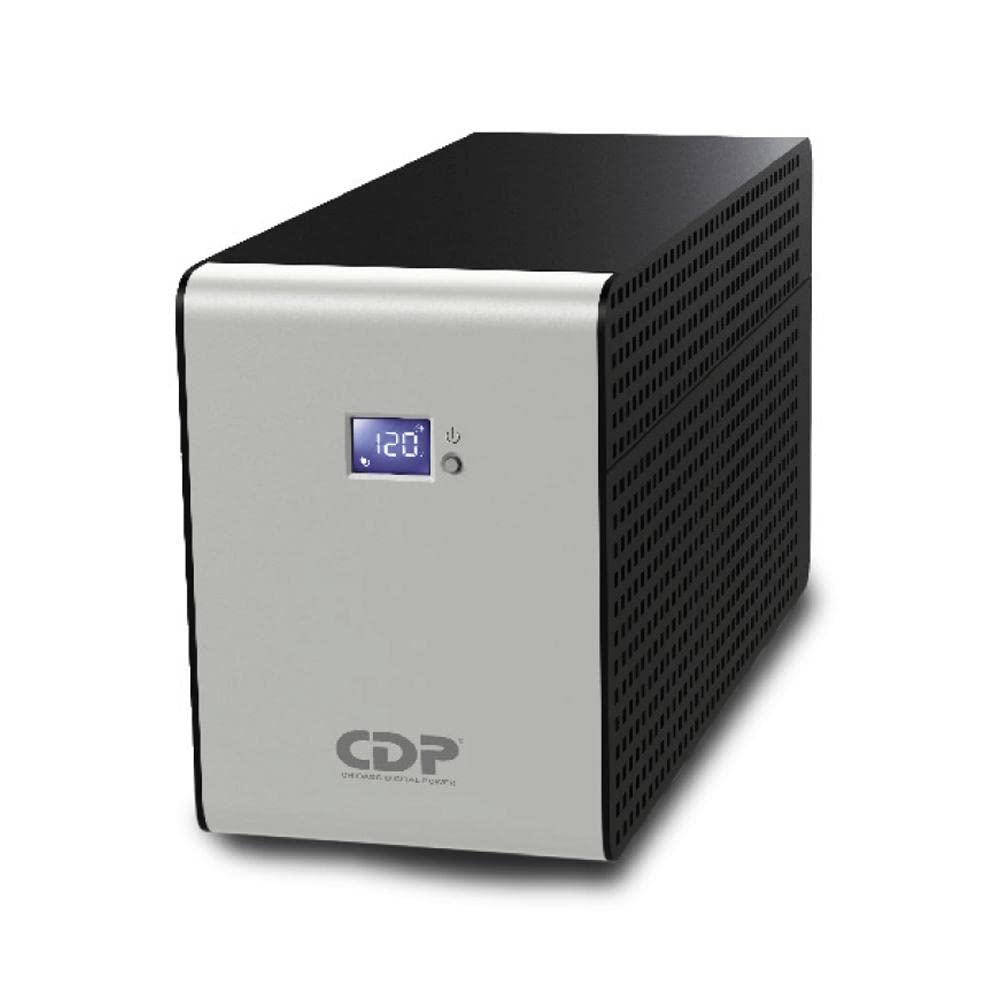
Figure 1: Front view of the CDP R-Smart 1210 UPS, showing the LCD screen and power button.
2. Safety Instructions
Please observe the following safety precautions to prevent injury and damage to the UPS or connected equipment:
- Do not open the UPS casing. There are no user-serviceable parts inside. Refer all servicing to qualified service personnel.
- Do not connect appliances that could overload the UPS, such as hair dryers, vacuum cleaners, or laser printers.
- Place the UPS in a well-ventilated area, away from direct sunlight, heat sources, and excessive moisture.
- Ensure the UPS is connected to a properly grounded AC power outlet.
- Do not block the ventilation openings on the UPS.
- In case of fire, use a dry chemical extinguisher. Water can cause electrical shock.
- Disconnect the UPS from the AC power outlet before cleaning. Use a dry cloth.
3. Product Overview
The CDP R-Smart 1210 UPS provides comprehensive power protection with advanced features:
- Capacity: 1200VA / 720W for robust power backup.
- Outlets: 10 total outlets, typically divided into battery backup with surge protection and surge protection only.
- LCD Display: Provides real-time status updates including input/output voltage, load level, and battery capacity.
- USB Port: For communication with a computer to enable monitoring and controlled shutdown.
- Circuit Breaker: Resettable input circuit breaker for overload protection.

Figure 2: Detailed view of the LCD display on the CDP R-Smart 1210, indicating operational parameters.

Figure 3: Rear panel of the CDP R-Smart 1210, illustrating the arrangement of battery backup outlets, surge-only outlets, USB port, and circuit breaker.
4. Setup
- Unpacking: Carefully remove the UPS from its packaging. Inspect for any shipping damage.
- Placement: Position the UPS on a flat, stable surface in a clean, cool, and dry environment. Ensure adequate airflow around the unit and avoid placing it near windows or heat sources.
- Initial Charging: Connect the UPS power cord to a grounded wall outlet. Allow the unit to charge for at least 8 hours before connecting any equipment to ensure full battery capacity. The UPS will charge whether it is turned on or off.
- Connecting Equipment:
- Battery Backup & Surge Protected Outlets: Connect critical equipment such as computers, monitors, and external hard drives to these outlets. These devices will receive power from the UPS battery during an outage.
- Surge Protected Only Outlets: Connect non-critical equipment like printers, scanners, or desk lamps to these outlets. These outlets provide surge protection but do not offer battery backup.
- USB Connection (Optional): Connect the supplied USB cable from the UPS to your computer's USB port. Install the monitoring software (if provided by CDP) to enable advanced power management features, such as automatic shutdown during extended power outages.
5. Operating Instructions
- Turning On: Press and hold the power button (usually located near the LCD display) for approximately 2-3 seconds until you hear a beep and the LCD screen illuminates.
- Turning Off: Press and hold the power button for approximately 2-3 seconds until you hear a beep and the LCD screen turns off.
- LCD Display: The LCD screen provides real-time information:
- Input Voltage: Displays the incoming utility power voltage.
- Output Voltage: Shows the voltage supplied by the UPS to connected equipment.
- Load Level: Indicates the percentage of the UPS's capacity currently being used by connected devices.
- Battery Capacity: Shows the remaining battery charge level.
- Operating Mode: Icons may indicate utility power mode, battery mode, or fault conditions.
- Battery Mode: During a power outage, the UPS will automatically switch to battery mode, providing power to connected equipment on the battery backup outlets. An audible alarm will typically sound to indicate battery operation.
- Alarm Silence: Some models allow silencing the battery mode alarm by briefly pressing the power button. The alarm will reactivate if the battery runs critically low.
6. Maintenance
- Battery Care: To maximize battery life, ensure the UPS is always connected to an AC outlet to keep the battery charged. Avoid frequent deep discharges.
- Battery Replacement: The internal battery is not user-replaceable. Contact CDP customer support or a qualified service technician for battery replacement.
- Cleaning: Disconnect the UPS from the AC power outlet and all connected devices before cleaning. Use a soft, dry cloth to wipe the exterior. Do not use liquid or aerosol cleaners.
- Storage: If storing the UPS for an extended period, ensure the battery is fully charged. Recharge the battery every three months to prevent permanent damage. Store in a cool, dry place.
7. Troubleshooting
| Problem | Possible Cause | Solution |
|---|---|---|
| UPS does not turn on. | Battery discharged; Power cord not connected; UPS fault. | Ensure power cord is securely connected and wall outlet has power. Allow UPS to charge for 8 hours. If problem persists, contact support. |
| Short battery backup time. | Battery not fully charged; Battery nearing end of life; Overload. | Charge UPS for 8 hours. Reduce connected load. Consider battery replacement if battery is old. |
| UPS emits continuous alarm. | Battery mode; Overload; Fault condition. | Check if utility power is out (battery mode). Reduce connected load. If alarm persists after power returns and load is normal, contact support. |
| LCD display is off. | UPS is off; Display sleep mode. | Press the power button briefly to wake the display or turn on the UPS. |
8. Specifications
| Feature | Detail |
|---|---|
| Brand | CDP |
| Model | R-SMART 1210 |
| Capacity (VA/W) | 1200VA / 720W |
| Output Wattage | 720 Watts |
| Number of Outlets | 10 (typically 5 battery backup, 5 surge only) |
| Display | LCD Screen |
| Communication Port | USB |
| Material Type | Metal |
| Product Dimensions | 20 x 14.6 x 39 cm |
| Product Weight | 10.3 kg |
9. Warranty and Support
CDP products are manufactured with quality materials and undergo rigorous testing. For specific warranty information, please refer to the warranty card included with your product or visit the official CDP website. For technical support, troubleshooting assistance, or service inquiries, please contact CDP customer service through their official channels. Keep your purchase receipt as proof of purchase for warranty claims.
CDP Official Website: Visit CDP Store on Amazon (This link directs to the brand's store on Amazon, which may contain support information or links to the official website).


