1. Introduction
The Samsung Galaxy Tab A 8.0" (2015) is a compact and practical tablet designed for everyday use. It features an 8-inch display with a 4:3 aspect ratio, making it ideal for reading and browsing. Powered by a quad-core processor and 1.5GB of RAM, it efficiently handles basic tasks. The tablet includes 16GB of internal storage, which can be expanded further using a microSD card. Its 4200mAh battery provides reliable usage throughout the day. Lightweight and portable, this tablet is suitable for casual entertainment and productivity on the go.
2. Product Overview

Figure 1: Front view of the Samsung Galaxy Tab A SM-T350 8-Inch Tablet. The display shows the time 12:45 PM, Friday, May 1, with a weather widget indicating 65 degrees Fahrenheit in New York. The Samsung logo is at the top, and navigation buttons are at the bottom.

Figure 2: Front view of the Samsung Galaxy Tab A SM-T350 8-Inch Tablet in landscape orientation. The display shows the time 12:45 PM, Friday, May 1, with a weather widget indicating 65 degrees Fahrenheit in New York. The Samsung logo is at the top, and navigation buttons are on the right side.

Figure 3: Rear view of the Samsung Galaxy Tab A SM-T350 8-Inch Tablet. The Samsung logo is prominently displayed in the center, with the rear camera lens located in the upper center. Regulatory markings are visible at the bottom.
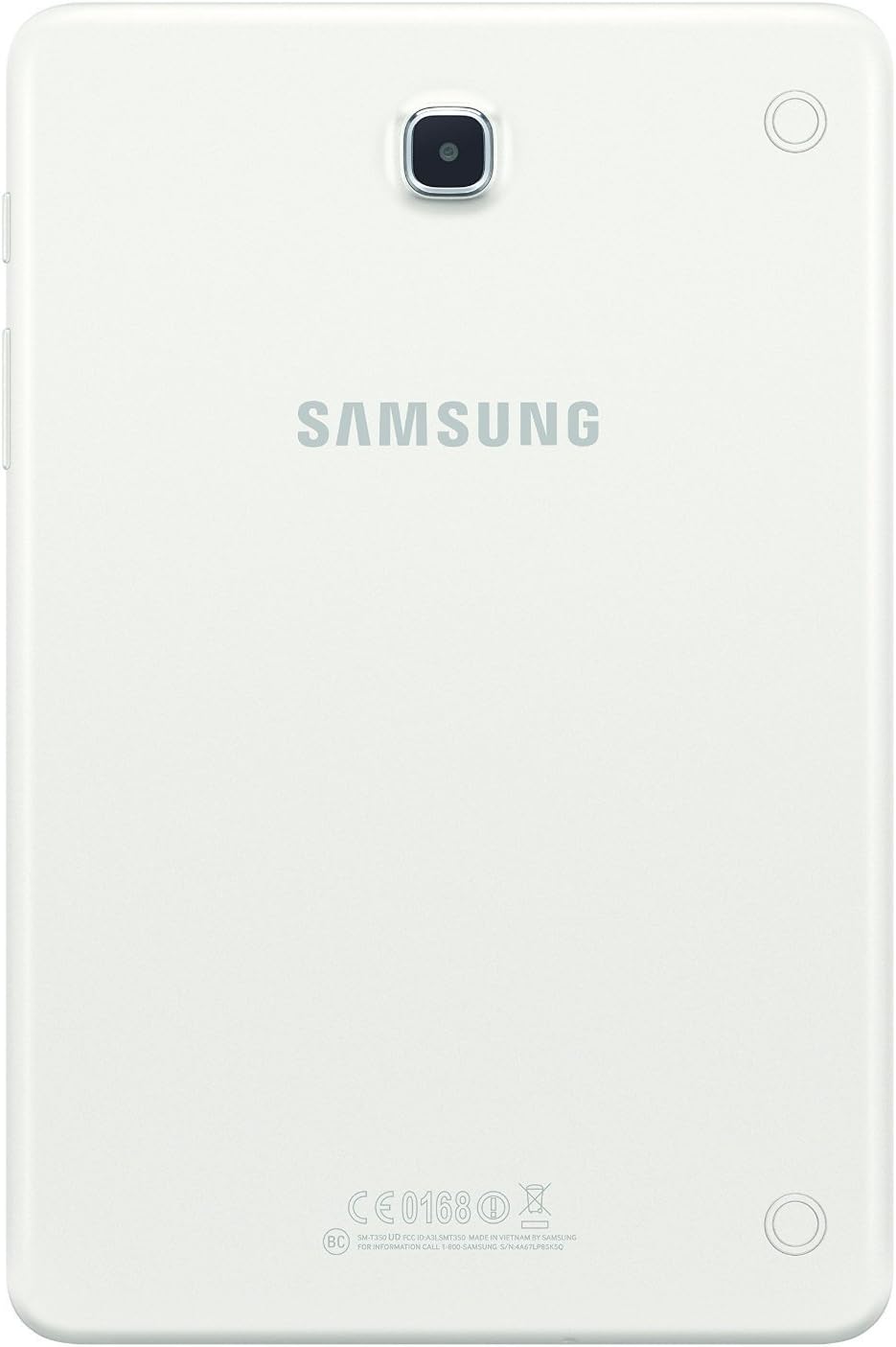
Figure 4: Side view of the Samsung Galaxy Tab A SM-T350 8-Inch Tablet, highlighting the power button, volume rocker, and microSD card slot. The slim profile of the tablet is also visible.
Official Product Video: Initial Setup
This video provides a detailed walkthrough of the initial setup process for a Samsung Galaxy tablet, including language selection, Wi-Fi connection, date and time settings, and agreement to terms and conditions. It demonstrates how to navigate through the accessibility settings and personalize the device. The video also highlights the tablet's physical features, such as the charging port, volume buttons, and camera, and shows how to access various pre-installed apps and widgets.
3. Setup
3.1 Initial Charging and Power On
- Charge the Tablet: Before first use, connect the tablet to the charger using the provided USB cable and power adapter. Ensure the tablet is fully charged.
- Power On: Press and hold the Power button (located on the side) until the Samsung logo appears on the screen.
- Follow On-Screen Prompts: The tablet will guide you through the initial setup steps, including language selection, Wi-Fi connection, and account setup.
3.2 Wi-Fi Connection
- During initial setup, select your preferred Wi-Fi network from the list of available networks.
- Enter the network password if prompted and tap Connect.
- If skipping initial setup, go to Settings > Connections > Wi-Fi to connect.
3.3 Account Setup
- Google Account: Sign in with your existing Google account or create a new one. This is essential for accessing the Google Play Store and other Google services.
- Samsung Account: You may also be prompted to sign in or create a Samsung account to access exclusive Samsung features and services.
3.4 Date and Time
- During setup, confirm the date and time settings. You can usually set it to automatically update via the network.
- If needed, adjust the time zone manually.
4. Operating Your Tablet
4.1 Navigation and Interface
- Home Screen: The main screen where you can access apps, widgets, and shortcuts.
- Navigation Bar: Located at the bottom of the screen, it typically includes Back, Home, and Recent Apps buttons.
- Notification Panel: Swipe down from the top of the screen to access quick settings and notifications.
4.2 Using Applications
- Tap an app icon to open it.
- To close an app, tap the Recent Apps button and swipe the app card away, or use the Back button to exit.
- Download new apps from the Google Play Store.
4.3 Camera Functions
- Open the Camera app from the home screen or app drawer.
- Tap the Shutter button to take a photo.
- Switch between front and rear cameras using the camera icon on the screen.
- Explore various modes like Panorama, Beauty, and Night mode (if available).
4.4 Split Screen Multitasking
- Tap the Recent Apps button.
- Tap the app icon at the top of an app card and select Open in split screen view.
- Choose a second app to use simultaneously.
5. Maintenance and Care
- Cleaning: Use a soft, lint-free cloth to clean the screen and body of the tablet. Avoid harsh chemicals.
- Battery Care: To prolong battery life, avoid extreme temperatures. Charge the tablet regularly, but avoid leaving it fully charged or fully depleted for extended periods.
- Software Updates: Keep your tablet's software updated to ensure optimal performance and security. Go to Settings > Software update.
- Storage Management: Regularly clear unnecessary files and uninstall unused apps to free up storage space and improve performance.
6. Troubleshooting
- Tablet Not Turning On: Ensure the tablet is sufficiently charged. Connect it to the charger and wait a few minutes before attempting to power it on again.
- Slow Performance: Close unused applications, clear cache, and check for available software updates. Consider performing a factory reset if issues persist (back up data first).
- Wi-Fi Connectivity Issues: Restart your Wi-Fi router and the tablet. Forget the network in Wi-Fi settings and reconnect.
- Battery Draining Quickly: Reduce screen brightness, disable unnecessary features like Bluetooth or GPS when not in use, and close background apps.
7. Specifications
| Feature | Specification |
|---|---|
| Brand | Samsung |
| Model Name | Galaxy Tab A |
| Item Model Number | SM-T350NZWAXAR |
| Operating System | Android |
| Screen Size | 8 Inches |
| Screen Resolution | 1024 x 768 Pixels |
| Processor | 1.2 GHz Quad-Core (Qualcomm) |
| RAM | 1.5 GB |
| Hard Drive / Flash Memory Size | 16 GB |
| Expandable Storage | microSD card slot |
| Wireless Type | 802.11bgn |
| Average Battery Life | 10 Hours (4200mAh) |
| Rear Webcam Resolution | 5 MP |
| Front Webcam Resolution | 2 MP |
| Item Weight | 11 ounces |
| Product Dimensions | 8.2 x 0.3 x 5.43 inches |
| Color | White |
8. Warranty and Support
This product is listed as a Renewed item. Amazon Renewed products are pre-owned and professionally inspected, tested, and cleaned by Amazon-qualified suppliers. They come with a 90-day Amazon Renewed Guarantee. For specific warranty details and support, please refer to the documentation provided with your renewed product or contact Amazon Renewed customer service.
For general product support and troubleshooting, visit the official Samsung support website or refer to the device's built-in help features.