
1. Product Overview
The Plugable USB-C Multi-Card Reader (USBC-FLASH3) is a high-performance, driverless card reader designed to enhance your USB 3.1 Type-C (USB-C) device with fast data transfer capabilities. It supports a wide range of memory card formats, making it a versatile accessory for various computing needs.

Figure 1: Plugable USB-C Multi-Card Reader (USBC-FLASH3)
Key Features:
- Blazing-Fast Performance: Supports USB 3.1 Type-C (USB-C) for high-speed data transfer.
- Wide Compatibility: Compatible with Late 2016 / 2017 / 2018 MacBook Pro, 12" Retina MacBook, Chromebook Pixel, and most USB-C and Thunderbolt 3 host PCs.
- Multi-Card Support: Easily access Secure Digital (SD), MultiMediaCard (MMC), and Memory Stick (MS) formats, including Micro SD.
- Driverless Operation: Functions out of the box with Mac, Linux, and Windows Desktop or Laptop systems without requiring additional driver installation.
- Optimal Card Performance: Offers UHS-I mode support for SD, SDHC, and SDXC cards up to 104 MB/sec and accommodates SDXC / MSXC Cards up to 2 TB in size.
2. Setup Instructions
The Plugable USB-C Multi-Card Reader is designed for simple plug-and-play functionality. Follow these steps to begin using your device:
- Connect to Host Device: Plug the USB-C connector of the card reader into an available USB-C or Thunderbolt 3 port on your computer.
- Insert Memory Card: Carefully insert your desired memory card (SD, Micro SD, MMC, or MS) into the corresponding slot on the card reader. Ensure the card is inserted correctly and fully seated.

Figure 2: Inserting an SD Card into the Reader
Compatibility Notes:
- Compatible with Windows (11, 10, 8.1/8), Mac OS X (10.10 Yosemite and newer), and Linux (3.x Kernel and newer versions).
- For Mac users, some ports may require extra force for full insertion.
- Mobile platforms, especially most Android devices with USB-C ports, generally DO NOT SUPPORT adding mass storage devices without rooting/jailbreaking. Verify with your device manufacturer before attempting to use the card reader with mobile devices.
3. Operating Instructions
Once connected and a memory card is inserted, your computer should automatically recognize the card reader as an external storage device. You can then access the contents of the memory card as you would with any other drive.
Supported Card Types:
- Secure Digital (SD)
- MultiMediaCard (MMC)
- Memory Stick (MS)
- Micro SD
Data Transfer:
The card reader supports high-speed data transfer, leveraging USB 3.1 Type-C capabilities. Transfer speeds for UHS-I mode SD, SDHC, and SDXC cards can reach up to 104 MB/sec.
Safe Removal:
Always safely eject the memory card from your operating system before physically removing it from the card reader or disconnecting the card reader from your computer. This prevents data corruption.
4. Maintenance
To ensure the longevity and optimal performance of your Plugable USB-C Multi-Card Reader, follow these simple maintenance guidelines:
- Cleaning: Use a soft, dry, lint-free cloth to clean the exterior of the device. Avoid using liquid cleaners or solvents.
- Storage: Store the card reader in a cool, dry place away from direct sunlight and extreme temperatures.
- Handling: Avoid dropping the device or subjecting it to strong impacts. Do not force memory cards into slots.
5. Troubleshooting
If you encounter issues with your Plugable USB-C Multi-Card Reader, please refer to the following common solutions:
- Device Not Recognized:
- Ensure the USB-C connector is fully inserted into your computer's port. Mac ports may sometimes require extra force.
- Try connecting the card reader to a different USB-C or Thunderbolt 3 port on your computer.
- Restart your computer and try again.
- Ensure your operating system is up to date.
- Memory Card Not Detected:
- Verify the memory card is inserted correctly and completely into the appropriate slot.
- Test with a different memory card to rule out a card issue.
- Note that the physical write-protect switch on SD cards is not supported by this reader. Ensure your card is not write-protected if you intend to write data.
- Slow Transfer Speeds:
- Ensure your computer's USB-C port supports USB 3.1 (or Thunderbolt 3) for optimal speeds. Connecting to a USB 2.0 port will result in slower speeds.
- The performance of the memory card itself can affect transfer speeds. Use high-speed cards for best results.
- Mobile Device Compatibility: As noted in the setup section, most Android devices with USB-C ports do not natively support external mass storage without modifications. If you are experiencing issues on a mobile device, this is likely the cause.
If these steps do not resolve your issue, please contact Plugable Support for further assistance.
6. Specifications

Figure 3: Product Packaging with Specifications
| Feature | Detail |
|---|---|
| Brand | Plugable |
| Model Number | USBC-FLASH3 |
| Connectivity Technology | USB Type C (USB 3.1) |
| Supported Media Types | SD, SDHC, SDXC, Micro SD, MMC, MS, MSXC |
| Max Card Capacity | Up to 2 TB (SDXC / MSXC) |
| Operating Systems | Windows, macOS, Linux |
| Item Weight | 1.6 ounces |
| Product Dimensions (LxWxH) | 7.28 x 4.53 x 0.79 inches |
| Color | Flash Silver (Product appears green in images) |
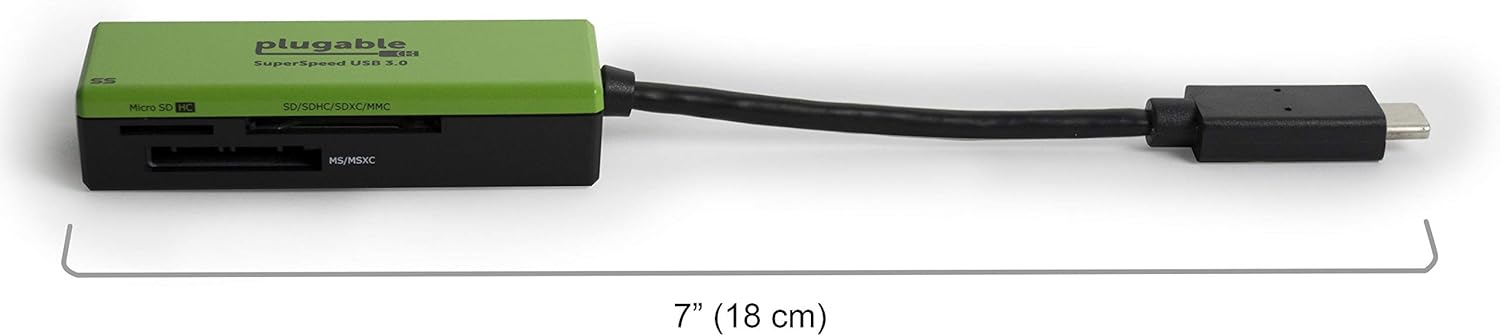
Figure 4: Product Dimensions
7. Warranty Information
Plugable products typically come with a limited warranty. For detailed information regarding the warranty period, coverage, and terms for your USBC-FLASH3 Multi-Card Reader, please refer to the official Plugable website or contact their customer support.
8. Support
For technical assistance, troubleshooting, or any questions regarding your Plugable USB-C Multi-Card Reader, please contact Plugable Support:
- Email Support: support@plugable.com
- Product Page: Visit the official product page for the USBC-FLASH3 on the Plugable website for FAQs, drivers, and additional resources. You can often find this by searching for "Plugable USBC-FLASH3" online.
No relevant instructional videos from the seller were available for direct embedding in this manual.


