
1. Introduction
This manual provides instructions for the Amcrest ProHD 720P 4-Channel Video Security System (Model: AMDV7204M-2B2D-W). This system features a 4-channel 720p Tribrid DVR with a pre-installed 1 TB HDD, accompanied by four 720p (1.0MP) cameras. It offers easy smartphone and web-browser access, VGA and HDMI output, and backup to external storage via USB. The system utilizes HDCVI technology for reliable HD video transmission without loss or delay, supporting both analog and IP cameras. A monitor or television is recommended for the initial setup.
2. Package Contents
Verify that all components are present in your package. If any items are missing or damaged, please contact Amcrest support.
- 1 x 4-Channel 720p Tribrid DVR with 1TB HDD
- 2 x 720p (1.0MP) IP67 Bullet Cameras
- 2 x 720p (1.0MP) IP67 Dome Cameras
- Power Adapters for DVR and Cameras
- Video/Power Cables
- USB Mouse
- Mounting Hardware
- Quick Start Guide
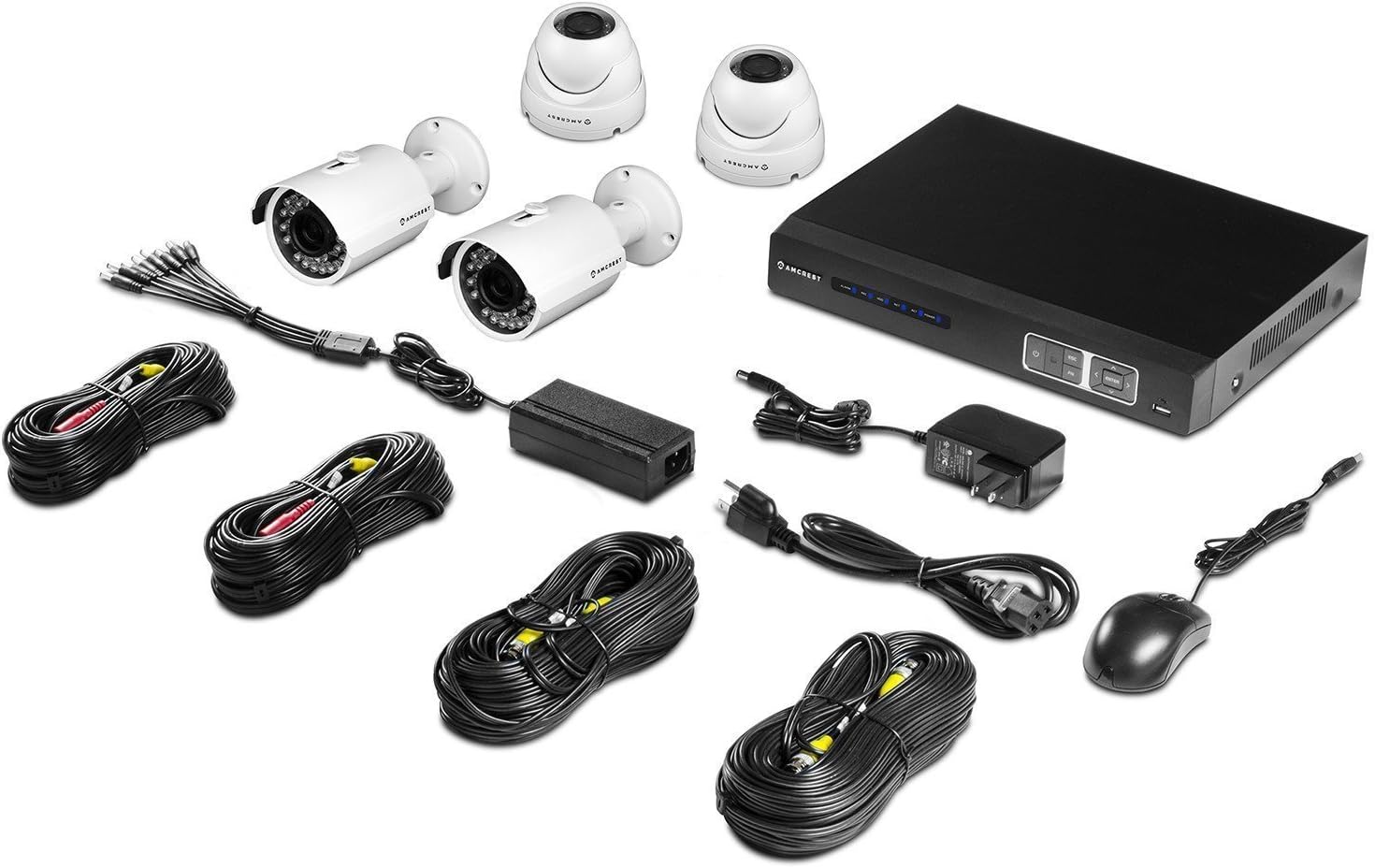
Image: Overview of the Amcrest ProHD 720P 4-Channel Video Security System components, including the DVR, bullet cameras, dome cameras, cables, and accessories.
3. Product Features
- HD Over Analog (HDCVI) Technology: Delivers crisp 1280x720p (1280TVL) resolution over existing coaxial infrastructure.
- High-Resolution Cameras: Includes 4 x HD 1.0MP IP67 heavy-duty metal bullet and dome cameras.
- Wide Viewing Angle: 3.6mm lens provides a 75-degree viewing angle.
- Night Vision: Powerful IR-LEDs enable clear night vision capabilities.
- Remote Viewing: Access live viewing and playback on standard web browsers (PC/MAC) and iOS/Android devices via the "Amcrest View" app.
- Plug & Play Setup: Simplified installation and access.
- Secure Closed-Circuit System: The DVR acts as a single access point for all cameras, enhancing security.
- Pre-installed 1 TB HDD: Records approximately 360 hours on all 4 channels in 720p @ 30fps using motion detection or scheduled recording.
- USB Backup: Feature for convenient data transfer and storage.
- Weatherproof Design: IP67 rated cameras suitable for indoor/outdoor use.


Image: Examples of the Amcrest ProHD 720P bullet camera (left) and dome camera (right) included in the system.
4. Setup and Installation
4.1 Initial Setup Recommendations
For the initial setup and configuration of your DVR, it is recommended to connect it to a monitor or television using either the VGA or HDMI output. This allows for direct interaction with the DVR's interface.
4.2 DVR Connections
The DVR unit features various ports for connecting cameras, a monitor, network, and power. Refer to the diagrams below for proper connection.

Image: Front and rear views of the Amcrest ProHD DVR, showing control buttons and various connection ports.

Image: Detailed diagram illustrating the various ports on the back of the Amcrest ProHD DVR and their corresponding connections, including VGA, HDMI, Ethernet, USB, Audio In/Out, and Video Input for cameras.
- Power Adapter: Connect the provided power adapter to the DC12V input.
- Video Input (Cameras): Connect the BNC connectors from your cameras to the Video In ports (1-4).
- Monitor Connection: Connect a monitor via the VGA port (PC Monitor) or HDMI port (HD TV).
- Network Connection: Connect an Ethernet cable from your router to the Ethernet port for network access.
- USB Mouse: Connect the USB mouse to one of the USB ports for navigation.
- Audio In/Out: If using external audio devices, connect them to the Audio In/Out ports.
4.3 Camera Installation
Mount the IP67 weatherproof bullet and dome cameras in desired indoor or outdoor locations. Ensure the cameras are positioned to cover the intended surveillance areas. Connect the camera's video and power cables to the corresponding inputs on the DVR.
5. Operating Instructions
5.1 Remote Access via Amcrest View App
The Amcrest View app allows you to access live viewing and playback from your smartphone or tablet.
- Download the "Amcrest View" app from the App Store (iOS) or Google Play Store (Android).
- Open the app and follow the on-screen instructions to add your DVR system.
- Scan the QR Code displayed on your DVR to instantly access live viewing and playback.

Image: Screenshots of the Amcrest View app interface on various mobile devices, demonstrating remote live viewing of security camera feeds.
5.2 Recording and Playback
The DVR comes with a pre-installed 1 TB hard drive capable of recording 360 hours of footage across all 4 channels at 720p @ 30fps.
- Recording Modes: Configure the DVR for continuous recording, scheduled recording, or motion detection recording through the DVR's on-screen menu.
- Playback: Access recorded footage directly from the DVR interface or remotely via the Amcrest View app or web browser.
- USB Backup: Use the USB backup feature to transfer recorded video files to an external storage device.
6. Maintenance
To ensure optimal performance and longevity of your security system, consider the following maintenance tips:
- Camera Lenses: Periodically clean camera lenses with a soft, damp cloth to remove dust, dirt, or water spots that may obscure the view.
- Cable Connections: Ensure all cable connections to the DVR and cameras are secure and free from corrosion.
- DVR Ventilation: Keep the DVR unit in a well-ventilated area to prevent overheating. Avoid blocking ventilation openings.
- Software Updates: Check the Amcrest website periodically for firmware updates for your DVR to ensure the latest features and security enhancements.
7. Troubleshooting
If you encounter issues with your Amcrest security system, refer to the following common troubleshooting steps:
- No Video Signal:
- Check all camera and DVR power connections.
- Ensure video cables are securely connected to the correct input ports on the DVR.
- Verify the monitor is correctly connected and set to the correct input source (VGA/HDMI).
- Remote Access Issues:
- Ensure the DVR is connected to your network via an Ethernet cable and has internet access.
- Verify your smartphone or tablet has a stable internet connection.
- Confirm the "Amcrest View" app is updated to the latest version.
- Check DVR network settings and port forwarding if necessary (refer to advanced network setup in the full manual or Amcrest support).
- Recording Problems:
- Check the DVR's hard drive status to ensure it is functioning correctly and has available space.
- Verify recording schedules and motion detection settings are configured as desired.
- Poor Image Quality:
- Clean camera lenses.
- Ensure cameras are properly focused (if adjustable).
- Check cable integrity for any damage or interference.
For more detailed troubleshooting or persistent issues, please contact Amcrest Customer Support.
8. Specifications
Detailed technical specifications for the Amcrest ProHD 720P 4-Channel Video Security System.

Image: Technical specifications sheet for the Amcrest ProHD 720P 4-Channel Video Security System, detailing DVR, bullet camera, and dome camera specifications.
8.1 DVR Specifications (Model: AMDV7204M-2B2D-W)
- Video Input: 4 Channel BNC
- Video Output: 1 HDMI, 1 VGA
- Audio Input/Output: 1 Channel RCA
- Display Resolution: Up to 1920x1080
- Recording Resolution: 720P (1280x720) @ 30fps per channel
- Hard Drive: 1TB SATA (Pre-installed)
- Network Interface: RJ45 (10/100M)
- USB Interface: 2 x USB 2.0
- Power Supply: DC12V
- Dimensions: 16 x 10 x 16 inches (Product Dimensions, likely package size)
- Weight: 0.01 ounces (Item Weight, likely incorrect or package weight)
- Operating Temperature: 14°F ~ 131°F (-10°C ~ 55°C)
8.2 Camera Specifications (Bullet & Dome)
- Image Sensor: 1/2.9" Megapixel CMOS
- Resolution: 1.0 Megapixel (720P)
- Lens: 3.6mm fixed lens
- Viewing Angle: 75 degrees
- Night Vision: IR LEDs, up to 65ft (20m)
- Weatherproof Rating: IP67
- Power Supply: DC12V
- Operating Temperature: -22°F ~ 140°F (-30°C ~ 60°C)
9. Warranty and Support
Amcrest provides a 1-Year US Warranty for this product. For technical support, warranty claims, or additional information, please visit the official Amcrest website or contact their customer service.
Amcrest Website: www.amcrest.com
Amcrest Technologies LLC
3692 Westchase Drive, Houston TX 77042


