
Introduction
This manual provides essential information for the installation, operation, and maintenance of your Intel Core i5-6400 processor. The Intel Core i5-6400 is a 6th generation desktop processor designed for reliable performance in various computing tasks.
Setup and Installation
Pre-installation Checklist
- Compatible Motherboard: Ensure your motherboard supports the LGA 1151 socket and is compatible with 6th generation Intel Core processors.
- Memory (RAM): DDR4 RAM is required for this processor generation.
- Power Supply: A stable power supply unit (PSU) with sufficient wattage for your entire system.
- Cooling Solution: An appropriate CPU cooler (a fan and heat sink are typically included with boxed processors).
- Thermal Paste: If your cooler does not have pre-applied thermal paste, ensure you have a tube available.
Processor Installation Steps
- Prepare the Motherboard: Place your motherboard on a non-conductive surface. Locate the CPU socket, typically covered by a protective plastic cap.
- Open the Socket: Gently push down and away on the small lever next to the CPU socket to release it. Lift the load plate.
- Align the Processor: Carefully remove the processor from its packaging. Identify the gold triangle or notch on one corner of the processor and align it with the corresponding mark on the CPU socket. Do not force the processor into the socket.
- Insert the Processor: Gently lower the processor straight down into the socket. It should sit flush without resistance.
- Secure the Processor: Close the load plate over the processor, then push the lever back down and under the retention tab until it clicks into place.
- Apply Thermal Paste (if necessary): If your CPU cooler does not have pre-applied thermal paste, apply a small pea-sized amount to the center of the processor's integrated heat spreader (IHS).
- Install the CPU Cooler: Place the CPU cooler onto the processor, ensuring proper contact. Follow the cooler's specific instructions for securing it to the motherboard. Connect the CPU fan cable to the designated CPU_FAN header on the motherboard.

Image: Intel Core i5 processor, showing the top view with the Intel logo and Core i5 branding.
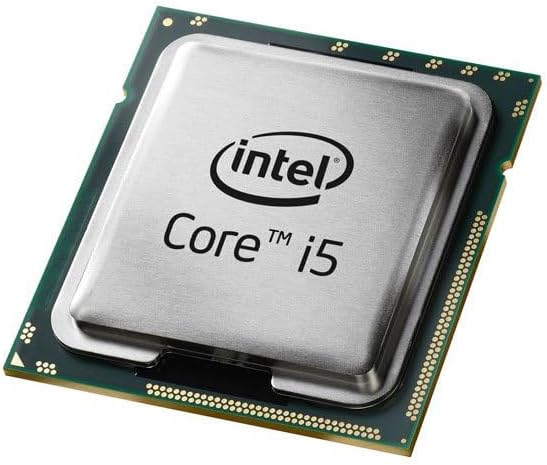
Image: Close-up of an Intel Core i5 processor, highlighting its integrated heat spreader and the underlying substrate.
Operating Instructions
Once correctly installed and your computer system is assembled, the Intel Core i5-6400 processor operates automatically. Its base clock speed is 2.7 GHz, with Intel Turbo Boost Technology dynamically increasing frequency when needed for demanding tasks. The processor manages its power and performance states based on system load and thermal conditions.
- System Power On: Ensure all components are connected, then power on your computer.
- Operating System: Install a compatible operating system (e.g., Windows 10, Linux) and necessary drivers for your motherboard and other components.
- Performance: The processor will adjust its performance based on the applications running, providing efficient power usage for everyday tasks and increased speed for intensive applications like gaming or content creation.
Maintenance
Proper maintenance ensures the longevity and optimal performance of your Intel Core i5-6400 processor.
- Dust Removal: Regularly clean dust from your computer case, especially around the CPU cooler's fan and heatsink fins. Dust accumulation can impede airflow and lead to higher operating temperatures.
- Temperature Monitoring: Use system monitoring software to periodically check your CPU temperatures. Ensure they remain within safe operating limits, especially under heavy load.
- Airflow: Maintain good airflow within your PC case by ensuring cables are neatly managed and case fans are functioning correctly.
- Thermal Paste: If you notice consistently high temperatures, consider reapplying thermal paste after several years of use, following proper cleaning procedures.
Troubleshooting
If you encounter issues, consider the following basic troubleshooting steps:
- No Display/System Not Booting:
- Verify all power cables (24-pin ATX, 8-pin CPU) are securely connected to the motherboard.
- Ensure the CPU is correctly seated in its socket and the lever is locked.
- Check that RAM modules are properly seated in their slots.
- Confirm your monitor is connected to the correct display output (either motherboard integrated graphics or dedicated graphics card).
- System Instability/Crashes:
- Monitor CPU temperatures to rule out overheating.
- Ensure your operating system and drivers (especially chipset and graphics drivers) are up to date.
- Run memory diagnostic tools to check for RAM issues.
- Overheating:
- Confirm the CPU cooler is properly installed and making good contact with the processor.
- Check that the CPU fan is spinning and connected to the correct header.
- Clean any dust from the heatsink and fan.
- Verify thermal paste application.
For more advanced troubleshooting, consult your motherboard's manual or the Intel support website.
Specifications
| Feature | Specification |
|---|---|
| Processor Model | Intel Core i5-6400 |
| Item Model Number | BX80662I56400 |
| CPU Socket | LGA 1151 |
| CPU Speed | 2.7 GHz (Base) |
| Number of Cores | 4 |
| Processor Cache | 6 MB SmartCache |
| Memory Type Support | DDR4 SDRAM |
| Integrated Graphics | Intel HD Graphics 530 |
| Item Weight | 10.4 ounces |
| Product Dimensions | 4.6 x 4.2 x 3.3 inches |
| Included Components | Fan and Heat Sink (with boxed version) |
Warranty Information
Intel processors typically come with a limited manufacturer's warranty. For specific details regarding the warranty period and terms for your Intel Core i5-6400 processor, please refer to the documentation included with your product or visit the official Intel website. Proof of purchase may be required for warranty claims.
Support and Resources
For further assistance, technical support, driver downloads, and additional product information, please visit the official Intel support website:
Intel Support Website: www.intel.com/support
You can also find community forums and knowledge bases on the Intel website for peer-to-peer support and solutions to common issues.


