
Introduction
The Coby CRC-01 is a 5-in-1 universal remote control designed to consolidate the control of multiple home entertainment devices into a single unit. This remote is compatible with a wide range of major brands and can operate televisions (TV), DVD players, VCRs, cable boxes (CBL), satellite receivers (SAT), and audio equipment. This manual provides instructions for setting up, programming, and operating your universal remote control.
Product Features
- 5-in-1 Control: Manages TV, DVD, VCR, Cable, Satellite, and Audio devices.
- Dedicated Menu Key: Provides direct access to device menu functions.
- Extensive Code Library: Compatible with numerous major brands and models.
- Simple Setup: Features a code search function for easy programming.
- Full Functionality: Supports TV, DVD, and Satellite menu functions.
Remote Control Layout
Familiarize yourself with the buttons and their functions on your Coby CRC-01 universal remote control.
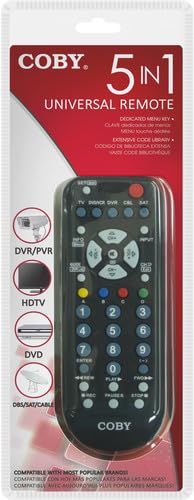
An image showing the Coby CRC-01 5-in-1 Universal Remote Control in its retail packaging. The remote itself is black with various control buttons, and the packaging highlights its 5-in-1 universal functionality for devices like DVR/PVR, HDTV, DVD, and DBS/SAT/CABLE.
- SET/BAR: Used for programming the remote.
- Device Select Buttons (TV, DVD/VCR, DVR, CBL, SAT): Press to select the device you wish to control.
- Power Button: Turns the selected device on or off.
- INFO/Menu: Displays information or accesses the menu of the selected device.
- CH+/CH-: Changes channels up or down.
- VOL+/VOL-: Adjusts volume up or down.
- Mute Button: Mutes the audio.
- Input Button: Changes the input source on the TV.
- Numeric Keypad (0-9): For direct channel entry and menu navigation.
- Playback Controls (REW, PLAY, FWD, REC, PAUSE, STOP): Controls media playback functions.
- GUIDE/DVR List: Accesses program guide or DVR list.
- A, B, C, D Buttons: Multi-functional buttons, often used for color-coded menu options.
Setup and Programming
1. Battery Installation
- Open the battery compartment cover on the back of the remote.
- Insert two (2) AAA batteries, ensuring the correct polarity (+ and -) as indicated inside the compartment.
- Close the battery compartment cover securely.
Note: Replace batteries when the remote's performance diminishes or if the indicator light does not illuminate during operation.
2. Programming the Remote (Code Search Method)
The code search method allows the remote to automatically scan for the correct code for your device.
- Turn on the device you wish to control (e.g., TV, DVD player).
- Press and hold the SET/BAR button until the indicator light on the remote illuminates.
- While holding SET/BAR, press the device button you want to program (e.g., TV, DVD/VCR). The indicator light will blink once and then remain lit.
- Release both buttons.
- Point the remote at the device and repeatedly press the Power button (or CH+ for TV/VCR) until the device turns off (or changes channel). Pressing slowly is recommended to avoid skipping the correct code.
- Once the device responds, immediately press the SET/BAR button to save the code. The indicator light will turn off.
- Test the remote's functions (e.g., volume, channel, menu) to ensure proper operation. If some functions do not work, repeat the code search process to find a more compatible code.
3. Programming the Remote (Direct Code Entry Method)
If you have a list of codes for your device (typically found in the original remote's manual or online), you can enter it directly.
- Turn on the device you wish to control.
- Press and hold the SET/BAR button until the indicator light on the remote illuminates.
- While holding SET/BAR, press the device button you want to program (e.g., TV, DVD/VCR). The indicator light will blink once and then remain lit.
- Release both buttons.
- Enter the 3-digit code for your device using the numeric keypad. After entering the last digit, the indicator light should turn off.
- Test the remote's functions. If the device does not respond or functions are limited, try another code from the list for your brand.
Note: A comprehensive code list is typically provided with the remote or available from the manufacturer's website. Since a specific code list is not provided here, please refer to the original product documentation or manufacturer support for device-specific codes.
Operating Instructions
- Select Device: Press the corresponding device button (TV, DVD/VCR, DVR, CBL, SAT) for the device you wish to control. The indicator light will flash once to confirm selection.
- Power On/Off: Press the Power button to turn the selected device on or off.
- Volume Control: Use VOL+ or VOL- to adjust the volume. Press the Mute button to silence the audio.
- Channel Control: Use CH+ or CH- to change channels. Use the numeric keypad to directly enter channel numbers.
- Menu and Navigation: Press the INFO/Menu button to access the device's menu. Use the directional arrow buttons (CH+, CH-, VOL+, VOL-) to navigate, and ENTER to confirm selections.
- Input Selection: Press the Input button to cycle through available input sources on your TV.
- Playback Functions: For DVD/VCR/DVR devices, use the PLAY, PAUSE, STOP, REW, FWD, and REC buttons for media control.
Maintenance
- Battery Replacement: Replace batteries promptly when the remote's range decreases or buttons become unresponsive. Always use new AAA alkaline batteries. Do not mix old and new batteries, or different types of batteries.
- Cleaning: Wipe the remote with a soft, dry cloth. Do not use liquid cleaners or abrasive materials, as they may damage the remote's surface or internal components.
- Storage: Store the remote in a cool, dry place away from direct sunlight and extreme temperatures.
Troubleshooting
| Problem | Possible Cause | Solution |
|---|---|---|
| Remote does not operate the device. |
|
|
| Only some buttons work. |
|
|
| Indicator light does not illuminate. |
|
|
Specifications
- Brand: Coby
- Model: CRC-01
- Type: 5-in-1 Universal Remote Control
- Compatible Devices: TV, DVD, VCR, Cable, Satellite, Audio, Home Theater
- Connectivity Technology: Infrared (IR)
- Controller Type: Button Control
- Power Source: 2 x AAA Batteries (not included)
- Product Dimensions: Approximately 27.94 x 3.49 x 12.07 cm (11 x 1.37 x 4.75 inches)
- Item Weight: Approximately 90.7 grams (3.2 ounces)
- Material: Plastic (other)
Warranty and Support
For warranty information, technical support, or to obtain a comprehensive list of device codes, please refer to the original product packaging or contact Coby customer support directly. Contact details are typically available on the manufacturer's official website or within the product documentation.


