
Introduction
The Skylink SK-150 Basic Wireless Alarm System is an all-in-one solution designed for home security and automation. It allows users to control and monitor their home from anywhere using a smartphone app, with compatibility for Amazon Alexa and IFTTT. This system offers easy installation and can be expanded with additional sensors and devices.
What's Included
The SK-150 kit includes the following components:
- 1 x Internet Hub
- 1 x Door/Window Sensor
- 1 x Motion Sensor
- 1 x Power Adapter
- 1 x Ethernet Cable
- Mounting Accessories

Image: Components included in the Skylink SK-150 Basic Wireless Alarm System kit.
Setup
1. Internet Hub Connection
- Connect the Internet Hub to your router using the provided Ethernet cable.
- Connect the Internet Hub to a power outlet using the power adapter.
2. App Installation
Download the SkylinkNet smartphone app from your device's app store (available for iOS and Android devices).
3. Sensor Pairing and Placement
Follow the in-app instructions to pair the door/window sensor and motion sensor with your Internet Hub. Ensure sensors are placed in optimal locations for detection. For motion sensors, consider placing them on the ceiling rather than a wall for better coverage.
4. Smart Home Integration
The Skylink SK-150 system is compatible with Amazon Alexa and IFTTT (If This Then That), allowing for voice control and integration with other smart home devices. Refer to the app for specific setup instructions for these integrations.
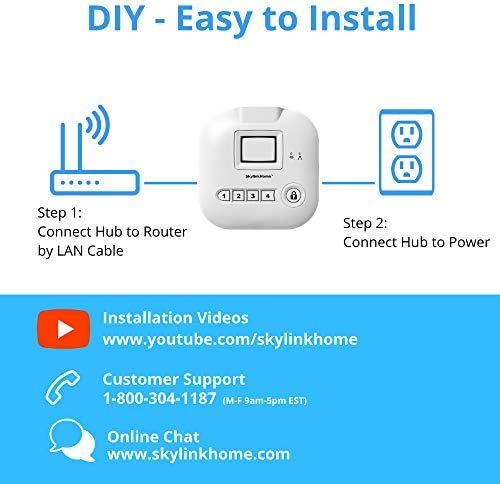
Image: Visual guide for connecting the Internet Hub to a router and power source.
Operating the System
1. Using the SkylinkNet App
The SkylinkNet app provides comprehensive control and monitoring capabilities:
- Home Screen: View the status of all connected devices.
- Camera Screen: Access live camera feeds and recorded images (if cameras are integrated).
- Alarm Screen: Arm or disarm the system and monitor alarm status.
- Receive push notifications when sensors are activated.

Image: Overview of the SkylinkNet mobile application interface.
2. Voice Control with Amazon Alexa
Integrate your SkylinkNet system with Amazon Alexa to control your alarm system and home automation devices using voice commands. For example, you can arm the system by saying, "Alexa, ask SkylinkNet to Arm Away."

Image: Demonstrates how Amazon Alexa can be used to control the SkylinkNet system.
3. IFTTT Compatibility
SkylinkNet is IFTTT compatible, allowing you to create custom automations and integrate with other smart home devices. Examples include:
- Arm/Disarm SkylinkNet with a push of a button on a smartwatch.
- If SkylinkNet is armed away, set a smart thermostat (e.g., Nest) to a specific temperature.
- If a motion sensor is activated, turn on a smart plug (e.g., Wemo) connected to a lamp.
- If SkylinkNet is in panic (alarm) mode, turn smart lights (e.g., Philips Hue) to red.
- Open your garage door when you enter your defined home zone.
Video: Demonstrates various smart home integrations and features of the SkylinkNet system, including IFTTT compatibility and remote monitoring.
Maintenance
Battery Replacement
- The door/window sensor uses a single AAA battery.
- The motion sensor uses a single AA battery.
- Replace batteries as needed to ensure continuous operation.
Power Outage Protection
In case of a power outage, backup batteries within the system provide additional protection and uninterrupted runtime for the Internet Hub.
Troubleshooting
- App Notifications Not Working: Ensure your Internet Hub is connected to the router via Ethernet cable. If notifications stop, try deleting the hub in the app, clearing app memory/cache, then logging back in and re-initializing the hub.
- Device Not Working/Needs Re-adding: If a device stops functioning, it may need to be removed and re-added within the app.
- Camera Lag: Real-time camera views can sometimes experience lag (1-5 seconds). Ensure a stable internet connection.
- Motion Sensor Issues: Ensure motion sensors are placed correctly, ideally on the ceiling for optimal detection, rather than on a wall.
- Sensor Sensitivity: If door sensors are not detecting properly, especially with larger gaps, you may need to adjust the magnet placement or add additional magnets to increase strength.
- Entry/Exit Timer: The system offers entry/exit timers (0, 30, 45, 60, 75 seconds). Adjust this setting in the app to suit your needs.
- Internet Hub Disconnection: The hub must be connected to your router via Ethernet cable (no Wi-Fi for the hub itself). If the internet connection is lost, the alarm will still trigger, but you will not receive phone notifications and can only disarm via keyfob, keypad, or the hub itself.
Specifications
| Brand | SKYLINK |
| Model Number | SK-150 |
| Color | White |
| Power Source | AC/DC |
| Compatible Devices | Smartphone |
| Item Dimensions (L x W x H) | 8 x 4 x 2.5 inches |
| Connectivity Technology | Wireless |
| Alert Type | Motion |
| Control Method | Voice |
| Maximum Range | 300 Feet |
| Item Weight | 14.4 ounces |
| Installation Method | Self-Adhesive |
Warranty
The Skylink SK-150 Basic Wireless Alarm System comes with a 1-year manufacturer's warranty.
Support
For customer support, please use the following contact information:
- Phone: 1-800-304-1187 (Monday - Friday, 9 AM - 5 PM EST)
- Online Chat: Visit www.skylinkhome.com


