Introduction
This manual provides essential instructions for the setup, operation, and maintenance of your Gigaset Handset and Charging Station. This product is compatible with various Gigaset phone systems, including models S2, S44, S200, S440, S445, S645, SX440, and SX445. Please read this manual carefully to ensure proper use and to maximize the lifespan of your device.
1. Setup
1.1 Unpacking and Initial Inspection
Carefully unpack all components. Ensure that the handset, charging station, and power adapter are present and undamaged. If any items are missing or damaged, contact your retailer.
1.2 Connecting the Charging Station
- Connect the power adapter cable to the charging station.
- Plug the power adapter into a standard electrical outlet.
- Place the charging station on a flat, stable surface, away from heat sources and direct sunlight.

Image 1.1: Top view of the Gigaset charging station. This image shows the compact design of the charging station, ready to receive the handset.
1.3 Inserting the Battery and Charging the Handset
- Open the battery compartment cover on the back of the handset.
- Insert the rechargeable battery, ensuring correct polarity.
- Close the battery compartment cover.
- Place the handset into the charging station. Ensure it is seated correctly and the charging indicator (if present) illuminates.
- Allow the handset to charge for at least 6-8 hours before initial use to ensure full battery capacity.
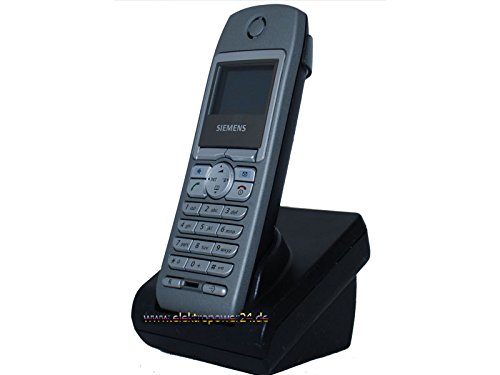
Image 1.2: Front view of the Gigaset handset securely placed in its charging station. The display shows "Wahlvorbereitung" (dialing preparation) and a phone number, indicating it's powered on and ready.
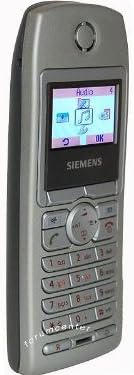
Image 1.3: Side view of the Gigaset handset, highlighting its ergonomic design and button layout. The display shows menu options like "Audio" and "OK".

Image 1.4: Back view of the Gigaset handset, showing the smooth casing and the location of the battery compartment cover.
1.4 Registering the Handset to a Base Station
This handset is designed to be compatible with various Gigaset base stations. The registration process may vary slightly depending on your specific base station model. Refer to your base station's manual for detailed instructions. Generally, the steps involve:
- Activate registration mode on your Gigaset base station (usually by pressing and holding a registration button).
- On the handset, navigate to the "Settings" or "Registration" menu.
- Select "Register Handset" and follow the on-screen prompts. You may need to enter a PIN (default is usually 0000).
- Once registered, the handset display will confirm successful connection to the base station.
2. Operating Instructions
2.1 Basic Functions
- Making a Call: Enter the phone number and press the green call key.
- Answering a Call: Press the green call key when the phone rings.
- Ending a Call: Press the red end call key.
- Hands-Free Calling: During a call, press the dedicated hands-free key (often backlit) to activate the speakerphone.
2.2 Phonebook (Directory)
The handset features a directory capable of storing up to 200 phone numbers and names.
- Adding an Entry: Navigate to the "Directory" or "Phonebook" menu, select "New Entry," and enter the name and number.
- Calling from Directory: Open the directory, scroll to the desired entry, and press the green call key.
2.3 Display and Indicators
The handset features a 5-line illuminated graphic display. Key indicators include:
- Date/Time Display: Always visible on the idle screen.
- CLIP Function (Call Display): Shows the caller's number or name (if stored in the directory) for incoming calls.
- Battery Indicator: Shows the current battery charge level.
- Signal Strength Indicator: Displays the connection quality to the base station.
3. Maintenance
3.1 Cleaning
- Wipe the handset and charging station with a soft, damp cloth.
- Do not use abrasive cleaners or solvents.
- Ensure no liquid enters the device openings.
3.2 Battery Care
- Always use the original or approved replacement rechargeable batteries.
- Avoid exposing the battery to extreme temperatures.
- If the handset will not be used for an extended period, remove the battery.
4. Troubleshooting
| Problem | Possible Cause | Solution |
|---|---|---|
| Handset does not turn on. | Battery not inserted correctly or discharged. | Check battery insertion. Place handset in charging station for several hours. |
| No dial tone. | Handset not registered to base station or out of range. | Ensure handset is registered. Move closer to the base station. Check base station power. |
| Poor call quality. | Interference or handset too far from base station. | Move away from other electronic devices. Move closer to the base station. |
| Cannot make or receive calls. | Line issue or base station problem. | Check your telephone line connection. Restart the base station by unplugging and replugging its power. |
5. Specifications
- Brand: Gigaset
- Compatible Models: Gigaset S2, S44, S200, S440, S445, S645, SX440, SX445
- Phonebook Capacity: Up to 200 entries (names and numbers)
- Display: 5-line illuminated graphic display
- Features: Backlit hands-free key, Date/Time display, CLIP function (Call Display)
- Manufacturer: Gigaset
- ASIN: B0102FULTW
Note: Information regarding spare parts availability and guaranteed software updates is not provided. This product is currently not listed as discontinued by the manufacturer.
6. Warranty and Support
Specific warranty details for this Gigaset Handset and Charging Station are not provided within the available product information. For warranty claims, technical support, or service inquiries, please refer to the documentation included with your original purchase or visit the official Gigaset website for your region.
You may also contact your retailer for assistance.


