
Introduction
This manual provides essential information for setting up, operating, maintaining, and troubleshooting your Amazon Kindle E-reader (8th Generation). Please read these instructions carefully to ensure proper use and to maximize your reading experience.
The Kindle E-reader (8th Generation) features a thinner and lighter design, available in black or white. It is designed for comfortable reading with a glare-free touchscreen display that reads like real paper, even in bright sunlight.
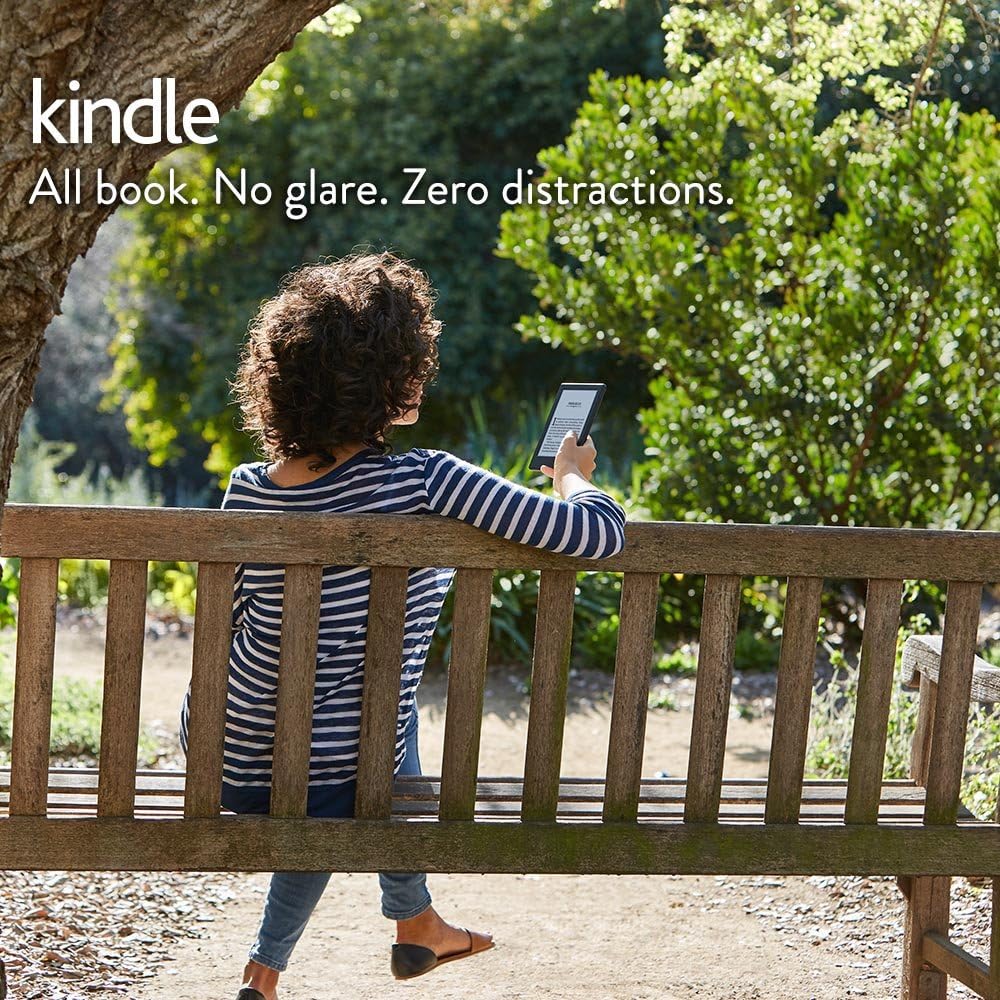
Image: A person reading a Kindle E-reader on a park bench, demonstrating the glare-free screen in an outdoor setting.

Image: Two Kindle E-readers, one black and one white, displayed side-by-side, showcasing the available color options.
Setup
1. Charging Your Kindle
Before first use, fully charge your Kindle E-reader. Connect the included USB cable to the Kindle's charging port and the other end to a power adapter (not included) or a computer's USB port. The charging indicator light will turn green when fully charged. A single charge can last for weeks, depending on usage.
2. Powering On and Initial Setup
- Press and hold the power button for a few seconds until the screen turns on.
- Follow the on-screen instructions to select your language.
- Connect to a Wi-Fi network. Your Kindle will scan for available networks. Select your network and enter the password if required.
- Register your Kindle to your Amazon account. You will need your Amazon account email and password. If you do not have an Amazon account, you can create one during this step.
3. Software Updates
After connecting to Wi-Fi, your Kindle may automatically download and install the latest software updates. Ensure your device remains connected to power and Wi-Fi during this process.
Operating Your Kindle
Reading Books
The Kindle E-reader provides a dedicated reading experience. Its touchscreen display is designed to read like real paper, reducing eye strain. There is no screen glare, even in bright sunlight, unlike typical tablets.
- Navigating: Tap the right side of the screen to turn to the next page, and the left side to go back. Tap the top of the screen to access reading options and menus.
- Adjusting Text: From the reading menu, you can adjust font size, font style, line spacing, and margins to suit your preference.
- Dictionary: Tap and hold a word to view its definition from the built-in dictionary.
- Highlights and Notes: Tap and drag to highlight text. You can also add notes to highlighted sections.

Image: A Kindle E-reader and a tablet placed side-by-side on a beach towel in bright sunlight. The Kindle screen is clearly readable, while the tablet screen shows significant glare.
Audible Integration
Your Kindle E-reader (8th Generation) includes built-in Audible support, allowing you to access a vast library of audiobooks. You can easily switch between reading and listening to your books.
- Connecting Bluetooth: To listen to audiobooks, connect a Bluetooth-enabled speaker or headphones to your Kindle. Go to Settings > Wi-Fi & Bluetooth > Bluetooth Devices to pair your device.
- Switching Formats: If a book has an Audible companion, you can switch between the ebook and audiobook versions directly from the reading interface.

Image: A person relaxing by a pool, listening to an audiobook via headphones, with a Kindle E-reader visible on a nearby table, illustrating the Audible feature.
Accessing Content
You can instantly access new releases, bestsellers, and over a million titles directly from your Kindle. Prime members also enjoy unlimited access to over a thousand titles for free.
- Kindle Store: Tap the "Store" icon on your home screen to browse and purchase ebooks and audiobooks.
- Library: All your purchased and downloaded content can be found in your "Library" on the home screen.
Maintenance
Charging
To maintain optimal battery life, charge your Kindle E-reader regularly. Avoid completely draining the battery frequently. Use the provided USB cable for charging.
Cleaning
To clean your Kindle's screen and body, use a soft, lint-free cloth. Do not use abrasive cleaners, solvents, or aerosol sprays directly on the device. Avoid exposing the device to excessive moisture.
Software Updates
Periodically check for software updates to ensure your Kindle has the latest features and performance improvements. Connect to Wi-Fi and go to Settings > Device Options > Check for Updates.
Troubleshooting
Kindle Not Responding
- Restart: Press and hold the power button for 7 seconds until the power dialog box appears, then tap "Restart". If the device is unresponsive, hold the power button for 40 seconds until it restarts automatically.
- Charge: Ensure the device is charged. Connect it to a power source and wait a few minutes before attempting to restart.
Wi-Fi Connection Issues
- Check Password: Verify that you are entering the correct Wi-Fi password.
- Restart Router: Try restarting your Wi-Fi router.
- Forget Network: Go to Settings > Wi-Fi & Bluetooth > Wi-Fi Networks, select your network, and choose "Forget". Then try to reconnect.
Content Not Downloading
- Check Wi-Fi: Ensure your Kindle is connected to a stable Wi-Fi network.
- Sync: From the home screen, tap the menu icon (three dots) and select "Sync Your Kindle".
- Check Account: Verify that the content was purchased on the Amazon account registered to your Kindle.
Specifications
| Model Name | Kindle E-reader (8th Generation) |
| Display | 6" glare-free touchscreen display |
| Dimensions | (Approximate) Thinner and lighter design compared to previous generations. |
| Weight | (Approximate) Lighter design. |
| Storage | Internal storage for thousands of books. |
| Battery Life | A single charge lasts weeks, not hours, based on a half hour of reading per day with wireless off and the light setting at 10. Battery life will vary based on light settings, wireless usage, and Audible audiobook playback. |
| Connectivity | Wi-Fi, Bluetooth (for Audible audio). |
| Supported Formats | Kindle Format 8 (AZW3), Kindle (AZW), TXT, PDF, unprotected MOBI, PRC natively; HTML, DOC, DOCX, JPEG, GIF, PNG, BMP through conversion; Audible audio format (AAX). |

Image: A Kindle E-reader shown vertically next to a standard pencil, highlighting its thin and compact design.
Warranty and Support
Your Amazon Kindle E-reader (8th Generation) is covered by a limited warranty. For detailed warranty information, please refer to the warranty card included with your product or visit the official Amazon support website.
For further assistance, technical support, or to view frequently asked questions, please visit amazon.com/devicesupport. You can also contact Amazon Customer Service directly for personalized support.


