1. Introduction
This manual provides comprehensive instructions for the setup, operation, and maintenance of your DELUX K1102 Mini Multimedia Keyboard. Please read this manual carefully before using the product to ensure proper functionality and longevity.
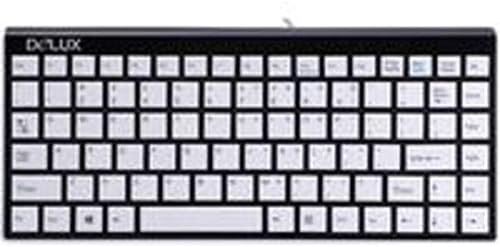
Figure 1: DELUX K1102 Mini Multimedia Keyboard. This image displays the compact black keyboard with white keys, featuring an Italian layout and the DELUX logo in the upper left corner.
2. Setup
- Unpacking: Carefully remove the keyboard from its packaging. Ensure all components are present.
- Connection: Locate the Mini USB cable attached to the keyboard. Connect the Mini USB end to the keyboard and the standard USB-A end to an available USB port on your computer or laptop.
- Driver Installation: The DELUX K1102 keyboard is a plug-and-play device. Your operating system (Windows) should automatically detect and install the necessary drivers. No manual driver installation is typically required.
- Verification: Once connected, test the keyboard by typing in a text editor or browser to ensure all keys are functioning correctly.
Note: This keyboard is designed for use with Windows operating systems.
3. Operating Instructions
The DELUX K1102 is a 104-button multimedia keyboard designed for efficient input and control. Its Italian layout provides specific character access.
- Standard Typing: Use the alphanumeric keys for text input. The Italian layout includes specific characters and accent marks accessible via standard key combinations (e.g., Shift, Alt Gr).
- Function Keys (F1-F12): These keys perform various system or application-specific functions. Refer to your software documentation for specific uses.
- Multimedia Keys: This keyboard includes dedicated multimedia functions. These typically control audio playback (play/pause, volume up/down, mute) and other media-related actions. Specific key assignments may vary slightly based on the operating system and installed media software.
- Numeric Keypad: The integrated numeric keypad allows for quick data entry. Ensure Num Lock is activated if you intend to use the numeric functions.
4. Maintenance
Proper maintenance ensures the longevity and optimal performance of your keyboard.
- Cleaning:
- Disconnect the keyboard from your computer before cleaning.
- Use a soft, lint-free cloth slightly dampened with water or a mild cleaning solution to wipe the surface of the keys and casing.
- Avoid spraying liquids directly onto the keyboard.
- For dust and debris between keys, use compressed air.
- Storage: Store the keyboard in a dry, cool environment away from direct sunlight and extreme temperatures.
- Handling: Avoid dropping the keyboard or exposing it to excessive force, which can damage internal components.
5. Troubleshooting
If you encounter issues with your DELUX K1102 keyboard, refer to the following common solutions:
| Problem | Solution |
|---|---|
| Keyboard not responding |
|
| Certain keys not working |
|
| Multimedia keys not functioning |
|
6. Specifications
| Feature | Detail |
|---|---|
| Brand | DELUX |
| Model Number | DLK-1102 ITALIANO |
| Connectivity Technology | Mini USB |
| Compatible Devices | Laptop, PC |
| Keyboard Description | Multimedia |
| Number of Buttons | 104 |
| Compatible Operating System | Windows |
7. Warranty and Support
DELUX products are manufactured to high-quality standards. For information regarding warranty coverage, please refer to the warranty card included with your purchase or visit the official DELUX website. For technical support or further assistance, please contact DELUX customer service through their official channels.
Please retain your proof of purchase for warranty claims.


