
BENGOO BX017B
BENGOO Gaming Mouse Instruction Manual
Model: BX017B
Introduction
Thank you for choosing the BENGOO Wired Gaming Mouse. This manual provides detailed instructions for setting up, operating, and maintaining your new gaming mouse. Designed for gamers, this ergonomic mouse features 4 adjustable DPI settings (1200-1600-2400-3600), 6 programmable buttons, and vibrant RGB backlighting to enhance your gaming environment.
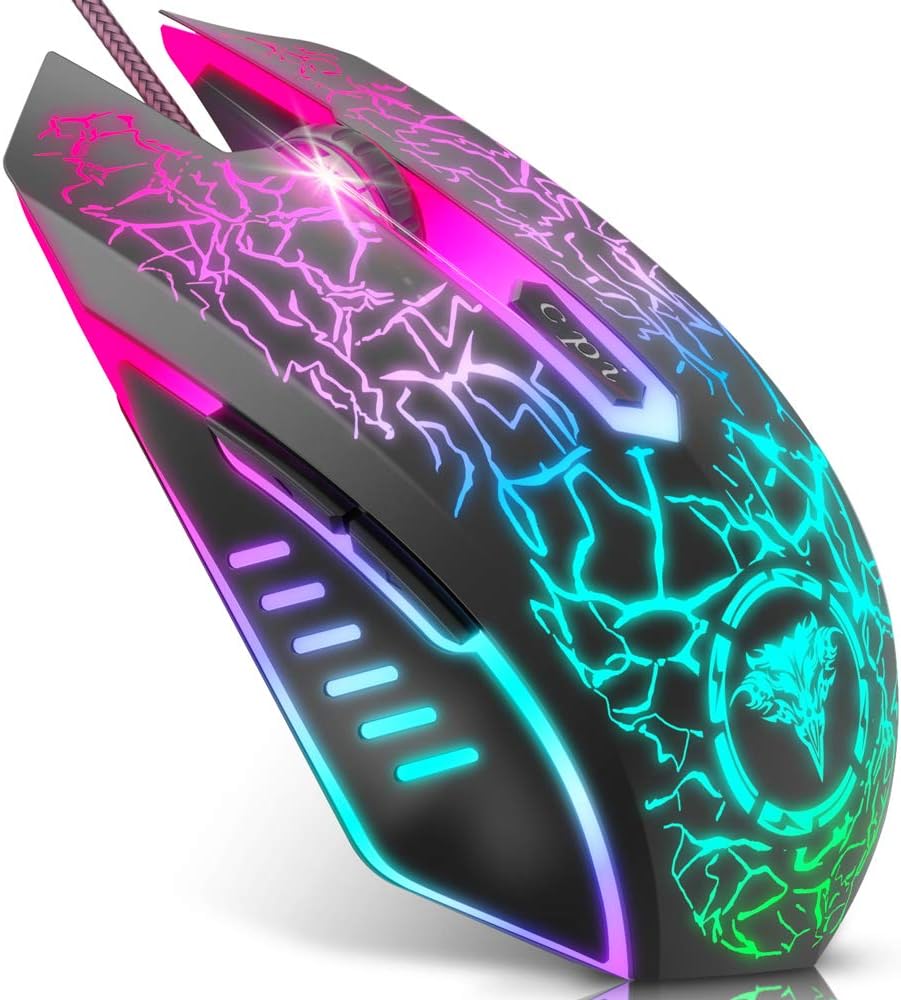
Image: The BENGOO Gaming Mouse showcasing its ergonomic design and vibrant RGB lighting.
Setup Guide
The BENGOO Gaming Mouse is designed for simple plug-and-play functionality. No additional drivers are required for basic operation.
- Locate an available USB port on your computer (Desktop PC, Laptop, MacBook, etc.).
- Insert the USB connector of the BENGOO Gaming Mouse into the USB port.
- Wait for your operating system to automatically detect and install the necessary device drivers. This process usually takes a few seconds.
- Once detected, the mouse will be ready for use. The RGB lighting will illuminate automatically.

Image: Illustration of the mouse being plugged into a computer, highlighting its plug-and-play feature.
Operating Instructions
DPI Adjustment
The mouse features a dedicated DPI button to quickly switch between four adjustable DPI settings: 1200, 1600, 2400, and 3600. This allows you to control cursor speed and sensitivity to suit different tasks or gaming scenarios.
- Press the DPI button (located behind the scroll wheel) to cycle through the available DPI settings.
- Each press will change the DPI level, allowing you to find the optimal sensitivity for your needs.

Image: Diagram illustrating the 4 adjustable DPI settings (1200, 1600, 2400, 3600) and their impact on mouse sensitivity.
Button Functions
The BENGOO Gaming Mouse is equipped with six functional buttons to enhance your control and efficiency:
- Left Button: Standard left-click function.
- Right Button: Standard right-click function.
- Scroll Wheel: Used for scrolling up and down, and also functions as a clickable middle button.
- Forward Button: Navigates forward in web browsers or file explorers.
- Back Button: Navigates backward in web browsers or file explorers.
- DPI Button: Adjusts the mouse's sensitivity (DPI) as described above.
These buttons are designed to meet your demands excellently for different games and general computer use, enabling quick switching and actions.

Image: Labeled diagram showing the location and function of each of the six buttons on the gaming mouse.
RGB Lighting Features
The BENGOO Gaming Mouse features dynamic multi-color RGB lighting that greatly matches your style and provides a fancy gaming environment, highlighting your game atmosphere. The lighting effects include 7 RGB breathing lighting effects for an immersive visual experience.

Image: Various color modes of the RGB lighting on the BENGOO Gaming Mouse, showcasing the breathing effects.
Ergonomic Design
The mouse is designed to perfectly fit under your palm, providing a comfortable grip for extended gaming or work sessions. The skin-friendly material ensures a pleasant hand feel, reducing fatigue during prolonged use. This ergonomic design assures a comfortable experience for gamers.

Image: Close-up view highlighting the ergonomic contours of the BENGOO Gaming Mouse, designed for comfortable hand placement.

Image: A hand demonstrating the comfortable grip on the BENGOO Gaming Mouse, emphasizing reduced hand fatigue and stable grip.
System Compatibility
The BENGOO Gaming Mouse offers wide compatibility with various operating systems, making it adaptable for a range of devices.
- Supports Windows XP, Vista, Windows 7, Windows 8, Windows 10, and Windows 11.
- Compatible with Linux.
- Adaptable for Notebook, PC, laptop, Computer, and Macbook.

Image: Visual representation of the mouse's compatibility with different operating systems, including Windows, Mac OS, and Linux.
Care and Maintenance
To ensure the longevity and optimal performance of your BENGOO Gaming Mouse, follow these simple care and maintenance guidelines:
- Cleaning: Use a soft, dry cloth to wipe down the mouse regularly. For stubborn dirt, slightly dampen the cloth with water or a mild cleaning solution. Avoid harsh chemicals or abrasive materials.
- Cable Care: Do not excessively bend or pull the USB cable. Store it neatly to prevent tangles and damage.
- Storage: When not in use, store the mouse in a clean, dry place away from extreme temperatures and direct sunlight.
- Avoid Liquids: Keep the mouse away from liquids to prevent internal damage.
Troubleshooting
If you encounter any issues with your BENGOO Gaming Mouse, refer to the following common troubleshooting steps:
- Mouse Not Responding:
- Ensure the USB cable is securely plugged into a working USB port on your computer.
- Try plugging the mouse into a different USB port.
- Restart your computer.
- Test the mouse on another computer to determine if the issue is with the mouse or your system.
- DPI/Sensitivity Issues:
- Press the DPI button repeatedly to cycle through all available sensitivity settings.
- Check your computer's mouse settings (Control Panel on Windows, System Preferences on Mac) to ensure mouse speed is not set to an extremely low or high value.
- RGB Lights Not Working/Stuck:
- Ensure the mouse is properly connected to your computer.
- The RGB lighting is typically automatic and does not have manual controls. If lights are off, try reconnecting the mouse or restarting your computer.
- Buttons Not Functioning:
- Verify that the buttons are not physically stuck.
- Test the mouse on another computer to rule out software conflicts.
If these steps do not resolve the issue, please refer to the Warranty and Support section for further assistance.
Technical Specifications
| Feature | Detail |
|---|---|
| Brand | BENGOO |
| Model Number | BX017B |
| Connectivity Technology | USB Wired |
| Movement Detection Technology | Optical |
| Adjustable DPI | 1200 / 1600 / 2400 / 3600 |
| Buttons | 6 (Left, Right, Scroll Wheel, Forward, Back, DPI) |
| Special Features | Programmable Buttons, RGB Backlit |
| Product Dimensions | 5.8 x 1.8 x 4.5 inches |
| Item Weight | 4.2 ounces |
| Color | Black |
| Operating System Support | Windows XP/Vista/7/8/10/11, Linux |
| What's in the Box | 1*BEN-BXO-17B Bengoo Gaming Mouse |
Warranty and Support
For warranty information, technical support, or any inquiries regarding your BENGOO Gaming Mouse, please contact BENGOO customer service through the retailer's platform or the official BENGOO website. Please have your product model number (BX017B) and purchase details ready when contacting support.
Ask a question about this manual
Ask about setup, troubleshooting, compatibility, parts, safety, or missing instructions. Manuals+ will review the question and use this page’s manual context to help answer it.