
UGEE M1000L
Ugee M1000L Graphics Tablet User Manual
Model: M1000L
Introduction
This user manual provides detailed instructions for the setup, operation, and maintenance of your Ugee M1000L Graphics Drawing Digital Pen Tablet. Please read this manual thoroughly before using the device to ensure proper functionality and to maximize your creative experience.
Package Contents
Verify that all items listed below are included in your package:
- 1 x M1000L Drawing Tablet
- 1 x P51 Pen (requires AAA Battery, not included)
- 1 x Installation CD
- 1 x Pen Holder (contains 8 x Pen Nibs and 1 x Remover Pen-Clipper)
- 1 x USB Cable (150cm)
- 1 x User Manual (this document)
Product Overview
The Ugee M1000L features a large active drawing area and customizable shortcut keys for efficient workflow.

Figure 1: Top-down view of the Ugee M1000L Graphics Tablet, showcasing its large active area and integrated shortcut buttons.
Key Features:
- Active Area: 10 x 6 Inch for ample drawing space.
- Pressure Sensitivity: 2048 Levels for precise control over line thickness and opacity.
- Resolution: 4000 LPI (Lines Per Inch) for high detail.
- Report Rate: 230 RPS (Revolutions Per Second) for smooth, responsive drawing.
- Customizable Shortcut Buttons: 8 buttons on the left side and 16 express keys along the top for quick access to common functions.
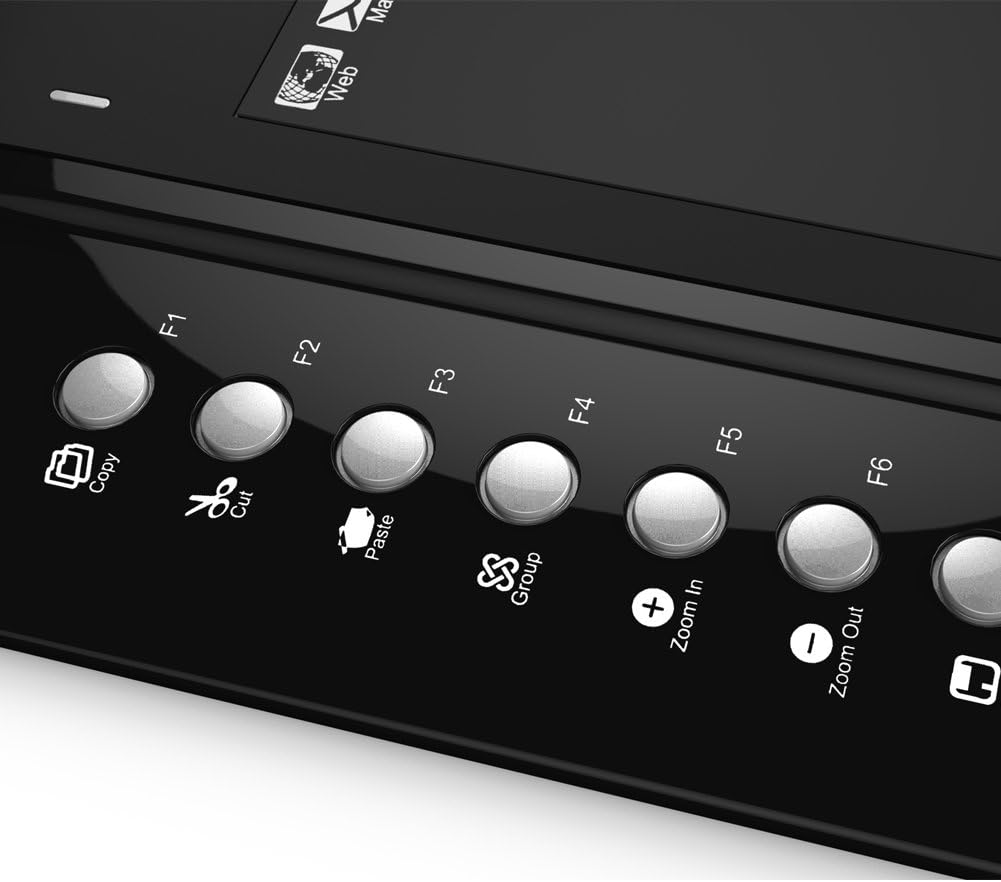
Figure 2: Detail of the 8 customizable shortcut buttons located on the left side of the tablet. These can be configured for functions like copy, cut, paste, zoom, and more.
System Requirements
Ensure your computer meets the following minimum requirements:
- Operating System: Windows XP/Vista/7/8/8.1/10, Mac OS
- Interface: USB Port
The tablet is compatible with popular creative software such as Adobe Photoshop, Illustrator, Autodesk Sketchbook, Corel Painter, Autodesk MAYA, and ZBrush.
Setup and Driver Installation
Follow these steps carefully to install the Ugee M1000L graphics tablet drivers and set up your device:
- Remove Existing Drivers: Before installing the Ugee M1000L drivers, ensure all other graphics tablet drivers (from other brands) are completely uninstalled from your system. Additionally, disable Windows Tablet driver and Pen Flicks if applicable.
- Do Not Connect Tablet Yet: DO NOT plug in the Ugee M1000L tablet to your computer until the drivers are fully installed.
- Obtain Installation Package: Insert the provided Installation CD into your computer's CD/DVD drive. Alternatively, you can download the latest driver package from the official UGEE website.
- Unzip and Locate Driver: If downloaded, unzip the installation package. Find the 'setup.exe' driver file.
- Install Driver: Run the 'setup.exe' file. It is recommended to install the driver in the default directory (typically C drive) and avoid changing the installation directory.
- Restart Computer: After the driver installation is complete, restart your computer. This is a crucial step for the drivers to be properly recognized by the system.
- Connect Tablet: Once your computer has restarted, plug in the Ugee M1000L tablet to an available USB port.
- Verify Installation: Allow a moment for the system to recognize the tablet. A small tablet icon should appear in your system's quick-launch bar or notification area. This icon represents the tablet driver/settings.
- Perform Pressure Test: Open the driver icon and initiate a pressure test. If the test functions normally, the driver installation was successful.

Figure 3: A user demonstrating the Ugee M1000L tablet in use, connected to a laptop.
Operating Instructions
Using the P51 Pen:
- The P51 pen requires one AAA battery (not included). Insert the battery according to the polarity markings.
- The pen offers 2048 levels of pressure sensitivity, allowing for varied line weight and opacity based on how hard you press.
- The buttons on the pen can be customized through the driver control panel. By default, one button can be set to an eraser function.
- To replace pen nibs, use the remover pen-clipper located in the pen holder. Gently pull out the old nib and insert a new one.
Customizing Shortcut Buttons:
The Ugee M1000L features 8 customizable buttons on the left side and 16 express keys along the top of the drawing area. These buttons can be configured to perform various functions, enhancing your workflow.
- Open the Ugee tablet driver software from the system tray icon.
- Navigate to the "Button Settings" or "Hot Key Settings" section.
- Select each button individually and assign your desired function (e.g., Copy, Cut, Paste, Undo, Redo, Zoom In/Out, application launch, etc.).
- Apply the changes to save your custom settings.
The tablet is designed for both right-handed and left-handed users. You can adjust the tablet orientation and pen button functions in the driver settings to suit your preference.
Maintenance
- Cleaning: Use a soft, dry cloth to clean the tablet surface. Avoid using harsh chemicals or abrasive materials that could damage the surface.
- Storage: When not in use, store the tablet in a clean, dry place away from direct sunlight and extreme temperatures.
- Pen Nibs: Regularly check the pen nib for wear. Replace worn-out nibs promptly to maintain optimal drawing performance and prevent scratching the tablet surface.
- Cable Care: Avoid bending or crimping the USB cable excessively to prevent internal damage.
Troubleshooting
Common Issues and Solutions:
- Issue: Tablet not responding or pen not working.
- Ensure the USB cable is securely connected to both the tablet and the computer.
- Verify that the P51 pen has a fresh AAA battery inserted correctly.
- Check if the tablet driver is properly installed and running. Look for the tablet icon in your system tray.
- Restart your computer.
- If you have other tablet drivers installed, uninstall them completely and reinstall the Ugee driver as per the "Setup and Driver Installation" section.
- Issue: Pen pressure sensitivity is not working.
- Ensure the driver is correctly installed. Perform the pressure test in the driver settings.
- Check your drawing software settings to ensure pressure sensitivity is enabled.
- Verify the pen nib is not excessively worn. Replace if necessary.
- Issue: Shortcut buttons are not functioning.
- Open the Ugee tablet driver software and ensure the buttons are correctly assigned to functions.
- Ensure the driver is running in the background.
- Issue: Driver not recognized after OS update (e.g., macOS Catalina).
- Visit the official UGEE website to check for updated drivers compatible with your operating system version.
- Follow the updated installation instructions provided with the new driver.
Specifications
| Feature | Detail |
|---|---|
| Technology | Electromagnetic Digitizer |
| Active Area | 10 x 6 Inch |
| Resolution | 4000 LPI (Lines Per Inch) |
| Report Rate | 230 RPS (Revolutions Per Second) |
| Accuracy | ±0.01 Inch |
| Pressure Sensitivity | 2048 Levels |
| Reading Height | 10mm |
| Dimension | 350 x 260 x 8 mm |
| Total Weight | 576 g |
| Supply Voltage | DC 5V |
| Power Consumption | 0.2 W |
| Interface Support | USB |
| Certifications | FCC, CE, CCC, RoHS |
Warranty and Support
For warranty information and technical support, please refer to the official UGEE website or contact UGEE customer service. Keep your purchase receipt as proof of purchase.
You can visit the official UGEE store on Amazon for more information and products: UGEE Store
Ask a question about this manual
Ask about setup, troubleshooting, compatibility, parts, safety, or missing instructions. Manuals+ will review the question and use this page’s manual context to help answer it.