1. Introduction
This manual provides essential information for the safe and efficient use of your Hitachi CP-EX251N XGA 3LCD Projector. Please read this manual thoroughly before operating the projector and keep it for future reference. The CP-EX251N is designed for clear, bright projections with 2700 lumens brightness and XGA (1024x768) native resolution, featuring 3LCD technology and a long-life lamp.
2. Safety Information
Observe the following safety precautions to prevent fire, electric shock, or injury.
- Power Source: Use only the power supply specified for this unit. Ensure the power cord is securely plugged into an outlet.
- Ventilation: Do not block ventilation openings. Ensure adequate space around the projector for proper airflow to prevent overheating.
- Heat: The projector lamp becomes very hot during operation. Allow the projector to cool down before handling or performing maintenance.
- Lamp: Do not look directly into the projector lens when the lamp is on, as the bright light can damage your eyes.
- Moisture: Do not expose the projector to rain or moisture to prevent fire or electric shock.
- Servicing: Refer all servicing to qualified service personnel. Do not attempt to open or repair the projector yourself.
3. Package Contents
Verify that all items are present in the package:
- Hitachi CP-EX251N Projector
- Power Cord
- Remote Control with Batteries
- VGA Cable
- User Manual (this document)
4. Product Overview

Figure 4.1: Angled view of the Hitachi CP-EX251N Projector, showing the lens, control panel, and ventilation.
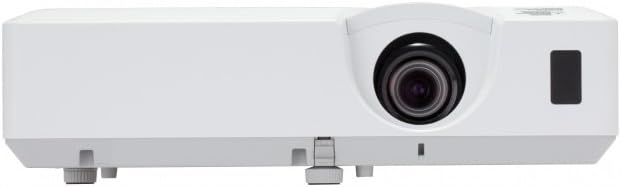
Figure 4.2: Front view of the Hitachi CP-EX251N Projector, highlighting the projection lens and front IR receiver.
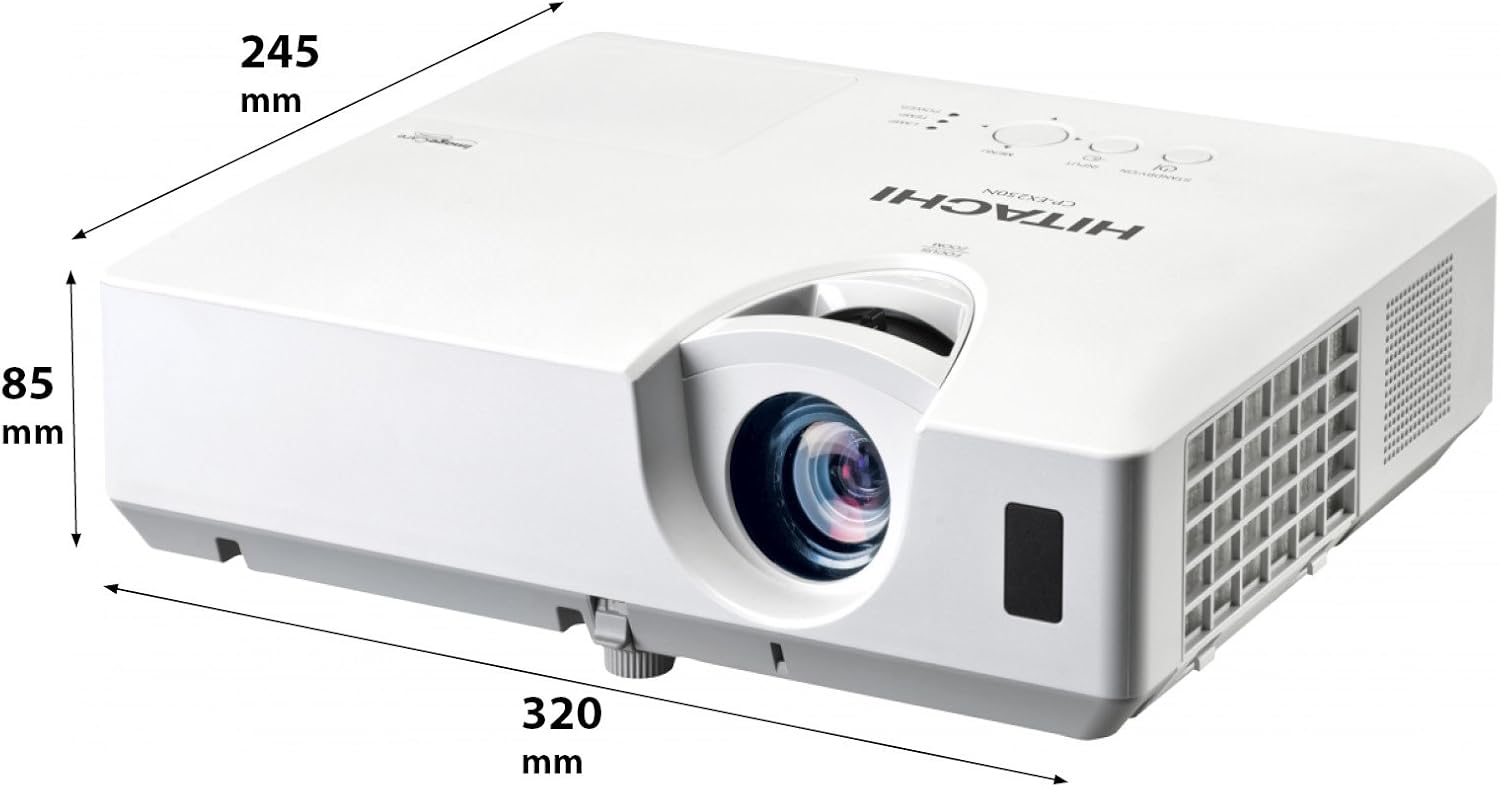
Figure 4.3: Angled view of the projector illustrating its approximate dimensions (320mm length, 245mm width, 85mm height).
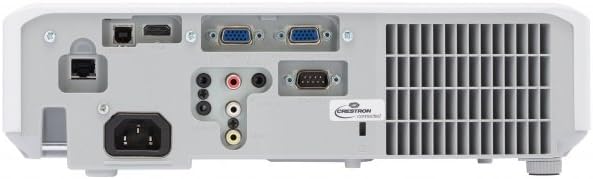
Figure 4.4: Rear panel of the projector, showing various input and output ports including HDMI, VGA, Composite, RS232C, and RJ45.
5. Setup
5.1 Placement
Position the projector on a stable, flat surface or mount it securely. Ensure the projector is at an appropriate distance from the screen to achieve the desired image size. Maintain clear space around the projector for ventilation.
5.2 Connecting Power
- Connect the power cord to the projector's AC inlet.
- Plug the other end of the power cord into a grounded electrical outlet.
5.3 Connecting Input Sources
The CP-EX251N offers multiple connectivity options:
- HDMI: Connect an HDMI cable from your source device (e.g., laptop, Blu-ray player) to the projector's HDMI port.
- VGA: Connect a VGA cable from your computer to one of the projector's VGA ports (VGA1 or VGA2).
- Composite Video: Use an RCA composite video cable to connect devices like DVD players to the composite video input.
- Audio: Connect audio cables to the corresponding audio input jacks if using analog video sources.
- Control: For remote control and monitoring, connect an RS232C serial cable or an RJ45 Ethernet cable to a control system.
5.4 Initial Power On and Image Adjustment
- Press the Power button on the projector or remote control. The power indicator will light up.
- Adjust the Focus Ring on the lens until the image is sharp.
- Adjust the Zoom Ring on the lens to achieve the desired image size.
- If the image appears trapezoidal, use the Keystone Correction function (usually found in the projector menu or via dedicated buttons on the remote) to square the image.
6. Operating
6.1 Power On/Off
- To Power On: Press the Power button once.
- To Power Off: Press the Power button twice. The projector will enter a cooling cycle before shutting down completely. Do not unplug the projector during the cooling cycle.
6.2 Input Selection
Press the 'Input' or 'Source' button on the remote control or projector control panel to cycle through available input sources (HDMI, VGA1, VGA2, Composite).
6.3 Menu Navigation
Use the 'Menu' button to access the on-screen display (OSD) menu. Navigate using the arrow buttons and confirm selections with the 'Enter' button. The menu allows adjustment of picture settings, audio, display options, and system settings.
6.4 Picture Adjustments
Within the OSD menu, you can adjust:
- Brightness: Adjust the overall lightness or darkness of the image.
- Contrast: Adjust the difference between the light and dark areas of the image.
- Color Mode: Select from various preset modes (e.g., Standard, Dynamic, Cinema, sRGB) or customize settings.
- Aspect Ratio: Change the display ratio (e.g., 4:3, 16:9).
6.5 Eco Mode
Activate Eco Mode to reduce lamp brightness, conserve energy, and extend lamp life up to 10,000 hours. This setting can be found in the projector's OSD menu.
7. Maintenance
7.1 Cleaning the Lens
Gently wipe the projector lens with a soft, lint-free cloth specifically designed for optical surfaces. Do not use abrasive cleaners or excessive force.
7.2 Cleaning the Air Filter
Regularly clean the air filter to maintain optimal performance and prevent overheating. Refer to the projector's OSD menu for filter usage time. Remove the filter cover and gently clean the filter with a soft brush or vacuum cleaner. Replace the filter if it is damaged or excessively dirty.
7.3 Lamp Replacement
The projector lamp has a long lifespan, but will eventually require replacement. When the lamp indicator lights up or the image becomes dim, replace the lamp. Always use a genuine Hitachi replacement lamp. Allow the projector to cool completely before attempting lamp replacement. Consult the full service manual for detailed lamp replacement instructions.
7.4 Storage
When storing the projector for an extended period, ensure it is powered off and cooled down. Store it in a cool, dry place, away from direct sunlight and extreme temperatures.
8. Troubleshooting
| Problem | Possible Cause | Solution |
|---|---|---|
| No power | Power cord disconnected; Power outlet faulty; Projector in standby mode. | Check power cord connection; Try a different outlet; Press the Power button. |
| No image displayed | Input source not selected; Cable not connected properly; Source device not outputting signal. | Select correct input source; Reconnect video cable; Check source device settings. |
| Image distorted or blurry | Focus/Zoom not adjusted; Keystone not corrected; Projector not perpendicular to screen. | Adjust Focus and Zoom rings; Use Keystone correction; Reposition projector. |
| No sound | Audio cable not connected; Volume too low; Mute function active. | Connect audio cable (if applicable); Increase volume; Deactivate mute. |
| Remote control not working | Batteries depleted; Obstruction between remote and projector; Remote sensor blocked. | Replace batteries; Remove obstructions; Ensure clear line of sight to IR sensor. |
9. Specifications
| Feature | Specification |
|---|---|
| Model Number | CP-EX251N |
| Display Technology | 3LCD |
| Brightness | 2700 Lumens |
| Native Resolution | XGA (1024 x 768) |
| Lamp Life | Up to 10,000 hours (in Eco Mode) |
| Connectivity | HDMI x 1, VGA x 2, Component (Shared) x 2, Composite x 1, RS232C, RJ45 |
| Audio Output | 16W Speaker |
| Item Weight | 6.83 pounds (approx. 3.1 kg) |
| Product Dimensions | 6 x 12 x 14 inches (approx. 15.2 x 30.5 x 35.6 cm) |
| Recommended Uses | Business, Education, Gaming, Home Cinema |
| Special Feature | Portable |
10. Warranty and Support
For warranty information, please refer to the warranty card included with your product or visit the official Hitachi website. For technical support, service, or inquiries about replacement parts, please contact Hitachi customer service through their official channels.
Online Support: www.hitachi.com/support (Example link, please refer to actual product documentation for correct URL)


