
1. Introduction
The SIIG CE-H22C12-S1 is a 4Kx2K HDMI 4-Port Splitter designed to distribute a single HDMI source signal to four separate HDMI displays simultaneously. This device supports high-resolution video up to 4Kx2K and 3D content, making it suitable for various home theater, educational, or commercial applications. It ensures that all connected displays receive the same audio and video signal from the source.
Key Features:
- Distributes one HDMI source signal to four HDMI displays.
- Supports 4Kx2K resolution.
- Supports 3D video formats.
- Multiple audio output modes.
2. Package Contents
- SIIG CE-H22C12-S1 4Kx2K HDMI 4-Port Splitter
- Power Adapter (DC/5V)
- User Manual
3. Product Layout
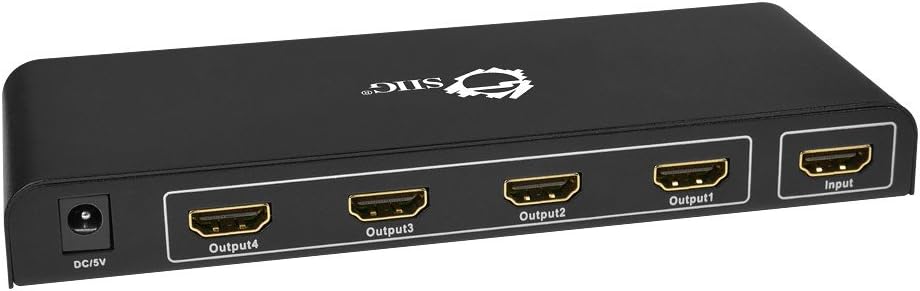
Figure 1: Front Panel - DC/5V Power Input, HDMI Output Ports (1-4), HDMI Input Port.

Figure 2: Rear Panel - Output LEDs (1-4), Input LED, On/Off Switch, Power LED.
4. Setup and Installation
Follow these steps to connect your SIIG HDMI Splitter:
- Power Off Devices: Ensure all HDMI source devices (e.g., Blu-ray player, game console) and display devices (e.g., TV, monitor) are powered off before making connections.
- Connect HDMI Source: Connect an HDMI cable from your source device to the HDMI Input port on the SIIG splitter (refer to Figure 1).
- Connect HDMI Displays: Connect HDMI cables from the HDMI Output 1, 2, 3, and 4 ports on the splitter to your respective display devices (refer to Figure 1).
- Connect Power: Plug the included DC/5V power adapter into the DC/5V port on the splitter and then into a standard electrical outlet.
- Power On: Turn on the splitter using the On/Off switch on the rear panel (refer to Figure 2). The Power LED will illuminate.
- Power On Devices: Power on your HDMI display devices, then power on your HDMI source device.

Figure 3: Typical Connection Diagram.
Important Note:
For optimal performance and compatibility, it is recommended that all connected display devices have similar resolutions and capabilities. Using displays with significantly different resolutions may result in signal issues or reduced quality on some outputs.
5. Operating Instructions
Once all connections are made and devices are powered on, the SIIG HDMI Splitter will automatically detect the input signal and distribute it to all connected displays. No additional configuration is typically required.
- Power LED: Indicates the splitter is powered on.
- Input LED: Illuminates when an active HDMI signal is detected at the input port.
- Output LEDs (1-4): Illuminate when an active HDMI signal is being sent to the corresponding output display.
Ensure that your source device is playing content and your displays are set to the correct HDMI input channel.
6. Maintenance
To ensure the longevity and proper functioning of your SIIG HDMI Splitter:
- Cleaning: Use a soft, dry cloth to clean the device. Do not use liquid cleaners or aerosols.
- Ventilation: Ensure the device is placed in a well-ventilated area to prevent overheating. Do not block any ventilation openings.
- Environment: Keep the device away from excessive heat, moisture, dust, and direct sunlight.
- Handling: Avoid dropping or subjecting the device to strong impacts.
7. Troubleshooting
If you encounter issues with your SIIG HDMI Splitter, refer to the following common solutions:
- No Picture/Signal on Displays:
- Verify all HDMI cables are securely connected to both the splitter and the source/display devices.
- Ensure the splitter is powered on and the Power LED is illuminated.
- Check if the Input LED on the splitter is illuminated, indicating a signal from the source.
- Confirm that your display devices are set to the correct HDMI input channel.
- Try using different HDMI cables, as faulty cables can cause signal loss.
- Test the HDMI source device directly with one display to ensure it is functioning correctly.
- Flickering Picture or Intermittent Signal:
- Check all cable connections for looseness.
- Ensure the power adapter is firmly connected to the splitter.
- If using multiple displays with varying resolutions, try connecting displays with similar resolutions.
- Reduce the length of HDMI cables if they are excessively long.
- No Audio:
- Verify audio settings on your source device and display devices.
- Ensure HDMI cables support audio transmission.
- Input Connector Issues:
- If the input connector feels loose or requires wiggling to maintain a signal, try a different HDMI cable to rule out cable issues.
- If the problem persists, the input port may be damaged. Contact SIIG support for assistance.
8. Specifications
| Feature | Description |
|---|---|
| Model Number | CE-H22C12-S1 |
| Brand | SIIG |
| Connector Type | HDMI |
| Number of Ports | 1 Input, 4 Outputs |
| Supported Resolution | Up to 4Kx2K |
| 3D Support | Yes |
| Audio Output Mode | Multiple Audio Output Modes |
| Compatible Devices | Monitor, Projector, Television |
| Color | Black |
| Item Weight | 258.5 g (0.57 lbs) |
| Item Package Dimensions | 7.99L x 5.8999W x 2.29H inches |
| UPC | 662774021928 |
9. Warranty and Support
For warranty information and technical support, please refer to the documentation provided with your purchase or visit the official SIIG website. Keep your proof of purchase for warranty claims.
SIIG Contact Information:
- Refer to the SIIG website for the most current support contact details.
- For product returns or exchanges, please contact your retailer.


