
1. Introduction
The SainSmart MetaPhix M2 Graphing Calculator is a versatile tool designed for students, educators, and professionals in various fields including mathematics, science, and engineering. It supports a wide range of calculations from basic arithmetic to advanced graphing functions, making it suitable for courses such as Pre-Algebra, Algebra I & II, Geometry, Trigonometry, Calculus, AP Calculus, AP Statistics, Biology, Chemistry, Physics, Finance, and Business.
This manual provides detailed instructions for setting up, operating, and maintaining your MetaPhix M2 calculator, ensuring you can utilize its full potential. The calculator features a solid cover to protect its keys and screen during transport and storage.

Figure 1: SainSmart MetaPhix M2 Graphing Calculator
2. Setup
2.1. Battery Installation
The MetaPhix M2 calculator requires batteries for operation (not included). To install or replace batteries:
- Turn the calculator off.
- Locate the battery compartment cover on the back of the calculator.
- Slide the cover off.
- Insert new batteries, ensuring correct polarity (+/-) as indicated inside the compartment.
- Replace the battery compartment cover.

Figure 2: Back of the calculator with battery compartment
2.2. Power On/Off
- To turn on the calculator, press the ON button.
- To turn off the calculator, press SHIFT then OFF (usually located above the ON button).
- The calculator features an auto power-off function to conserve battery life after a period of inactivity.
3. Operating Instructions
3.1. Keypad Layout
The MetaPhix M2 keypad is organized into several functional areas:
- Display Screen: Shows input, results, and graphs. Features a 64 x 32 pixel resolution LCD for incredible readability.
- Function Keys: Keys like SHIFT, ALPHA, and MODE to access secondary functions and change calculator modes.
- Navigation Pad: Arrow keys for moving the cursor on the display.
- Numeric Keypad: Standard digits 0-9 and decimal point.
- Arithmetic Operators: Addition, subtraction, multiplication, division.
- Scientific Functions: Trigonometric (sin, cos, tan), logarithmic (log, ln), exponential, power functions.
- Graphing Keys: Dedicated keys for drawing graphs and adjusting settings.
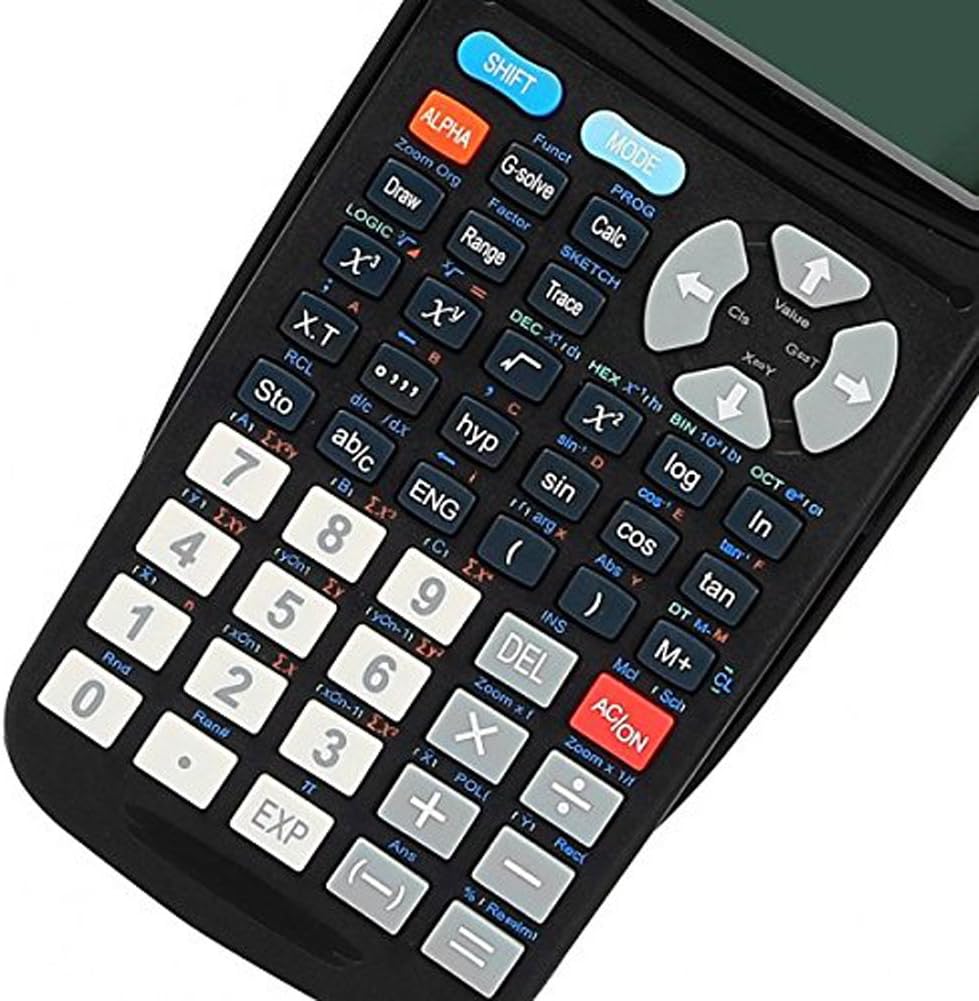
Figure 3: Detailed view of the calculator keypad
3.2. Basic Calculations
To perform basic arithmetic:
- Enter the first number.
- Press the desired operator (+, -, ×, ÷).
- Enter the second number.
- Press = to display the result.
3.3. Understanding Display Indicators
The calculator's display shows various indicators to inform you about its current state or active functions:
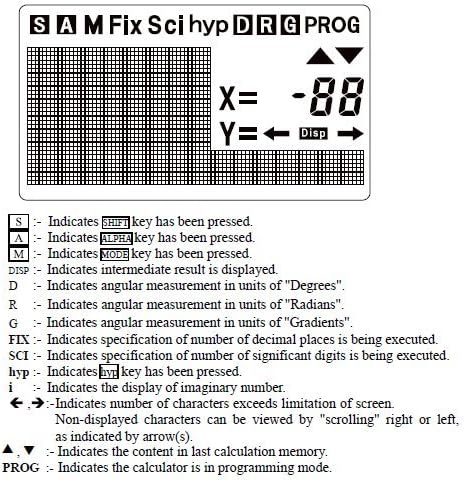
Figure 4: Display Indicators
- S: Indicates the SHIFT key has been pressed.
- A: Indicates the ALPHA key has been pressed.
- M: Indicates MODE key has been pressed.
- Disp: Indicates an intermediate result is displayed.
- D: Indicates angular measurement in units of "Degrees".
- R: Indicates angular measurement in units of "Radians".
- G: Indicates angular measurement in units of "Gradients".
- FIX: Indicates specification of number of decimal places is being executed.
- SCI: Indicates specification of number of significant digits is being executed.
- hyp: Indicates the hyp key has been pressed.
- i: Indicates the display of an imaginary number.
- ←, →: Indicates number of characters exceeds screen limitation; content can be viewed by scrolling.
- ▲, ▼: Indicates the content in the last calculation memory.
- PROG: Indicates the calculator is in programming mode.
3.4. Graphing Functions
The MetaPhix M2 can generate various graphs. Ensure the calculator is in the appropriate mode (e.g., COMP mode for general calculations before graphing). The calculator features a great graphical user interface (GUI) for parametric graphing.
Example 1: Plotting a Sine Curve and y = 1/x Graph
To sketch a sine curve or a y = 1/x graph:
- Ensure the calculator is in COMP mode.
- Press [SHIFT] then [FUNC] to open the function menu.
- Select the desired function slot (e.g., "Y1").
- For a sine curve, enter "sin" (e.g., by pressing the sin key).
- For y = 1/x, enter "x-1" (e.g., by pressing [SHIFT] then [x-1]).
- Press [DRAW] to sketch the graph.
Note: The variable "x" is often implied for built-in graph functions or when using specific function keys.
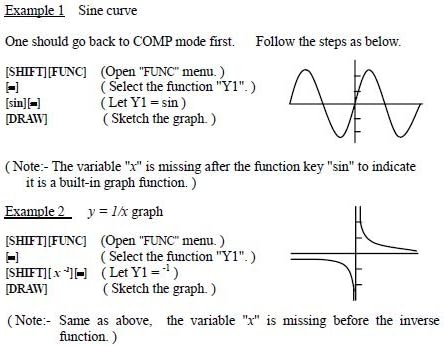
Figure 5: Sine curve and y=1/x graph examples
4. Advanced Functions
The MetaPhix M2 calculator offers a comprehensive suite of advanced functions, supporting a deeper understanding of mathematics:
- Generation of Parametric Graphs
- Complex, Continuous & Statistical Calculation
- Regression & Integration Capability
- Logarithmic & Exponential Functions
- Answer Storage
- Scientific Calculation
- Formula Storage in Memory
- Multistatement Input
- Zooming Functions for Graphs
- Replay & Trace Functions for Graphs
- Factor & Expand Algebraic Logic & Trigonometric Expressions
- Basic arithmetic operations using binary, octal, decimal, and hexadecimal values.
5. Maintenance
- Cleaning: Use a soft, dry cloth to clean the calculator's exterior. Do not use abrasive cleaners or solvents.
- Storage: Store the calculator in a cool, dry place away from direct sunlight and extreme temperatures. Always use the protective cover when not in use.
- Battery Replacement: Replace batteries promptly when the low battery indicator appears or when the display becomes dim. Remove batteries if the calculator will not be used for an extended period to prevent leakage.
6. Troubleshooting
- Calculator does not turn on:
- Ensure batteries are correctly installed with proper polarity.
- Replace old or depleted batteries with new ones.
- Display is dim or blank:
- Batteries may be low; replace them.
- Adjust display contrast if available (refer to specific key combinations in the full manual).
- Incorrect calculation results:
- Check the current mode (e.g., Degree/Radian for trigonometric functions).
- Verify input values and formula syntax.
- Clear memory or reset the calculator if necessary (consult the full manual for reset procedures).
- Graphing issues:
- Ensure the calculator is in graphing mode.
- Check the function input for errors.
- Adjust the viewing window settings (Xmin, Xmax, Ymin, Ymax) to ensure the graph is within visible range.
For more detailed troubleshooting or persistent issues, please refer to the comprehensive manual available online or contact SainSmart customer support.
7. Specifications
- Brand: SainSmart
- Model: MetaPhix M2
- Calculator Type: Business, Engineering/Scientific, Graphing
- Power Source: Battery Powered
- Display Type: LCD (64 x 32 pixel resolution)
- Memory: Built-in memory for storage and analysis
- UPC: 811820022215
8. Warranty and Support
The SainSmart MetaPhix M2 Graphing Calculator comes with a 1-year warranty from the date of purchase. This warranty covers manufacturing defects and ensures technical support from SainSmart.
For technical assistance, warranty claims, or further inquiries, please contact SainSmart customer support through their official website or the contact information provided with your product packaging.
A detailed instruction manual is also available for download from the manufacturer's website for in-depth guidance on all functions and features.