
Introduction
This manual provides instructions for the DOSS DS-1668 Cloud Fox A1 WiFi Wireless Music Speaker. It covers setup, operation, maintenance, and troubleshooting to ensure optimal performance and longevity of your device. The Cloud Fox A1 offers flexible Wi-Fi audio streaming, allowing access to online music services and local content from compatible devices. Its simple setup process connects to your home Wi-Fi network, enabling multi-room audio expansion.
Package Contents
Please check the package for the following items:
- DOSS Cloud Fox A1 WiFi Speaker
- Charging Stand
- 9V 2A AC Adapter
- 3.5mm Auxiliary Cable
- Waterproof Bag
- Instruction Manual
Product Overview
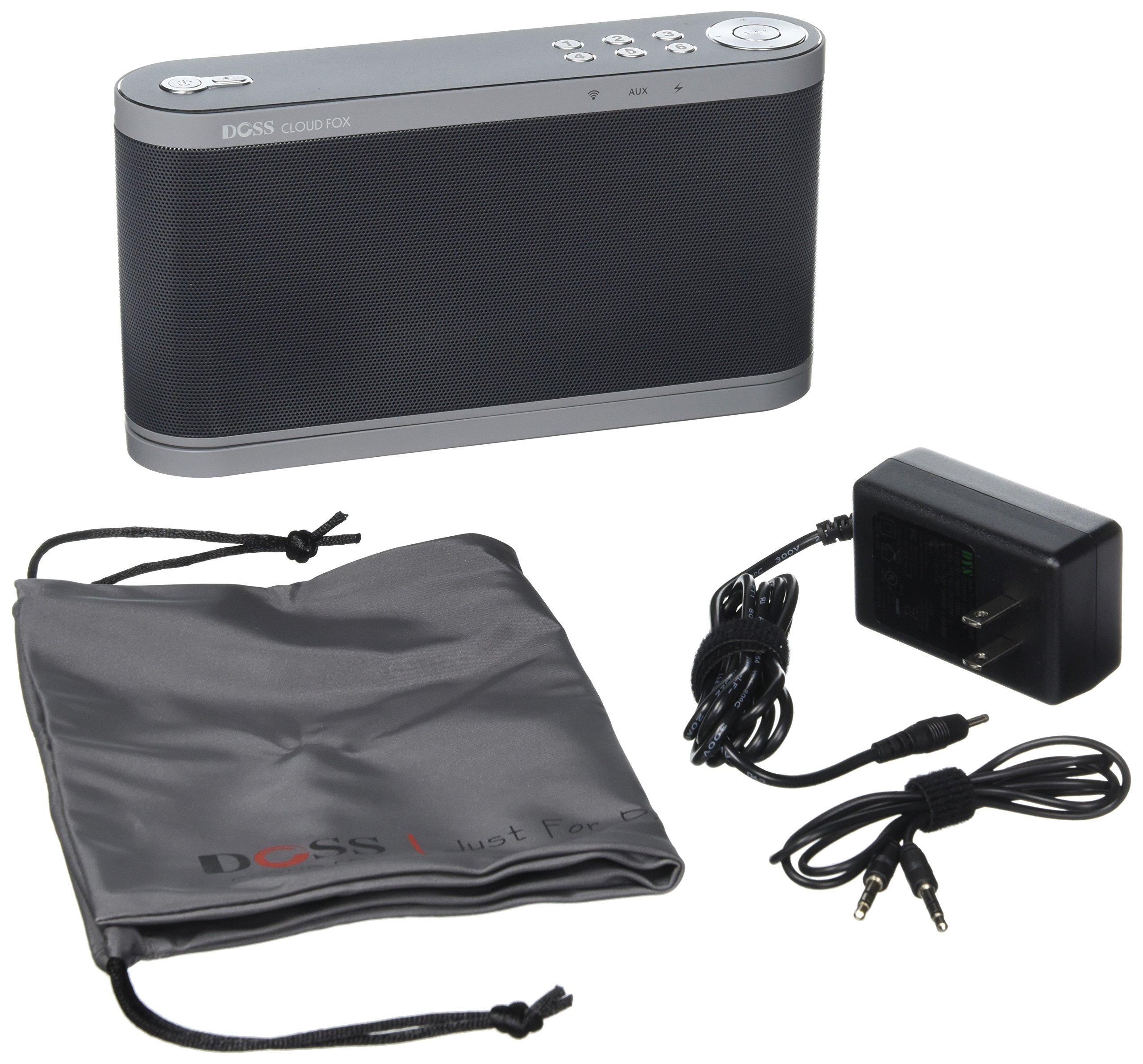

The DOSS Cloud Fox A1 features a sleek design with intuitive controls located on the top panel. These controls allow for power management, volume adjustment, and quick access to your favorite music presets. The rear panel includes essential connectivity ports such as the AUX IN for wired audio sources and the DC IN for power. The speaker is designed for both aesthetic appeal and functional ease of use in any home environment.
Setup
- Charge the Speaker: Connect the provided 9V 2A AC adapter to the DC IN port on the speaker and plug it into a power outlet. Allow the speaker to fully charge before first use. The rechargeable battery provides up to 16 hours of playback at 50% volume.
- Download the DOSS App: Search for the 'DOSS' application on your smartphone or tablet's app store (iOS or Android) and install it. This app is essential for Wi-Fi setup and advanced controls.
- Power On: Press and hold the power button on the speaker until the indicator light illuminates.
- Connect to Wi-Fi:
- Using the DOSS App: Open the DOSS app on your device. Follow the on-screen instructions to connect the speaker to your home 2.4 GHz Wi-Fi network. The app will guide you through the process.
- Using WPS (Wi-Fi Protected Setup): If your router supports WPS, press the WPS button on your router, then press the WPS button on the speaker (if available, refer to Figure 1 for button layout). The speaker should automatically connect to your Wi-Fi network within a minute.
- Initial Configuration: Once connected to Wi-Fi, the DOSS app will allow you to name your speaker and configure initial settings.
Operating Instructions
- Wi-Fi Audio Streaming: Once connected to your Wi-Fi network, use the DOSS app to access and stream music from various online services such as Pandora, iHeartRadio, and Spotify. You can also stream content from your DLNA-compatible smartphone or tablet, or use AirPlay, Spotify Connect, and QPlay.
- AUX Input: For non-Wi-Fi devices, connect an audio source using the provided 3.5mm auxiliary cable to the AUX IN port on the speaker (refer to Figure 2). The speaker will automatically switch to AUX mode or can be selected via the DOSS app.
- One-Touch Presets: The speaker features six customizable presets. Use the DOSS app to assign your favorite music, radio stations, playlists, artists, albums, or songs to these presets. You can then access your preferred audio content with a single touch on the speaker's control panel.
- Multi-Room Music System: Expand your wireless music system by adding more DOSS Cloud Fox A1 speakers to different rooms in your home. Use the DOSS app to manage and synchronize music across multiple speakers for a true multi-room audio experience.
- Volume Control: Adjust the volume using the dedicated volume buttons on the speaker's top panel or through the DOSS application on your smart device.
Maintenance
- Cleaning: Use a soft, dry cloth to clean the speaker's exterior. Do not use abrasive cleaners or solvents.
- Software Updates: The DOSS Cloud Fox A1 system is designed to improve over time with new features and music services. The DOSS app will automatically notify you when software updates are available. Follow the in-app instructions to update your system.
- Storage: When not in use for extended periods, store the speaker in a cool, dry place.
- Water Resistance: While a waterproof bag is included, the speaker itself is not specified as waterproof. Avoid exposing the speaker directly to water or excessive moisture.
Troubleshooting
If you encounter issues with your DOSS Cloud Fox A1 speaker, please refer to the following common solutions:
- No Power:
- Ensure the AC adapter is securely connected to the speaker and a working power outlet.
- Check if the battery is charged. If not, charge the speaker for at least 30 minutes.
- No Sound:
- Increase the volume on both the speaker and your connected device/app.
- Ensure the correct input source (Wi-Fi or AUX) is selected via the DOSS app.
- If using AUX, check the cable connection and try a different cable.
- Wi-Fi Connection Issues:
- Ensure your Wi-Fi router is powered on and functioning correctly.
- Verify that you are connecting to a 2.4 GHz Wi-Fi network, as the speaker may not support 5 GHz networks.
- Restart your router, smartphone/tablet, and the speaker.
- Try re-establishing the Wi-Fi connection through the DOSS app.
- DOSS App Not Connecting:
- Ensure your smartphone/tablet is connected to the same Wi-Fi network as the speaker.
- Close and reopen the DOSS app.
- Check for app updates in your device's app store.
Specifications
| Brand | DOSS |
| Model Number | DS-1668 Cloud Fox A1 (FBA_DS) |
| Max Speaker Output Power | 16 Watts |
| Connectivity Technology | AirPlay, Auxiliary, DLNA, Wi-Fi |
| Mounting Type | Table Mount |
| Special Feature | Wireless |
| Product Weight | 2.5 Pounds |
| Power Source | Battery |
| Controller Type | App Control |
| Number of Batteries | 1 Lithium Ion (required) |
| Manufacturer | Mikki Kmaxx |
| ASIN | B00YA0VPBE |
Warranty and Support
The DOSS DS-1668 Cloud Fox A1 speaker comes with a 12-month warranty from the date of purchase. Additionally, DOSS provides free lifetime technical support for this product.
For warranty claims, technical assistance, or any questions regarding your speaker, please contact DOSS customer support through their official website or the contact information provided in your purchase documentation. Please have your product model number and purchase details ready when contacting support.