
RTX 8660
RTX 8660 IP DECT Base Station User Manual
Model: 8660
Introduction
The RTX 8660 IP DECT Base Station is a high-performance, scalable solution designed for professional communication environments. It provides robust DECT connectivity for multiple handsets, integrating seamlessly with IP-based telephony systems. This manual provides essential information for the proper setup, operation, and maintenance of your RTX 8660 base station.
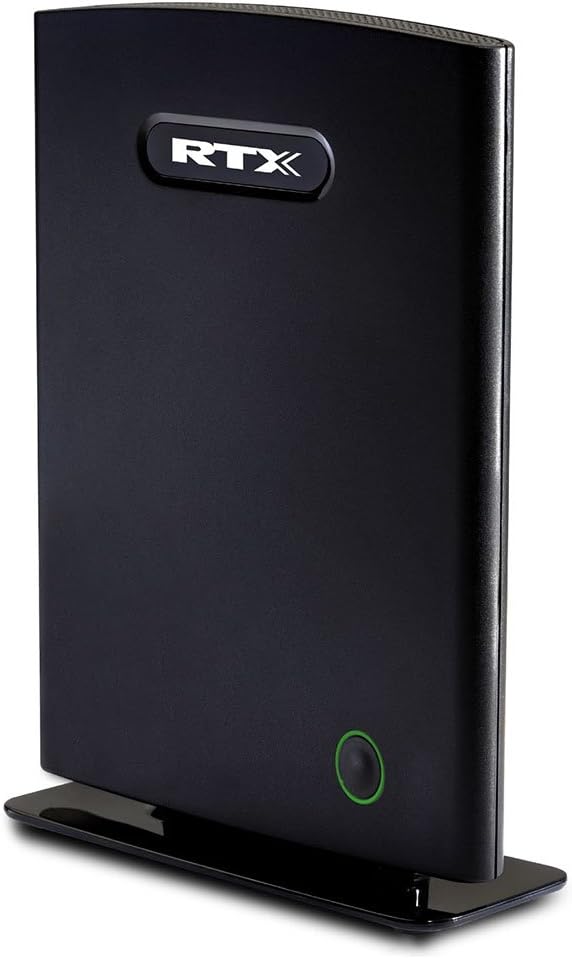
Figure 1: RTX 8660 IP DECT Base Station. This image displays the sleek, black rectangular unit standing upright on its base, featuring the RTX logo prominently at the top and a subtle green-ringed button towards the bottom, indicating its modern design and user-friendly interface.
Setup
Follow these steps to set up your RTX 8660 IP DECT Base Station:
- Unpack the Device: Carefully remove the base station and all accessories from the packaging. Verify that all components are present: RTX 8660 base station, power adapter, and Ethernet cable.
- Choose a Location: Select a central location for the base station to ensure optimal DECT signal coverage. Avoid placing it near large metal objects, microwave ovens, or other electronic devices that may cause interference.
- Connect to Network: Connect one end of the Ethernet cable to the LAN port on the back of the RTX 8660 base station and the other end to an available port on your network router or switch.
- Connect Power: Plug the power adapter into the DC IN port on the base station, then plug the adapter into a standard electrical outlet. The base station will power on automatically.
- Initial Boot-up: Allow a few minutes for the base station to boot up and connect to your network. The status indicator light on the front of the unit will change to indicate readiness (refer to the Operating section for LED status meanings).
- Configuration (Optional): For advanced network settings or integration with a specific VoIP system, access the base station's web interface using its assigned IP address. Refer to your network administrator or the RTX support website for detailed configuration guides.
Operating the Base Station
Understanding the indicators and basic functions of your RTX 8660.
LED Status Indicators
| Indicator | Status | Description |
|---|---|---|
| Power/Status LED (Green Ring) | Solid Green | Base station is powered on and operating normally. |
| Power/Status LED (Green Ring) | Flashing Green | Indicates activity, such as firmware update in progress or DECT registration mode. |
| Power/Status LED (Green Ring) | Off | Base station is powered off or experiencing a power issue. |
Handset Registration
To register a DECT handset to the RTX 8660 base station:
- On the RTX 8660 base station, press and hold the green circular button on the front for approximately 3 seconds until the LED starts flashing. This puts the base station into registration mode.
- On your DECT handset, initiate the registration process. This usually involves navigating to a "Register Handset" or "Add Handset" option in the handset's menu. You may be prompted to enter a PIN (default is typically 0000 or 1234).
- Once the handset successfully registers, the LED on the base station will return to solid green.
Refer to your specific DECT handset's user manual for detailed registration instructions.
Maintenance
Proper maintenance ensures the longevity and optimal performance of your RTX 8660 IP DECT Base Station.
- Cleaning: Use a soft, dry cloth to clean the exterior of the base station. Do not use liquid cleaners, aerosols, or abrasive chemicals, as these can damage the device.
- Firmware Updates: Periodically check the RTX support website for firmware updates. Keeping the firmware up-to-date ensures you have the latest features, security patches, and performance improvements. Firmware updates are typically performed via the base station's web interface.
- Environmental Conditions: Ensure the base station is operated within its specified temperature and humidity ranges. Avoid exposing it to direct sunlight, excessive heat, or moisture.
Troubleshooting
This section addresses common issues you might encounter with your RTX 8660 base station.
- No Power:
Symptom: The Power/Status LED is off.
Solution: Ensure the power adapter is securely connected to the base station and the electrical outlet. Try a different outlet to rule out power supply issues. Verify the power adapter is the correct one supplied with the device.
- No Network Connection:
Symptom: Base station LED is solid green, but handsets cannot make/receive calls, or the web interface is inaccessible.
Solution: Check the Ethernet cable connection to both the base station and the router/switch. Ensure your network router is functioning correctly. Restart the base station by unplugging and re-plugging the power adapter. Verify network settings if configured manually.
- Handset Cannot Register:
Symptom: Handset displays "Searching for Base" or "No Base".
Solution: Ensure the base station is in registration mode (LED flashing). Check that the handset is within range of the base station. Verify the correct registration PIN is being used. If multiple base stations are present, ensure you are attempting to register to the correct one. Try resetting both the handset and the base station.
- Poor Call Quality/Range:
Symptom: Calls are choppy, distorted, or drop frequently.
Solution: Relocate the base station to a more central position, away from potential sources of interference (e.g., Wi-Fi routers, microwave ovens, large metal objects). Ensure the base station is not obstructed. If using multiple base stations, ensure proper cell planning to avoid interference between them.
Specifications
| Feature | Detail |
|---|---|
| Model Number | 8660 |
| Brand | RTX |
| Item Weight | 1 pounds |
| Package Dimensions | 8.5 x 6 x 2.5 inches |
| ASIN | B00X6FO0NO |
| Date First Available | February 7, 2022 |
Warranty and Support
For detailed warranty information, technical support, or to download the latest firmware and documentation, please visit the official RTX website or contact your authorized reseller. Keep your purchase receipt as proof of purchase for warranty claims.
Online Resources: www.rtx.dk (Note: This is a placeholder URL, please refer to the actual manufacturer's website for support.)
Related documents8660


Ask a question about this manual
Ask about setup, troubleshooting, compatibility, parts, safety, or missing instructions. Manuals+ will review the question and use this page’s manual context to help answer it.