
1. Introduction
The Comtrend PG-9172 G.hn Powerline Adapter is designed to extend network connectivity using your existing electrical wiring. This device enables the creation of a high-speed wired network in various locations within a home or business, eliminating the need for new Ethernet cable installations. Utilizing G.hn technology, the adapter aims to minimize interference and enhance network performance for activities such as streaming, gaming, and video calls.

A front view of the Comtrend PG-9172 G.hn Powerline Ethernet Bridge Adapter, a compact device designed to extend network connectivity using electrical outlets.
2. Product Features
- Wired Network Extension: Transforms electrical outlets into high-speed wired network access points, providing stable internet connectivity without additional cabling.
- G.hn Technology: Incorporates G.hn technology to reduce network interference and optimize performance for data-intensive applications.
- Simple Setup: Requires a minimum of two adapters for operation. Setup involves plugging the devices into electrical outlets, with no complex configuration or rewiring needed for basic functionality.
- Network Scalability: Supports expansion of the G.hn Powerline Network to connect up to 16 devices.
- Reliable Connectivity: Offers a stable wired connection in areas where Wi-Fi signals may be weak or inconsistent.
3. Package Contents
The Comtrend PG-9172 package typically includes the following items:
- Comtrend PG-9172 G.hn Powerline Adapter Device
- Quick Installation Guide (QIG)
- Ethernet Cable
4. Hardware Overview
The Comtrend PG-9172 adapter features an Ethernet port for connecting network devices and a 'Config' button for pairing and resetting. Status indicator lights provide information on the device's operational status.
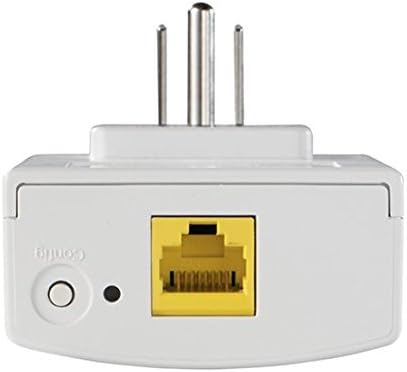
This image displays the underside of the Comtrend PG-9172 adapter, highlighting the Ethernet port for network cable connection and the 'Config' button used for pairing and resetting the device.
5. Installation and Setup
To establish a G.hn Powerline network, a minimum of two Comtrend PG-9172 adapters is required. Follow these steps for basic setup:
- Plug in the First Adapter: Connect one PG-9172 adapter to an electrical outlet near your internet router. Use an Ethernet cable to connect the adapter's Ethernet port to an available LAN port on your router.
- Plug in the Second Adapter: Connect the second PG-9172 adapter to an electrical outlet in the room where you need network access.
- Connect Your Device: Use an Ethernet cable to connect the second adapter's Ethernet port to your network-enabled device (e.g., computer, gaming console, smart TV).
- Pairing (if necessary): If the adapters do not automatically connect, press the 'Config' button on the first adapter for approximately 3 seconds, then within two minutes, press the 'Config' button on the second adapter for approximately 3 seconds. The adapters should then pair and establish a secure connection.
Ensure both adapters are plugged directly into wall outlets and not into power strips or surge protectors, as these can interfere with powerline signal transmission.

This diagram demonstrates how two Comtrend G.hn Powerline Adapters connect devices in different rooms using existing electrical wiring.
6. Operating Instructions
Once installed and paired, the Comtrend PG-9172 adapters operate automatically to provide network connectivity. The adapters create a transparent Ethernet bridge over your home's electrical wiring.
- Network Access: Any device connected via Ethernet cable to a PG-9172 adapter will gain immediate access to the network provided by your router.
- Network Expansion: You can add up to 16 Comtrend G.hn Powerline devices to your network to extend coverage to more rooms or devices. Each new adapter must be paired with an existing adapter in the network using the 'Config' button.
- Status Indicators: Observe the LED indicators on the adapter to monitor its power, powerline connection, and Ethernet activity status. Refer to the Quick Installation Guide for specific LED behavior.
7. Care and Maintenance
To ensure optimal performance and longevity of your Comtrend PG-9172 Powerline Adapter, consider the following:
- Placement: Plug the adapter directly into a wall electrical outlet. Avoid power strips, surge protectors, or extension cords, as they can degrade performance.
- Ventilation: Ensure the adapter is placed in a location with adequate airflow to prevent overheating. Do not cover the device.
- Cleaning: Use a soft, dry cloth to clean the exterior of the adapter. Do not use liquid cleaners or aerosols.
- Environment: Operate the device within the specified environmental conditions (temperature and humidity) to prevent damage.
8. Troubleshooting
If you encounter issues with your Comtrend PG-9172 Powerline Adapter, refer to the following troubleshooting tips:
- No Connection/Pairing: If adapters fail to connect or pair, perform a factory reset. Press and hold the 'Config' button on the adapter for 10-20 seconds until the LEDs indicate a reset. Then attempt the pairing process again.
- Slow Speed/Interference: Ensure adapters are plugged directly into wall outlets. Avoid outlets on different electrical phases if possible, as this can impact performance. Large appliances or motors on the same circuit can also cause interference.
- Compatibility: The Comtrend PG-9172 uses G.hn technology. It is generally not compatible with powerline adapters based on other standards, such as HomePlug AV/AV2. Ensure all powerline adapters in your network are G.hn compatible.
- Overheating: The adapters may generate heat during operation. Ensure they are in a well-ventilated area and not covered. If overheating persists, discontinue use and contact support.
- Advanced Configuration: For advanced settings or network management, technical knowledge of IP addresses and network configurations may be required. Refer to the official Comtrend website for detailed user manuals or contact technical support for assistance.
9. Specifications
| Brand | COMTREND |
| Model Number | PG9172 |
| Hardware Interface | Ethernet |
| Data Link Protocol | Ethernet, IEEE 802.3 |
| Data Transfer Rate | Up to 1200 Megabits Per Second (Mbps) |
| Ethernet Ports | 1x 10/100/1000 BaseT Ethernet Port (RJ-45) |
| Modulations | OFDM, FEC, Flexible Frequency Configuration |
| Networking Protocols | 802.1D Ethernet Bridge, 802.1Q VLAN, Quality of Service (QoS), IGMP (IPv4) Snooping & MLD (IPv6) Snooping |
| Power Input | 100-240 VAC, 50Hz/60Hz |
| Power Consumption | Auto Power Saving Mode Max 0.5W (in standby mode) |
| Operating Temperature | 32-104°F (0-40°C) |
| Relative Humidity | 8-95% (non-condensing) |
| Dimensions (H x W x D) | 93mm x 59.6mm x 56/35mm (with/without plug) |
| Security | AES 128 Bits Encryption, One Button Security Set-Up, Configuration Button for Factory Reset |
| Certifications | FCC, HomeGrid Forum Certified: MIMO, HomeGrid Forum Certified: SISO |
| Item Weight | 0.02 Pounds |
| UPC | 897384000142 |
10. Warranty Information
The Comtrend PG-9172 G.hn Powerline Ethernet Bridge Adapter is covered by a 2-year manufacturer's warranty. For specific terms and conditions, please refer to the warranty documentation included with your product or visit the official Comtrend website.
11. Technical Support
For further assistance, technical support, or to access additional resources such as updated manuals and firmware, please contact Comtrend directly:
- Website: www.comtrend.com
- Phone: (877) 266-8736
- Address: 14 Chrysler, Irvine CA 92618


