
1. Introduction
This manual provides detailed instructions for the setup, operation, and maintenance of your MIDIPLUS I61 USB MIDI Keyboard Controller. Please read this manual thoroughly to ensure proper use and to maximize the performance and longevity of your device. The MIDIPLUS I61 is designed to be a versatile and reliable tool for music production and performance.
2. Product Overview
Key Features:
- 61 full-size, dynamic (velocity-sensitive) keys for expressive playing.
- Pitch Bend wheel for real-time pitch modulation.
- Modulation wheel for adding vibrato or other effects.
- LED display for clear visual feedback.
- USB-B interface for MIDI data transmission and power supply.
- Two MIDI OUT interfaces for connecting to external MIDI devices.
- Input for an optional Sustain Pedal.
Component Identification:
Familiarize yourself with the various components of your MIDIPLUS I61 controller.

Figure 2.1: Front view of the MIDIPLUS I61 USB MIDI Keyboard Controller, showing the 61 keys, pitch bend and modulation wheels on the left, and the LED display on the right.

Figure 2.2: Angled view of the MIDIPLUS I61, providing a perspective of the full keyboard and control layout.
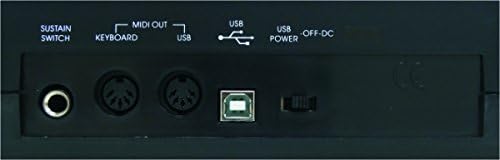
Figure 2.3: Rear panel of the MIDIPLUS I61, illustrating the various connection ports including Sustain Switch, MIDI OUT, USB, and USB Power.
3. Setup
3.1 Connecting to a Computer:
- Ensure your computer is powered on.
- Connect one end of the supplied USB cable to the USB-B port on the rear panel of the I61 controller.
- Connect the other end of the USB cable to an available USB port on your computer.
- The I61 is a class-compliant device, meaning it typically does not require special drivers for Windows or macOS. Your operating system should automatically recognize and install the necessary drivers.
- The device will be powered via the USB connection.
3.2 Connecting a Sustain Pedal (Optional):
- If you wish to use a sustain pedal, connect a standard 1/4-inch TS (Tip/Sleeve) sustain pedal to the 'SUSTAIN SWITCH' input on the rear panel of the I61.
- The polarity of the sustain pedal is usually detected automatically. If the sustain function operates in reverse, try pressing the pedal once during power-up or consult your DAW's MIDI settings.
3.3 Connecting to External MIDI Devices:
- The I61 features two MIDI OUT ports. Use standard 5-pin MIDI cables to connect these ports to the MIDI IN ports of external synthesizers, sound modules, or other MIDI-compatible hardware.
- Ensure that the MIDI channels are correctly configured on both the I61 (if applicable) and your external devices for proper communication.
4. Operating Instructions
4.1 Basic Playback:
- Once connected to a computer with a Digital Audio Workstation (DAW) or a sound module, open your preferred software (e.g., Ableton Live, Avid Pro Tools, FL Studio).
- Select the MIDIPLUS I61 as your MIDI input device within your software's preferences or settings.
- Load a virtual instrument or select a sound on your external MIDI device.
- Pressing the keys on the I61 will now trigger sounds. The velocity-sensitive keys respond to how hard you press them, allowing for dynamic expression.
4.2 Using Pitch Bend and Modulation Wheels:
- The Pitch Bend wheel, located on the left side, allows you to temporarily raise or lower the pitch of notes. It is spring-loaded and returns to the center position when released.
- The Modulation wheel, also on the left, typically controls parameters like vibrato, tremolo, or filter cutoff, depending on the instrument or software you are using. It stays in the position you set it to.
4.3 LED Display and Data Entry:
- The LED display provides visual feedback on various settings and parameters.
- The I61 may feature data entry buttons or a data wheel (not explicitly detailed in product description, refer to device for specific controls) to adjust MIDI channels, transpose, or other functions. Consult your DAW's MIDI mapping features for advanced control.
5. Maintenance
5.1 Cleaning:
- To clean the surface of the controller, use a soft, dry, lint-free cloth.
- For stubborn dirt, slightly dampen the cloth with water. Avoid using abrasive cleaners, solvents, or waxes, as these can damage the finish.
- Do not allow liquids to enter the device.
5.2 Storage:
- Store the controller in a cool, dry place away from direct sunlight and extreme temperatures.
- When not in use, cover the keyboard to protect it from dust and debris.
6. Troubleshooting
Common Issues and Solutions:
- No Sound:
- Ensure the USB cable is securely connected to both the controller and the computer.
- Verify that the I61 is selected as the MIDI input device in your DAW or software.
- Check that a virtual instrument is loaded and active, or that your external MIDI device is powered on and receiving MIDI data.
- Confirm that the audio output of your computer or sound system is functioning correctly.
- Keys Not Responding:
- Disconnect and reconnect the USB cable.
- Restart your computer and DAW software.
- Ensure no other software is conflicting with the MIDI input.
- Sustain Pedal Not Working Correctly:
- Check the pedal connection to the 'SUSTAIN SWITCH' input.
- If the sustain is reversed (always on or off), try unplugging and replugging the pedal while the controller is powered on, or check your DAW's MIDI settings for pedal polarity options.
- MIDI OUT Not Controlling External Devices:
- Verify MIDI cable connections between the I61 and the external device.
- Ensure MIDI channels match between the I61 (if configurable) and the receiving device.
- Check the external device's settings to confirm it is set to receive MIDI data.
7. Specifications
| Model Number | i61 |
| Number of Keys | 61 |
| Key Type | Full-size, Dynamic (Velocity-sensitive) |
| Connectivity Technology | USB |
| Interface | USB-B, 2 x MIDI OUT, Sustain Pedal Input |
| Power Supply | USB Bus-Powered |
| Compatible Devices | Laptops, Computers, certain Tablets and Smartphones |
| Compatible Software | Ableton Live, Avid Pro Tools, FL Studio (and other MIDI-compatible DAWs) |
| Hardware Platform | PC/Mac |
| Material Type | Plastic |
| Color | Black |
| Product Dimensions | 91.01 x 20.9 x 5.99 cm (35.83 x 8.23 x 2.36 inches) |
| Product Weight | 2.91 kg (6.42 lbs) |
8. Warranty and Support
For information regarding warranty coverage, technical support, or service, please refer to the official Midiplus website or contact your authorized dealer. Keep your purchase receipt as proof of purchase for any warranty claims.


